1. Giới thiệu
This manual provides essential instructions for the safe and efficient operation, setup, and maintenance of your Procolored F13 Panda DTF Printer. Please read this manual thoroughly before using the printer to ensure optimal performance and longevity.
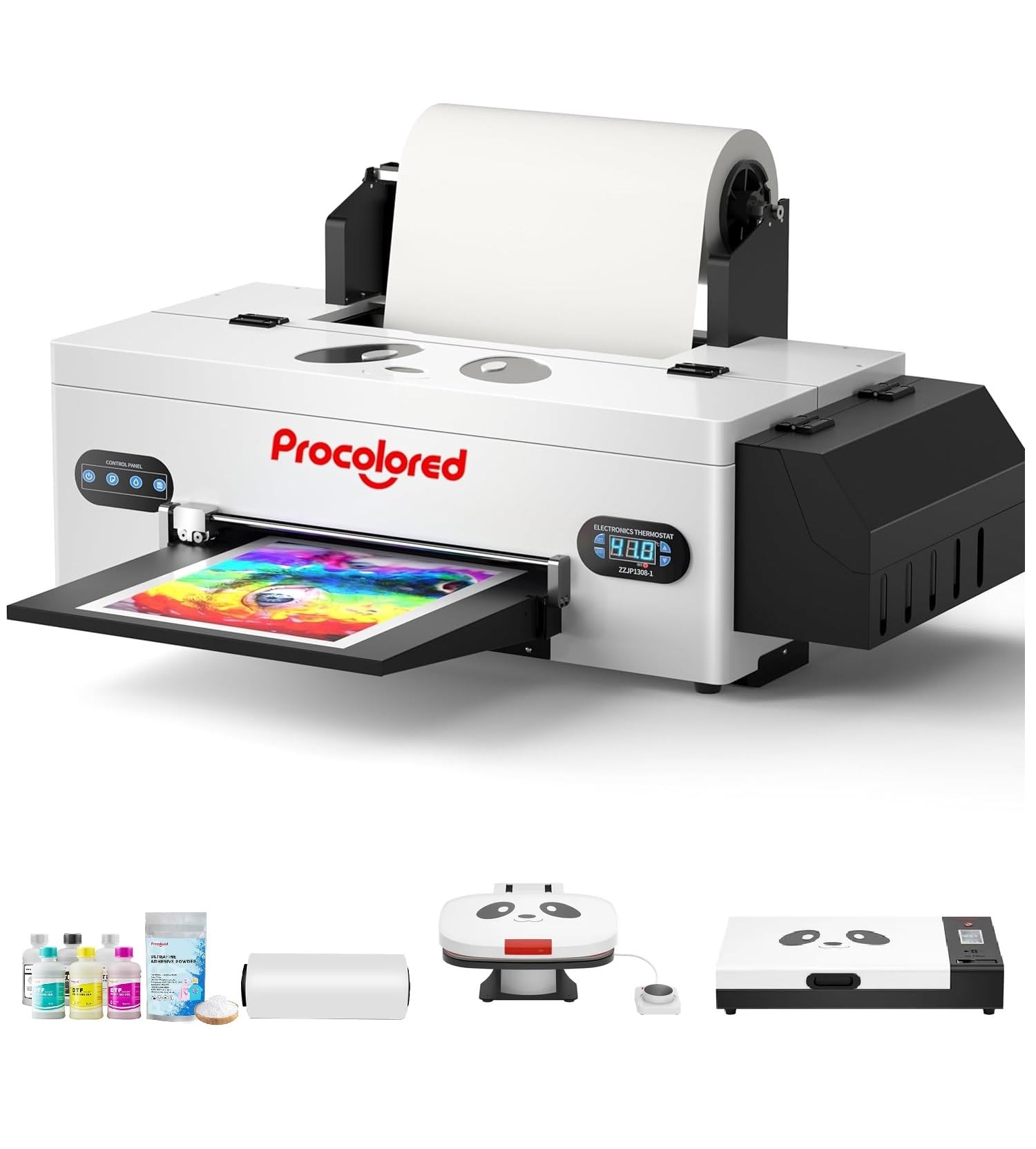
Figure 1: Procolored F13 Panda DTF Printer.
2. Thông tin an toàn
Luôn tuân thủ các biện pháp phòng ngừa an toàn sau đây để tránh thương tích hoặc hư hỏng máy in:
- Đảm bảo máy in được đặt trên bề mặt ổn định và bằng phẳng.
- Connect the printer to a grounded power outlet with the correct voltagđ (điện áp xoay chiều 100-230V).
- Không để máy in tiếp xúc với nước hoặc độ ẩm quá cao.
- Tránh xa tay khỏi các bộ phận chuyển động trong khi vận hành.
- Use only recommended inks and cleaning solutions.
- Để xa tầm tay trẻ em.
3. Nội dung gói hàng
Xác minh rằng tất cả các mục đều có trong gói hàng:
- Procolored F13 DTF Printer
- Roll Film 13"
- DTF Ink Set (CMYK+WW)
- Nozzle Protection Fluid
- DTF Powder
- Hỗ trợ nhựa
- Cáp dữ liệu (USB)
- Cáp nguồn
- Moisturizing Device
- Chai chất thải
- hộp mực
- Spare Ink Tube
- Giá đỡ con lăn
- Tấm lót mực
- Khăn lau
- Lưỡi cắt
- USB Dongle
- Ống tiêm
- Tua vít
- Thanh lăn
- Ống nối dài
- Needle Hub
- Mùa xuân
- Tăm bông

Figure 2: Included accessories for the Procolored F13 DTF Printer.
4. Hướng dẫn cài đặt
4.1 Mở hộp và đặt lần đầu
Carefully remove the printer and all components from the packaging. Place the printer on a sturdy, level surface in a well-ventilated area.
Video 1: Procolored F13 DTF Printer Unboxing. This video demonstrates the unboxing process and initial setup steps for the printer.
4.2 Film Roll Installation
Install the 13-inch DTF film roll onto the designated holder at the rear of the printer. Ensure the film feeds smoothly into the printer mechanism.
4.3 Ink System Setup
Fill the ink tanks with the corresponding DTF pigment inks (Cyan, Magenta, Yellow, Black, White, Light Cyan). Ensure the white ink circulation system is properly connected and functioning to prevent clogging.

Figure 3: Illustration of the advanced white ink system, showing circulation, siphon effect, and automatic cleaning.
4.4 Power Connection and Software Installation
Connect the power cable to the printer and a suitable power outlet. Install the Procolored RIP software (compatible with Windows 7/10/11) on your computer. Follow the on-screen instructions for software installation and driver setup.
Hình 4: Hếtview of the Procolored RIP software interface and available tutorials.
5. Hướng dẫn vận hành
5.1 Chuẩn bị cho việc in ấn
- Power on the printer using the main switch.
- Ensure the DTF film is correctly loaded and aligned.
- Open the Procolored RIP software on your computer.
- Import your design and adjust settings such as size, resolution (up to 1440x1440dpi), and color profile.
5.2 Quy trình in
Initiate the print job from the software. The printer will feed the film and apply ink. The built-in cutter will automatically trim the film after printing, optimizing material usage.
Video 2: Procolored F13 DTF Printer in operation. This video demonstrates the printing process, including film feeding and ink application.
5.3 Xử lý sau in
After printing, apply DTF powder to the wet ink and cure it using a DTF oven or heat press. Once cured, the design is ready for transfer to textiles.

Hình 5: Ví dụamples of versatile applications for DTF prints, including shirts, flags, tote bags, and caps.
6. Bảo trì
6.1 Hệ thống làm sạch tự động
The F13 Panda DTF Printer features an automatic cleaning system that operates even when the printer is powered on. This system helps prevent print head clogs and ensures consistent print quality. Regular use of this feature is recommended.
6.2 White Ink Circulation
The printer includes a white ink circulation system with a siphon filtration diaphragm pump. This system minimizes blockages and maintains the quality of white ink. Ensure the system is always active during operation.
Video 3: F13 L1800 DTF Apparel Printer features. This video highlights the white ink circulation and automatic cleaning functions.
6.3 Tổng vệ sinh
Thường xuyên lau sạch bên ngoài máy in bằng khăn mềm.amp cloth. Refer to the software's maintenance section for specific print head cleaning procedures if needed.
KHAI THÁC. Xử lý sự cố
Nếu bạn gặp sự cố với máy in, hãy cân nhắc các giải pháp phổ biến sau:
- Vấn đề về chất lượng in: Perform a nozzle check and head cleaning through the software. Ensure ink levels are sufficient.
- Film Feeding Problems: Check for obstructions in the film path and ensure the film roll is correctly installed and aligned.
- Lỗi phần mềm: Restart the software and the printer. Ensure your software and drivers are up to date.
- Các vấn đề kết nối: Verify USB cable connection and ensure the printer is powered on.
For persistent issues, contact Procolored customer service.
8. Thông số kỹ thuật
| Tính năng | Đặc điểm kỹ thuật |
|---|---|
| Thương hiệu | Màu sắc rực rỡ |
| Tên mẫu | F13-XMJZ |
| Công nghệ kết nối | USB |
| Công nghệ in ấn | Máy in phun |
| Tính năng đặc biệt | Cầm tay |
| Đầu ra máy in | Màu sắc |
| Tốc độ in tối đa (Màu) | 1 trang/phút |
| Đơn sắc tốc độ in tối đa | 1 trang/phút |
| Kích thước sản phẩm (D x R x C) | 16.53"D x 34.25"W x 16.4"H |
| Màu mực | Cyan, Magenta, Yellow, Black, White, Light Cyan |
| Nghị quyết | 1440 x 1440dpi |
| Kích thước phương tiện tối đa | A3 (13 Inches) |
| Hỗ trợ phần mềm | Windows 7/10/11 |
| Sử dụng cụ thể cho sản phẩm | Textile Printing |
9. Bảo hành và Hỗ trợ
Your Procolored F13 Panda DTF Printer comes with a comprehensive warranty:
- Print Head and Related Components: Bảo hành sáu tháng.
- Các phụ kiện khác: Bảo hành một năm.
Our dedicated customer service team is available 24/6 to address any queries or technical issues you may encounter. Please refer to your purchase documentation for specific contact details.


