1. Sản phẩm hếtview
This manual provides detailed instructions for the Gamrombo Wireless Controller, designed for use with Xbox One, Xbox Series X|S, PC, and Windows 10/11 operating systems. Please read this manual carefully before use.
1.1 Nội dung gói
- Gamrombo Wireless Controller (x2)
- 2.4GHz USB Adapter (x2)
- Cáp sạc USB Type-C (x2)
- Hướng dẫn sử dụng (tài liệu này)
1.2 Bố cục bộ điều khiển
The Gamrombo Wireless Controller features a standard layout with responsive buttons, joysticks, and triggers for an enhanced gaming experience.

Hình ảnh 1.1: Mặt trước view of the Gamrombo Wireless Controllers and 2.4GHz USB Adapters.

Hình ảnh 1.2: Chi tiết view of controller buttons, joysticks, and triggers.
2. Thiết lập và kết nối
2.1 Connecting to Xbox Consoles (Xbox One, Xbox Series X|S)
- Hãy đảm bảo rằng máy chơi game Xbox của bạn đã được bật nguồn.
- Insert the 2.4GHz USB adapter into an available USB port on your Xbox console.
- Press and hold the Home button on the controller for 3 seconds to power it on. The indicator light on the controller will flash rapidly.
- Once the controller connects to the adapter, the indicator light will become solid, indicating a successful connection.
2.2 Connecting to PC (Windows 10/11)
- Đảm bảo máy tính của bạn đã được bật nguồn.
- Insert the 2.4GHz USB adapter into an available USB port on your PC. The system will automatically install the necessary drivers.
- Press and hold the Home button on the controller for 3 seconds to power it on. The indicator light on the controller will flash rapidly.
- Once the controller connects to the adapter, the indicator light will become solid. You can now use the controller for PC games.

Image 2.1: Controller compatibility with various platforms.
2.3 Sạc bộ điều khiển
To charge the controller, connect the included USB Type-C cable to the charging port on the controller and the other end to a USB power source (e.g., console, PC, or USB wall adapter). The indicator light will show charging status and turn off when fully charged.
3. Hướng dẫn vận hành
3.1 Bật/Tắt nguồn
- Bật nguồn: Nhấn và giữ nút Màn hình chính trong 3 giây.
- Tắt nguồn: Press and hold the Home button for 5-8 seconds. The controller will automatically power off after 5 minutes of inactivity.
3.2 Chức năng Turbo
The Turbo function allows for rapid, repeated input of a button press, which can be beneficial in certain games.
- Nhấn và giữ nút Turbo.
- While holding the Turbo button, press the desired action button (e.g., A, B, X, Y, LB, RB, LT, RT). The Turbo function is now activated for that button.
- To deactivate Turbo for a specific button, repeat the process: press and hold the Turbo button, then press the action button again.

Image 3.1: Instructions for activating the Turbo function.
3.3 Rung kép
The controller features dual motors for vibration feedback, providing an immersive gaming experience. Vibration intensity can vary based on game support and in-game settings.

Image 3.2: Dual-motor vibration feedback levels.
3.4 Audio Jack and Volume Control
The controller includes a standard 3.5mm stereo audio jack for connecting headsets. Volume can be adjusted directly on the controller.
- Tăng âm lượng: Push the volume slider to the right (+).
- Giảm âm lượng: Push the volume slider to the left (-).
- Tắt tiếng: Press and hold the middle of the volume slider to mute audio.

Image 3.3: Audio jack and volume control details.
4. Bảo trì
- Vệ sinh: Sử dụng vải mềm, khô để vệ sinh bộ điều khiển. Tránh sử dụng hóa chất mạnh hoặc vật liệu mài mòn.
- Kho: Bảo quản bộ điều khiển ở nơi khô ráo, thoáng mát, tránh ánh nắng trực tiếp và nhiệt độ cao.
- Chăm sóc pin: To prolong battery life, avoid fully discharging the controller frequently. Charge the controller regularly, even if not in active use.
KHAI THÁC. Xử lý sự cố
5.1 Các vấn đề kết nối
- Bộ điều khiển không kết nối: Ensure the 2.4GHz USB adapter is securely plugged into the console/PC. Make sure the controller is charged. Try re-pairing by powering off and on the controller.
- Kết nối không liên tục: Ensure there are no strong wireless interference sources nearby. Try moving closer to the console/PC.
5.2 Controller Firmware Upgrade
If you experience persistent connection issues, particularly with Xbox consoles, a firmware upgrade may be required. The upgrade process is performed on a Windows PC.

Image 5.1: Information regarding controller firmware upgrade for connection issues.
- Upgrade Program Download: we.tl/t-I78iIsdPhP
- Video Upgrade Steps: youtu.be/2Q_x2bhtcUU
- The upgrade typically takes 2-3 minutes and ensures continued compatibility with Xbox devices.
5.3 Các vấn đề khác
- Các nút không phản hồi: Ensure the controller is powered on and connected. Restart the controller and try again.
- Rung không hoạt động: Kiểm tra cài đặt trong trò chơi để đảm bảo chế độ rung được bật.
6. Thông số kỹ thuật
| Tính năng | Chi tiết |
|---|---|
| Kết nối | Không dây 2.4GHz |
| Khả năng tương thích | Xbox One, Xbox Series X|S, PC (Windows 10/11) |
| Dung lượng pin | 650mAh |
| Thời gian sạc | 2-3 giờ |
| Thời gian hoạt động | 8-10 giờ |
| Jack âm thanh | Âm thanh nổi 3.5mm |
| Rung động | Động cơ kép |
| Cảm biến chuyển động | 6-Axis (for supported games/platforms) |
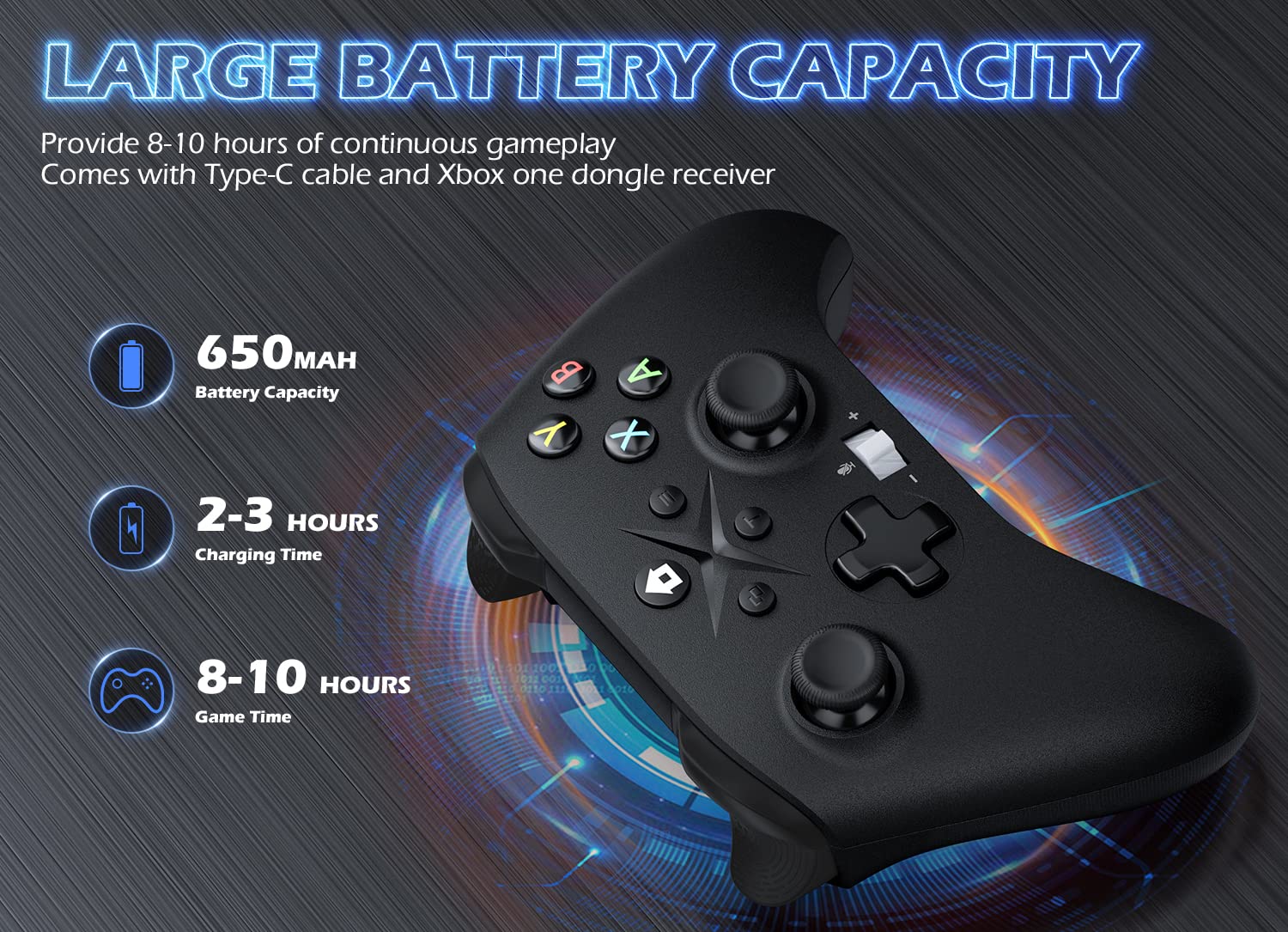
Image 6.1: Battery specifications.
7. Thông tin an toàn quan trọng
- Không để bộ điều khiển ở nơi có nhiệt độ, độ ẩm quá cao hoặc ánh nắng trực tiếp.
- Tránh làm rơi hoặc va đập mạnh vào bộ điều khiển.
- Không được tự ý tháo rời hoặc sửa đổi bộ điều khiển. Việc này có thể làm mất hiệu lực bảo hành và gây hư hỏng.
- Keep the controller and its accessories out of reach of small children.
- Chỉ sử dụng cáp sạc được cung cấp hoặc loại cáp tương đương đã được chứng nhận.
8. Hỗ trợ khách hàng
For further assistance or inquiries, please contact Gamrombo customer support through the retailer's platform or the official Gamrombo webđịa điểm.


