1. Giới thiệu
This manual provides detailed instructions for the installation, operation, and maintenance of your TESmart HDMI KVM Switch 8 Port 8K@60Hz. Please read this manual thoroughly before using the device to ensure proper functionality and to prevent damage.
2. Nội dung gói hàng
Kiểm tra xem tất cả các mặt hàng được liệt kê dưới đây có trong gói hàng của bạn không. Nếu có bất kỳ mặt hàng nào bị thiếu hoặc hư hỏng, vui lòng liên hệ với bộ phận hỗ trợ khách hàng.
- 1 x 8x1 HDMI KVM Switch
- 8 x KVM Cables (HDMI + USB, 5ft each)
- 1 x IR Remote Control (AAA batteries not included)
- 1 x Cáp thu IR
- 1 x Bộ đổi nguồn DC 12V
- 2 x Rack-ears
- 1 x Hướng dẫn sử dụng
- 1 x 3-Pin Connector (for RS232)
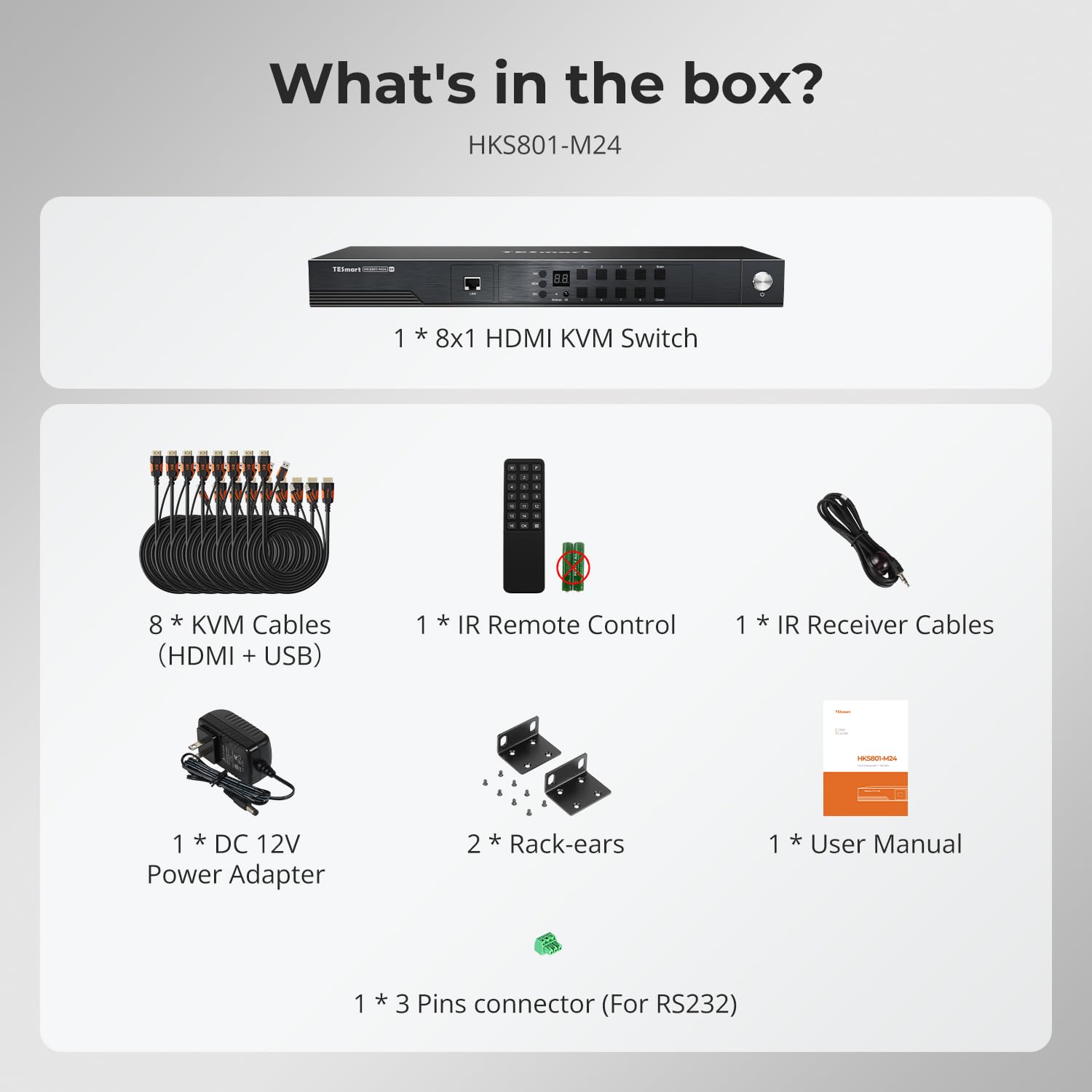
Image: All components included in the TESmart HDMI KVM Switch package.
3. Tính năng sản phẩm
- Bộ chuyển mạch KVM HDMI 8 cổng: Connects up to 8 HDMI-enabled computers to a single monitor, keyboard, and mouse console.
- Độ phân giải 8K@60Hz: Supports ultra-high-definition resolutions up to 7680x4320 at 60Hz.
- Trung tâm USB 3.0: Features two standard USB 3.0 ports for connecting additional peripherals like barcode scanners or USB hard drives.
- EDID Emulator: Integrated EDID emulators ensure correct display information is maintained across all input ports, preventing display setting changes during switching.
- Nhiều phương pháp chuyển đổi: Offers flexible control via IR remote, front panel buttons, keyboard hotkeys, mouse wheel, RS232 commands, and IP control.
- Auto Switching & Auto Detect Mode: Supports automatic switching between connected computers at specified intervals and automatically detects active devices.
- Cắm và chạy: Requires no special software installation and supports hot-swapping of devices.
- Thiết kế giá đỡ: Includes rack-ears for easy installation into standard server racks.
4. Thiết lập và Cài đặt
Hãy làm theo các bước sau để thiết lập bộ chuyển mạch KVM của bạn:
- Tắt nguồn thiết bị: Ensure all computers and the monitor are powered off before beginning the installation.
- Kết nối màn hình: Connect your monitor to the HDMI OUTPUT port on the KVM switch using an HDMI cable.
- Kết nối bàn phím và chuột: Connect your USB keyboard and mouse to the dedicated K/M USB ports on the KVM switch.
- Kết nối máy tính: For each computer (up to 8), connect an HDMI cable from the computer's HDMI output to an HDMI INPUT port (PC 1-8) on the KVM switch. Simultaneously, connect a USB cable from the computer's USB port to the corresponding USB INPUT port (PC 1-8) on the KVM switch. Use the provided KVM cables for optimal performance.
- Kết nối nguồn: Plug the DC 12V power adapter into the KVM switch and then into a power outlet.
- Bật nguồn: Power on the KVM switch, then power on your monitor, and finally power on your connected computers.

Image: Connection diagram for the TESmart 8-port KVM switch.

Image: Comprehensive connection overview including optional RS232, LAN, and USB device connections.
5. Hướng dẫn vận hành
The TESmart KVM switch offers several methods for switching between connected computers:
5.1 Switching Methods
- Các nút của bảng điều khiển phía trước: Press the numbered buttons on the front panel to switch directly to the corresponding PC input.
- Điều khiển từ xa IR: Use the included IR remote control to switch inputs. (Requires 2x AAA batteries, not included).
- Phím nóng bàn phím: Specific key combinations allow for quick switching without moving your hand from the keyboard. Refer to the full user manual for specific hotkey commands.
- Mouse Wheel Switching: Scroll the mouse wheel to switch between inputs.
- Điều khiển RS232: Connect via RS232 for serial command control.
- Kiểm soát IP: Control the KVM switch over a network using IP commands.

Hình ảnh: Trênview of the six available switching methods.
5.2 Auto Detect Mode
The KVM switch can automatically detect when a connected PC becomes active and switch to its input. This eliminates the need for manual switching when a computer is powered on.

Image: Auto Detect Mode functionality.
5.3 Auto Scan Mode
In Auto Scan Mode, the KVM switch cycles through all connected active inputs at a user-defined interval (e.g., 5 seconds to 1 hour). This is useful for monitoring multiple systems.

Image: Auto Scan Mode for monitoring multiple devices.
5.4 EDID Emulation
The built-in EDID emulators ensure that your computers always receive correct display information, preventing issues like desktop icon rearrangement, screen flicker, or resolution changes when switching between inputs or when a computer is disconnected.

Image: EDID Emulation prevents display issues during switching.
5.5 Chức năng khóa
The KVM switch includes a lock function to prevent accidental input changes. Press the [0/Close] button on the front panel to turn off the HDMI display and disable hotkeys and remote control functions. Press it again to re-enable the display and controls.
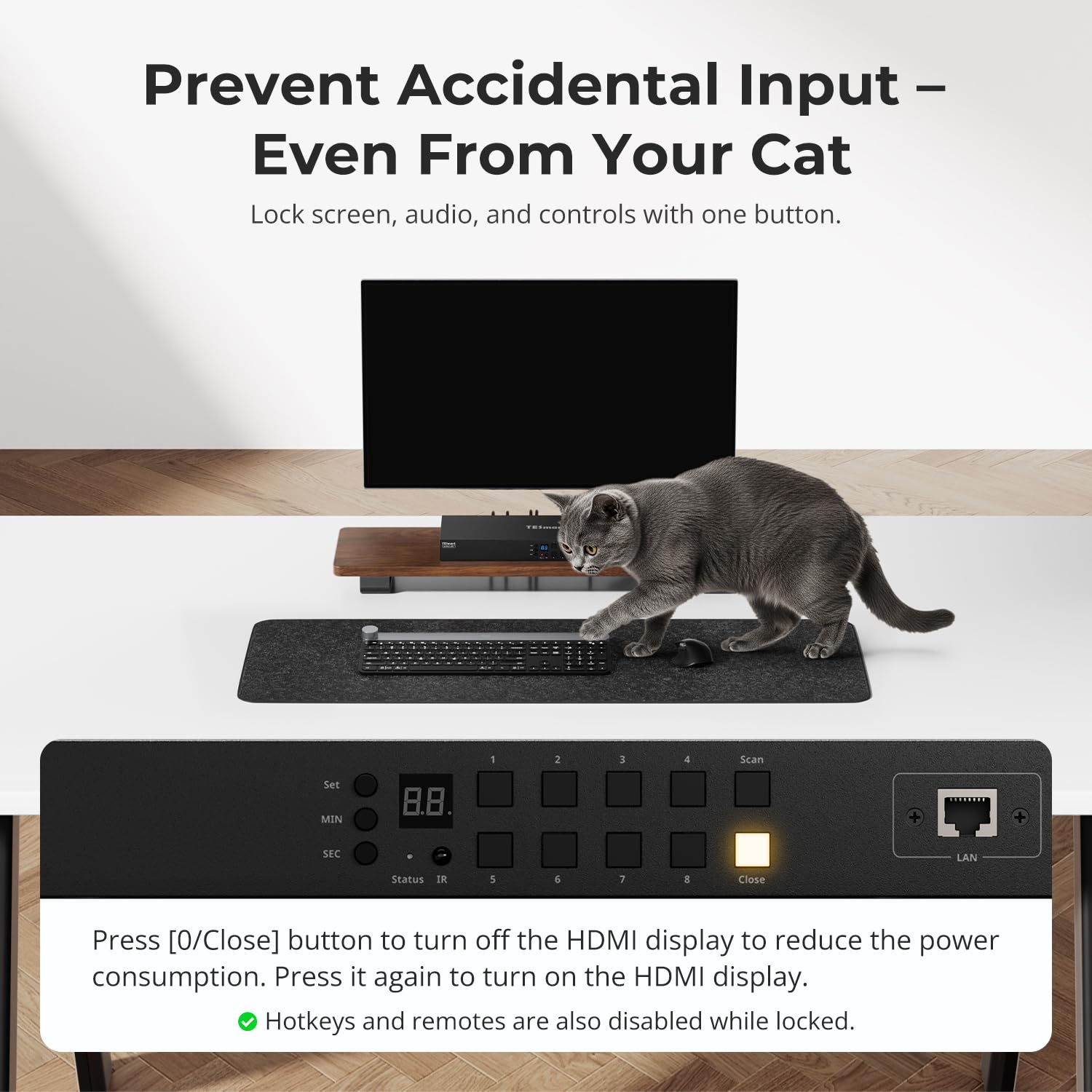
Image: Using the lock function to prevent unintended input.
6. Bảo trì
Để đảm bảo tuổi thọ và hiệu suất tối ưu của bộ chuyển mạch KVM, hãy tuân theo các hướng dẫn bảo trì sau:
- Vệ sinh: Hãy dùng khăn mềm, khô để lau sạch bên ngoài thiết bị. Tránh sử dụng chất tẩy rửa dạng lỏng hoặc dung môi.
- Thông gió: Hãy đảm bảo bộ chuyển mạch KVM có đủ thông gió. Không được chặn bất kỳ lỗ thông gió nào.
- Môi trường: Operate the device within the specified temperature range (up to 40°C). Avoid extreme temperatures, humidity, and direct sunlight.
- Quản lý cáp: Keep cables organized and free from kinks or excessive tension to prevent damage to connectors and ports.
- Cập nhật chương trình cơ sở: Kiểm tra của nhà sản xuất webHãy thường xuyên truy cập trang web để kiểm tra xem có bản cập nhật phần mềm nào khả dụng không, vì nó có thể cải thiện hiệu năng hoặc bổ sung thêm tính năng.
KHAI THÁC. Xử lý sự cố
Nếu bạn gặp sự cố với bộ chuyển mạch KVM, hãy tham khảo các vấn đề và giải pháp thường gặp sau đây:
- Không hiển thị/Không có tín hiệu:
- Ensure all HDMI and USB cables are securely connected to both the KVM switch and the computers/monitor.
- Verify the KVM switch is powered on and the correct input is selected.
- Try connecting the computer directly to the monitor to confirm the computer's video output is functional.
- Kiểm tra xem màn hình đã được thiết lập đúng nguồn đầu vào chưa.
- Bàn phím/Chuột không phản hồi:
- Ensure the keyboard and mouse are connected to the dedicated K/M USB ports on the KVM switch.
- Hãy thử kết nối bàn phím và chuột trực tiếp với máy tính để kiểm tra xem chúng có hoạt động bình thường hay không.
- Some specialized gaming or multimedia keyboards/mice may require pass-through mode. Refer to the full manual for enabling this feature.
- Slow Switching Time:
- Switching times can vary depending on the connected devices and their display handshake processes. High-resolution or high-refresh-rate devices (e.g., PS5 at 4K 120Hz HDR) may experience longer switching delays (up to 5 minutes in some cases).
- For other devices, typical switching time is 5-10 seconds.
- Display Issues with High-Performance Devices (e.g., PS5):
- Devices requiring 4K 120Hz HDR VRR may be particularly sensitive to HDMI signal integrity.
- Ensure high-quality HDMI 2.1 certified cables are used.
- Consider simplifying the setup by connecting the KVM switch directly to the display, rather than through an A/V receiver, if experiencing signal drops or resolution degradation.
- If green lines or signal loss occur, try adjusting display settings on the source device to a lower resolution or refresh rate as a test.
- Audio Issues (e.g., Dolby Atmos):
- This KVM switch may not support certain advanced audio formats like Dolby Atmos. Verify audio compatibility with your specific setup.
- Control Software Issues:
- If experiencing difficulties with official control software for advanced settings (e.g., disabling the beep sound), check the TESmart website for updated software or drivers.
- Some users have reported success with third-party applications for controlling TESmart KVM switches; however, use such software at your own discretion.
8. Thông số kỹ thuật
| Tính năng | Đặc điểm kỹ thuật |
|---|---|
| Số hiệu mẫu | HKS801-M24-USBK |
| Chế độ hoạt động | BẬT |
| Xếp hạng hiện tại | 3 Amps |
| Hoạt động Voltage | 12 vôn |
| Loại đầu nối | HDMI, USB 3.0 |
| Kích thước sản phẩm (L x W x H) | 17.32 x 5.9 x 1.8 inch |
| Trọng lượng sản phẩm | 4.22 pound |
| Vật liệu | Kim loại |
| Màu sắc | Đen |
| Cái gì?tage | 36 watt |
| Đánh giá nhiệt độ trên | 40 độ C |
| Bảo vệ quốc tế Rating | IP30 |
| Thiết bị tương thích | Computers, servers, DVR/NVR, laptops, USB devices, HDMI 2.1 compatible devices |
9. Bảo hành và Hỗ trợ
TESmart products are designed for reliability and performance. For specific warranty information, please refer to the warranty card included with your product or visit the official TESmart website. For technical support, troubleshooting assistance, or to inquire about replacement parts, please contact TESmart customer service through their official channels.