1. Sản phẩm hếtview
The HP OmniDesk M02 Tower Desktop is a high-performance personal computer designed for business and productivity. It features an AMD Ryzen 7 8700G processor, ample DDR5 RAM, and fast SSD storage, running on Windows 11 Home. This manual provides essential information for setting up, operating, maintaining, and troubleshooting your device.
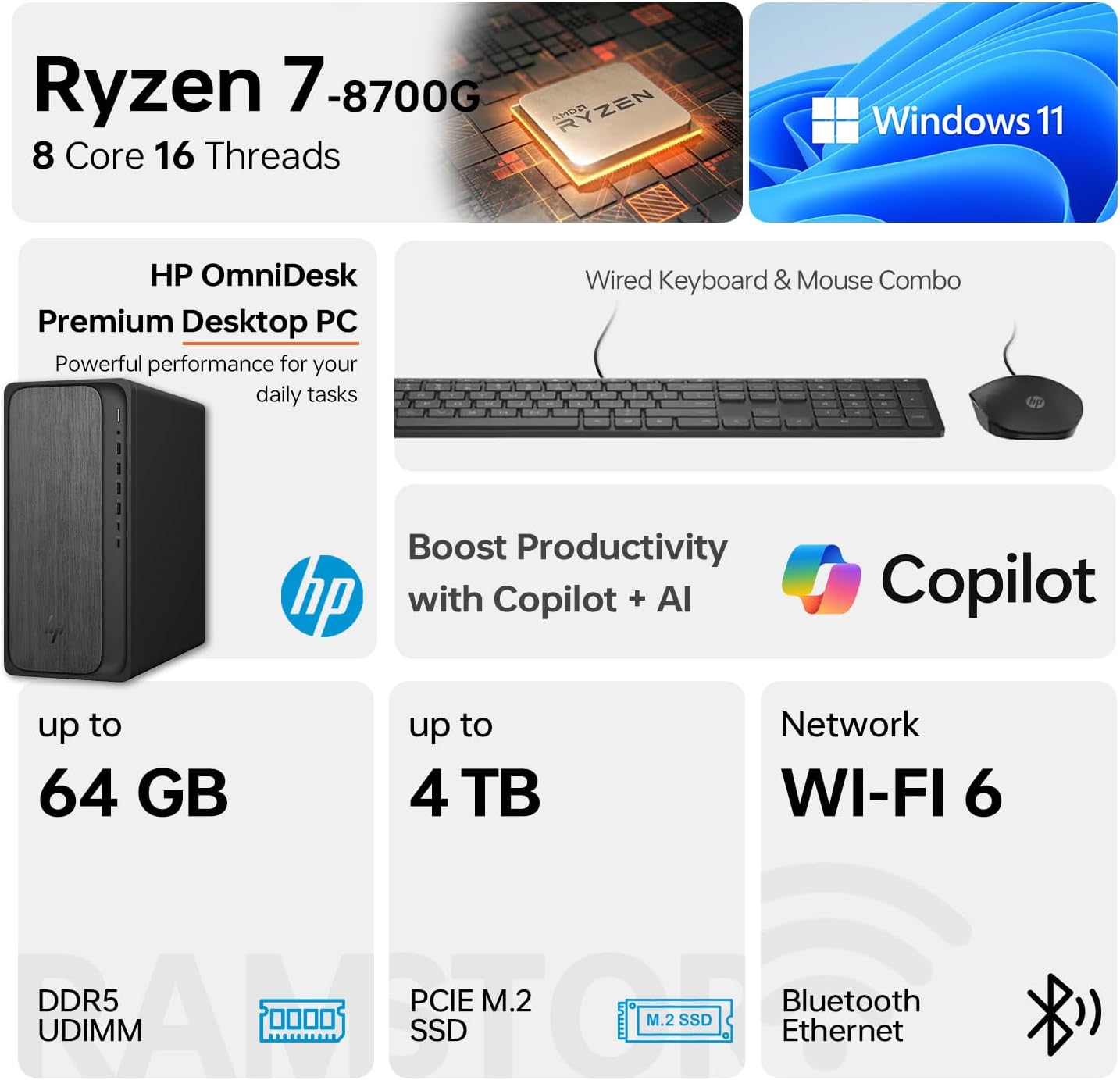
Image 1.1: HP OmniDesk M02 Tower Desktop highlighting its AMD Ryzen 7 8700G processor, Windows 11 operating system, Wi-Fi 6 connectivity, and memory/storage capabilities.
Các tính năng chính:
- Bộ xử lý: AMD Ryzen 7 8700G (8 Cores, 16 Threads, up to 5.1GHz Max Boost)
- Ký ức: RAM DDR5 16GB (có thể mở rộng lên đến 64GB)
- Kho: 1TB PCIe M.2 SSD, bundled with ADATA 512GB External SSD
- Hệ điều hành: Windows 11 Trang chủ
- Đồ họa: Đồ họa tích hợp AMD Radeon
- Kết nối: Wi-Fi 6, Bluetooth, Ethernet (RJ-45)
- Cổng: Multiple USB Type-A and Type-C ports, HDMI, DisplayPort, audio jacks
- Included Peripherals: Bàn phím và chuột có dây
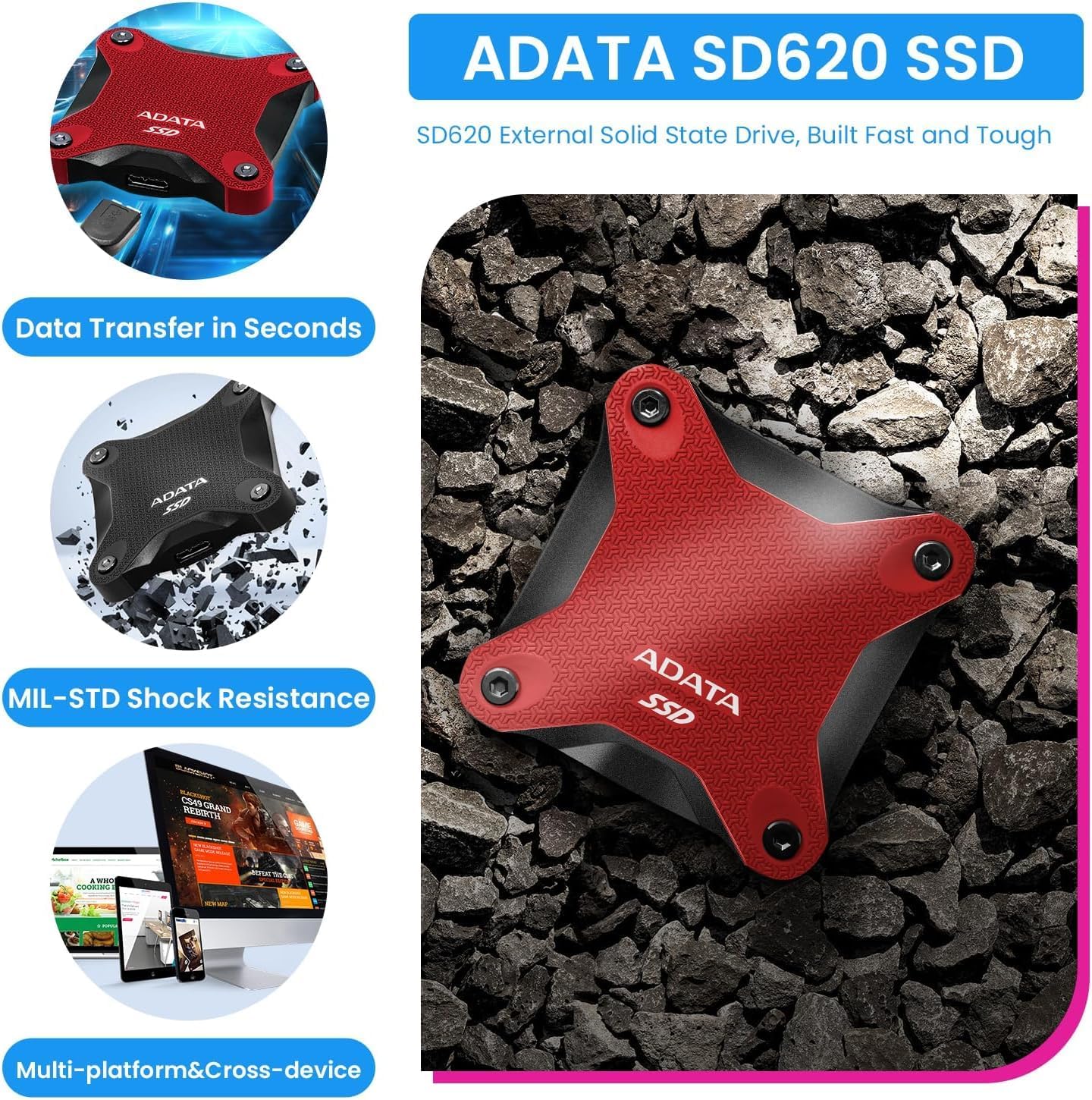
Image 1.2: The ADATA SD620 External SSD, included with the HP OmniDesk M02, highlighting its data transfer speed and MIL-STD shock resistance.
2. Hướng dẫn thiết lập
Follow these steps to set up your HP OmniDesk M02 Tower Desktop.
2.1 Tháo dỡ
- Cẩn thận loại bỏ tất cả các thành phần khỏi bao bì.
- Verify that all items are present: HP OmniDesk M02 Tower Desktop, Wired Keyboard, Wired Mouse, Power Cable, and ADATA 512GB External SSD.
- Retain packaging materials for future transport or service.
2.2 Kết nối thiết bị ngoại vi
Kết nối màn hình, bàn phím, chuột và các thiết bị khác vào các cổng thích hợp trên máy tính để bàn.

Hình ảnh 2.1: Chi tiết view of the front and rear ports on the HP OmniDesk M02 Tower Desktop, indicating their types and functions.
- Màn hình: Connect your monitor to either the HDMI or DisplayPort on the rear of the desktop.
- Bàn phìm chuột: Connect the wired keyboard and mouse to any available USB Type-A ports.
- Quyền lực: Connect the power cable to the desktop's power input and then to a wall outlet.
- External SSD: Connect the ADATA 512GB External SSD to an available USB port.
- Mạng (Tùy chọn): Để kết nối internet có dây, hãy cắm cáp Ethernet vào cổng RJ-45.
2.3 Khởi động ban đầu
- Nhấn nút nguồn ở phía trước máy tính để bàn.
- Follow the on-screen instructions to complete the Windows 11 Home setup. This typically involves selecting your region, language, and creating a user account.
- Ensure an internet connection is established during setup for updates and account synchronization.
3. Hướng dẫn vận hành
This section covers basic operation of your HP OmniDesk M02.
3.1 Bật/Tắt nguồn và khởi động lại
- Bật nguồn: Nhấn nút nguồn ở phía trước máy tính để bàn.
- Tắt máy: Nhấp vào nút Bắt đầu trong Windows 11, sau đó chọn Nguồn > Tắt máy.
- Khởi động lại: Nhấp vào nút Bắt đầu, sau đó chọn Nguồn > Khởi động lại.
3.2 Kết nối với Wi-Fi và Bluetooth
- Wi-Fi: Click the Network icon in the taskbar, select your desired Wi-Fi network, enter the password, and click Connect.
- Bluetooth: Go to Settings > Bluetooth & devices, ensure Bluetooth is turned on, and then click "Add device" to pair new Bluetooth devices.
3.3 Using Windows 11 and AI Features
Your HP OmniDesk M02 comes with Windows 11 Home, offering a modern interface and integrated AI capabilities through Copilot.
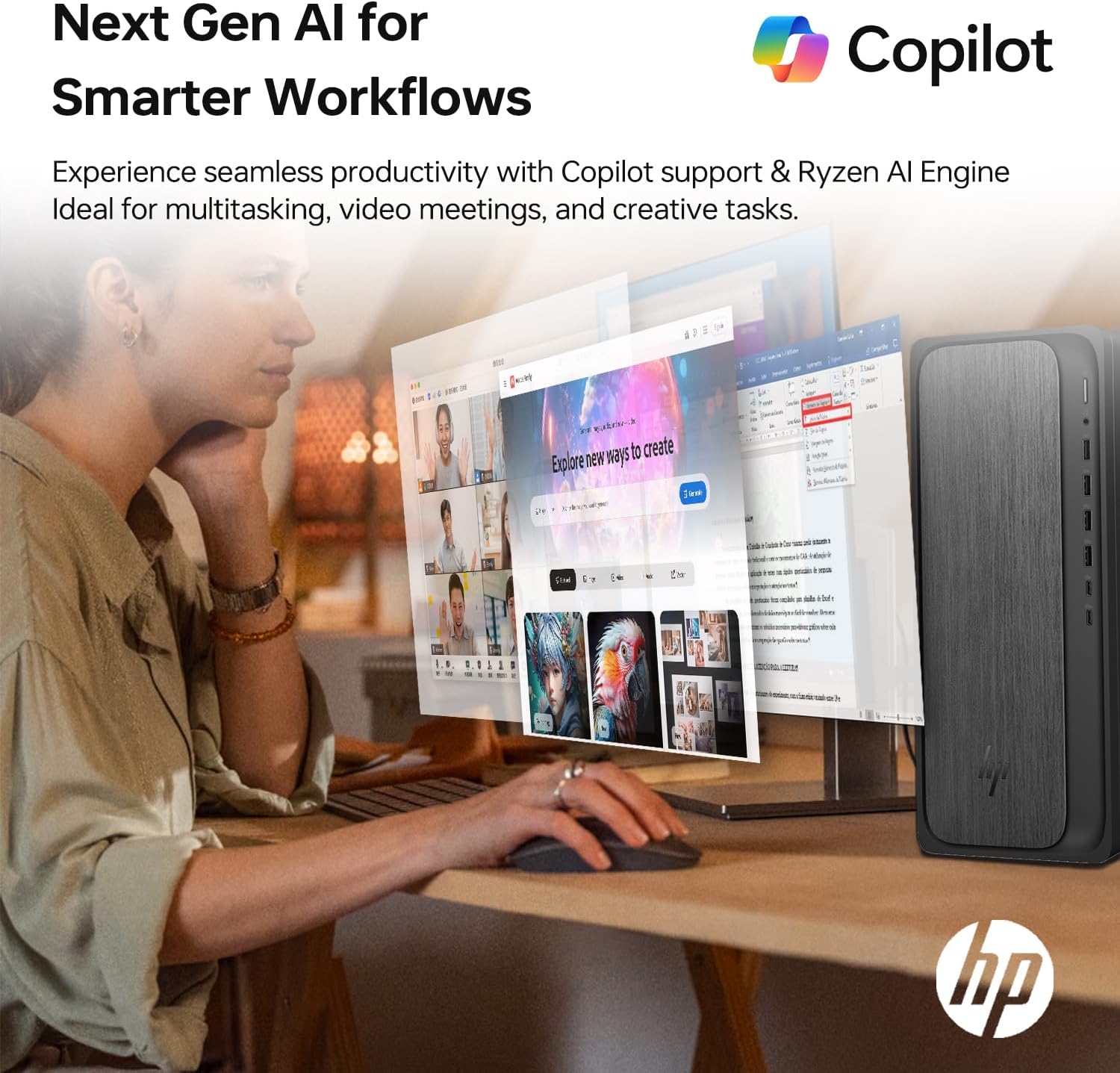
Image 3.1: A user interacting with the HP OmniDesk M02, demonstrating the integration of Copilot for enhanced productivity and AI-driven workflows.
- Menu Bắt đầu: Access applications, settings, and power options from the centered Start menu.
- Tiện ích: Personalize your desktop with widgets for news, weather, and more.
- Phi công phụ: Utilize the integrated Copilot AI for assistance with tasks, content creation, and system navigation. Access it via the taskbar icon.
4. Bảo trì
Bảo trì đúng cách đảm bảo tuổi thọ và hiệu suất tối ưu cho máy tính để bàn của bạn.
4.1 Vệ sinh
- Bên ngoài: Sử dụng một miếng vải mềm, không xơ vải lau nhẹampLàm sạch bằng nước hoặc dung dịch tẩy rửa nhẹ. Tránh sử dụng hóa chất mạnh.
- Lỗ thông hơi: Periodically clean dust from the ventilation grilles using compressed air to prevent overheating. Ensure the desktop is powered off before cleaning vents.
4.2 Cập nhật phần mềm
Thường xuyên cập nhật hệ điều hành và trình điều khiển để đảm bảo an toàn và hiệu năng.
- Cập nhật Windows: Go to Settings > Windows Update and check for available updates.
- Cập nhật trình điều khiển: Truy cập trang hỗ trợ chính thức của HP website for your model to download the latest drivers for components like graphics and chipset.
4.3 Nâng cấp phần cứng
The HP OmniDesk M02 supports upgrades for RAM and internal storage.
- ĐẬP: The system supports up to 64GB DDR5 UDIMM RAM.
- SSD bên trong: The system supports up to 4TB PCIe M.2 SSD.
- Quan trọng: Opening the chassis for upgrades may affect the original manufacturer's warranty. Consult the warranty section for details.
KHAI THÁC. Xử lý sự cố
Phần này giải quyết những vấn đề phổ biến mà bạn có thể gặp phải.
5.1 Không có điện
- Ensure the power cable is securely connected to both the desktop and a working power outlet.
- Kiểm tra xem ổ cắm điện có hoạt động không bằng cách cắm thiết bị khác.
- Verify the power supply unit (PSU) switch (if present) is in the ON position.
5.2 Không hiển thị trên màn hình
- Confirm the monitor is powered on and its input source is correctly selected (HDMI/DisplayPort).
- Check that the video cable is securely connected to both the desktop and the monitor.
- Hãy thử kết nối màn hình với một cổng video khác trên máy tính để bàn nếu có.
5.3 Các vấn đề về kết nối mạng
- Wired: Hãy đảm bảo cáp Ethernet được kết nối đúng cách và bộ định tuyến/modem của bạn đang hoạt động.
- Wi-Fi: Verify Wi-Fi is enabled in Windows settings and you are connected to the correct network with the correct password. Restart your router/modem.
6. Thông số kỹ thuật
Detailed technical specifications for the HP OmniDesk M02 Tower Desktop.

Hình ảnh 6.1: Cận cảnh view of the AMD Ryzen 7 8700G processor, highlighting its core count, thread count, clock speed, and L3 cache.
| Thành phần | Đặc điểm kỹ thuật |
|---|---|
| Số hiệu mẫu | TPC-F134-MT |
| Bộ xử lý | AMD Ryzen 7 8700G (8 Cores, 16 Threads, 4.2GHz base, up to 5.1GHz max turbo) |
| ĐẬP | 16GB DDR5 UDIMM (4800 MHz), expandable to 64GB |
| Bộ nhớ trong | 1TB PCIe M.2 SSD, expandable to 4TB |
| Lưu trữ ngoài | Ổ cứng SSD gắn ngoài ADATA 512GB (kèm theo sản phẩm) |
| Đồ họa | Đồ họa tích hợp AMD Radeon |
| Hệ điều hành | Windows 11 Trang chủ |
| Kết nối không dây | Wi-Fi 6 (802.11ax), Bluetooth |
| Cổng phía trước | 1x USB Type-C 10Gbps, 1x USB Type-C 5Gbps, 2x USB Type-A 10Gbps, 2x USB Type-A 5Gbps, 1x Headphone/Microphone Combo |
| Cổng phía sau | 4x USB 2.0 Type-A, 1x RJ-45 (Ethernet), 3x 3.5mm Audio Jack Combo, 1x HDMI, 1x DisplayPort |
| Kích thước (DxRxC) | 6.10" x 13.27" x 12.40" (15.5 x 33.7 x 31.5 cm) |
| Cân nặng | 12.72 pound (5.77 kg) |
| Màu sắc | Xám |
7. Bảo hành và Hỗ trợ
7.1 Thông tin bảo hành
The HP OmniDesk M02 Tower Desktop comes with a manufacturer's warranty. For this specific configuration, a 1-year warranty on the upgraded RAM and SSD is provided by PCOnline US. All other original components retain the standard 1-year manufacturer's warranty from HP.
Vui lòng giữ lại bằng chứng mua hàng của bạn để yêu cầu bảo hành.
7.2 Hỗ trợ kỹ thuật
Để được hỗ trợ kỹ thuật, vui lòng tham khảo trang hỗ trợ chính thức của HP. website or contact their customer service. For issues related to the upgraded RAM or SSD, please contact PCOnline US directly.
Hỗ trợ HP: www.hp.com/support