1. Giới thiệu
The Hama WM-450 Multi-Device Wireless Mouse is an optical mouse designed for versatile use across multiple devices. It features 7 buttons, a scroll wheel, and supports wireless connectivity via Bluetooth (two channels) and a 2.4 GHz radio frequency (one channel) using a USB-A receiver. This allows simultaneous connection to up to three devices, with quick switching between them. An integrated AI Assist button enhances productivity by activating an inter-program AI assistant. The mouse is designed for comfortable and silent operation.

Hình 1.1: Hếtview of the Hama WM-450 mouse highlighting its key features: Bluetooth connectivity, 10-meter wireless range, USB-A receiver, and battery power.
2. Thiết lập
2.1 Lắp đặt pin
- Xác định vị trí ngăn chứa pin ở mặt dưới của chuột.
- Mở nắp ngăn chứa pin.
- Insert the two AAA batteries (included) according to the polarity markings (+/-) inside the compartment.
- Đóng chặt nắp ngăn chứa pin.
2.2 Bật / Tắt nguồn
Slide the ON/OFF switch, located on the underside of the mouse, to the 'ON' position to power on the mouse. Slide it to 'OFF' when not in use to conserve battery life.
2.3 Connecting via USB-A Receiver (2.4 GHz Radio)
- Remove the USB-A receiver from its storage slot on the underside of the mouse.
- Plug the USB-A receiver into an available USB-A port on your computer, laptop, or compatible device.
- The mouse should be automatically recognized and ready for use. This connection uses the 2.4 GHz radio channel.
2.4 Kết nối qua Bluetooth
The mouse supports two Bluetooth channels for connecting to different devices.
- Đảm bảo chuột đã được bật nguồn.
- Press the channel switch button (usually on the underside or top of the mouse) to select either Bluetooth Channel 1 or Bluetooth Channel 2. The corresponding indicator light will flash.
- On your device (PC, tablet, smartphone), go to Bluetooth settings and enable Bluetooth.
- Tìm kiếm new devices. The mouse should appear as 'Hama WM-450' or similar.
- Chọn chuột cần ghép nối. Làm theo hướng dẫn trên màn hình.
- Once paired, the indicator light will stop flashing and remain solid for a few seconds, indicating a successful connection.

Image 2.1: The underside of the Hama WM-450 mouse, illustrating the battery compartment, the ON/OFF switch, and the integrated storage for the USB-A receiver.
3. Hoạt động
3.1 Chức năng cơ bản
- Ấn chuột trái: Lựa chọn và kích hoạt ban đầu.
- Nhấp chuột phải: Truy cập vào menu ngữ cảnh.
- Bánh xe cuộn: Cuộn qua các tài liệu và web pages. The high-quality aluminum scroll wheel provides precise control.
- Nút bấm im lặng: Các nút chuột trái và phải được thiết kế để hoạt động êm ái, giảm thiểu tiếng ồn trong môi trường yên tĩnh.
3.2 Chuyển đổi nhiều thiết bị
To switch between connected devices (USB-A, Bluetooth 1, Bluetooth 2), press the dedicated channel switch button on the mouse. The mouse will instantly connect to the selected device.
3.3 Side Navigation Buttons
The mouse features two practical side buttons. These buttons typically function as 'Back' and 'Forward' for easier navigation in web browsers, file explorers, and applications like Outlook.

Hình ảnh 3.1: Cận cảnh view of the two side navigation buttons on the Hama WM-450 mouse, used for 'Back' and 'Forward' functions.
3.4 Điều chỉnh DPI
The mouse includes a DPI switch button, usually located near the scroll wheel. Press this button to cycle through different sensitivity settings: 800, 1200, and 1600 DPI (Dots Per Inch). Choose the DPI setting that best suits your preference and task.
3.5 AI Assist Button
The dedicated AI Assist button activates an inter-program AI assistant, designed to enhance productivity. Refer to your device's software documentation for specific functionalities enabled by this feature.
4. Bảo trì
4.1 Vệ sinh
Để vệ sinh chuột, hãy sử dụng một miếng vải mềm, khô, không xơ. Đối với vết bẩn cứng đầu, hãy chà nhẹ.ampen the cloth with water or a mild cleaning solution. Avoid using harsh chemicals, abrasive cleaners, or excessive moisture, as these can damage the mouse.
4.2 Thay thế pin
When the mouse performance degrades or the indicator light signals low battery, replace the two AAA batteries. Always use fresh batteries of the same type.
4.3 Bộ nhớ lưu trữ USB
When transporting the mouse or not using the 2.4 GHz radio connection, store the USB-A receiver in its dedicated slot on the underside of the mouse to prevent loss.
KHAI THÁC. Xử lý sự cố
- Chuột không phản hồi:
- Đảm bảo chuột đã được bật nguồn.
- Kiểm tra mức pin và thay thế nếu cần thiết.
- For USB-A connection, ensure the receiver is securely plugged into a working USB port. Try a different USB port.
- Để kết nối Bluetooth, hãy đảm bảo Bluetooth đã được bật trên thiết bị của bạn và chuột đã được ghép nối. Thử ghép nối lại chuột xem sao.
- Ensure the correct channel (USB-A, BT1, BT2) is selected on the mouse.
- Kết nối không liên tục:
- Move the mouse closer to the receiver/device. The effective range is up to 10 meters, but obstacles can reduce this.
- Avoid using the mouse near other wireless devices that might cause interference.
- Con trỏ chuột di chuyển không ổn định hoặc chậm:
- Vệ sinh cảm biến quang học ở mặt dưới của chuột.
- Hãy đảm bảo bạn đang sử dụng chuột trên bề mặt phù hợp. Bề mặt phản chiếu cao hoặc trong suốt có thể ảnh hưởng đến hiệu suất.
- Adjust the DPI setting to a higher value if the cursor is too slow.
- Side buttons or AI Assist button not working:
- Ensure your operating system or application supports these functions.
- Check for any specific software or driver requirements for your device.
6. Thông số kỹ thuật
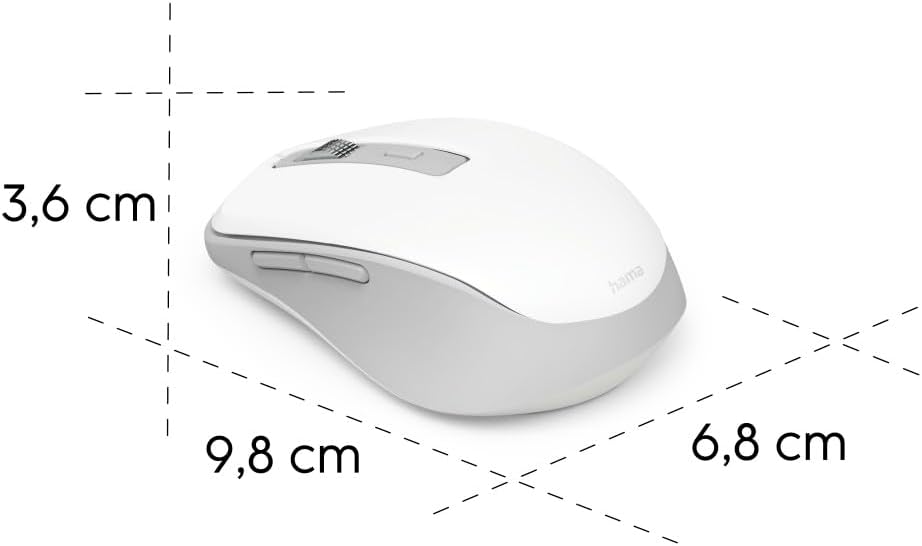
Image 6.1: Dimensional diagram of the Hama WM-450 mouse, indicating its length, width, and height.
| Thương hiệu | Hăm-ma |
| Tên mẫu | WM-450 |
| Số hiệu mẫu | 00173080 |
| Công nghệ kết nối | Bluetooth, 2.4 GHz Radio (USB-A) |
| Wireless Dải | Lên đến 10 mét |
| Công nghệ cảm biến | Quang học |
| Cài đặt DPI | 800, 1200, 1600 |
| Số lượng nút | 7 (bao gồm cả nhấp chuột vào con lăn chuột) |
| Nguồn điện | 2 x Pin AAA (đã bao gồm) |
| Kích thước (D x R x C) | 9.8 x 6.8 x 3.6 cm (xấp xỉ) |
| Cân nặng | 140 gram |
| Thiết bị tương thích | PC, Tablet, Laptop, Smartphone, iPad |
| Tính năng đặc biệt | Multi-device connectivity (3 devices), AI Assist button, Silent click buttons, Side navigation buttons, Retractable USB receiver, Polymer-coated mouse feet, High-quality aluminum scroll wheel. |
| Thành phần vật liệu | At least 20% recycled materials |
| Bao bì | 100% plastic-free |
7. Bảo hành và Hỗ trợ
Để biết thông tin bảo hành, hỗ trợ kỹ thuật hoặc các thắc mắc về dịch vụ, vui lòng tham khảo thẻ bảo hành đi kèm sản phẩm hoặc truy cập trang web chính thức của Hama. webThông tin liên hệ hỗ trợ khách hàng thường có trên trang web của nhà sản xuất. webđịa điểm.


