1. Giới thiệu
Thank you for choosing the EvoFox Deathray v2 Pro Gaming Keyboard. This manual provides detailed instructions for setting up, operating, and maintaining your new gaming keyboard. Please read this manual carefully to ensure optimal performance and longevity of your device.
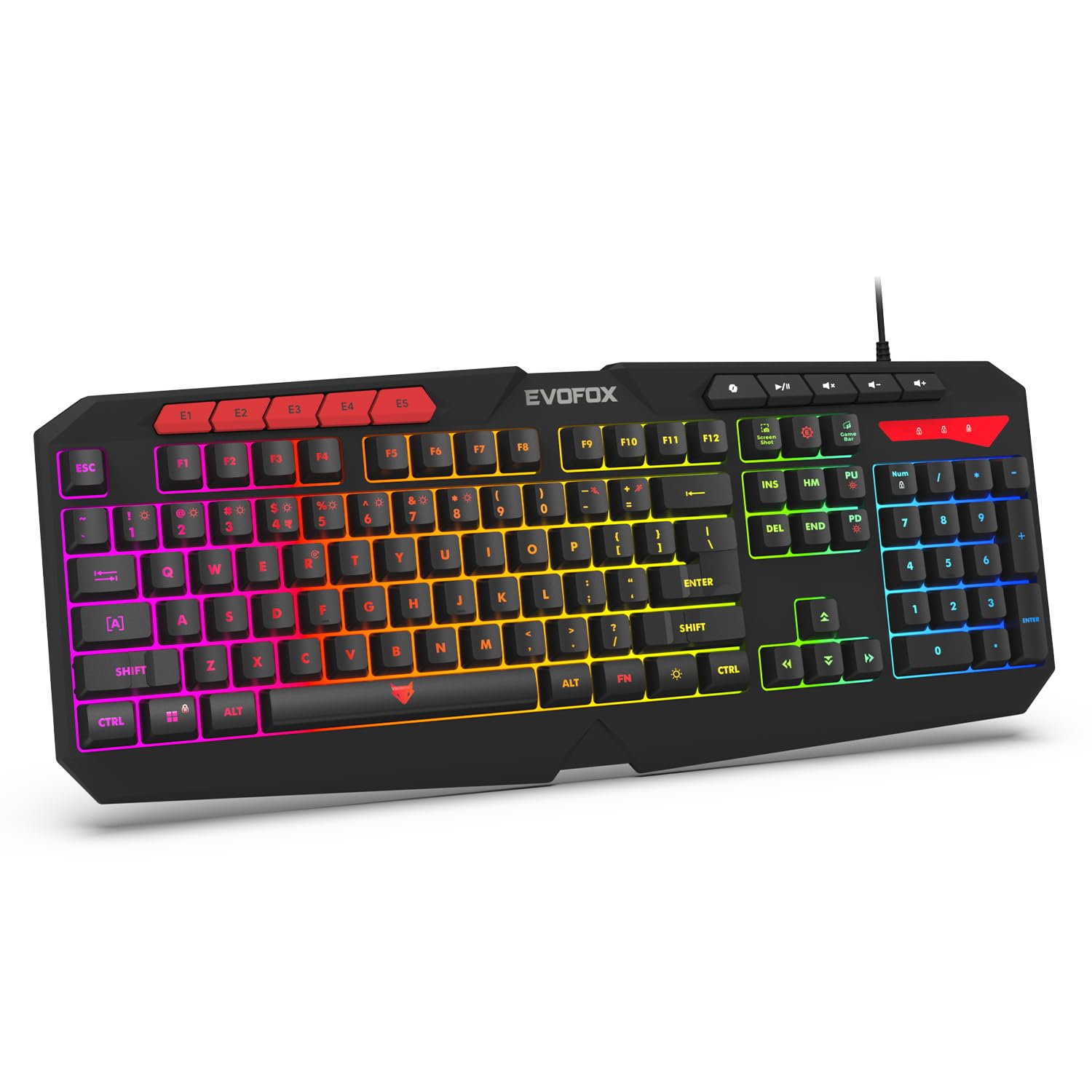
Image 1.1: EvoFox Deathray v2 Pro Gaming Keyboard overview.
2. Nội dung gói hàng
- EvoFox Deathray v2 Pro Gaming Keyboard
- Hướng dẫn sử dụng
3. Hướng dẫn thiết lập
3.1 Kết nối bàn phím
- Unpack the EvoFox Deathray v2 Pro Gaming Keyboard from its packaging.
- Tìm một cổng USB khả dụng trên máy tính (PC hoặc Laptop) của bạn.
- Cắm đầu nối USB của bàn phím vào cổng USB.
- Bàn phím sẽ tự động cài đặt các trình điều khiển cần thiết. Quá trình này có thể mất vài phút.
- Once installed, the RGB backlighting will illuminate, indicating the keyboard is ready for use.
The keyboard features a durable 1.8m braided cable for reliable connectivity.

Image 3.1: Keyboard with durable braided cable and soft membrane keys.
4. Hướng dẫn vận hành
4.1 Tùy chỉnh đèn nền RGB
The EvoFox Deathray v2 Pro features 6-zone customizable RGB backlighting with 8 dynamic lighting modes. You can personalize your gaming setup for an immersive experience.
- Thay đổi chế độ chiếu sáng: Use the dedicated lighting control keys (often indicated by a sun or lightbulb icon, or through a combination with the Fn key) to cycle through the 8 available dynamic lighting modes.
- Chiếu sáng tùy chỉnh: Refer to the keyboard's software (if available, check the official EvoFox website) for advanced custom lighting profiles and per-key RGB customization.

Image 4.1: Keyboard showcasing 6-zone RGB backlighting with 7 lighting presets and 1 custom lighting option.

Image 4.2: Comparison illustrating the difference between RGB lighting with full color customization per zone and standard rainbow lighting with fixed color zones.
4.2 Các phím macro có thể lập trình
The keyboard includes 5 programmable macro keys (E1-E5) to streamline your gameplay with customizable macros for lightning-fast responses. These keys allow you to record and assign complex sequences of commands to a single key press.
- Ghi macro: Typically, macro recording is initiated by a dedicated macro recording key (often labeled 'MR' or similar, or accessed via Fn key combination). Follow the on-screen prompts or software instructions to record your desired key sequence.
- Assigning Macros: Once recorded, assign the macro to one of the programmable macro keys (E1-E5) using the keyboard's software.

Image 4.3: Highlight of the 5 programmable macro keys (E1-E5) for executing complex commands.
4.3 Các phím chức năng đặc biệt
Access essential tools quickly with dedicated shortcuts for Screenshot, Macro Recording, and Xbox Game Bar. These functions are typically accessed via specific keys or Fn key combinations.
- Chú thích ảnh chụp màn hình: Chụp ảnh màn hình của bạn.
- Macro Recording Key: Initiates macro recording.
- Xbox Game Bar Key: Opens the Xbox Game Bar interface for gaming features.
- Chìa khóa phụ lái: Activates the Copilot feature (if supported by your operating system).

Image 4.4: Illustration of special function keys for Screenshot, Macro Recording, Xbox Game Bar, and Copilot.
4.4 Phím chống hiện tượng bóng mờ
The keyboard features 19 anti-ghosting keys, ensuring flawless input during high-stakes moments. This technology allows multiple key presses to be registered simultaneously and accurately, preventing missed commands.

Image 4.5: Keyboard layout highlighting the 19 anti-ghosting keys for precise, uninterrupted gameplay.
4.5 Ergonomic Full-Size Layout
Designed for comfort during extended gaming sessions, the keyboard features an ergonomic full-size layout with soft and silent membrane keys. This design aims to provide precision without sacrificing ease of use.
5. Bảo trì
5.1 Vệ sinh bàn phím
- Ngắt kết nối bàn phím khỏi máy tính trước khi vệ sinh.
- Sử dụng một miếng vải mềm, không xơ vải lau nhẹampdùng nước hoặc dung dịch tẩy rửa nhẹ để lau sạch bề mặt bàn phím.
- Để loại bỏ bụi và mảnh vụn giữa các phím, hãy sử dụng khí nén.
- Tránh sử dụng hóa chất mạnh, chất tẩy rửa có tính mài mòn hoặc dung môi, vì chúng có thể làm hỏng lớp phủ và ký tự trên bàn phím.
- Hãy đảm bảo bàn phím hoàn toàn khô ráo trước khi kết nối lại với máy tính.
KHAI THÁC. Xử lý sự cố
6.1 Bàn phím không phản hồi
- Kiểm tra kết nối USB: Đảm bảo cáp USB được cắm chắc chắn vào cổng USB đang hoạt động trên máy tính. Hãy thử cổng USB khác.
- Khởi động lại máy tính: Đôi khi, việc khởi động lại đơn giản có thể giải quyết các vấn đề về kết nối.
- Cài đặt lại trình điều khiển: If the issue persists, try uninstalling the keyboard drivers from your computer's Device Manager and then reconnecting the keyboard to allow for automatic reinstallation.
6.2 Đèn nền RGB không hoạt động
- Kiểm tra cài đặt độ sáng: Ensure the brightness level is not set to minimum or off. Use the dedicated lighting control keys to adjust brightness.
- Chế độ chu kỳ: Cycle through different RGB modes to see if any mode activates.
- Kiểm tra phần mềm: Nếu sử dụng pro tùy chỉnhfiles, ensure the keyboard software is running and configured correctly.
6.3 Các phím macro không hoạt động
- Cấu hình phần mềm: Verify that macros are correctly recorded and assigned to the desired keys within the keyboard's software.
- Software Running: Ensure the keyboard's macro software (if applicable) is running in the background.
7. Thông số kỹ thuật
| Tính năng | Đặc điểm kỹ thuật |
|---|---|
| Thương hiệu | EvoFox |
| Người mẫu | 498 |
| Kích thước sản phẩm | 44.7 x 17.2 x 2.6cm |
| Trọng lượng sản phẩm | 565 gam |
| Nền tảng phần cứng | Cửa sổ |
| Thiết bị tương thích | máy tính xách tay, máy tính |
| Tính năng đặc biệt | Compact Design, Silent Membrane Keyboard, True Prims RGB |
| Mô tả bàn phím | Trò chơi |
| Loại đầu nối | USB |
| Vật liệu | Nhựa ABS |
| Nước xuất xứ | Trung Quốc |
8. Bảo hành và Hỗ trợ
8.1 Thông tin bảo hành
The EvoFox Deathray v2 Pro Gaming Keyboard typically comes with a Bảo hành có giới hạn 1 năm Kể từ ngày mua. Bảo hành này bao gồm các lỗi sản xuất và đảm bảo sản phẩm hoạt động đúng chức năng trong điều kiện sử dụng bình thường. Vui lòng giữ lại hóa đơn mua hàng để yêu cầu bảo hành.
8.2 Hỗ trợ khách hàng
For technical assistance, warranty claims, or any product-related inquiries, please contact EvoFox customer support through their official website or the contact information provided with your product packaging. You may also refer to the Amkette helpline mentioned in some product documentation.


