1. Giới thiệu
Thank you for choosing the Hama WK-300 Multi-Device Wireless Keyboard. This compact office keyboard is designed for wireless control of computers, smartphones, and tablets, offering versatile connectivity via Bluetooth or a 2.4 GHz radio connection with a USB-A receiver. It allows simultaneous connection to up to three devices, providing a seamless experience for various tasks.
2. Hướng dẫn an toàn
- Không mở thiết bị hoặc tiếp tục sử dụng nếu thiết bị bị hỏng.
- Không cố gắng tự bảo trì hoặc sửa chữa sản phẩm. Để lại bất kỳ công việc dịch vụ cho các chuyên gia có trình độ.
- Bảo vệ sản phẩm khỏi bụi bẩn, hơi ẩm và quá nhiệt, và chỉ sử dụng sản phẩm trong môi trường khô ráo.
- Giữ sản phẩm này, như tất cả các sản phẩm điện, ngoài tầm với của trẻ em.
- Không sử dụng sản phẩm ở những nơi không được phép sử dụng thiết bị điện tử.
- Xử lý vật liệu đóng gói ngay lập tức theo quy định hiện hành của địa phương.
3. Nội dung gói hàng
Please check that the package contains the following items:
- 1 Hama WK-300 Multi-Device Wireless Keyboard
- 1 USB-A Receiver (typically stored in the battery compartment)
- 1 Hướng dẫn sử dụng
Ghi chú: Sản phẩm cần pin AAA để hoạt động và pin này không được bao gồm trong gói sản phẩm.
4. Thiết lập
4.1 Lắp đặt pin
- Xác định vị trí ngăn chứa pin ở mặt dưới của bàn phím.
- Mở nắp ngăn chứa pin.
- Lắp một pin AAA, đảm bảo lắp đúng cực (+/-).
- Đóng chặt nắp ngăn chứa pin.
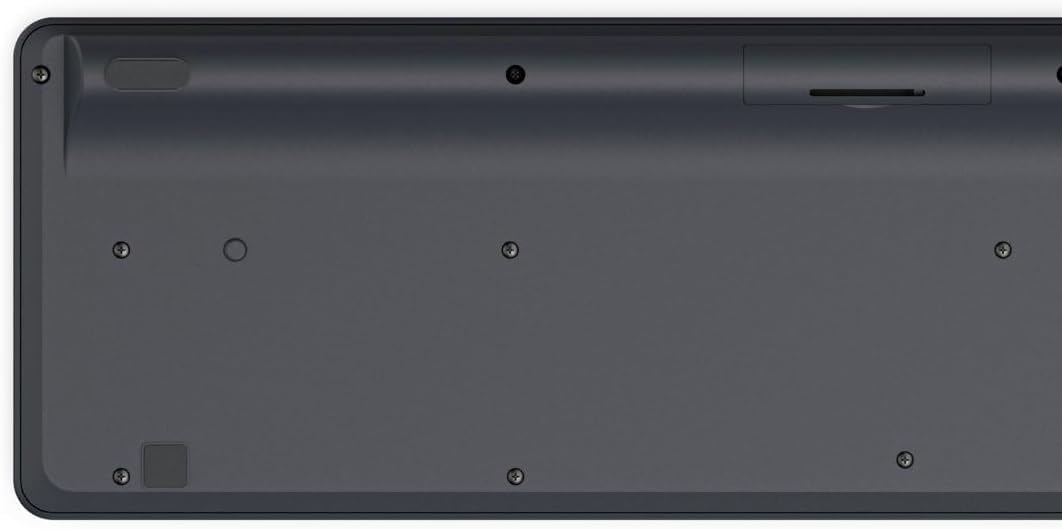
Image: Underside of the Hama WK-300 keyboard, illustrating the battery compartment and the storage slot for the USB receiver.
4.2 Kết nối với thiết bị
The Hama WK-300 keyboard supports connection to up to three devices simultaneously via 2.4 GHz radio (channel 1) and Bluetooth (channels 2 and 3).
4.2.1 2.4 GHz Radio Connection (Channel 1)
- Remove the USB-A receiver from its storage slot in the battery compartment.
- Plug the USB-A receiver into a free USB port on your computer.
- Switch the keyboard to channel 1 (usually indicated by a switch or button on the keyboard). The keyboard should automatically connect to your computer.
4.2.2 Bluetooth Connection (Channels 2 & 3)
- Switch the keyboard to either channel 2 or channel 3.
- Press and hold the pairing button (refer to keyboard layout for exact location, often combined with the channel switch) until the indicator light flashes, signifying pairing mode.
- On your device (smartphone, tablet, computer), go to Bluetooth settings and search for new devices.
- Select "Hama WK-300" from the list of available devices to complete the pairing process.
4.3 Chuyển đổi giữa các thiết bị
To switch between connected devices, simply press the corresponding channel button (1, 2, or 3) on the keyboard. The keyboard will instantly connect to the selected device.
5. Vận hành bàn phím
5.1 Basic Typing Functions
The Hama WK-300 features a QWERTY layout with quiet keys, ensuring a comfortable and undisturbed typing experience. Simply begin typing after connecting to your device.

Hình ảnh: Từ trên xuống view of the Hama WK-300 keyboard, highlighting its 90% layout and key functions, including the Fn key for multimedia controls.
5.2 Multimedia Functions (Fn Keys)
The F keys (F1-F12) have secondary assignments for multimedia control. To activate these functions, press and hold the Fn key simultaneously with the desired F key. This allows for quick control of media playback, volume, and other system functions without navigating through system settings.
5.3 AI Assist Button
The dedicated Assist button activates a cross-program AI assistant, enhancing productivity by providing quick access to intelligent features.
5.4 Tiết kiệm điện
The keyboard is battery-operated and designed for efficiency, making it ideal for mobile use. It will enter a low-power state after a period of inactivity to conserve battery life.
6. Bảo trì
6.1 Vệ sinh bàn phím
To clean your keyboard, ensure it is turned off and disconnected from any devices. Use a soft, lint-free cloth slightly dampened with water or a mild cleaning solution. Avoid excessive moisture and abrasive cleaners. Do not immerse the keyboard in water.
6.2 Thay thế pin
When the keyboard's performance diminishes or it stops responding, it may be time to replace the AAA battery. Follow the battery installation steps outlined in Section 4.1.
KHAI THÁC. Xử lý sự cố
- Bàn phím không kết nối: Ensure the keyboard has fresh batteries and is switched to the correct channel (1 for 2.4 GHz, 2 or 3 for Bluetooth). For Bluetooth, ensure the keyboard is in pairing mode and your device's Bluetooth is enabled. For 2.4 GHz, ensure the USB receiver is properly inserted into your device.
- Phím không phản hồi: Check battery level. If using 2.4 GHz, try plugging the USB receiver into a different USB port. If using Bluetooth, try re-pairing the keyboard with your device.
- Kết nối không liên tục: Ensure there are no strong interference sources nearby (e.g., other wireless devices, large metal objects). Try moving closer to your device.
- Phím đa phương tiện không hoạt động: Hãy đảm bảo bạn đang nhấn đúng nút. Fn key simultaneously with the desired F key.
8. Thông số kỹ thuật
| Thương hiệu | Hăm-ma |
| Số hiệu mẫu | 182641 |
| Màu sắc | Đen |
| Kết nối | 2.4 GHz Radio (USB-A receiver), Bluetooth (2 channels) |
| Số lượng thiết bị | Hỗ trợ tối đa 3 thiết bị cùng lúc. |
| Bố trí bàn phím | BÀN PHÍM QWERTY |
| Kích thước sản phẩm (DxRxC) | 16 x 43.8 x 2.6 Centimet |
| Trọng lượng sản phẩm | 447 gam |
| Pin cần thiết | Pin 1 AAA (không bao gồm) |
9. Bảo hành
The Hama WK-300 Multi-Device Wireless Keyboard comes with a Bảo hành 5 năm. Please retain your proof of purchase for warranty claims. For detailed warranty terms and conditions, refer to the official Hama webtrang web hoặc liên hệ với bộ phận hỗ trợ khách hàng.
10. Hỗ trợ
For further assistance, technical support, or to inquire about spare parts, please contact Hama customer service. You can find contact information on the official Hama webĐịa điểm (www.hama.com) or through your local retailer.


