1. Giới thiệu
The Xigmatek Aqua V AIR is a high-performance mid-tower PC case designed for gaming enthusiasts. It features a spacious interior, optimized airflow, and tempered glass panels on the front and side to showcase your components. Equipped with seven 120mm ARGB fans, it supports graphics cards up to 410mm in length and is compatible with motherboards featuring hidden connectors for a clean build.
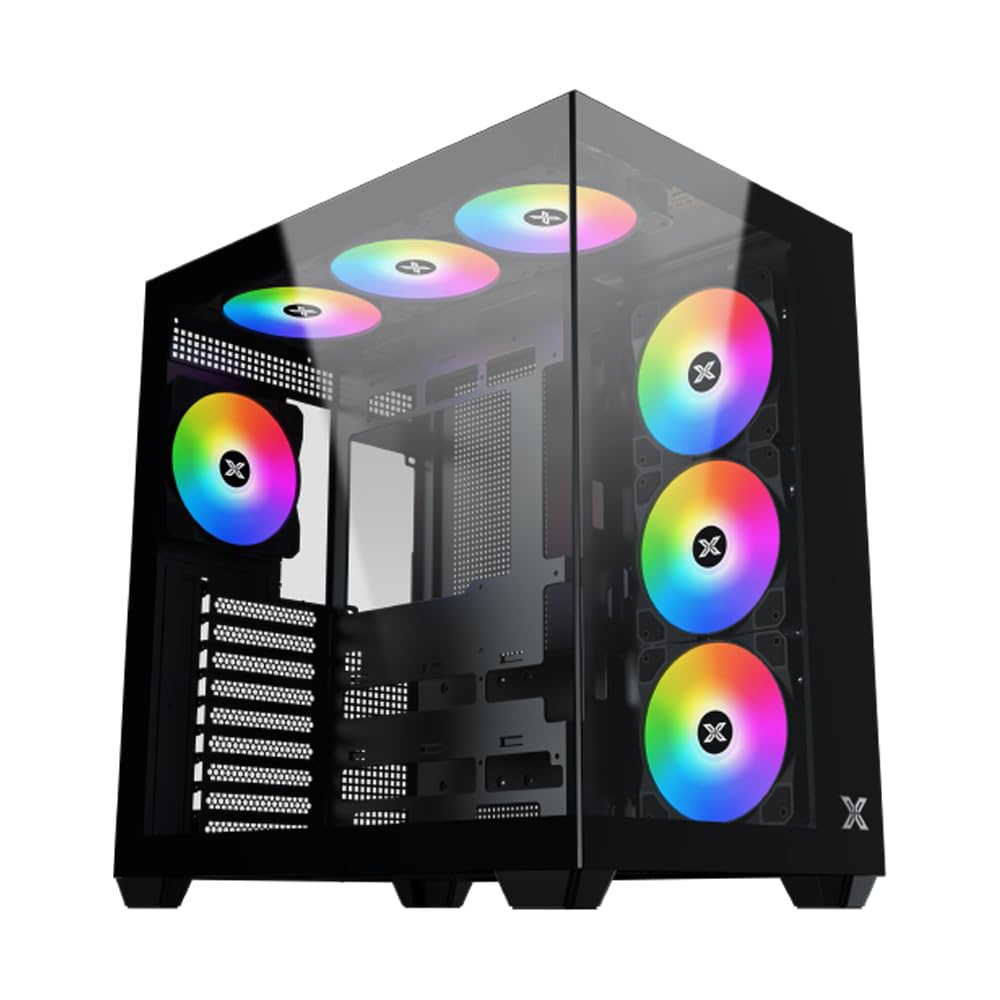
Hình 1: Tổng thể view of the Xigmatek Aqua V AIR PC Case.
2. Các tính năng chính
- Vật liệu: Constructed from high-quality steel for durability and reliability.
- Kích thước: 427 x 285 x 455 mm (L x W x H), offering a spacious interior.
- Hệ thống làm mát: Supports up to three 120mm or two 140mm fans for optimal cooling performance.
- Hỗ trợ tản nhiệt: Compatible with 240/280/360mm radiators on the top, bottom, and rear for versatile cooling options.
- Bảng điều khiển I/O: Features 2x USB 3.0 ports, 1x USB-C port, and HD audio for convenient connectivity.
- Khả năng tương thích của bo mạch chủ: Supports ATX, Micro ATX, and Mini ITX motherboards, including those with hidden connectors.
- Chiều dài GPU: Tương thích với các card đồ họa có chiều dài lên đến 410mm.
- Hỗ trợ lưu trữ: Cung cấp ample space for multiple storage drives.
3. Thông số kỹ thuật
| Tính năng | Chi tiết |
|---|---|
| Thương hiệu | Xigmatek |
| Số hiệu mẫu | EN45820 |
| Loạt | Aqua V AIR BLACK |
| Màu sắc | Đen |
| Kích thước (D x R x C) | 42.7 x 28.5 x 45.5cm |
| Trọng lượng sản phẩm | 8.8 Kilôgam |
| Vật liệu | Thép hợp kim, Kính cường lực |
| Khả năng tương thích của bo mạch chủ | ATX, Micro ATX, Mini ITX |
| Loại trường hợp | Tháp giữa |
| Sử dụng được đề xuất | Gaming, High-Performance Computing |
| Cổng USB 3.0 | 2 |
| Cổng USB-C | 1 |
| Phương pháp làm mát | Water (Liquid Cooling Support) |
| Kích thước quạt | 120 Millimeters (Pre-installed ARGB fans) |
| Loại lắp đặt PSU | Gắn dưới |
4. Thiết lập và Cài đặt
This section provides general guidance for installing components into your Xigmatek Aqua V AIR PC case. Always refer to the specific manuals for your motherboard, power supply, and other components for detailed instructions.
4.1 Chuẩn bị hồ sơ
- Mở thùng máy tính và loại bỏ tất cả vật liệu đóng gói.
- Carefully remove the tempered glass side panel(s) and front panel (if applicable) to access the interior. Store them safely to prevent damage.
- Identify the accessory box, which typically contains screws, cable ties, and other small parts.
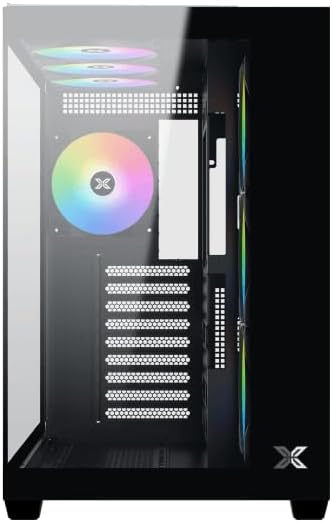
Hình 2: Nội thất view với bảng điều khiển bên được loại bỏ.
4.2 Cài đặt bo mạch chủ
- Lắp tấm chắn I/O (nếu chưa được lắp sẵn trên bo mạch chủ) vào khe hở phía sau của vỏ máy.
- Align your ATX, Micro ATX, or Mini ITX motherboard with the standoffs inside the case. Ensure all standoffs match the screw holes on your motherboard.
- Secure the motherboard with the appropriate screws provided in the accessory kit.

Figure 3: Motherboard tray and cable management area.
4.3 Lắp đặt Bộ cấp nguồn (PSU)
- Xác định vị trí lắp đặt nguồn điện (PSU) ở phía dưới bên sau của vỏ máy.
- Slide your PSU into position, ensuring the fan faces downwards (if the case has a bottom vent) or upwards.
- Cố định bộ nguồn bằng các ốc vít từ phía sau vỏ máy.
4.4 Cài đặt ổ đĩa lưu trữ
The case supports various storage configurations. Refer to the case diagram for specific drive bay locations.
- Install 2.5" SSDs or 3.5" HDDs into the designated drive bays or mounting brackets.
- Secure the drives with screws.
4.5 Cài đặt Card đồ họa (GPU)
- Tháo các nắp che khe cắm PCIe cần thiết ở phía sau thùng máy.
- Lắp card đồ họa vào khe PCIe thích hợp trên bo mạch chủ.
- Cố định card đồ họa bằng ốc vít.
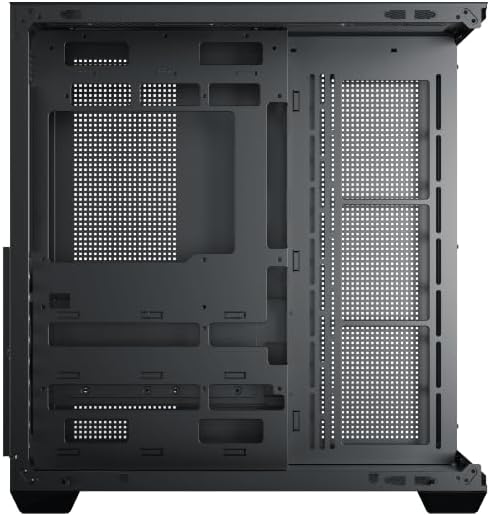
Figure 4: Components installed inside the case.
4.6 Quản lý cáp
Tận dụng các lỗ thoát dây cáp và điểm buộc dây phía sau khay bo mạch chủ để quản lý dây cáp, giúp cải thiện luồng khí và tính thẩm mỹ.
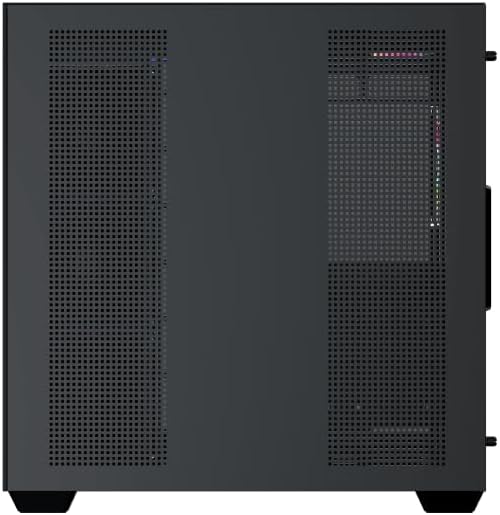
Figure 5: Top panel and I/O ports.
5. Hướng dẫn vận hành
5.1 Bật nguồn
Once all components are securely installed and connected, close the side panels. Connect your power cable to the PSU and press the power button on the case's front I/O panel.
5.2 Điều khiển quạt ARGB
The Xigmatek Aqua V AIR comes with pre-installed ARGB fans. These fans can typically be controlled via:
- Phần mềm bo mạch chủ: If your motherboard supports ARGB synchronization, connect the fan's ARGB cables to the motherboard's 3-pin 5V ARGB header and use the motherboard's software (e.g., ASUS Aura Sync, MSI Mystic Light, Gigabyte RGB Fusion) to customize lighting effects.
- Integrated Controller: If your case includes a built-in ARGB controller, use the dedicated button on the I/O panel to cycle through various lighting modes and colors.
6. Bảo trì
Bảo trì thường xuyên giúp đảm bảo hiệu suất tối ưu và tuổi thọ của các thành phần máy tính.
6.1 Vệ sinh bộ lọc bụi
The Xigmatek Aqua V AIR case is equipped with dust filters to prevent dust buildup. Locate and gently remove the dust filters (typically on the top, front, and bottom). Clean them with compressed air or by rinsing with water. Ensure they are completely dry before reattaching.
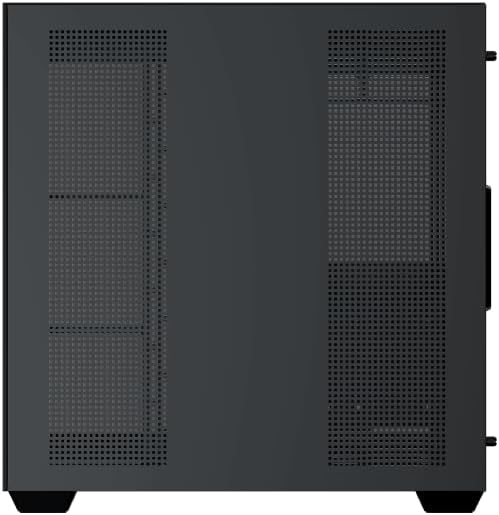
Figure 6: Bottom dust filter.
6.2 Tổng vệ sinh
Use a soft, dry cloth to wipe down the exterior of the case. For tempered glass panels, use a glass cleaner and a microfiber cloth to avoid streaks. Avoid using abrasive cleaners or solvents.
KHAI THÁC. Xử lý sự cố
Nếu bạn gặp sự cố, hãy cân nhắc các bước khắc phục sự cố phổ biến sau:
- Không có điện:
- Ensure the PSU is switched on and properly connected to the wall outlet and motherboard.
- Check all power connections to components (motherboard, CPU, GPU, drives).
- Verify the front panel power switch cable is correctly connected to the motherboard.
- Quạt không quay / Đèn RGB không hoạt động:
- Kiểm tra xem các dây cáp nguồn của quạt đã được kết nối chắc chắn với bo mạch chủ hoặc bộ điều khiển quạt chưa.
- Ensure ARGB cables are connected to the correct 3-pin 5V ARGB header (not 4-pin 12V RGB).
- If using a controller, ensure it has power and is functioning correctly.
- Quá nhiệt:
- Ensure all fans are spinning and oriented correctly for optimal airflow (intake/exhaust).
- Làm sạch bộ lọc bụi và các bộ phận bên trong.
- Kiểm tra xem bộ tản nhiệt CPU và bộ tản nhiệt GPU đã được lắp đặt đúng cách và hoạt động bình thường chưa.
8. Bảo hành và Hỗ trợ
The Xigmatek Aqua V AIR PC Case comes with a Bảo hành 2 năm của nhà sản xuất. For technical support, warranty claims, or further assistance, please contact Xigmatek customer service or visit their official webđịa điểm.
Vui lòng giữ lại bằng chứng mua hàng để bảo hành.


