1. Giới thiệu
The Alxum HDMI DisplayPort USB 3.0 KVM Switch allows you to control two computers using a single set of peripherals (keyboard, mouse, monitors). This device supports dual monitor output for each computer, enabling seamless switching between systems for enhanced productivity in various environments.
2. Nội dung gói hàng
- 1 x USB HDMI DP KVM Switch
- 2 x USB A to B cables
- 1 x Bộ điều khiển máy tính để bàn
- 1 x Bộ đổi nguồn DC 5V
- 1 x Hướng dẫn sử dụng
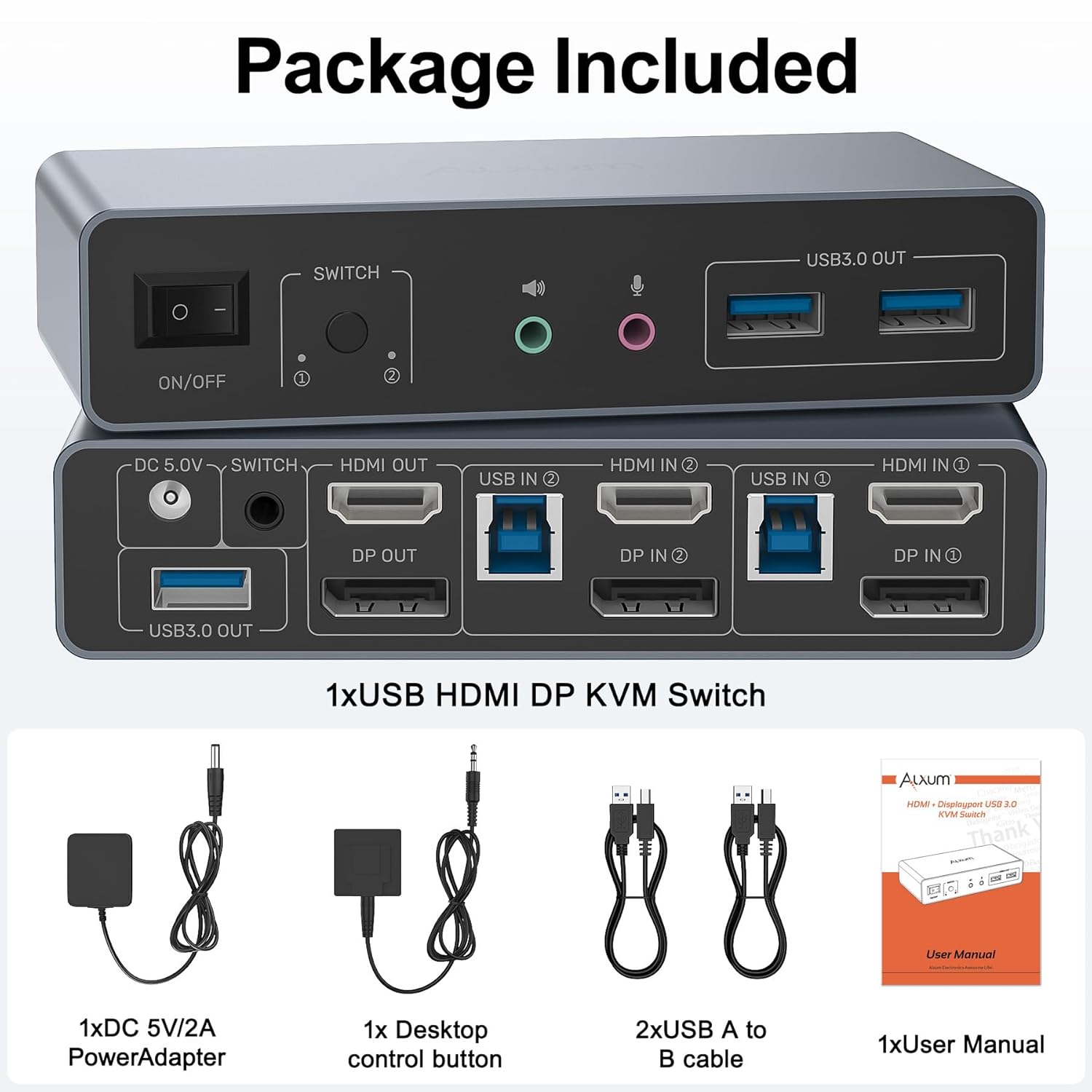
Hình 1: Nội dung gói hàng
3. Sản phẩm hếtview
3.1 Bảng điều khiển phía trước
- BẬT / TẮT chuyển đổi: Power control for the KVM switch.
- Nút công tắc điện: Manually switch between PC1 and PC2.
- Audio Output (Line Out): Kết nối tai nghe hoặc loa.
- Microphone Input (Mic In): Kết nối micrô.
- USB 3.0 OUT Ports (x3): Connect USB peripherals like keyboard, mouse, USB drives, or printers.
3.2 Bảng điều khiển phía sau
- điện áp một chiều 5V: Cổng đầu vào nguồn.
- ĐẦU RA HDMI: Connect to Monitor 1.
- DP RA: Connect to Monitor 2.
- USB IN (PC1/PC2): Connect to the USB 3.0 port on your computer.
- HDMI IN (PC1/PC2): Connect to the HDMI output of your computer.
- DP IN (PC1/PC2): Connect to the DisplayPort output of your computer.
- Desktop Controller Port: Connect the included desktop controller for remote switching.

Hình 2: Sơ đồ kết nối
4. Hướng dẫn thiết lập
- Kết nối máy tính:
For each computer (PC1 and PC2), connect one HDMI cable from the computer's HDMI output to the KVM switch's HDMI IN port, and one DisplayPort cable from the computer's DisplayPort output to the KVM switch's DP IN port. Additionally, connect a USB A to B cable from each computer's USB 3.0 port to the KVM switch's USB IN port. - Kết nối màn hình:
Connect your primary monitor to the KVM switch's HDMI OUT port. Connect your secondary monitor to the KVM switch's DP OUT port. Ensure you use 4K-compatible HDMI and DisplayPort cables for optimal results. - Kết nối thiết bị ngoại vi:
Connect your keyboard, mouse, USB drives, printer, or other USB 3.0 devices to the USB 3.0 OUT ports on the front panel of the KVM switch. - Kết nối thiết bị âm thanh:
If desired, connect your headphones/speakers to the Audio Output (Line Out) and your microphone to the Microphone Input (Mic In) on the front panel. - Kết nối bộ điều khiển máy tính để bàn:
Plug the desktop controller into the dedicated port on the rear panel for convenient remote switching. - Bật nguồn:
Connect the DC 5V Power Adapter to the KVM switch's DC 5V port and plug it into a power outlet. Turn on the KVM switch using the ON/OFF switch.
Lưu ý quan trọng:
- To use dual-screen mode, both of your computers must be desktop PCs. This USB 3.0 KVM Switch is NOT recommended for use with laptops in dual-screen mode.
- All interfaces must be properly connected for the KVM switch to control two monitors with two computers.
- Always ensure the included DC 5V power adapter is connected when using the KVM switch, especially when connecting high-power equipment.
- For protection during transportation, the product is covered with a clear protective film. You can remove the clear protective film before use.
Video 1: Alxum USB 3.0 HDMI KVM Switch 2 Monitors to 2 Computers - This video demonstrates the connection process and functionality of the KVM switch, showing how to connect two computers to two monitors and share USB peripherals.
5. Hướng dẫn vận hành
5.1 Chuyển đổi giữa các máy tính
You can instantly switch between the two connected computers using one of the following methods:
- Các nút thiết bị: Press the 'Switch' button on the front panel of the KVM switch.
- Bộ điều khiển máy tính để bàn: Press the button on the included wired desktop controller.

Figure 3: Multiple Switching Methods
5.2 Chế độ hiển thị
The KVM switch supports both Extend Mode and Mirror Mode for your dual monitor setup. To switch between these modes, you must set both computers to the desired mode simultaneously by operating on the monitor settings of each computer.
- Chế độ mở rộng: Each monitor displays different content, extending your desktop across two screens.
- Chế độ Gương: Both monitors display the same content, duplicating your desktop.

Figure 4: Extend Mode and Mirror Mode
KHAI THÁC. Xử lý sự cố
- No Display/Inconsistent Signal: Ensure all HDMI and DisplayPort cables are securely connected and are 4K-compatible. Verify that the DC 5V power adapter is connected and providing power. Check your computer's display settings to ensure the correct output mode (Extend/Mirror) is selected for both monitors.
- USB Peripherals Not Responding: Confirm that the USB A to B cables are correctly connected from both computers to the KVM switch. Try connecting the USB device to a different USB 3.0 OUT port on the KVM switch. Ensure the KVM switch is powered.
- Các vấn đề khi chuyển mạch: If the device button or desktop controller is not switching, ensure the desktop controller is properly plugged in. Try restarting the KVM switch by cycling its power.
- Khả năng tương thích máy tính xách tay: This KVM switch is primarily designed for desktop PCs for dual-screen output. Connecting a laptop for dual monitor output is not recommended and may result in unstable performance.
- Optimal 4K Resolution: For 4K@60Hz resolution, use high-quality, 4K-compatible HDMI and DisplayPort cables.
7. Thông số kỹ thuật
| Tính năng | Đặc điểm kỹ thuật |
|---|---|
| Số hiệu mẫu | SJW-DKM202B |
| Đầu vào video | 2 cổng HDMI, 2 cổng DisplayPort |
| Đầu ra video | 1 cổng HDMI, 1 cổng DisplayPort |
| Đầu vào USB | 2x USB 3.0 (Type-B) |
| Đầu ra USB | 3x USB 3.0 (Type-A) |
| Max Resolution | 4K@60Hz (backward compatible with 4K@30Hz, 1080p) |
| Tốc độ truyền dữ liệu USB | Lên đến 5Gbps |
| Cổng âm thanh | 1x Line Out, 1x Mic In |
| Phương pháp chuyển đổi | Device Button, Desktop Controller |
| Nguồn điện | DC 5V Power Adapter (Included) |
| Vật liệu | Nhôm |
| Kích thước sản phẩm | 13 x 6.25 x 2.96cm |
| Trọng lượng sản phẩm | 490 gam |
8. Bảo hành và Hỗ trợ
Alxum is committed to providing high-quality products and excellent customer service. If you have any questions before purchase or during use, please contact us. We offer 24-hour customer-friendly support service to assist you with any inquiries or issues.
Please refer to the product packaging or the official Alxum webtrang web để biết thông tin chi tiết và các điều khoản bảo hành cụ thể.


