1. Giới thiệu
Welcome to the Alta Labs Route10 instruction manual. The Alta Labs Route10 is a high-performance 10 Gigabit wired router engineered for advanced home, business, and enterprise network environments. It features a powerful quad-core Qualcomm processor, hardware-accelerated VPN, and versatile port configurations to deliver fast, reliable, and secure network connectivity. This manual will guide you through the setup, operation, maintenance, and troubleshooting of your Route10 router.
2. Sản phẩm hếtview
Các tính năng chính
- Professional 10Gbps Wired Routing: Designed for advanced home, business, and enterprise networks. Note: This router does not broadcast Wi-Fi; wireless coverage requires pairing with Wi-Fi access points.
- Quad-Core Qualcomm Network Accelerator: Ensures high throughput, fast packet processing, low latency, and consistent multi-gigabit performance for routing, firewall rules, VPN traffic, and VLAN segmentation.
- Integrated PoE+ Output: Select Ethernet ports provide Power over Ethernet Plus (PoE+) support to power compatible access points or network devices directly.
- Enterprise-Grade Routing, Firewall, and Network Control: Supports advanced features including VLAN tagging, QoS traffic prioritization, NAT port forwarding, firewall rules, DHCP services, and professional network segmentation.
- Real-Time Network Monitoring: Provides live network statistics, bandwidth usage, connected devices, WAN/LAN traffic, and system performance for effective network management.
- Multi-WAN Internet Support with Failover: Designed for network reliability with support for DHCP, static IP, PPPoE, and multi-WAN configurations, enabling failover and load balancing.
- VPN and Advanced Security Capabilities: Supports secure remote access and site-to-site connectivity with VPN protocols like IPsec and WireGuard for encrypted traffic and secure remote management.
- Seamless Integration with Alta Labs Network Ecosystem: Works natively with Alta Labs switches, access points, and controllers for centralized network management.
Nội dung gói
- Alta Labs Route10 Router
- Nguồn điện
- Treo tường
- Phần cứng treo tường
Nhận dạng thành phần
Familiarize yourself with the ports and indicators on your Route10 router.

Hình ảnh 1: Đằng trước view of the Alta Labs Route10 router, highlighting its various ports including 2.5 Gbps RJ45 ports, SFP+ ports, and LED indicators for power and activity.
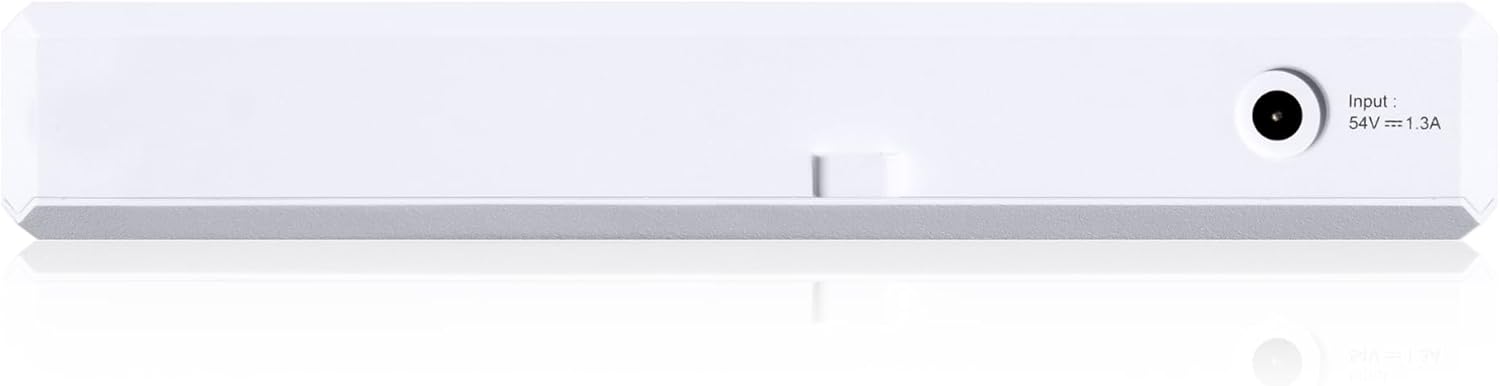
Hình ảnh 2: Ở phía sau view of the Alta Labs Route10 router, showing the power input port (54V === 1.3A).
3. Thiết lập
Cài đặt vật lý
- Lắp đặt (Tùy chọn): Use the provided wall mount and hardware to secure the Route10 to a wall or other suitable surface. Ensure adequate ventilation around the device.
- Kết nối nguồn điện: Connect the included power supply to the router's power input port and then to a power outlet. The router will power on automatically.
Kết nối mạng
The Route10 is designed for high-speed wired networks. It does not broadcast Wi-Fi. For wireless coverage, connect to compatible Wi-Fi Access Points.

Hình ảnh 3: Setup diagram illustrating connections for the Alta Labs Route10. The router connects to the ISP via an SFP+ port (up to 10 Gbps) and powers access points via PoE+ enabled Ethernet ports (up to 2.5 Gbps).
- Connect to ISP: Connect your Internet Service Provider's (ISP) modem or fiber optic terminal to one of the 10 Gbps SFP+ ports or 2.5 Gbps RJ45 ports designated as WAN.
- Kết nối các thiết bị cục bộ: Connect your computers, switches, or Alta Labs Access Points to the remaining LAN ports. Ports 2 and 3 support PoE+ for powering compatible devices.
Cấu hình ban đầu
The Alta Labs Route10 is managed through the Alta platform, which can be cloud-based or run locally via a VM/Docker image.
- Create Alta Account: If you don't have one, create an account on the Alta Labs platform.
- Adopt Router: Connect your Route10 to the internet. Log into your Alta account and enter the router's serial number to adopt it into your network.
- Cài đặt mạng cơ bản: Configure basic network settings such as WAN type (DHCP, Static IP, PPPoE), LAN IP address, and DHCP server settings through the Alta platform interface.
4. Hướng dẫn vận hành
Network Management with Alta Platform
The Alta platform provides a centralized interface for managing your Route10 and other Alta Labs devices.
- Bảng điều khiển: View real-time network statistics, connected devices, and traffic flow.
- Cấu hình VLAN: Create and manage VLANs for network segmentation.
- QoS (Chất lượng dịch vụ): Prioritize traffic for critical applications.
- Quy tắc tường lửa: Configure security policies to protect your network.
- Mạng riêng ảo (VPN): Set up IPsec or WireGuard VPN for secure remote access or site-to-site connectivity.
- Multi-WAN & Load Balancing: Configure multiple WAN connections for redundancy and improved bandwidth utilization.
- NAT (Dịch địa chỉ mạng): Manage port forwarding and other NAT settings.
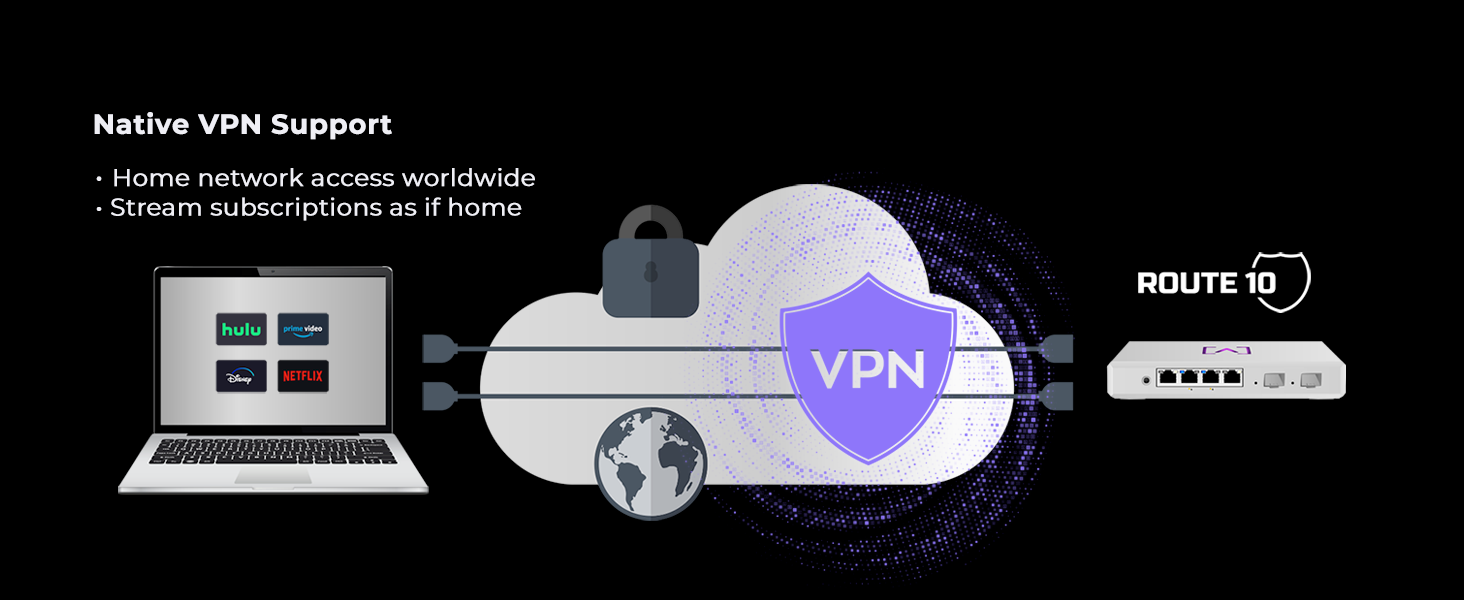
Hình ảnh 4: Illustration of Native VPN Support on the Alta Labs Route10, enabling secure home network access worldwide and streaming subscriptions as if at home.
PHIM 1: Một quaview of the Alta Labs Home Network, demonstrating how the Route10 integrates with other Alta Labs devices to create a comprehensive and managed network solution.
5. Bảo trì
- Cập nhật chương trình cơ sở: Alta Labs regularly releases firmware updates to enhance features and improve security. Ensure your Route10 is always running the latest firmware through the Alta platform.
- Giám sát thường xuyên: Periodically check the network monitoring dashboard for any unusual activity or performance issues.
- Kiểm tra thể chất: Ensure the router is in a well-ventilated area and free from dust accumulation.
KHAI THÁC. Xử lý sự cố
Các vấn đề thường gặp và giải pháp
- Không có kết nối Internet:
- Hãy kiểm tra xem modem của nhà cung cấp dịch vụ Internet (ISP) có hoạt động bình thường hay không.
- Check WAN cable connections on the Route10.
- Confirm WAN settings (DHCP, Static IP, PPPoE) in the Alta platform.
- Tốc độ mạng chậm:
- Check network utilization in the Alta platform dashboard.
- Ensure all cables are securely connected and are of appropriate category (e.g., Cat6 for 10Gbps).
- Review QoS settings to ensure critical traffic is prioritized correctly.
- Thiết bị không kết nối:
- Verify physical cable connection to the LAN port.
- Check DHCP server settings to ensure IP addresses are being assigned.
- If using PoE+, ensure the device is compatible and receiving power.
- Bộ định tuyến không phản hồi:
- Khởi động lại bộ định tuyến bằng cách rút phích cắm trong 10 giây rồi cắm lại.
- If issues persist, perform a factory reset using the reset button (refer to the device diagram for location). Note: A factory reset will erase all configurations.
For further assistance, consult the Alta Labs support forums or contact customer service.
7. Thông số kỹ thuật
| Tính năng | Chi tiết |
|---|---|
| Kích thước sản phẩm | 9.5 x 9.5 x 2 inch |
| Trọng lượng sản phẩm | 1.5 pound |
| Số hiệu mẫu sản phẩm | Tuyến đường 10 |
| Thương hiệu | Phòng thí nghiệm Alta |
| Tính năng đặc biệt | Internet Security, LED Indicator, Parental Control, Remote Access |
| Lớp băng tần | Băng tần đơn |
| Tiêu chuẩn giao tiếp không dây | 802.11ax (Note: Router does not broadcast Wi-Fi, this refers to compatible APs) |
| Thiết bị tương thích | Máy tính cá nhân |
| Sử dụng được đề xuất cho sản phẩm | Việc kinh doanh |
| Công nghệ kết nối | Mạng Ethernet |
| Màu sắc | Trắng |
8. Bảo hành và Hỗ trợ
Kế hoạch bảo vệ
Optional protection plans are available for your Alta Labs Route10 router:
- Gói bảo vệ 3 năm
- Gói bảo vệ 4 năm
- Bảo vệ toàn diện (gói hàng tháng bao gồm các giao dịch mua đủ điều kiện)
For details on these plans, please refer to the product's purchase page or contact your retailer.
Chính sách trả hàng
The standard return policy allows for a refund/replacement within 30 days of purchase.
Hỗ trợ kỹ thuật
For technical assistance, firmware updates, or to access community forums, please visit the official Alta Labs website or contact their customer support directly. Active software updates are regularly provided to enhance functionality and address issues.


