Giới thiệu
The HEXGAMING PHANTOM Pro Gaming Controller is engineered for competitive gameplay across multiple platforms, including PlayStation 5, PC, and mobile devices. This controller features an ergonomic design, remappable back buttons, adjustable triggers, interchangeable thumbsticks, and advanced Drifix technology to ensure precision and comfort during extended gaming sessions. This manual provides detailed instructions for setup, operation, maintenance, and troubleshooting to help you maximize your gaming experience.
Video: PHANTOM Controller: Quick Overview of Its Key Features
Nội dung gói
Xác minh rằng tất cả các mục đều có trong gói hàng của bạn:
- PHANTOM eSports controller for PS5 and PC
- 8 interchangeable thumbsticks
- Công cụ điều chỉnh
- Hướng dẫn sử dụng
Note: The wireless controller does not come with a cable or other accessories.

Image: The HEXGAMING PHANTOM Pro Controller package showing the controller, 8 interchangeable thumbsticks, and an adjustment tool.
Video: PHANTOM Controller - Unboxing
Tính năng sản phẩm
Thiết kế công thái học
The PHANTOM Pro controller is built with an ergonomic design, integrated structure, and soft rubber grips to enhance comfort and reduce fatigue during long gaming sessions. This design allows for detailed control and a professional gaming experience.

Hình ảnh: Từ trên xuống view of the HEXGAMING PHANTOM Pro Controller in Chaos Black, highlighting its ergonomic shape and button layout.
Remappable Back Buttons and Profiles
The controller features 4 fully remappable back buttons and 6 swappable profiles, allowing you to customize controls and switch layouts seamlessly. These tactile buttons are ergonomically placed for excellent feedback and precise pressing.

Image: A user's hands gripping the PHANTOM Pro Controller, with a clear view of the four remappable back buttons on the underside.
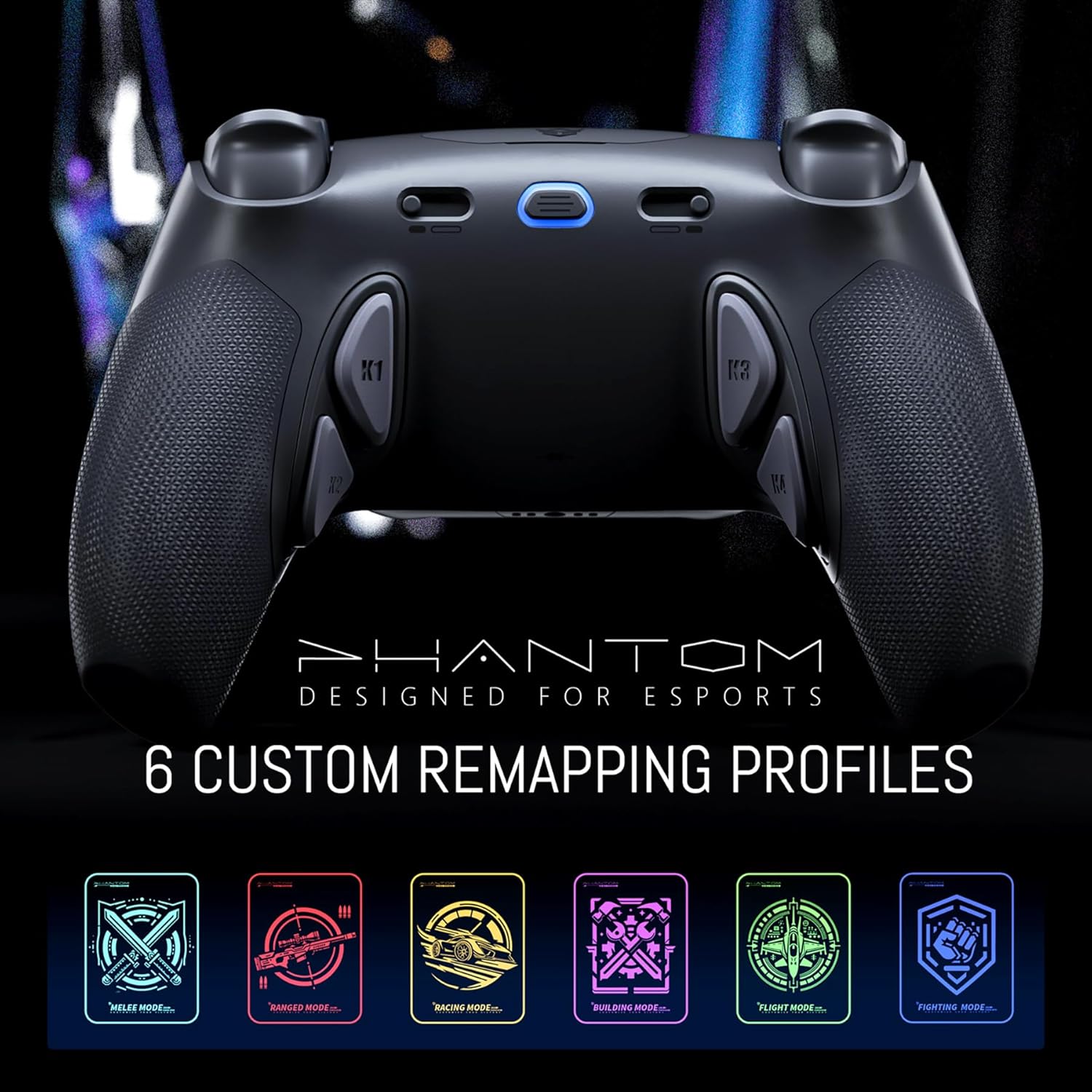
Image: An illustration of the PHANTOM Pro Controller with six distinct custom remapping profiles, each represented by a unique icon and color.
Video: How to Remap Your HexGaming PHANTOM Controller Buttons
Adjustable Triggers
Instantly switch between adaptive and digital triggers using convenient trigger-mode switches. Digital triggers offer a short travel distance (1.5 to 2mm) for fast, mouse-click-like action, ideal for FPS games. Adaptive triggers provide precise control for games like racing simulators.

Hình ảnh: Một chi tiết view of the PHANTOM Pro Controller's micro switch triggers, highlighting their internal mechanism for quick response.
Có thể hoán đổi ngón tay cái
Customize your thumbsticks to match your playstyle. The controller includes 8 interchangeable textured sticks (concave, domed, and extended options) for optimal comfort, precision, and performance.

Image: The PHANTOM Pro Controller displayed alongside its set of 8 interchangeable thumbsticks, offering various shapes and heights for customization.
Video: Swappable Thumbsticks in Action
Drifix Technology
The exclusive Drifix technology allows you to offset stick drift by adjusting joystick modules within a 0.12 range. This ensures pinpoint accuracy and maintains peak controller performance.

Image: A technical diagram showing the Drifix technology on the PHANTOM Pro Controller, illustrating how joystick axis deviations can be adjusted.
Video: How the HEX DRIFIX module works wonders!
Cài đặt
Connecting to PS5/PC/Mobile
To connect your PHANTOM Pro controller, ensure your console or device is powered on. The controller can be connected wirelessly via Bluetooth or wired using a compatible USB-C cable (not included). For initial pairing, follow your device's standard Bluetooth pairing instructions. For PC, a wired connection is often plug-and-play.
Hướng dẫn sử dụng
Ánh xạ nút
The PHANTOM Pro controller allows you to remap its back buttons to suit your preferences. Follow these steps:
- First, sync the controller with your console or PC before entering mapping mode. The indicator light will remain lit.
- Press and hold the Setting Button for 3 seconds to enter mapping mode. The indicator light will flash rapidly, indicating that mapping mode has been activated.
- Under mapping mode, press and hold the desired back button (e.g., K1) and the target button (e.g., X) together for 3 seconds. The indicator light will quickly flash red three times, indicating successful mapping. The indicator light will then continue to flash rapidly, awaiting the next setting.
- After mapping all desired buttons, hold down the Setting Button for about 3 seconds to exit mapping mode. The indicator light will stay solid, confirming you have exited mapping mode.
Video: How to Remap Your HexGaming PHANTOM Controller Buttons
Clearing Specific Button Mappings
To clear a specific K button mapping in the current profile:
- Enter mapping mode by pressing and holding the Setting Button for 3 seconds.
- Hold down the same two buttons that were previously mapped (e.g., K1 and X) again for 3 seconds. The indicator light will turn red and flash slowly three times, signaling that the current mapping for the K button has been successfully cleared.
Clearing All Button Mappings
To clear all K button mappings that have been set in the current profile:
- When the indicator light remains solid (not in mapping mode).
- Press and hold the combination of L1 + Up + Left + R1 + Triangle + Square for about 5 seconds.
- The indicator light will turn red and flash slowly three times, indicating that all K button mappings in the current profile have been successfully cleared.
chuyển đổi chuyên nghiệpfiles
The controller supports 6 memory profiles, each represented by a different color. Double-click the Setting Button to switch to the next memory profile:
- Màu xanh da trời
- Màu xanh lá
- Màu lục lam
- Màu tím
- Màu vàng
- Trắng
Disabling Back Buttons
When you switch to the no lighting (non-lit) setting, the mapping function enters an inactive mode. This means the back buttons are disabled.
BẢO TRÌ
Vệ sinh bộ điều khiển
It is recommended to clean the plastic surfaces of your controller with a wipe dampened with less than 70% alcohol. After cleaning, place the controller in a ventilated area to dry completely. Do not spray water or alcohol directly onto the product surface, and avoid using any other organic solvents for cleaning.

Image: Visual guide on how to clean the PHANTOM Pro Controller, emphasizing the use of a damp wipe and proper drying.
Xử lý sự cố
Các vấn đề thường gặp và giải pháp
- Bộ điều khiển không kết nối: Ensure the controller is fully charged or connected via USB-C. Verify Bluetooth is enabled on your device and attempt re-pairing.
- Button Mapping Issues: If a remapped button is not functioning as expected, re-enter mapping mode and clear the specific mapping or all mappings, then re-program as needed.
- Trôi lệch cần điều khiển: Utilize the Drifix technology with the provided adjustment tool to calibrate the joystick modules and correct any axis deviations. Refer to the 'How the HEX DRIFIX module works wonders!' video for detailed instructions.
- Back Buttons Unresponsive: Check if the controller is in a profile where back buttons are disabled (no lighting setting). Switch to an active profile.
For further assistance, visit the HEXGAMING Knowledge Base and FAQs online at hexgaming.com/guide Và hexgaming.com/faq.
Thông số kỹ thuật
| ASIN | B0DHCV9JSS |
| Kích thước sản phẩm | 6.3 x 3.94 x 2.36 inch |
| Trọng lượng sản phẩm | 11.6 ounce |
| Nhà sản xuất | ĐÁNH GIÁ |
| Pin | Cần có 1 pin Lithium Ion (bao gồm) |
| Ngày đầu tiên có sẵn | Ngày 18 tháng 2024 năm XNUMX |
Bảo hành và Hỗ trợ
For warranty information and product support, please refer to the official HEXGAMING website. You can find detailed guides and frequently asked questions (FAQs) to assist you with your PHANTOM Pro controller.
- Knowledge Base and Guides: hexgaming.com/guide
- Câu hỏi thường gặp: hexgaming.com/faq


