1. Giới thiệu
This manual provides essential information for the installation, operation, maintenance, and troubleshooting of your PNY RTX 4000 Ada Generation 20GB DDR6 Quadro Graphics Card. This professional graphics card is designed for demanding applications such as 3D rendering, CAD/CAM, scientific simulations, and AI workflows, leveraging the NVIDIA Ada Lovelace architecture.
Key features include 6,144 CUDA cores, 48 RT Cores, 192 Tensor Cores, and 20GB of GDDR6 ECC memory, all within a single-slot, 130W design. It supports up to four 4K monitors or two 8K monitors via DisplayPort 1.4a.

Figure 1: PNY RTX 4000 Ada Generation Graphics Card overview, showing the single-slot design and an illustrative power connector icon.
2. Thông tin an toàn
Please read and follow all safety instructions carefully to prevent damage to the product or personal injury.
- Luôn ngắt nguồn điện khỏi máy tính trước khi lắp đặt hoặc tháo bất kỳ linh kiện nào.
- Hãy đeo dây đeo cổ tay chống tĩnh điện hoặc thường xuyên chạm vào vật kim loại nối đất để xả tĩnh điện trước khi thao tác với card đồ họa.
- Hãy đảm bảo hệ thống thông gió tốt bên trong thùng máy tính để tránh quá nhiệt.
- Không nên để card đồ họa tiếp xúc với hơi ẩm hoặc nhiệt độ quá cao.
- Handle the card by its edges; avoid touching the gold-plated connectors or components on the PCB.
3. Nội dung gói hàng
Xác minh rằng tất cả các mục đều có trong gói sản phẩm của bạn:
- PNY RTX 4000 Ada Generation Graphics Card (VCNRTX4000ADA-PB)
- Documentation (this manual, quick start guide, etc.)
Note: Additional accessories such as display adapters or power cables may be sold separately or included depending on your region/retailer.
4. Thiết lập
4.1. Cài đặt vật lý
- Chuẩn bị hệ thống của bạn: Power off your computer and disconnect the power cable from the wall outlet. Open your computer case.
- Locate a PCIe Slot: Identify an available PCI Express x16 slot on your motherboard. The RTX 4000 Ada Generation is a single-slot card.
- Tháo các nắp che khe cắm: Tháo nắp kim loại che khe cắm ở phía sau thùng máy tính tương ứng với khe cắm PCIe đã chọn.
- Lắp card đồ họa: Cẩn thận căn chỉnh card đồ họa với khe cắm PCIe và ấn mạnh xuống cho đến khi card được lắp chắc chắn. Đảm bảo chốt giữ trên khe cắm PCIe khớp vào đúng vị trí.
- Kết nối nguồn: The RTX 4000 Ada Generation requires an 8-pin PCIe power connector from your power supply. Connect this cable to the power connector on the top edge of the graphics card. Ensure a secure connection.
- Bảo mật thẻ: Sử dụng ốc vít để cố định giá đỡ card đồ họa vào vỏ máy tính.
- Đóng hộp và kết nối màn hình: Close your computer case. Connect your display monitor(s) to the DisplayPort outputs on the graphics card.
4.2. Cài đặt trình điều khiển
- Bật nguồn: Reconnect the power cable to your computer and power it on. Your system may boot with a basic display driver.
- Tải xuống trình điều khiển: Navigate to the official PNY or NVIDIA website to download the latest drivers for the RTX 4000 Ada Generation. It is recommended to download drivers directly from the manufacturer's webTrang web này đảm bảo hiệu suất và độ ổn định tối ưu.
- Hỗ trợ PNY: www.pny.com/support
- Trình điều khiển NVIDIA: www.nvidia.com/drivers
- Cài đặt trình điều khiển: Chạy trình cài đặt trình điều khiển đã tải xuống và làm theo hướng dẫn trên màn hình. Có thể cần khởi động lại hệ thống sau khi cài đặt.
- Xác minh cài đặt: After restarting, open the NVIDIA Control Panel or NVIDIA Settings to confirm that the graphics card is recognized and operating correctly.

Figure 2: Display output section of the PNY RTX 4000 Ada Generation, showing four DisplayPort 1.4a connectors.
5. Vận hành card đồ họa
5.1. Hoạt động cơ bản
Once installed and drivers are updated, your PNY RTX 4000 Ada Generation graphics card will automatically handle graphics processing for your system. Applications that benefit from GPU acceleration will utilize the card's capabilities.
- Bảng điều khiển NVIDIA: Use the NVIDIA Control Panel (Windows) or NVIDIA Settings (Linux) to adjust display settings, manage 3D application profiles, and monitor GPU status.
- Tương thích phần mềm: Ensure your professional applications (e.g., CAD, rendering software) are updated to versions that support NVIDIA Ada Lovelace architecture for optimal performance.
5.2. Thiết lập nhiều màn hình
The RTX 4000 Ada Generation supports up to four DisplayPort 1.4a outputs, allowing for flexible multi-monitor configurations.
- Connect your monitors to the available DisplayPort outputs on the graphics card.
- Access your operating system's display settings (e.g., Windows Display Settings) or the NVIDIA Control Panel to configure display arrangement, resolution, and refresh rates.
- The card supports resolutions up to 4K on four monitors simultaneously, or two 8K monitors.
6. Bảo trì
6.1. Vệ sinh
Việc vệ sinh thường xuyên giúp duy trì hiệu suất tối ưu và kéo dài tuổi thọ của card đồ họa.
- Tắt nguồn: Luôn tắt máy tính và ngắt kết nối khỏi nguồn điện trước khi vệ sinh.
- Loại bỏ bụi: Use compressed air to gently blow dust from the heatsink fins and fan blades. Hold the fan blades in place while blowing to prevent over-spinning and potential damage to the fan bearings.
- Vệ sinh bên ngoài: Wipe the exterior of the card with a soft, dry, lint-free cloth. Do not use liquid cleaners directly on the card.
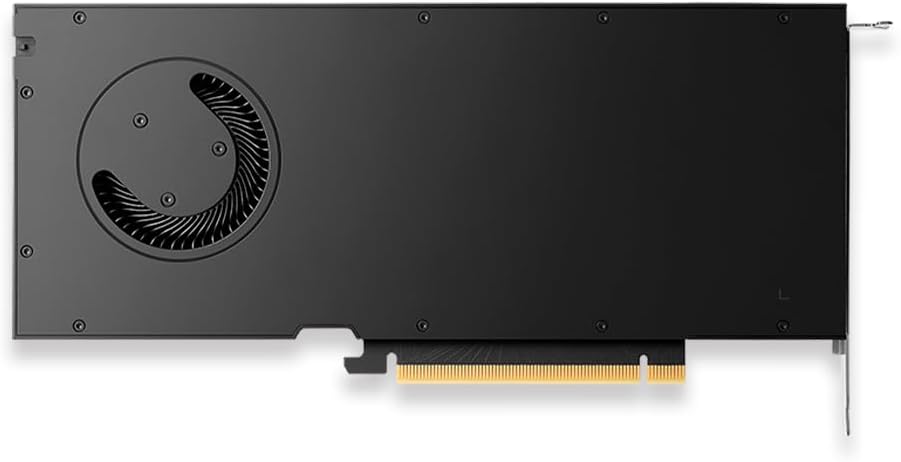
Hình 3: Phía sau view of the PNY RTX 4000 Ada Generation, highlighting the cooling fan for maintenance reference.
6.2. Lưu trữ
If storing the graphics card, place it in an anti-static bag and store it in a cool, dry environment away from direct sunlight and extreme temperatures.
KHAI THÁC. Xử lý sự cố
Phần này giải quyết những vấn đề phổ biến mà bạn có thể gặp phải.
- Không có đầu ra hiển thị:
- Ensure the monitor is powered on and connected to the graphics card, not the motherboard's integrated graphics.
- Verify the graphics card is fully seated in the PCIe slot and the power cable is securely connected.
- Hãy thử dùng cáp màn hình hoặc màn hình khác.
- Check your BIOS/UEFI settings to ensure the primary display output is set to PCIe graphics.
- Sự cố cài đặt trình điều khiển:
- Uninstall any previous graphics drivers using a utility like Display Driver Uninstaller (DDU) in Safe Mode, then attempt a fresh installation of the latest drivers.
- Ensure you downloaded the correct drivers for your operating system and graphics card model.
- Hệ thống không ổn định hoặc bị treo:
- Hãy đảm bảo bộ nguồn (PSU) của bạn đáp ứng công suất tối thiểu.tagYêu cầu hệ thống của bạn, bao gồm cả card đồ họa.
- Monitor GPU temperatures using software utilities. Excessive heat can cause instability. Ensure proper case airflow.
- Verify that your operating system and motherboard BIOS are up to date.
8. Thông số kỹ thuật
| Tính năng | Chi tiết |
|---|---|
| Thương hiệu | PNY |
| Số hiệu mẫu | VCNRTX4000ADA-PB |
| Bộ đồng xử lý đồ họa | NVIDIA Quadro RTX 4000 thế hệ Ada |
| Ngành kiến trúc | NVIDIA Ada Lovelace |
| Lõi CUDA | 6,144 |
| Lõi RT | 48 (3rd Generation) |
| Lõi Tensor | 192 (4th Generation) |
| Kích thước RAM đồ họa | 20 GB GDDR6 ECC |
| Giao diện bộ nhớ | 160-bit |
| Băng thông bộ nhớ | 360 GB/giây |
| Tốc độ xung nhịp GPU | 2220 MHz (Tăng cường) |
| Tốc độ bộ nhớ | 2250MHz |
| Hiệu suất FP32 | Up to 26.7 TFLOPS |
| Ray Tracing Performance | 61.8 TFLOPS |
| AI Performance (FP8) | 327.6 TFLOPS |
| Giao diện đầu ra video | 4x DisplayPort 1.4a |
| Độ phân giải màn hình tối đa | 3840x2160 (4K) per display, up to 4 displays; 8K on 2 displays |
| Tiêu thụ điện năng | 130W |
| Yếu tố hình thức | Khe đơn |
| Kích thước sản phẩm (DxRxC) | 14.65 x 8.55 x 0.1 inch |
| Trọng lượng sản phẩm | 1.85 pound |
9. Thông tin bảo hành
PNY products are covered by a manufacturer's warranty. The specific terms and duration of the warranty may vary by region and product type. Please refer to the official PNY website or your product's packaging for detailed warranty information.
For warranty claims or to register your product, visit: www.pny.com/support/warranty
10. Hỗ trợ kỹ thuật
If you encounter issues that cannot be resolved using the troubleshooting steps in this manual, or require further assistance, please contact PNY Technical Support.
- Hỗ trợ PNY Webđịa điểm: www.pny.com/support
- Sự ủng hộ website provides FAQs, driver downloads, and contact information for technical assistance.


