1. Giới thiệu
The Phomemo M950 Label Maker is a versatile, portable thermal label printer designed for both home and office use. It offers dual printing modes: direct input via its integrated keyboard and wireless printing via Bluetooth connection to a mobile application. This device utilizes thermal printing technology, eliminating the need for ink cartridges, and supports various label tape types for diverse labeling needs.
2. Thông tin an toàn
- Keep the device away from water and high humidity to prevent electric shock or damage.
- Không tháo rời hoặc cố gắng tự sửa chữa thiết bị. Liên hệ với bộ phận hỗ trợ khách hàng để được hỗ trợ.
- Use only Phomemo-approved label tapes to ensure optimal performance and prevent damage to the print head.
- Để xa tầm tay trẻ em.
- Tránh để thiết bị tiếp xúc trực tiếp với ánh nắng mặt trời hoặc nhiệt độ quá cao.
- Charge the device using a compatible Type-C USB power adapter.
3. Nội dung gói hàng
Please check the package contents upon unboxing. If any items are missing or damaged, contact your retailer or Phomemo customer support.
- Máy tạo nhãn Phomemo M950
- 12mm Label Tape Roll (pre-installed or included separately)
- Cáp sạc USB Type-C
- Hướng dẫn sử dụng (tài liệu này)
4. Sản phẩm hếtview
Familiarize yourself with the components of your Phomemo M950 Label Maker.

Image: Phomemo M950 Label Maker showing its main features including no ink, one-touch key, keyboard editing, app editing, 203 DPI resolution, backlight support, Type-C recharge, and built-in cutter.
Các tính năng chính:
- Nhập bàn phím: Integrated QWERTY keyboard for direct label creation.
- Kết nối Bluetooth: Connects to smartphones for advanced label design via the Phomemo app.
- In nhiệt: No ink required, uses thermal label tapes.
- Màn hình có đèn nền: Đảm bảo khả năng quan sát trong điều kiện ánh sáng yếu.
- Máy cắt tích hợp: Dùng để cắt nhãn một cách sạch sẽ và chính xác.
- Pin sạc: Integrated 1200mAh battery, rechargeable via Type-C port.
5. Thiết lập
5.1. Sạc thiết bị
Before first use, fully charge the label maker.
- Kết nối cáp USB Type-C được cung cấp vào cổng sạc ở bên cạnh máy in nhãn.
- Kết nối đầu còn lại của cáp với bộ chuyển đổi nguồn USB tương thích (không kèm theo) hoặc cổng USB của máy tính.
- Đèn báo sạc sẽ hiển thị trạng thái sạc. Khi sạc đầy, đèn báo sẽ chuyển màu hoặc tắt.

Image: Phomemo M950 Label Maker highlighting the Type-C charging port and its compact dimensions.
5.2. Nạp băng nhãn
Ensure the device is powered off before loading or replacing tape.
- Open the tape compartment cover located on the top or back of the device.
- Insert the label tape roll with the label side facing up, ensuring it sits securely in the compartment.
- Feed the end of the label tape through the tape guide until it protrudes slightly from the output slot.
- Đóng chặt nắp ngăn chứa băng.
5.3. Bật / Tắt nguồn
Nhấn và giữ nút Nguồn (thường có biểu tượng nguồn điện) trong vài giây để bật hoặc tắt thiết bị.
6. Hướng dẫn vận hành
The Phomemo M950 offers two primary methods for creating labels.

Image: Phomemo M950 Label Maker illustrating the two usage modes: direct printing from the keyboard and printing via a mobile device using the 'Print Master' app.
6.1. Keyboard Printing
This mode allows you to create labels directly on the device without needing a smartphone.
- Bật nguồn: Turn on the label maker. The screen will illuminate.
- Nhập văn bản: Use the QWERTY keyboard to type your desired label text. The text will appear on the display.
- Tùy chỉnh: Use the function keys (e.g., 'Fn', 'Shift', 'Symbol', 'Caps', 'Accent') to access various customization options such as font styles, sizes, symbols, and borders. The device supports multiple languages, borders, and symbols.
- Trướcview: Use the 'Preview' button to see how your label will look before printing.
- In: Press the 'Print' button to print the label. The built-in cutter will automatically cut the label after printing.

Image: Phomemo M950 Label Maker showcasing its extensive features including support for 23+ languages, 103+ borders, and 790+ symbols and icons for label customization.
6.2. Bluetooth App Printing
For more advanced design options, connect your label maker to the 'Print Master' mobile app.
- Tải ứng dụng: Download the 'Print Master' app from your mobile device's app store (App Store for iOS, Google Play for Android).
- Bật Bluetooth: Ensure Bluetooth is enabled on your mobile device and the Phomemo M950.
- Kết nối: Open the 'Print Master' app and follow the on-screen instructions to connect to your M950 label maker via Bluetooth.
- Design Label: Use the app's interface to design your label. The app offers massive templates, additional fonts, borders, and icons.
- In: Once your design is complete, tap the print icon in the app to send the label to the M950 for printing.

Image: Phomemo M950 Label Maker demonstrating the use of the 'Print Master' app with numerous templates, 270+ borders, 110+ fonts, 1500 icons, and 14+ languages for creative label design.
6.3. Adjusting Print Density
For optimal print quality, especially with ribbon tapes, adjust the print density.
- Press the 'Fn' key, then select 'Pinter Densities' (Printer Densities).
- Choose 'High' for clearer prints, particularly when using ribbon tapes.

Image: Step-by-step guide on how to set the print density to 'High' on the Phomemo M950 Label Maker for clear prints, especially for ribbon tapes.
7. Bảo trì
7.1. Vệ sinh đầu in
Regular cleaning ensures consistent print quality.
- Turn off the label maker and open the tape compartment.
- Lau nhẹ đầu in bằng vải mềm, không xơ.ampđược tẩm cồn isopropyl.
- Hãy để đầu in khô hoàn toàn trước khi đóng nắp khoang chứa và bật nguồn thiết bị.
7.2. Lưu trữ băng từ
Store label tapes in a cool, dry place away from direct sunlight to preserve their quality and adhesive properties.
KHAI THÁC. Xử lý sự cố
If you encounter issues with your Phomemo M950, refer to the following common problems and solutions.
| Vấn đề | Nguyên nhân có thể | Giải pháp |
|---|---|---|
| Không có điện | Pin yếu; Thiết bị tắt | Charge the device; Press and hold power button to turn on. |
| Chất lượng in kém | Print head dirty; Incorrect print density; Low battery | Clean print head; Adjust print density to 'High'; Charge device. |
| Label not feeding | Tape incorrectly loaded; Tape jammed; Out of tape | Re-load tape correctly; Clear any jams; Replace tape roll. |
| Kết nối Bluetooth không thành công | Bluetooth off; Device not paired; App issue | Ensure Bluetooth is on for both devices; Re-pair in app; Restart app/device. |
| Máy cắt không hoạt động | Tape jammed; Cutter mechanism obstructed | Clear any tape jams; Ensure no debris is blocking the cutter. |
9. Thông số kỹ thuật
| Tính năng | Chi tiết |
|---|---|
| Tên mẫu | M950 |
| Thương hiệu | Phomemo |
| Công nghệ in ấn | Nhiệt |
| Công nghệ kết nối | Bluetooth, Keyboard |
| Đầu ra máy in | Đơn sắc |
| Độ phân giải in tối đa | 203dpi |
| Kích thước phương tiện tối đa | 12mm * 4000mm |
| Thiết bị tương thích | Điện thoại thông minh |
| Quyền lực | 10 Watt |
| Loại pin | Pin Lithium-ion 1200mAh tích hợp |
| Cổng sạc | USB loại C |
| Kích thước sản phẩm | 15.2 x 5.4 x 11.2cm |
| Trọng lượng sản phẩm | 490 gram |
| Màu sắc | Trắng |
| Tính năng đặc biệt | Portable, Backlight Screen, Built-in Cutter |
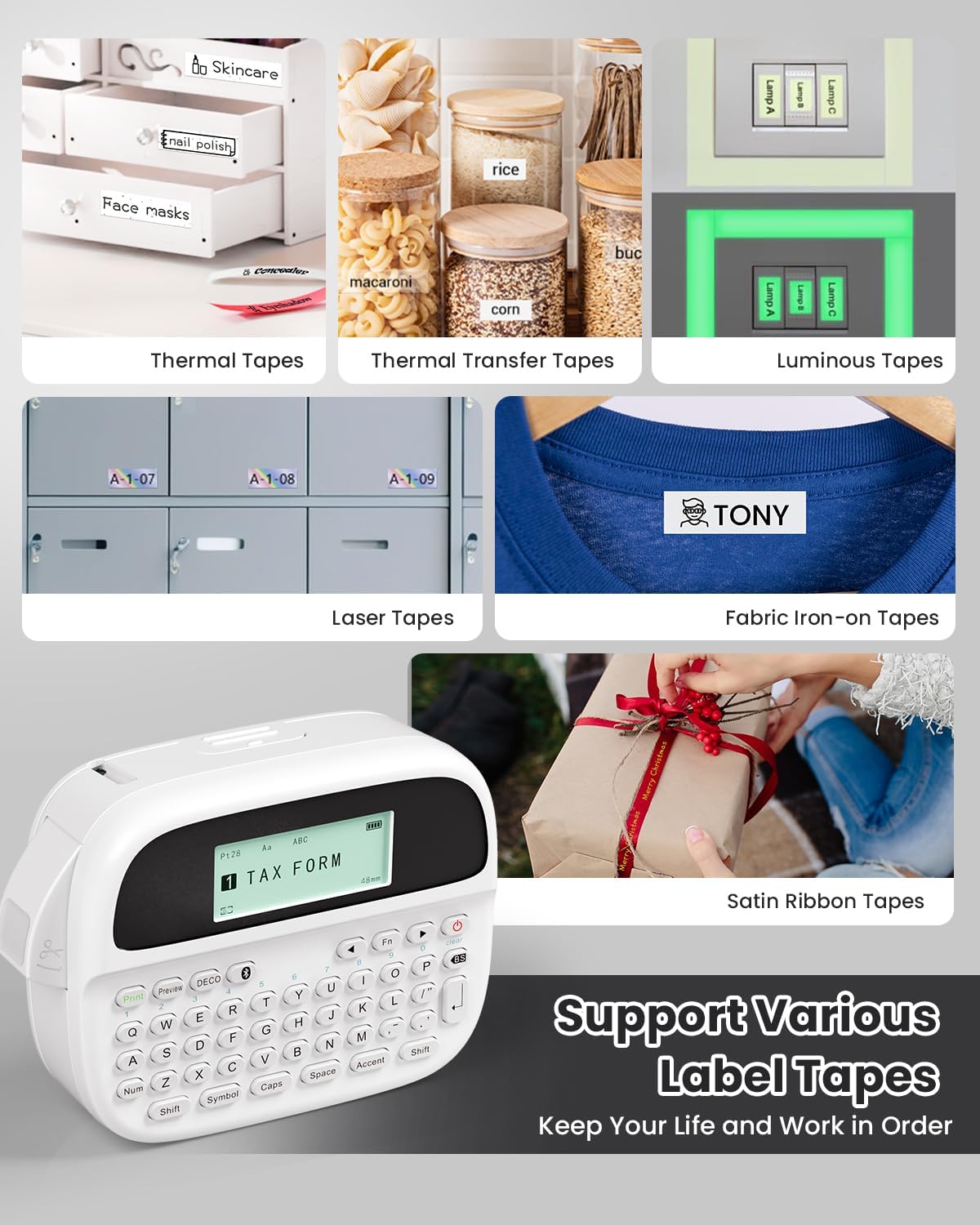
Image: Phomemo M950 Label Maker supporting various label tape types including Thermal, Thermal Transfer, Luminous, Laser, Fabric Iron-on, and Satin Ribbon tapes.

Image: Phomemo M950 Label Maker demonstrating its backlight screen feature, allowing for comfortable use even at night.
10. Bảo hành và Hỗ trợ
Để biết thông tin về bảo hành, hỗ trợ kỹ thuật hoặc các thắc mắc về dịch vụ, vui lòng tham khảo trang web chính thức của Phomemo. webhoặc liên hệ trực tiếp với bộ phận chăm sóc khách hàng của họ. Hãy giữ lại hóa đơn mua hàng để làm bằng chứng bảo hành.
Phomemo Official Webđịa điểm: Ghé thăm cửa hàng Phomemo


