Giới thiệu
The Cisco Headset 721 is a wireless on-ear Bluetooth headset designed for professional use, offering comfort and advanced features for communication and collaboration. This manual provides comprehensive instructions for its setup, operation, and maintenance.
Có gì trong hộp
Xác minh rằng tất cả các mục đều có trong gói hàng:
- Cisco Headset 721 (Single On-Ear Headset)
- Bộ chuyển đổi Bluetooth HD USB-A
- Đế sạc
- Cáp sạc USB-A
- Soft Protective Case
- Đệm tai (đã lắp sẵn hoặc dự phòng)
- Băng đô (tích hợp)

Image: The Cisco Headset 721 shown alongside its soft protective case, highlighting its portability.
Cài đặt
1. Sạc tai nghe
Before initial use, fully charge the headset. The headset has a battery life of approximately 23 hours of talk time.
- Kết nối cáp sạc USB-A với đế sạc.
- Connect the other end of the USB-A charging cable to a powered USB port (e.g., computer, wall adapter).
- Place the headset onto the charging stand, ensuring proper alignment. The LED indicator on the headset will show charging status.
2. Kết nối qua Bluetooth
The headset can connect wirelessly to two devices simultaneously via Bluetooth.
- Bật nguồn: Press and hold the Power button on the headset until the LED indicator flashes.
- Chế độ ghép nối: With the headset powered on, press and hold the Bluetooth button until the LED indicator flashes blue and red alternately. This indicates pairing mode.
- Ghép nối thiết bị: On your device (e.g., smartphone, laptop), go to Bluetooth settings and select "Cisco Headset 721" from the list of available devices.
- Xác nhận: The headset LED will turn solid blue when successfully paired.
3. Connecting with USB-A HD Bluetooth Adapter
For optimal performance and integration with Cisco applications, use the provided USB-A HD Bluetooth Adapter.
- Plug the USB-A HD Bluetooth Adapter into an available USB-A port on your computer.
- The adapter will automatically attempt to pair with your Cisco Headset 721. The LED on the adapter will indicate connection status.
- Ensure your headset is in pairing mode if it does not connect automatically.
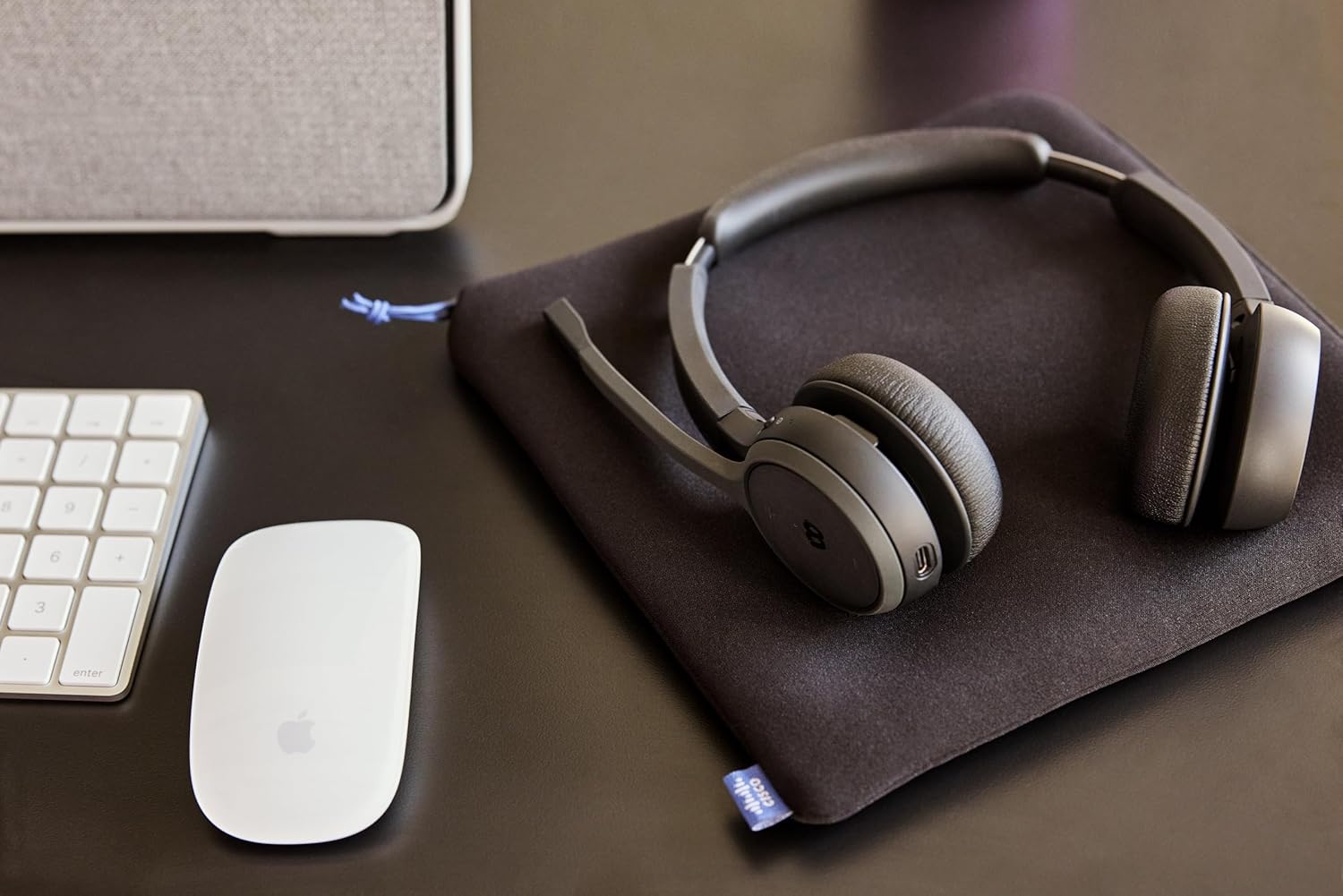
Image: The Cisco Headset 721, USB-A adapter, and charging stand arranged on a desk, illustrating a typical setup.
4. Adjusting the Microphone Boom Arm
The microphone boom arm rotates 276 degrees for optimal placement and features a flip-to-mute function.
- Position the microphone approximately two finger-widths from the corner of your mouth for clear audio.
- To mute the microphone, flip the boom arm upwards. Flip it down to unmute.
Hướng dẫn sử dụng
Điều khiển trên tai
The headset features intuitive on-ear controls for managing calls and media.
- Tăng/Giảm âm lượng: Use the dedicated volume buttons to adjust audio levels.
- Trả lời/Kết thúc cuộc gọi: Press the Call button once to answer an incoming call or end an active call.
- Tắt tiếng/Bật tiếng: In addition to the flip-to-mute boom arm, a dedicated mute button may be present for quick toggling.
- Phát/Tạm dừng phương tiện: Press the Call button once to play or pause media playback.
- Bài hát tiếp theo / trước: Use specific media control buttons if available, or double-press/triple-press the Call button (refer to specific model documentation for exact functionality).
Webex Button Integration
Người tận tâm Webex button provides seamless integration with Cisco Webex applications.
- Tham gia Webex Cuộc họp: Nhấn nút Webex button to quickly join an active or scheduled Webcuộc họp cũ.
- Webex Control: The button may also provide quick access to other Webex-specific functions depending on the application version.
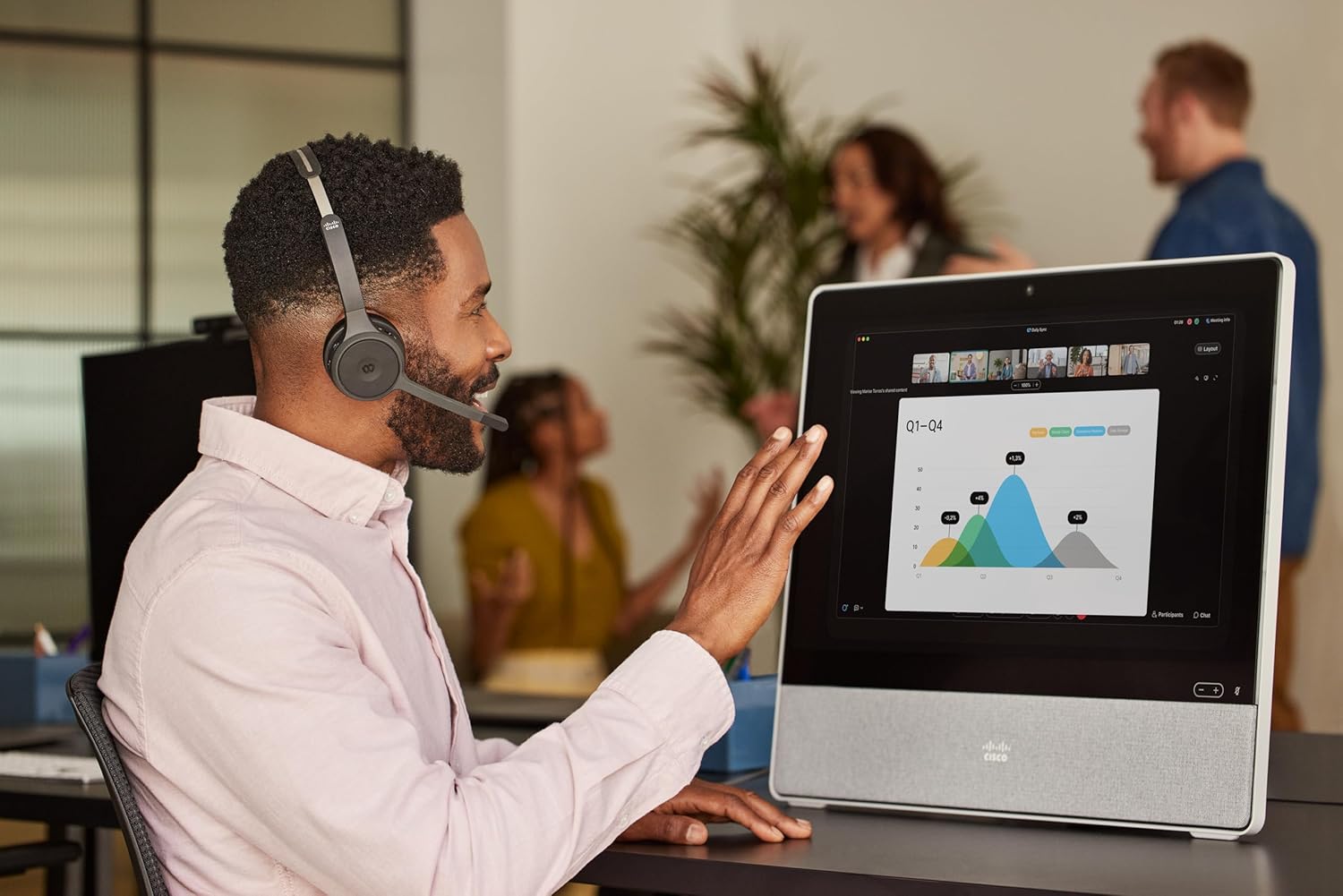
Image: A person wearing the Cisco Headset 721 while engaged in a video conference on a large display, demonstrating its use in a professional setting.
AI Voice-Activated Microphones
The headset features AI voice-activated microphones designed to minimize background noise, ensuring clear communication.
- These microphones automatically focus on your voice and suppress ambient sounds.
- No specific user action is required for this feature; it operates automatically.
Ghép nối đa điểm
The headset supports multipoint pairing, allowing it to be connected to two Bluetooth devices simultaneously.
- Once paired with two devices, the headset can seamlessly switch between them for calls or media.
- Ví dụample, you can be connected to your laptop for a video conference and your smartphone for incoming calls.
BẢO TRÌ
Vệ sinh tai nghe
Regular cleaning helps maintain the headset's hygiene and performance.
- Hãy dùng một miếng vải mềm, khô, không xơ để lau sạch các bề mặt của tai nghe.
- Đối với đệm tai, hãy lau nhẹ nhàng bằng khăn ẩm.amp cloth (water only) and allow to air dry completely before use.
- Tránh sử dụng hóa chất mạnh, dung môi hoặc vật liệu mài mòn.
Kho
When not in use, store the headset properly to protect it from damage.
- Use the provided soft protective case for storage and transport.
- Bảo quản ở nơi khô ráo, thoáng mát, tránh ánh nắng trực tiếp và nhiệt độ khắc nghiệt.
Xử lý sự cố
Các vấn đề thường gặp và giải pháp
| Vấn đề | Giải pháp |
|---|---|
| Tai nghe không bật được. | Ensure the headset is fully charged. Connect it to the charging stand and check the LED indicator. |
| Không thể ghép nối với thiết bị. | Ensure the headset is in pairing mode (LED flashing blue/red). Check your device's Bluetooth settings. Try restarting both the headset and the device. |
| Không có âm thanh hoặc chất lượng âm thanh kém. | Check the volume levels on both the headset and the connected device. Ensure the headset is selected as the audio output device. Move closer to the connected device to avoid interference. |
| Micrô không hoạt động. | Ensure the microphone boom arm is flipped down (unmuted). Check microphone settings on your connected device/application (e.g., Webex). |
| Webex button not responding. | Ensure the headset is properly connected to a device running the Webex application. Verify that the Webex application is up to date. |
Thông số kỹ thuật
| Tính năng | Chi tiết |
|---|---|
| Số hiệu mẫu | HS-WL-721-BUNAS-C |
| Công nghệ kết nối | Không dây (Bluetooth) |
| Phiên bản Bluetooth | 4.0 |
| Phạm vi Bluetooth | 10 mét |
| Vị trí tai | Trên tai |
| Yếu tố hình thức | Trên tai |
| Kiểm soát tiếng ồn | Passive Noise Cancellation, Sound Isolation |
| Tuổi thọ pin | 23 giờ (thời gian đàm thoại) |
| Loại điều khiển | Call Control, Button, App |
| Tính năng đặc biệt | Adjustable Headband, Fast Charging, Lightweight, Multipoint Pairing, Noise Isolation |
| Thiết bị tương thích | Điện thoại di động, máy tính để bàn, máy tính xách tay, máy tính bảng |
| Trọng lượng sản phẩm | 0.12 kg (4.2 ounce) |
| Vật liệu | Aluminum, Stainless Steel, Leather or Faux Leather, Memory Foam |
| Các thành phần bao gồm | Cable, Charging Station, Ear Cushions, Headband, Protective Case |
Bảo hành và Hỗ trợ
The Cisco Headset 721 comes with a Two-Year Limited Liability Warranty, đảm bảo sự an tâm về các lỗi sản xuất và vấn đề hiệu suất.
For technical support, warranty claims, or further assistance, please visit the official Cisco support website or contact your Cisco product provider. Ensure you have your product model number (HS-WL-721-BUNAS-C) and proof of purchase available.
Optional Protection Plans
Additional protection plans may be available for extended coverage:
- Gói bảo vệ 2 năm: Gia hạn thời gian bảo hiểm thêm 24 tháng.
- Gói bảo vệ 3 năm: Gia hạn thời gian bảo hiểm thêm 36 tháng.
- Bảo vệ toàn diện: Gói hàng tháng bao gồm các giao dịch mua đủ điều kiện trong quá khứ và tương lai.
Please refer to the terms and conditions of these plans for full details.


