1. Giới thiệu
The AUSDOM Airkey84 is a compact 75% mechanical keyboard designed for versatility and comfort. It features an 84-key layout, retaining essential arrow and function keys while saving desktop space. This keyboard offers triple connectivity modes: USB-C wired, Bluetooth 3.0/5.0, and 2.4GHz wireless, allowing connection to up to four devices. Equipped with low-profile brown switches, it provides a tactile typing experience suitable for both office work and gaming. The keyboard also includes 14 white LED backlight modes and is compatible with both Mac OS and Windows operating systems.
2. Có gì trong hộp
- 1 x Chuyên nghiệp thấpfile Bàn phím cơ
- 1 x Cáp USB
- Bộ thu tín hiệu 1 x USB
- 1 x Hướng dẫn sử dụng
- 3 x Extra Keycaps for Windows
3. Thiết lập
3.1 Chế độ kết nối
The AUSDOM Airkey84 supports three connection methods: Bluetooth, 2.4GHz wireless, and USB-C wired. It can connect to up to four devices simultaneously and switch between them.

Image: The keyboard supports 2.4G, Bluetooth, and Wired connections, enabling multi-device pairing.
3.1.1 Chế độ kết nối Bluetooth
- Turn the power button on the keyboard to ON.
- Nhấn và giữ Fn + BT1 keycaps for 3-5 seconds. The keyboard will enter pairing mode, and the keys' backlight indicator will flash rapidly.
- On your device (e.g., computer, tablet, smartphone), turn on its Bluetooth function. Tìm kiếm and select "AUSDOM Airkey84" to pair.
- Repeat steps 2 and 3 for BT2 and BT3 to connect up to three Bluetooth devices.
3.1.2 2.4GHz USB Connection Mode
- Turn the power button on the keyboard to ON.
- Nhấn nút fn+4 key once to switch to 2.4GHz USB connection mode.
- Plug the USB receiver into your device's USB port. The keyboard should connect automatically.
3.1.3 Chế độ có dây USB-C
- Turn the power button on the keyboard to TẮT.
- Kết nối bàn phím với thiết bị của bạn bằng cáp USB-C được cung cấp. Bàn phím sẽ tự động chuyển sang chế độ có dây.

Image: The keyboard connected via USB-C cable, also showing its rechargeable capability.
3.2 Khả năng tương thích
The keyboard is compatible with both Mac OS and Windows operating systems. Three extra keycaps are provided for Windows users to customize their layout.
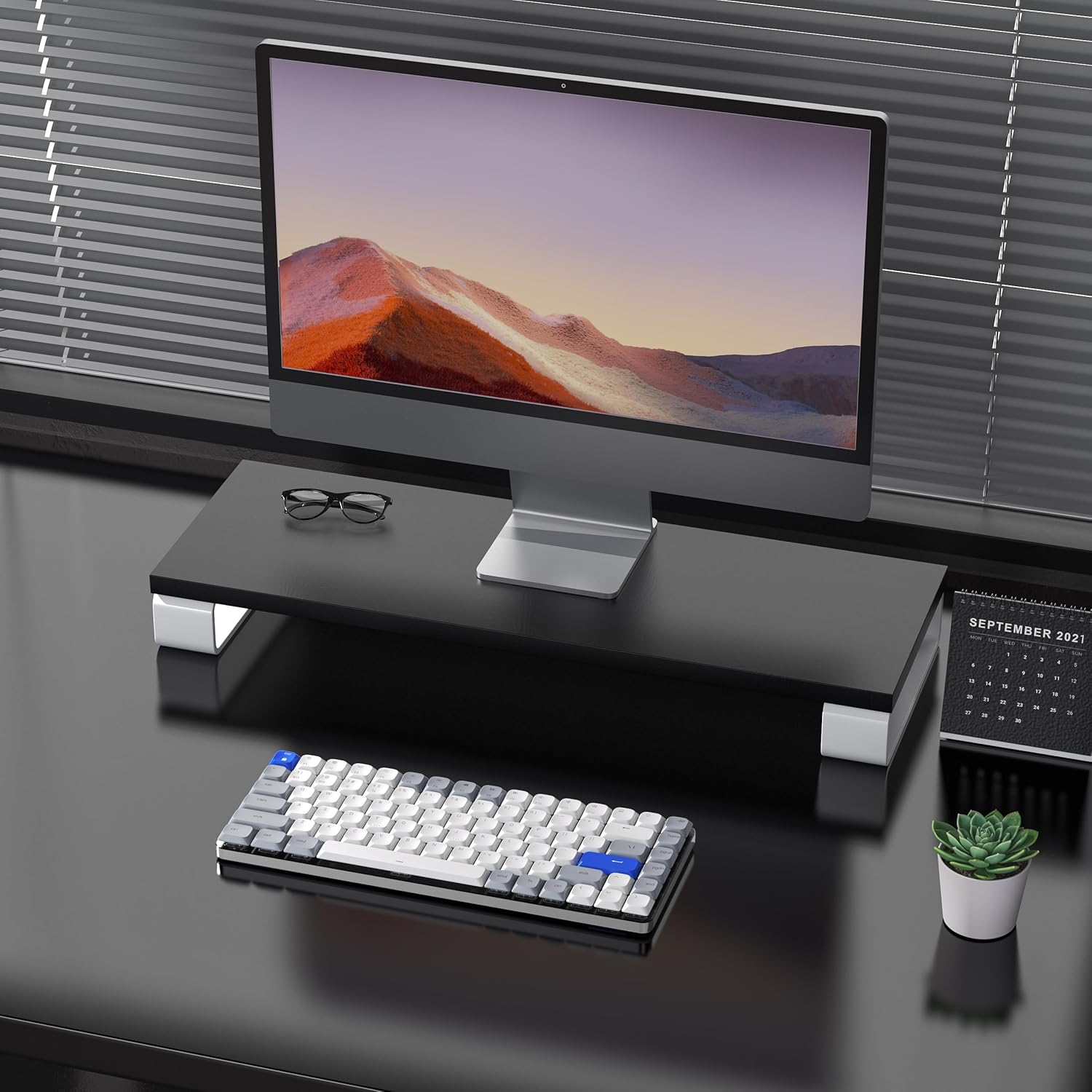
Image: The keyboard is compatible with both Mac and Windows systems, and includes extra keycaps for Windows users.
4. Hướng dẫn vận hành
Kiểm soát đèn nền 4.1
The keyboard features 14 different white LED backlight modes. To cycle through these modes, press the dedicated lightbulb button located in the top right corner of the keyboard. The keycaps are laser-engraved to ensure clear visibility of characters with the backlight on.

Image: The keyboard displaying its white backlight with 14 different lighting options.
4.2 giá đỡ có thể điều chỉnh
The keyboard is equipped with two adjustable stands on the back. These stands allow you to set the keyboard at a comfortable typing angle (e.g., 3 or 6 degrees) to reduce wrist strain during extended use.

Image: The keyboard's ultra-slim aluminum frame and ergonomic design with adjustable feet.
4.3 Thấp-Profile Công tắc màu nâu
Bàn phím sử dụng thiết kế mỏng nhẹ.file brown switches, which offer a tactile bump without a loud click. This design provides a comfortable and responsive typing experience, ideal for both fast typing and gaming.

Image: A close-up of the low-profile brown switches, highlighting their design for comfortable and effortless typing.
5. Bảo trì
5.1 Vệ sinh
- To clean the keyboard, power it off and disconnect any cables.
- Sử dụng một miếng vải mềm, không xơ vải lau nhẹampDùng nước hoặc dung dịch tẩy rửa nhẹ để lau sạch các phím và bề mặt.
- Để loại bỏ bụi và mảnh vụn giữa các phím, hãy sử dụng khí nén.
- Tránh sử dụng hóa chất mạnh hoặc vật liệu mài mòn, vì chúng có thể làm hỏng lớp phủ bàn phím hoặc các ký tự trên phím.
5.2 Chăm sóc pin
- The keyboard has a built-in 2000 mAh rechargeable battery.
- Sạc bàn phím bằng cáp USB-C được cung cấp kèm theo.
- Để kéo dài tuổi thọ pin, tránh xả pin hoàn toàn thường xuyên.
- Nếu cất giữ bàn phím trong thời gian dài, hãy sạc pin đến khoảng 50% trước khi cất giữ.
KHAI THÁC. Xử lý sự cố
6.1 Các vấn đề kết nối
- Bàn phím không kết nối được qua Bluetooth: Ensure the keyboard is in Bluetooth pairing mode (flashing backlight). Check your device's Bluetooth settings and ensure it's discoverable. Try forgetting the device and re-pairing.
- Mạng không dây 2.4GHz không hoạt động: Ensure the USB receiver is securely plugged into a working USB port. Confirm the keyboard is switched to 2.4GHz mode (Fn + 4). Try a different USB port.
- Sự cố kết nối có dây: Ensure the USB-C cable is fully inserted into both the keyboard and the device. Try a different USB-C cable or port. Ensure the keyboard's power switch is in the OFF position for wired mode.
6.2 Đèn nền không hoạt động
- Hãy đảm bảo pin bàn phím đã được sạc đủ.
- Press the backlight control button (lightbulb icon) to cycle through modes or turn the backlight on/off.
6.3 Phím không phản hồi
- Check the connection mode and ensure it's properly established.
- Hãy sạc bàn phím nếu pin yếu.
- Try connecting the keyboard via USB-C wired mode to rule out wireless interference or battery issues.
- If specific keys are not responding, gently remove the keycap and check for any obstructions or debris around the switch.
7. Thông số kỹ thuật
| Tính năng | Chi tiết |
|---|---|
| Số hiệu mẫu | Airkey84 |
| Kích thước sản phẩm | 12.13 x 183070.97 x 0.94 inch |
| Trọng lượng sản phẩm | 1.03 pound |
| Nhà sản xuất | AUSDOM |
| Pin | Cần có 1 pin Lithium Polymer (đã bao gồm) |
| Thiết bị tương thích | Máy tính xách tay, máy tính để bàn, điện thoại thông minh, máy tính bảng |
| Công nghệ kết nối | Bluetooth, Không dây 2.4 GHz, Có dây USB-C |
| Mô tả bàn phím | Cơ khí, Low Profile, 75% Layout |
| Tính năng đặc biệt | Backlit, Low-Profile Chìa khóa, có thể sạc lại |
| Đèn nền bàn phím | White LED, Single Color, 14 Modes |
| Vật liệu | Acrylonitrile Butadiene Styrene, Nhôm, Silicone |
8. Bảo hành và Hỗ trợ
For warranty information, technical support, or any product-related inquiries, please contact AUSDOM customer service through the official AUSDOM store or the platform where the product was purchased. Please refer to your purchase documentation for specific warranty terms and conditions.
You can visit the official AUSDOM store for more information: AUSDOM Store


