1. Giới thiệu
The PikDik Mini Portable Photo Printer PD-Q2 is a compact thermal printer designed for on-the-go printing. It connects via Bluetooth to compatible Android and iOS devices, allowing users to print photos, labels, lists, and more without the need for ink cartridges. This manual provides essential information for setting up, operating, maintaining, and troubleshooting your PD-Q2 printer.
2. Thông tin an toàn
- Do not expose the printer to water or excessive moisture.
- Avoid extreme temperatures. Operate and store the printer within recommended environmental conditions.
- Use only the provided charging cable and recommended power sources.
- Để xa tầm tay trẻ em.
- Không nên tự ý tháo rời hoặc sửa chữa máy in. Hãy liên hệ bộ phận hỗ trợ khách hàng để được trợ giúp.
3. Nội dung gói hàng
Vui lòng kiểm tra gói hàng để biết các mục sau:
- PikDik Mini Portable Photo Printer PD-Q2
- Cáp sạc USB Type-C
- Roll of Thermal Photo Paper
- Hướng dẫn sử dụng
4. Sản phẩm hếtview
The PD-Q2 printer features a compact design with a single power/function button and a paper output slot. It utilizes thermal printing technology, eliminating the need for ink. The device is powered by a built-in rechargeable lithium battery.
5. Hướng dẫn cài đặt
5.1 Sạc máy in
Before first use, fully charge the printer. Connect the provided USB Type-C cable to the printer's charging port and a compatible USB power adapter. The LED indicator will show charging status.
5.2 Nạp giấy in nhiệt
- Mở nắp ngăn chứa giấy của máy in.
- Insert a new roll of thermal paper, ensuring the printing side faces the print head.
- Pull a small length of paper out of the slot and close the cover securely.
5.3 Cài đặt ứng dụng và kết nối Bluetooth
The PikDik PD-Q2 printer requires the "Meta Print" application for operation. Follow these steps to connect your device:
- Bật máy in: Nhấn và giữ nút nguồn cho đến khi đèn báo sáng lên.
- Download and Install the "Meta Print" APP: Tìm kiếm "Meta Print" on your smartphone's app store (Google Play for Android or App Store for iOS) and install it.
- Bật Bluetooth: On your phone or tablet, go to your device's settings and ensure Bluetooth is turned on.
- Connect in the APP: Open the "Meta Print" app. The app will guide you to link the printer via Bluetooth. Select the PD-Q2 from the list of available devices.
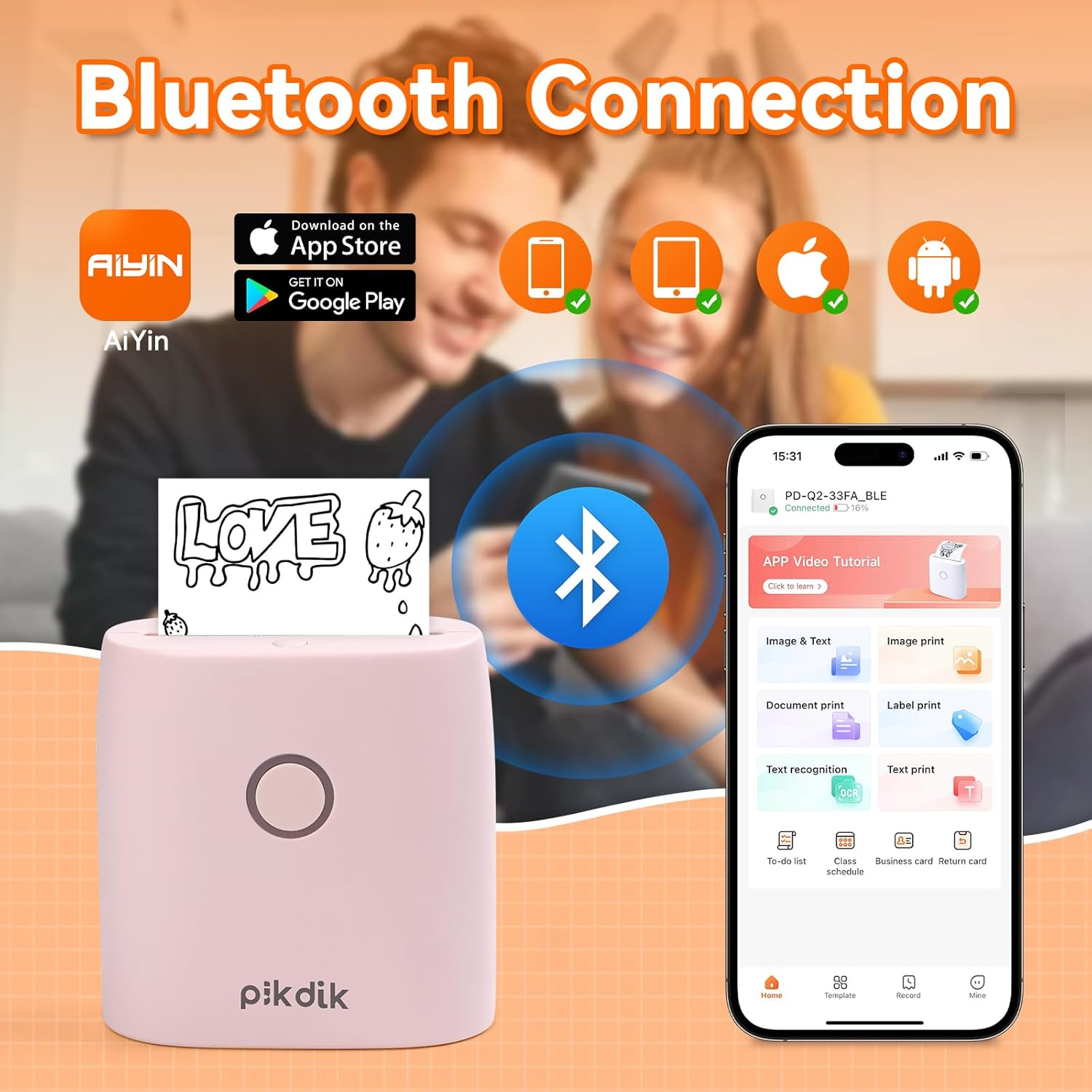
Image: The printer connects to your smartphone via Bluetooth using the Meta Print app, available on both Android and iOS.
6. Hướng dẫn vận hành
6.1 Printing Content
Once connected to the "Meta Print" app, you can select various content types for printing:
- Image & Text: Print photos, graphics, or combine them with text.
- In tài liệu: Print documents or notes.
- Label Print: Create and print custom labels.
- Nhận dạng văn bản: Convert images of text into editable text for printing.
- Mẫu: Utilize pre-designed templates for to-do lists, business cards, emojis, and more.
After selecting and editing your content within the app, tap the print button to initiate printing. The printer will output the thermal paper with your printed content.

Image: The printer is suitable for various applications such as journaling, scrapbooking, printing shopping lists, and notes.
6.2 Print Quality and Limitations
The PD-Q2 printer offers a 300 DPI resolution for clear and detailed black and white prints. As a thermal printer, it does not support color printing.
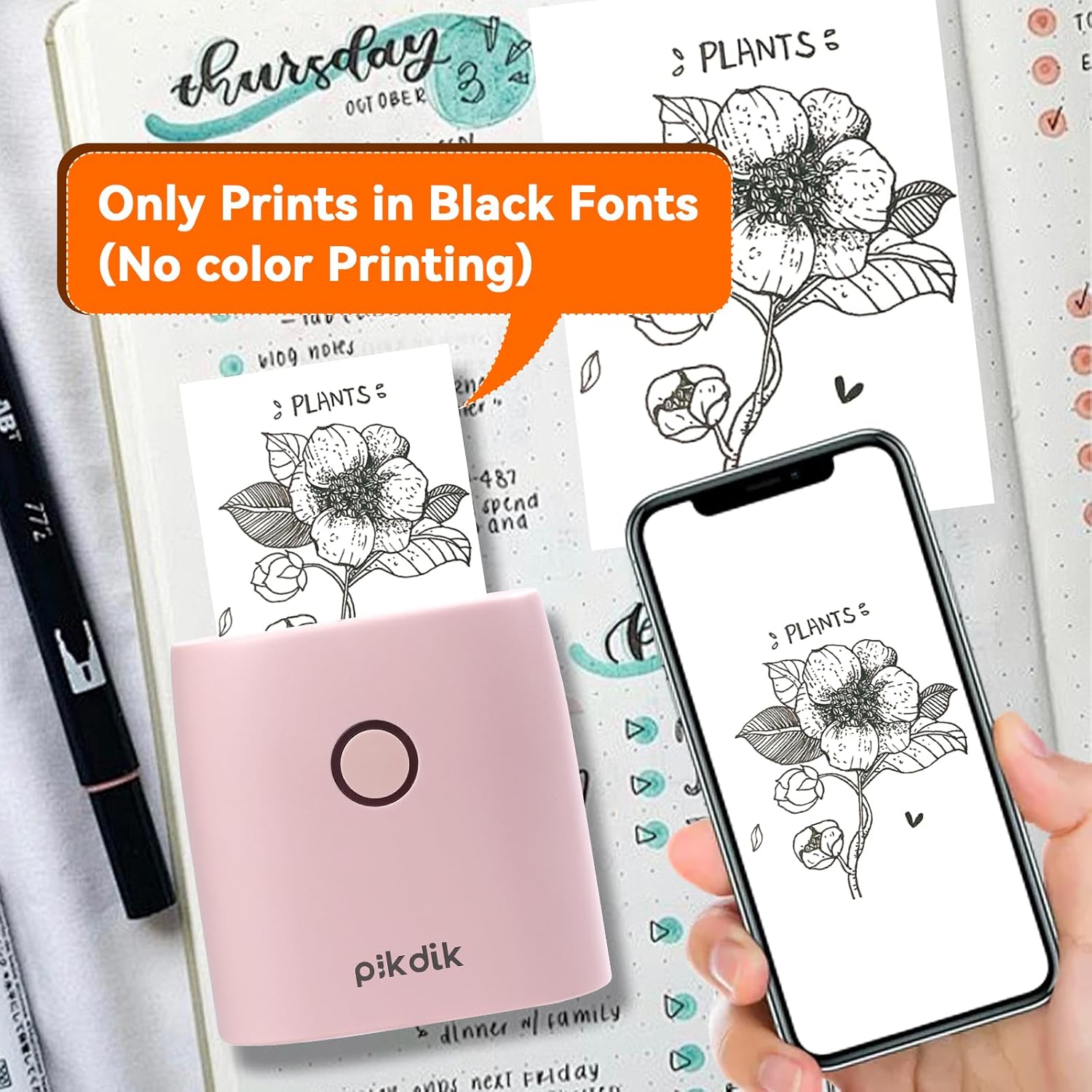
Image: The printer produces prints exclusively in black and white, as shown with a plant illustration.

Image: The 300 DPI resolution of the Q2 printer provides enhanced clarity and detail in prints compared to lower resolution alternatives.
7. Bảo trì
7.1 Vệ sinh máy in
Để duy trì chất lượng in tối ưu, hãy vệ sinh đầu in định kỳ. Sử dụng một miếng vải mềm, không xơ để lau nhẹ nhàng.ampLàm sạch bằng cồn isopropyl. Lau nhẹ nhàng bề mặt đầu in. Đảm bảo máy in đã tắt và khô hoàn toàn trước khi sử dụng.
7.2 Thay thế giấy in nhiệt
When the paper roll is depleted, replace it by following the steps in Section 5.2. Use only thermal paper compatible with the PD-Q2 printer to ensure proper function and print quality.
KHAI THÁC. Xử lý sự cố
| Vấn đề | Nguyên nhân có thể | Giải pháp |
|---|---|---|
| Máy in không bật | Pin yếu; Nút nguồn không được nhấn đúng cách | Sạc pin cho máy in; Nhấn và giữ nút nguồn trong vài giây. |
| Không thể kết nối qua Bluetooth | Bluetooth off on phone; Printer not in pairing mode; App issue | Ensure phone Bluetooth is on; Restart printer and app; Re-pair device in app. |
| Poor print quality (faint, pixelated) | Low battery; Print head dirty; Incorrect paper type; Image resolution too low | Charge printer; Clean print head (Section 7.1); Use correct thermal paper; Use higher resolution images. |
| kẹt giấy | Paper not loaded correctly; Foreign object in paper path | Open cover, remove jammed paper, reload correctly; Check for obstructions. |
| Máy in không phản hồi | Lỗi hệ thống | Perform a soft reset by turning the printer off and on again. If issue persists, contact support. |
9. Thông số kỹ thuật
| Tính năng | Chi tiết |
|---|---|
| Người mẫu | Q2 |
| Kích thước (D x W x H) | 4.1 x 8.4 x 8.4 cm (1.6 x 3.3 x 3.3 inch) |
| Cân nặng | 0.57 Pound (khoảng 258.55 g) |
| Công nghệ in ấn | Nhiệt |
| Độ phân giải in | 300 DPI (Monochrome) |
| Kết nối | Bluetooth |
| Thiết bị tương thích | Điện thoại thông minh, Máy tính bảng (Android, iOS) |
| Kích thước phương tiện tối đa | 2 inch |
| Nguồn điện | Built-in Lithium Polymer Battery (Rechargeable via USB Type-C) |
| Tên ứng dụng | Meta Print |
10. Bảo hành và Hỗ trợ
For warranty information and technical support, please refer to the warranty card included with your product or contact PikDik customer service directly. Keep your purchase receipt as proof of purchase.


