1. Giới thiệu
Thank you for choosing the Cherry KW 9100 Slim Wireless Rechargeable Keyboard. This extra-slim, low-profile keyboard is designed for Mac computers, offering versatile connectivity options and a comfortable typing experience. This manual provides essential information for setting up, operating, maintaining, and troubleshooting your new keyboard.
The keyboard features dual wireless connectivity (Bluetooth and 2.4 GHz wireless USB receiver), allowing you to easily switch between devices. It incorporates high-quality CHERRY SC scissor technology for quiet and precise keystrokes, and includes AES-128 encryption for secure data transmission. The integrated rechargeable battery provides weeks of use on a single charge, and the keyboard can be charged while in use via the included USB-A to USB-C cable.

Image 1.1: The Cherry KW 9100 Slim Wireless Rechargeable Keyboard, showcasinbố cục đầy đủ và thiết kế mỏng gọn của nófile.
2. Thông tin an toàn
- Do not expose the keyboard to liquids, excessive moisture, or extreme temperatures.
- Tránh làm rơi hoặc để bàn phím chịu tác động mạnh.
- Hãy đặt bàn phím tránh xa các từ trường mạnh.
- Không được tháo rời hoặc sửa đổi bàn phím. Việc này sẽ làm mất hiệu lực bảo hành.
- Use only the provided USB-A to USB-C cable for charging.
3. Nội dung gói hàng
Xác minh rằng tất cả các mục đều có trong gói hàng của bạn:
- Cherry KW 9100 Slim Wireless Rechargeable Keyboard
- Cáp USB-A sang USB-C
- 2.4 GHz Wireless USB Receiver
- Magnetic Strip (for angle adjustment)
- Hướng dẫn sử dụng (tài liệu này)
4. Thiết lập
4.1. Sạc bàn phím
Before first use, or when the battery indicator shows low power, connect the keyboard to a USB power source (e.g., computer USB port, USB wall adapter) using the provided USB-A to USB-C cable. The keyboard can be used while charging.
4.2. Connecting via 2.4 GHz Wireless USB Receiver
- Locate the 2.4 GHz wireless USB receiver.
- Insert the USB receiver into an available USB-A port on your Mac computer.
- On the keyboard, slide the connectivity switch (located on the side) to the 'RF' position.
- Bàn phím sẽ tự động kết nối với máy tính của bạn.
4.3. Kết nối qua Bluetooth
Ensure your Mac computer has Bluetooth 4.0 or higher.
- On the keyboard, slide the connectivity switch (located on the side) to the 'BT' position.
- Trên máy Mac của bạn, đi đến Cài đặt hệ thống (hoặc Tùy chọn hệ thống) > Bluetooth.
- Đảm bảo Bluetooth được bật.
- The keyboard should appear in the list of discoverable devices (e.g., "CHERRY KW 9100"). Select it to pair.
- Làm theo bất kỳ lời nhắc nào trên màn hình để hoàn tất quá trình ghép nối.

Hình ảnh 4.1: Bên view of the keyboard, highlighting the RF/BT connectivity switch and the USB-C charging port.
4.4. Điều chỉnh góc bàn phím
The keyboard includes a removable magnetic strip that can be attached to the underside to adjust the typing angle for improved ergonomics. Simply attach the strip to the designated area on the bottom of the keyboard.
5. Vận hành bàn phím
5.1. Switching Between Connectivity Modes
Use the slide switch on the side of the keyboard to toggle between 'RF' (2.4 GHz wireless) and 'BT' (Bluetooth) modes. This allows you to seamlessly switch between two connected devices, for example, a laptop via Bluetooth and a desktop PC via the USB receiver.
5.2. Key Functions and Mac Layout
The keyboard features a Mac-specific layout, including Command, Option, and Control keys. The function keys (F1-F15) provide quick access to various system functions such as brightness, media control, and volume. Some function keys may require pressing the 'Fn' key simultaneously depending on your Mac's system settings.
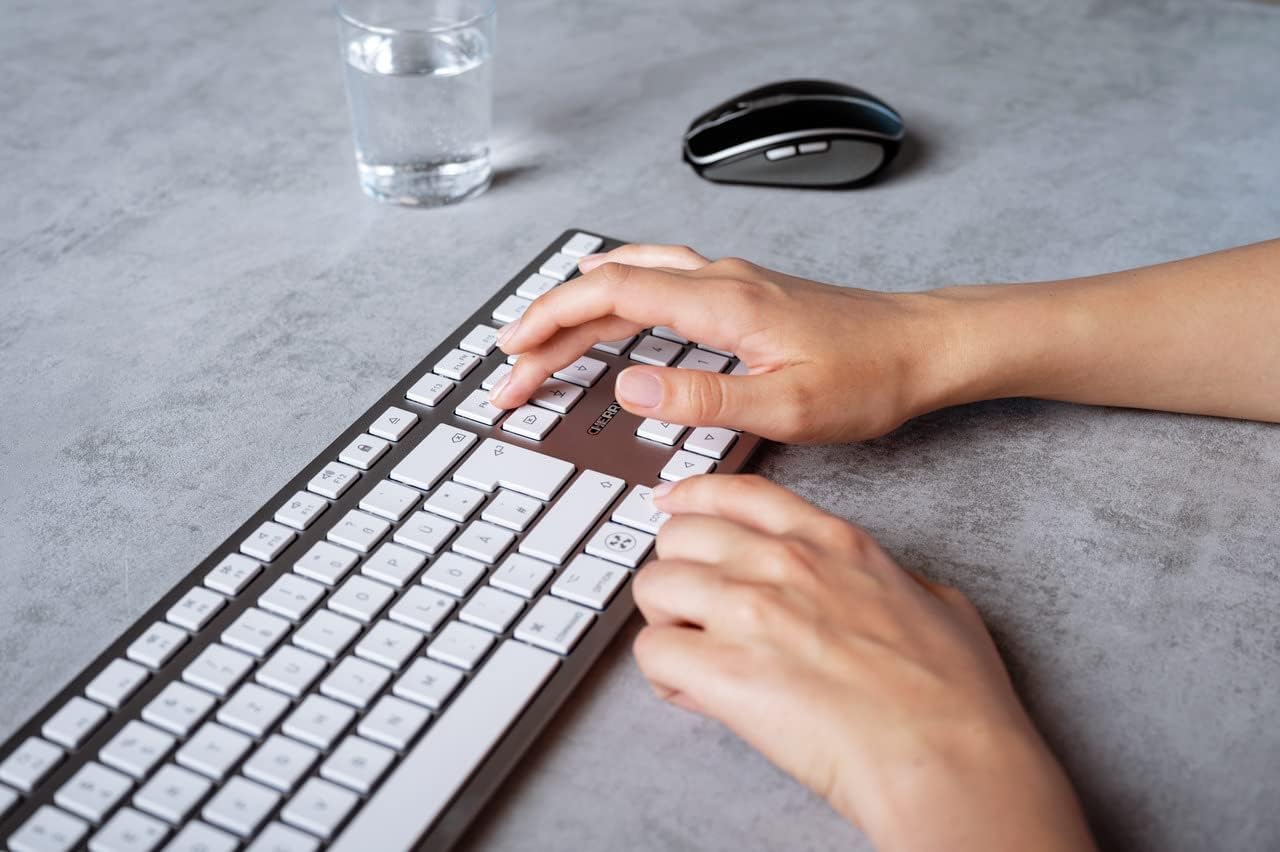
Image 5.1: A user typing on the Cherry KW 9100 keyboard, demonstrating its ergonomic design and key spacing.
5.3. Quản lý nguồn điện
To conserve battery life, the keyboard will enter a sleep mode after a period of inactivity. To wake it up, simply press any key. The keyboard will reconnect automatically to the last active device.
6. Bảo trì
6.1. Vệ sinh
Để vệ sinh bàn phím, hãy nhẹ nhàng lau bề mặt bằng vải mềm, không xơ. Đối với vết bẩn cứng đầu, hãy chà nhẹ.ampen the cloth with water or a mild, non-abrasive cleaning solution. Ensure no liquid enters the keyboard. Do not use harsh chemicals or abrasive materials.
6.2. Lưu trữ
When not in use for extended periods, store the keyboard in a dry, cool place. It is recommended to fully charge the battery before long-term storage.
KHAI THÁC. Xử lý sự cố
| Vấn đề | Nguyên nhân có thể | Giải pháp |
|---|---|---|
| Keyboard not connecting via 2.4 GHz. | USB receiver not properly inserted; keyboard switch in 'BT' mode; low battery. | Ensure receiver is fully inserted. Slide keyboard switch to 'RF'. Charge the keyboard. Try a different USB port. |
| Bàn phím không kết nối qua Bluetooth. | Keyboard switch in 'RF' mode; Bluetooth off on Mac; low battery; pairing issue. | Slide keyboard switch to 'BT'. Ensure Bluetooth is enabled on your Mac. Charge the keyboard. Remove and re-pair the keyboard in Mac's Bluetooth settings. |
| Các phím không phản hồi hoặc phản hồi chậm. | Low battery; interference; keyboard in sleep mode. | Charge the keyboard. Move closer to the receiver/Mac. Press any key to wake the keyboard. |
| Các phím chức năng (F1-F15) không hoạt động như mong đợi. | System settings; 'Fn' key usage. | Check your Mac's Keyboard settings (System Settings > Keyboard) for function key behavior. Try pressing the 'Fn' key simultaneously with the desired function key. |
| Pin hết nhanh. | Frequent use; keyboard not entering sleep mode. | Ensure the keyboard is allowed to enter sleep mode when idle. Fully charge the keyboard. |
8. Thông số kỹ thuật
| Tính năng | Chi tiết |
|---|---|
| Số hiệu mẫu | JK-9110US-1 |
| Thương hiệu | quả anh đào |
| Công nghệ kết nối | Bluetooth, USB-A (for receiver), USB-C (for charging) |
| Thiết bị tương thích | Mac computers with Bluetooth 4.0 or higher and USB-A connections |
| Mô tả bàn phím | Chuyên nghiệp thấpfile, extra-slim, wireless, scissor-switch keyboard with adjustable angle and rechargeable battery |
| Tính năng đặc biệt | Magnetic (for angle adjustment), Travel |
| Màu sắc | Bạc |
| Vật liệu | Kim loại, Nhựa |
| Kích thước sản phẩm | 17.32 x 5.12 x 0.59 inch (44 x 13 x 1.5 cm) |
| Trọng lượng sản phẩm | 1.94 pound (0.88 kg) |
| Nhà sản xuất | Anh đào |
9. Bảo hành và Hỗ trợ
Your Cherry KW 9100 Slim Wireless Rechargeable Keyboard is covered by a manufacturer's warranty. For detailed warranty information, technical support, or service inquiries, please visit the official Cherry webhoặc liên hệ trực tiếp với bộ phận hỗ trợ khách hàng của họ. Hãy giữ lại hóa đơn mua hàng để yêu cầu bảo hành.
Hỗ trợ trực tuyến: www.cherry.de


