1. Giới thiệu
Thank you for choosing the PeriPage A6 Mini Portable Thermal Printer. This compact and versatile device allows you to print photos, labels, notes, lists, and more directly from your smartphone or PC. With its high-resolution thermal printing technology, you can enjoy clear and crisp prints without the need for ink cartridges. This manual provides essential information on setting up, operating, maintaining, and troubleshooting your new printer.
3. Nội dung gói hàng
Xác minh rằng tất cả các mục đều có trong gói hàng của bạn:
- PeriPage A6 Mini Printer
- Cuộn giấy nhiệt
- Cáp USB
- Hướng dẫn sử dụng

Image: Contents of the PeriPage A6 Mini Printer package, showing the printer, a roll of thermal paper, a USB charging cable, and the user manual.
4. Sản phẩm hếtview
4.1 Các tính năng chính
- Ultra HD Printing: 304 DPI resolution for clear and detailed prints.
- In nhiệt không cần mực: No ink cartridges required, reducing operating costs.
- Đa chức năng: Supports printing of photos, labels, notes, lists, QR codes, web các trang và hơn thế nữa.
- Kết nối Bluetooth: Seamless wireless connection to iOS and Android smartphones.
- Thiết kế di động: Compact and lightweight with a built-in 1000mAh rechargeable battery.
- Hỗ trợ nhiều loại giấy: Compatible with various thermal paper types including standard, sticky, transparent, and colorful options.
4.2 Các thành phần của máy in
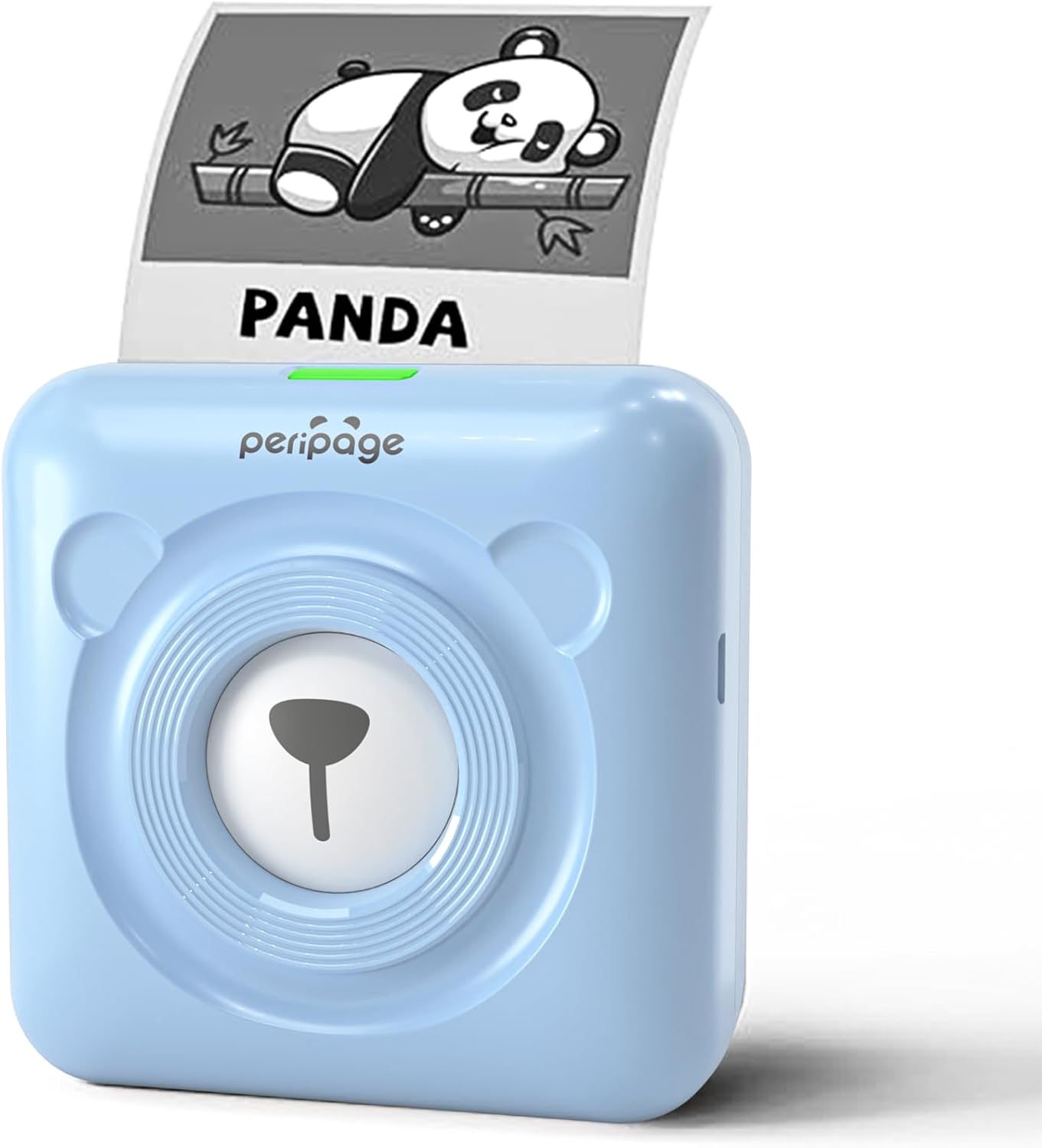
Image: The PeriPage A6 Mini Printer in blue, demonstrating a printed output. The printer features a bear-like design on its front.

Image: A visual comparison highlighting the superior print resolution of the PeriPage A6 Mini Printer (304 DPI) compared to a standard definition printer, showing finer details in the printed image.
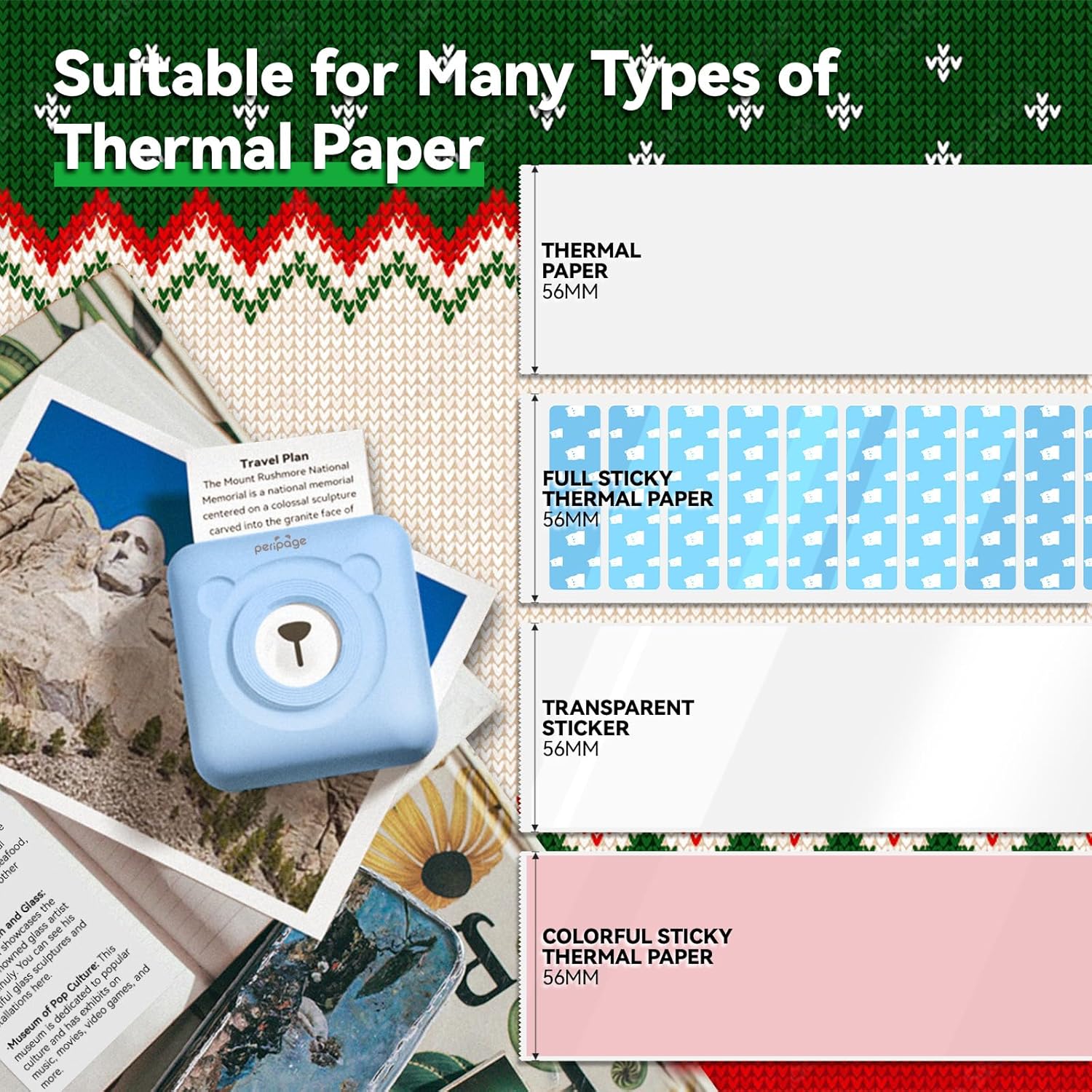
Image: An illustration showing the different types of thermal paper that can be used with the PeriPage A6 Mini Printer, such as standard thermal paper, full sticky thermal paper, transparent stickers, and colorful sticky thermal paper, all 56mm wide.
5. Hướng dẫn cài đặt
5.1 Sạc máy in
Before first use, fully charge the printer using the provided USB cable. Connect the USB cable to the printer's charging port and the other end to a USB power adapter (not included) or a computer's USB port. The indicator light will show charging status.
5.2 Lắp đặt giấy in nhiệt
- Open the printer cover by gently sliding the release button or pressing the designated area.
- Đặt cuộn giấy in nhiệt vào khay giấy, đảm bảo mặt in hướng về phía đầu in.
- Pull a small amount of paper out beyond the print head.
- Đóng chặt nắp máy in cho đến khi nghe tiếng "tách" báo hiệu đã khớp.
5.3 Downloading the PeriPage App
The PeriPage A6 Mini Printer requires the official PeriPage APP for full functionality. You can download it via:
- Searching for "PeriPage" in your device's APP store (Apple App Store for iOS, Google Play Store for Android).
- Scanning the QR code provided in the instruction manual or on the product packaging.
- Visiting the official download page: https://www.ileadtek.com/download/app/peripage.html

Image: A guide illustrating two methods to download the PeriPage App: searching on Google Play or Apple App Store, or scanning a QR code.
5.4 Connecting to Your Device (Bluetooth)
- Ensure your PeriPage A6 printer is turned on.
- Bật Bluetooth trên điện thoại thông minh của bạn.
- Open the PeriPage App. The app will guide you to connect to the printer.
- Select your printer from the list of available Bluetooth devices within the app. The printer's name usually starts with "PeriPage".
- Sau khi kết nối, ứng dụng sẽ thông báo kết nối thành công.

Image: A visual representation of connecting the PeriPage A6 Mini Printer to a smartphone via the PeriPage App, showing the app interface and Bluetooth icon.
6. Hướng dẫn vận hành
The PeriPage App offers a wide range of functions to maximize your printer's utility.
6.1 Các bước in cơ bản (qua ứng dụng)
- Bật máy in: Nhấn nút nguồn trên máy in.
- Open the PeriPage App: Hãy đảm bảo máy in của bạn được kết nối qua Bluetooth.
- Select Printing Type: On the app's homepage, choose the type of content you wish to print (e.g., Photo Print, Label Print, Notes, Web Page Printing, OCR Text Recognition).
- Import/Create Content: Select the image, text, or template you want to print. The app provides various fonts and themes.
- Điều chỉnh cài đặt (Tùy chọn): Modify print density, size, or other parameters as needed.
- In: Tap the print button in the app. The printer will begin printing.

Image: A five-step visual guide demonstrating the printing process using the PeriPage App: 1. Press button to boot, 2. Enter PeriPage app, 3. Import file, 4. Connect via Bluetooth, 5. Get printed document.
6.2 Các tình huống sử dụng
The PeriPage A6 is suitable for a variety of applications:
- Phòng bếp: Print labels for jars and containers.
- Học: Print study notes, lists, or quick references.
- Ảnh: Print black and white photos for journaling or scrapbooking.
- Nhãn dán tự làm: Create custom stickers for various purposes.
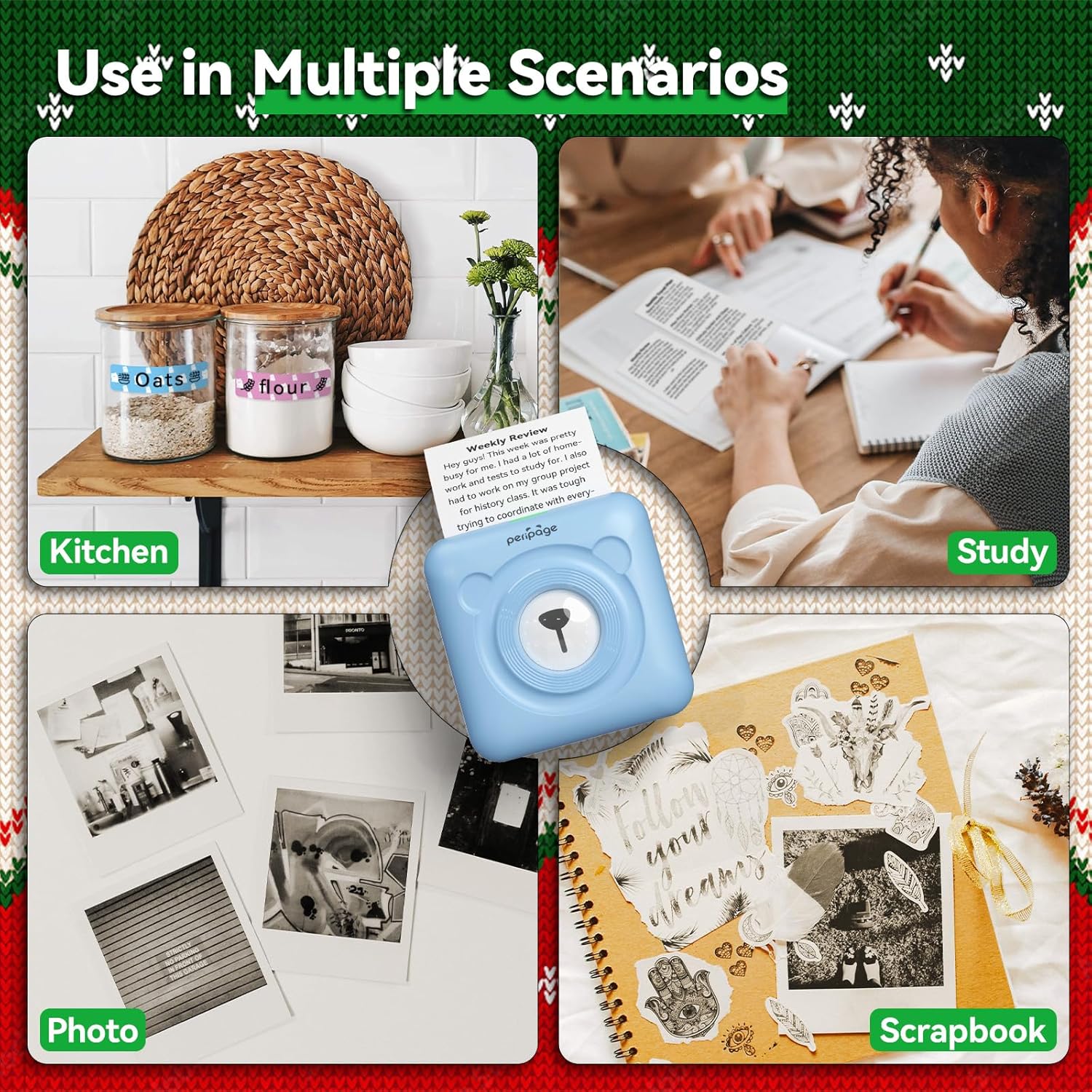
Hình ảnh: Examples of the PeriPage A6 Mini Printer's use in multiple scenarios, including creating kitchen labels, printing study notes, printing photos, and enhancing scrapbooks.
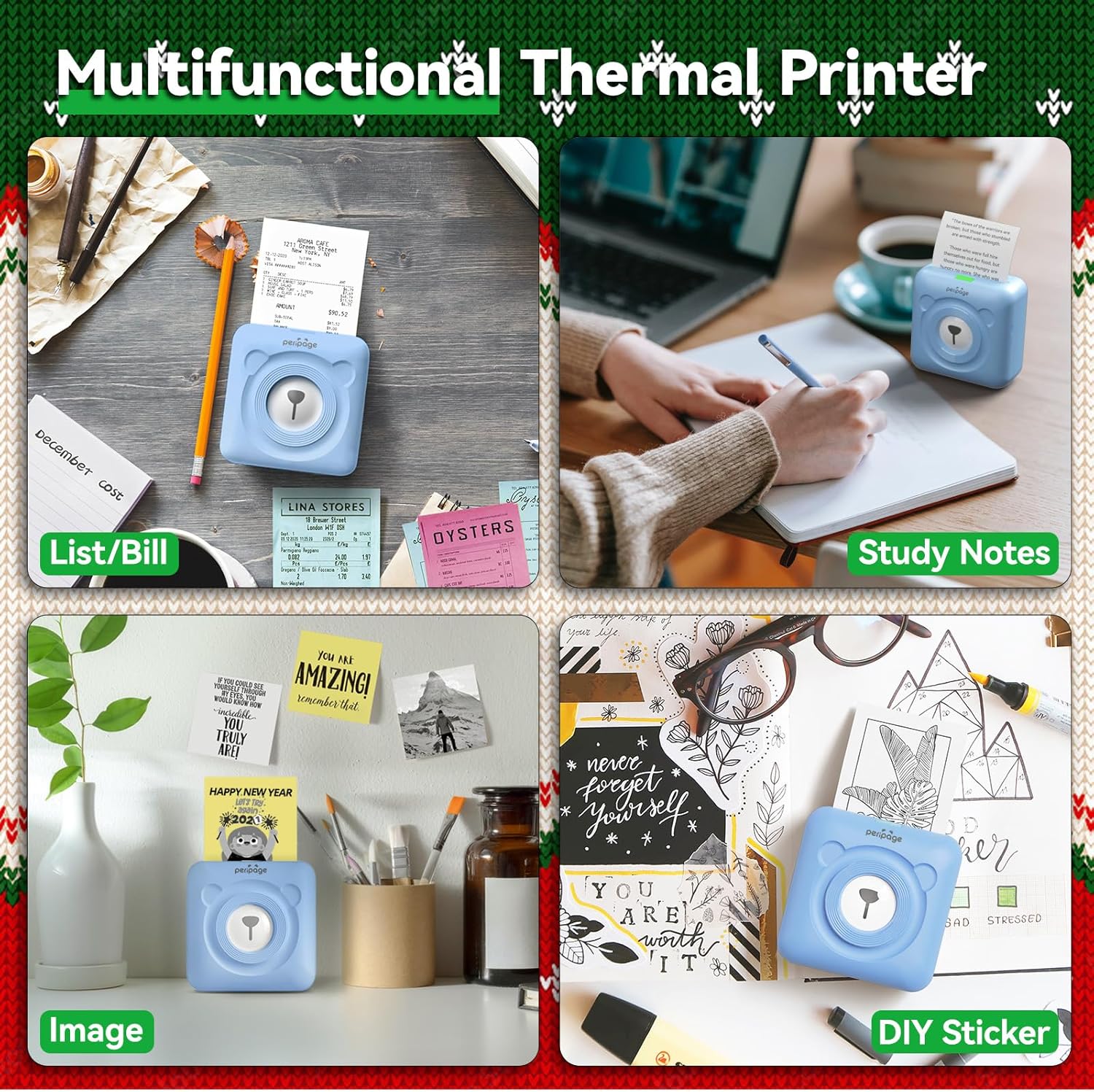
Image: A display of the PeriPage A6 Mini Printer's multifunctional thermal printing capabilities, showing its use for lists/bills, study notes, images, and DIY stickers.
7. Bảo trì
7.1 Vệ sinh máy in
To ensure optimal print quality and prolong the life of your printer, regular cleaning is recommended.
- Tắt máy in và rút dây nguồn trước khi vệ sinh.
- Hãy dùng một miếng vải mềm, khô, không xơ để lau sạch bên ngoài máy in.
- For the print head, gently wipe it with a cotton swab lightly dampĐược làm sạch bằng cồn isopropyl. Để khô hoàn toàn trước khi sử dụng.
- Không sử dụng chất tẩy rửa hoặc dung môi có tính mài mòn.
7.2 Chăm sóc pin
- Hãy sạc máy in thường xuyên, ngay cả khi không sử dụng, để duy trì tuổi thọ pin.
- Tránh xả hết pin thường xuyên.
- Khi không sử dụng máy in trong thời gian dài, hãy bảo quản nó ở nơi khô ráo, thoáng mát.
KHAI THÁC. Xử lý sự cố
If you encounter issues with your PeriPage A6 Mini Printer, refer to the following common problems and solutions:
| Vấn đề | Nguyên nhân có thể | Giải pháp |
|---|
| Máy in không bật | Pin yếu; Nút nguồn không được nhấn đúng cách | Sạc pin cho máy in; Nhấn và giữ nút nguồn trong vài giây. |
| Không thể kết nối qua Bluetooth | Bluetooth đã tắt; Không thể phát hiện máy in; Lỗi ứng dụng | Ensure Bluetooth is enabled on your phone; Restart printer and phone; Reinstall PeriPage App. |
| Chất lượng in kém / Bản in mờ | Paper installed incorrectly; Low battery; Dirty print head; Expired thermal paper | Reinstall paper with printing side facing up; Charge printer; Clean print head; Use new thermal paper. |
| kẹt giấy | Paper not inserted straight; Too much paper pulled out | Open cover and carefully remove jammed paper; Reinsert paper correctly. |
| App is buggy or freezes | Lỗi phần mềm; Phiên bản ứng dụng đã lỗi thời | Close and reopen the app; Check for app updates; Reinstall the app. |
9. Thông số kỹ thuật
| Tính năng | Chi tiết |
|---|
| Thương hiệu | PeriPage |
| Tên mẫu | PeriPage A6 |
| Công nghệ in ấn | Nhiệt |
| Nghị quyết | 304 DPI |
| Kết nối | Bluetooth, USB |
| Thiết bị tương thích | Smartphones (iOS & Android), PC, Laptops |
| Kích thước phương tiện tối đa | 57mm (width) x 30mm (roll diameter) |
| Ắc quy | Pin Lithium Ion 1000mAh (bao gồm) |
| Trọng lượng sản phẩm | 5.6 ounce (160 gram) |
| Kích thước sản phẩm | 2.95"D x 2.95"W x 1.57"H |
| Các thành phần bao gồm | Giấy |
10. Bảo hành và Hỗ trợ
10.1 Thông tin bảo hành
Please note that this product is listed with Không bảo hành. For specific details regarding returns or defects, please refer to the retailer's policy where the product was purchased.
10.2 Hỗ trợ khách hàng
For further assistance, technical support, or inquiries not covered in this manual, please contact PeriPage customer service through their official website or the contact information provided by your retailer. Ensure you have your product model number (A6) and purchase details ready when contacting support.


