Sản phẩm trênview
The Intel NUC 11 Extreme Kit (NUC11BTMi9) is a high-performance barebone mini PC designed for gaming and demanding applications. It offers uncompromised performance within a compact form factor, allowing users to customize it with their preferred RAM, storage, and operating system.

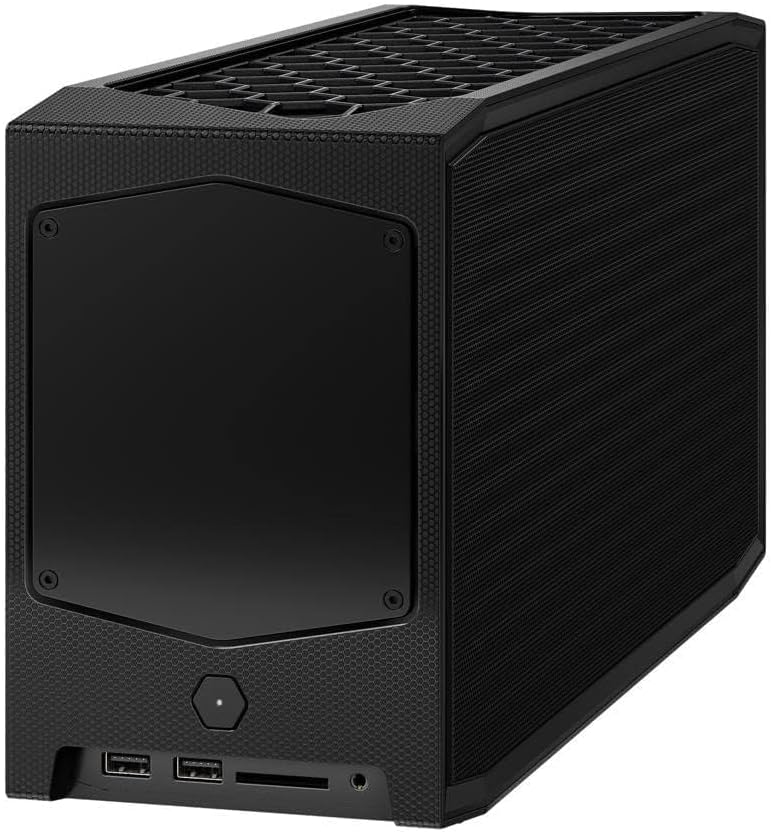
Hình 1: Góc phía trước view of the Intel NUC 11 Extreme Kit, showcasing its compact design and the illuminated skull logo.
Nội dung gói
Xác minh rằng tất cả các mục đều có trong gói trước khi tiến hành thiết lập:
- Intel NUC 11 Extreme Kit (NUC11BTMi9) Barebone System
- Mỹ Dây Nguồn
- Tài liệu (Hướng dẫn bắt đầu nhanh, Thông tin an toàn)
Note: Additional components such as RAM, storage drives, and operating system are sold separately and are required for full system functionality.
Hướng dẫn thiết lập
This section outlines the steps required to set up your Intel NUC 11 Extreme Kit. As a barebone system, it requires the installation of memory (RAM) and storage (SSD) before initial use.
1. Lắp đặt bộ nhớ (RAM)
- Unscrew and remove the top cover of the NUC chassis.
- Xác định vị trí các khe cắm DDR4 SO-DIMM trên bo mạch chủ.
- Căn chỉnh rãnh trên mô-đun SO-DIMM sao cho khớp với rãnh trong khe cắm.
- Insert the module at a 45-degree angle and press down firmly until the retaining clips snap into place.
- Lặp lại thao tác này cho các mô-đun bộ nhớ bổ sung nếu có.
2. Installing Storage (SSD)
The NUC 11 Extreme Kit supports M.2 NVMe SSDs.
- Xác định vị trí khe cắm M.2 trên bo mạch chủ.
- Cắm ổ SSD M.2 vào khe cắm theo một góc nghiêng.
- Nhẹ nhàng ấn ổ SSD xuống và cố định bằng ốc vít được cung cấp.
- The system also supports Serial ATA/600 interface for additional storage options.
3. Kết nối thiết bị ngoại vi
Connect your monitor, keyboard, mouse, and other peripherals to the appropriate ports. The system features 12 USB ports for extensive connectivity.
Hình 2: Phía sau view of the Intel NUC 11 Extreme Kit, highlighting the array of input/output ports for connecting external devices.
- Trưng bày: Connect your monitor using HDMI or DisplayPort.
- Thiết bị USB: Use the available USB ports for keyboard, mouse, external drives, etc.
- Mạng: Connect an Ethernet cable for wired network access, or use the integrated Wi-Fi.
- Âm thanh: Kết nối loa hoặc tai nghe với các giắc cắm âm thanh.
4. Kết nối nguồn điện
Connect the provided power cord to the NUC and then to a power outlet.
5. Cài đặt hệ điều hành
Once RAM and storage are installed, you will need to install an operating system (e.g., Windows 10, Linux) from a bootable USB drive or disc.
Hướng dẫn sử dụng
This section provides basic instructions for operating your Intel NUC 11 Extreme Kit.
Bật/Tắt nguồn
- Bật nguồn: Press the power button located on the front of the unit. The power indicator light will illuminate.
- Tắt nguồn:
- Tắt máy tiêu chuẩn: Hãy sử dụng chức năng tắt máy của hệ điều hành.
- Buộc tắt máy: Press and hold the power button for 5-10 seconds until the unit powers off. Use this only as a last resort.
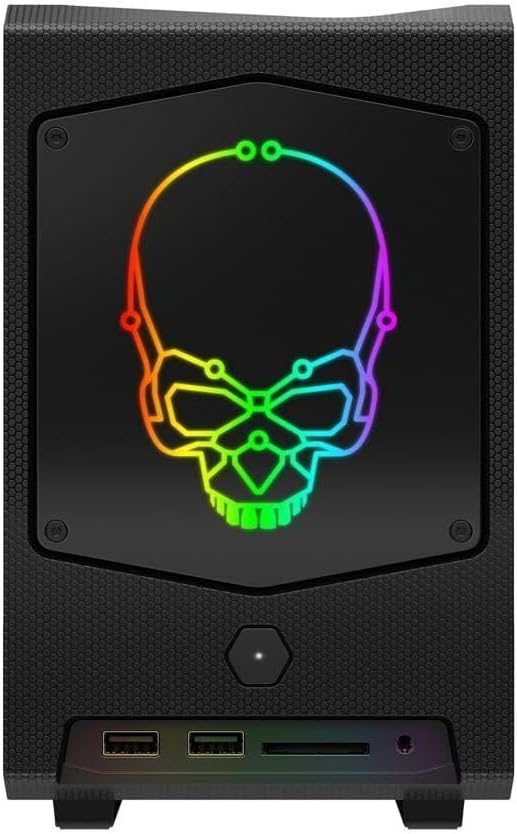
Hình 3: Mặt trước view of the Intel NUC 11 Extreme Kit, showing the power button and front panel connectivity options.
Kết nối thiết bị USB
The NUC 11 Extreme Kit offers numerous USB ports (up to 12) for connecting various peripherals. Devices can be connected or disconnected without needing to shut down the system.
Truy cập BIOS/UEFI
To access the BIOS/UEFI settings, power on the system and repeatedly press the F2 key during startup. This allows configuration of boot order, system settings, and hardware diagnostics.
BẢO TRÌ
Proper maintenance ensures the longevity and optimal performance of your Intel NUC 11 Extreme Kit.
- Vệ sinh: Regularly clean the exterior with a soft, dry cloth. Use compressed air to clear dust from vents and fan areas to ensure proper airflow and prevent overheating. Ensure the system is powered off and unplugged before cleaning.
- Cập nhật phần mềm: Keep your operating system, drivers, and BIOS/UEFI firmware updated to the latest versions. Visit the official Intel support website for driver downloads specific to the NUC11BTMi9 model.
- Thông gió: Ensure the NUC is placed in a well-ventilated area, away from direct sunlight or heat sources. Do not block the ventilation openings.
- Sao lưu dữ liệu: Thường xuyên sao lưu dữ liệu quan trọng vào ổ cứng ngoài hoặc dịch vụ lưu trữ đám mây để tránh mất dữ liệu.
Xử lý sự cố
This section provides solutions to common issues you might encounter with your Intel NUC 11 Extreme Kit.
Không có nguồn điện / Hệ thống không khởi động
- Ensure the power cord is securely connected to both the NUC and a working power outlet.
- Kiểm tra ổ cắm điện có hoạt động không bằng cách cắm thiết bị khác.
- Nếu sử dụng ổ cắm điện nhiều đầu hoặc thiết bị chống sét lan truyền, hãy đảm bảo chúng đã được bật.
Không có đầu ra hiển thị
- Check that the monitor is powered on and the video cable (HDMI/DisplayPort) is securely connected to both the NUC and the monitor.
- Hãy thử cáp video hoặc màn hình khác nếu có.
- Ensure RAM modules are properly seated in their slots. Reseat them if necessary.
System Freezes or Crashes
- Hãy đảm bảo hệ thống được thông gió đầy đủ và không bị quá nóng.
- Update your operating system and device drivers to the latest versions.
- Hãy chạy công cụ chẩn đoán bộ nhớ để kiểm tra các vấn đề về RAM.
- Check the health of your storage drive.
Không phát hiện thiết bị ngoại vi
- Hãy thử kết nối thiết bị ngoại vi với một cổng USB khác.
- Hãy đảm bảo rằng trình điều khiển của thiết bị ngoại vi đã được cài đặt và cập nhật.
- Khởi động lại hệ thống.
Thông số kỹ thuật
Below are the key technical specifications for the Intel NUC 11 Extreme Kit (NUC11BTMi9).

Hình 4: Mặt bên view of the Intel NUC 11 Extreme Kit, illustrating its physical dimensions.
| Tính năng | Đặc điểm kỹ thuật |
|---|---|
| Số hiệu mẫu | NUC11BTMi9 |
| Bộ xử lý | Intel Core i9-11900KB Octa-core (8 Core) @ 3.3 GHz |
| Memory (RAM) Type | DDR4 SDRAM (Barebone - user installable) |
| Giao diện lưu trữ | M.2 (SSD), Serial ATA/600 |
| Bộ đồng xử lý đồ họa | Đồ họa Intel UHD |
| Kích thước RAM của card đồ họa | 8 GB (Integrated) |
| Kết nối không dây | Bluetooth, WiFi |
| Cổng USB | 12 |
| Operating System (Pre-installed) | None (Supports Windows 10) |
| Trọng lượng sản phẩm | 5 pound |
| Kích thước gói hàng | 21.1 x 15 x 13.6 inch |
| Màu sắc | Đen |
| Ngày đầu tiên có sẵn | Ngày 13 tháng 2021 năm XNUMX |
Bảo hành và Hỗ trợ
Intel provides a limited warranty for its NUC products. For detailed warranty information, technical support, driver downloads, and troubleshooting resources, please visit the official Intel support webđịa điểm.
You can typically find support by searching for "Intel NUC support" or by visiting Intel's Official Support Page.
When contacting support, please have your product model number (NUC11BTMi9) and serial number ready.


