1. Giới thiệu
This manual provides instructions for the Monoprice Dark Matter 27-inch 165Hz Gaming Monitor. This monitor features an IPS panel, a 165Hz refresh rate, and a 1920x1080p Full HD resolution. It includes Adaptive Sync technology for smooth visuals and offers multiple connectivity options, including HDMI and DisplayPort inputs.
2. Thông tin an toàn
- Read all instructions before operating the monitor.
- Keep the monitor away from water or damp môi trường.
- Không chặn các lỗ thông gió.
- Chỉ sử dụng bộ chuyển đổi nguồn do nhà sản xuất cung cấp.
- Tránh đặt màn hình trên bề mặt không ổn định.
- Ngắt kết nối dây nguồn khi có sấm sét hoặc khi không sử dụng trong thời gian dài.
- Chuyển mọi dịch vụ bảo dưỡng cho nhân viên có trình độ.
3. Nội dung gói hàng
Xác minh rằng gói của bạn chứa các mục sau:
- Monoprice Dark Matter 27-inch Gaming Monitor
- Chân đế màn hình (Đế và Cổ)
- Bộ chuyển đổi nguồn và cáp nguồn
- Cáp HDMI
- Hướng dẫn sử dụng (tài liệu này)
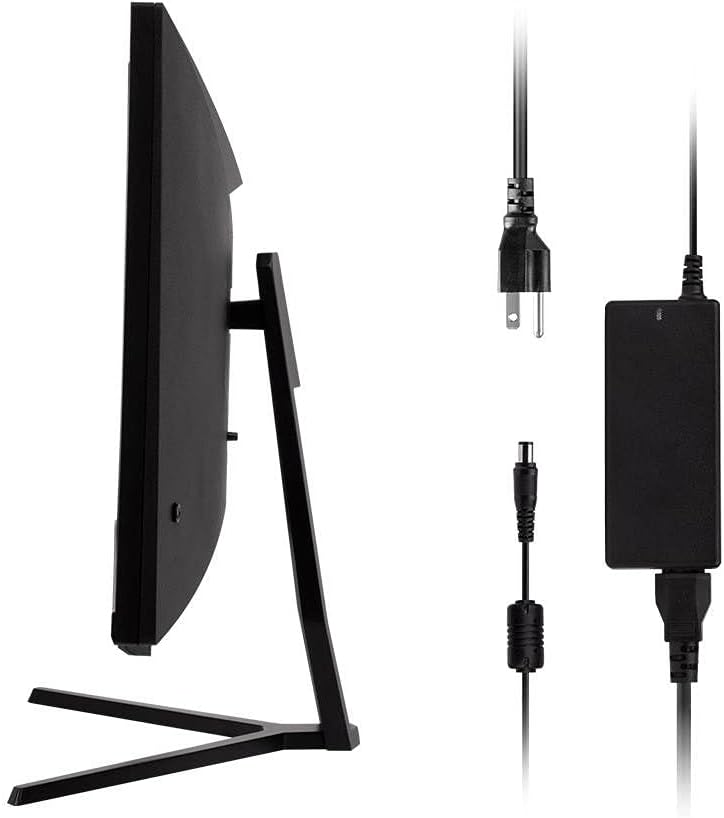
Image: Monitor side view with included power adapter and cable.
4. Giám sát quaview
Đằng trước View
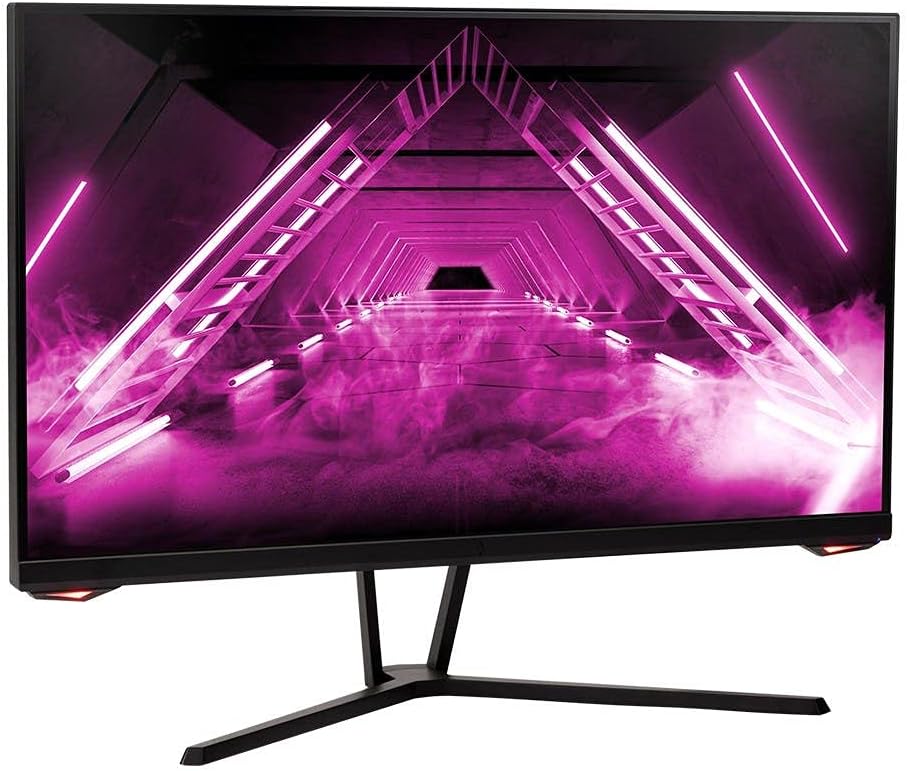
Hình ảnh: Mặt trước view của màn hình.
Ở phía sau View và Cảng
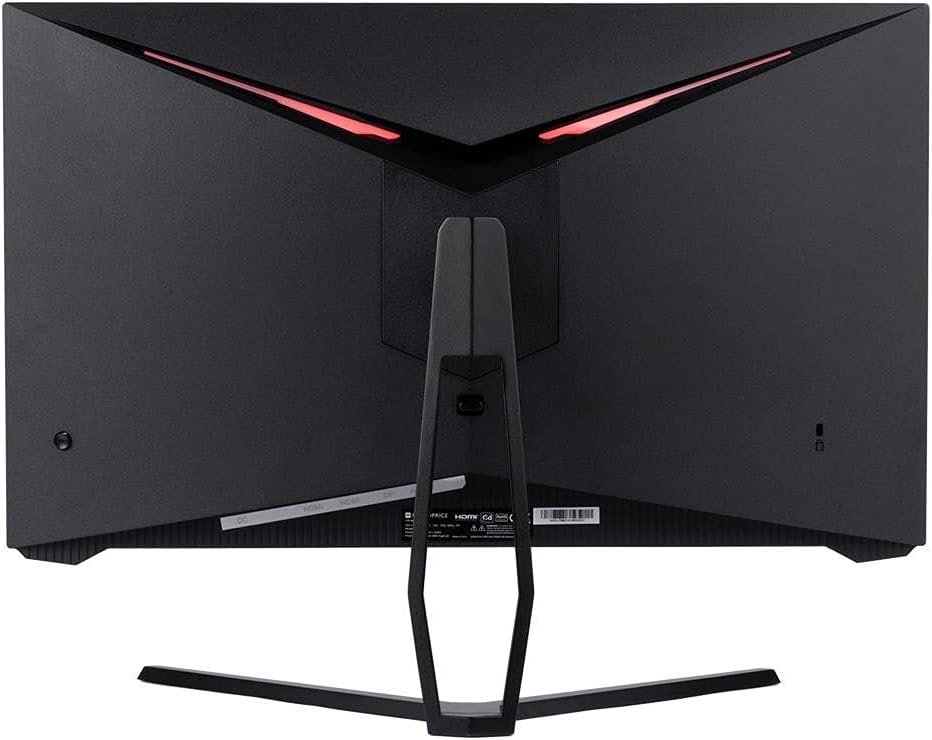
Hình ảnh: Phía sau view of the monitor, highlighting the VESA mount and stand attachment.

Image: Close-up of the monitor's input ports.
5. Thiết lập
5.1 Lắp ráp chân đế
- Cẩn thận lấy màn hình ra khỏi bao bì, đặt nó trên một bề mặt mềm để bảo vệ.
- Attach the stand neck to the monitor's rear panel by aligning the tabs and securing any screws if present.
- Gắn đế chân đế vào phần cổ chân đế, đảm bảo nó được cố định chắc chắn.
- Đặt màn hình đã lắp ráp trên bề mặt phẳng, ổn định.
5.2 Gắn VESA
The monitor supports a 75x75mm VESA mount pattern. To use a wall or desk mount:
- Remove the pre-attached stand by unscrewing it from the monitor's rear panel.
- Attach your VESA-compatible mount to the monitor using the appropriate screws (not included).
- Ensure the mount is securely fastened before releasing màn hình.
5.3 Kết nối với máy tính
Kết nối màn hình với máy tính bằng một trong các phương pháp sau:
- Cổng DisplayPort: Connect one end of a DisplayPort cable to the DisplayPort output on your computer's graphics card and the other end to the DisplayPort input on the monitor.
- HDMI: Connect one end of an HDMI cable to an HDMI output on your computer's graphics card and the other end to one of the HDMI inputs on the monitor.
After connecting the video cable, connect the power adapter to the monitor's DC input and then plug the power cable into a wall outlet.
6. Sử dụng màn hình
6.1 Bật/Tắt nguồn
Press the power button, typically located on the rear or bottom of the monitor, to turn the monitor on or off. The power indicator light will illuminate when the monitor is on.
6.2 Menu Hiển thị trên màn hình (OSD)
The OSD menu allows you to adjust various monitor settings. Access the OSD menu by pressing the menu button (often a joystick or a series of buttons) on the monitor. Navigate through the options using the directional controls and confirm selections.
Các thiết lập OSD phổ biến bao gồm:
- Cài đặt hình ảnh: Độ sáng, độ tương phản, độ sắc nét, nhiệt độ màu.
- Chọn đầu vào: Chọn giữa đầu vào DisplayPort và HDMI.
- Âm thanh: Volume control for the audio output.
- Tính năng chơi game: Overdrive, FreeSync/Adaptive Sync settings.
6.3 Các tính năng chính
- Tốc độ làm mới 165Hz: This monitor supports a 165Hz refresh rate, providing smoother motion and reduced input lag compared to standard 60Hz monitors. Ensure your graphics card and system settings are configured to utilize this refresh rate.
- Đồng bộ hóa thích ứng: This technology synchronizes the monitor's refresh rate with your graphics card's frame rate, eliminating screen tearing and stuttering for a smoother gaming experience. Enable Adaptive Sync in your graphics card's control panel and the monitor's OSD menu.
- Full HD Resolution (1920x1080p): The monitor displays content at 1920x1080 pixels, offering clear and detailed visuals.
7. Bảo trì
To maintain your monitor and ensure its longevity:
- Làm sạch màn hình: Nhẹ nhàng lau màn hình bằng vải mềm, không xơ. Đối với các vết bẩn cứng đầu, hãy sử dụng dung dịch vệ sinh chuyên dụng cho màn hình và thoa lên vải, không nên thoa trực tiếp lên màn hình.
- Làm sạch Casing: Sử dụng một miếng vải mềm, khô để lau màn hình casing. Tránh sử dụng chất tẩy rửa có tính mài mòn.
- Thông gió: Hãy đảm bảo các lỗ thông gió của màn hình không bị bụi bẩn hoặc vật cản che khuất để tránh quá nhiệt.
- Tắt nguồn: Hãy tắt màn hình khi không sử dụng trong thời gian dài.
KHAI THÁC. Xử lý sự cố
Nếu bạn gặp sự cố với màn hình, hãy tham khảo hướng dẫn khắc phục sự cố sau:
| Vấn đề | Nguyên nhân có thể | Giải pháp |
|---|---|---|
| Màn hình không hiển thị hình ảnh / Đèn LED nguồn tắt | Monitor not powered on; Power cable loose; Power outlet faulty. | Press the power button; Check power cable connections; Try a different power outlet. |
| Không có hình ảnh / Thông báo "Không có tín hiệu" | Video cable loose; Incorrect input selected; Computer not outputting signal. | Check video cable connections; Select the correct input via OSD; Ensure computer is on and outputting video. |
| Screen flickers or goes black intermittently | Loose video cable; Graphics driver issue; Monitor overheating; Faulty cable. | Ensure video cable is secure; Update graphics drivers; Ensure adequate ventilation around the monitor; Try a different video cable. |
| Quá nhiệt / Khói | Blocked ventilation; Internal component issue. | Immediately unplug the monitor. Ensure ventilation is clear. Do not use the monitor if smoke is present. Contact support. |
| Red line or other display artifacts | Faulty panel; Graphics card issue. | Test with a different video cable and computer. If the issue persists, contact support. |
| Backlight turns off, requires power cycle | Power management settings; Internal fault. | Check computer's power saving settings. If issue persists, contact support. |
9. Thông số kỹ thuật
| Tính năng | Đặc điểm kỹ thuật |
|---|---|
| Số hiệu mẫu | 142771 |
| Kích thước màn hình | 27 inch |
| Loại bảng điều khiển | IPS |
| Nghị quyết | 1920 x 1080 (FHD 1080p) |
| Tốc độ làm mới | 165Hz |
| Tỷ lệ khung hình | 16:9 |
| Đầu vào video | 2 cổng HDMI 1.4, 1 cổng DisplayPort 1.2a |
| Núi VESA | 75x75mm |
| Kích thước (DxRxC) | 28.8 x 7.1 x 19.3 inch |
| Trọng lượng sản phẩm | 15.77 pound |
10. Bảo hành và Hỗ trợ
10.1 Thông tin bảo hành
This Monoprice monitor is backed by a 1 Year PixelPerfect Guarantee. This warranty covers defects in materials and workmanship under normal use for one year from the date of purchase. Please refer to Monoprice's official webtrang web để biết các điều khoản và điều kiện bảo hành đầy đủ.
10.2 Hỗ trợ khách hàng
For technical assistance, warranty claims, or further information, please contact Monoprice Customer Support. Contact details can typically be found on the official Monoprice webtrang web hoặc tài liệu mua hàng của bạn.
11. Tài nguyên video
Không tìm thấy video giới thiệu sản phẩm chính thức nào từ người bán cho mẫu sản phẩm này.


