1. Giới thiệu
This manual provides detailed instructions for the setup, operation, and maintenance of your CHERRY DW 9100 Slim Wireless Keyboard and Mouse Set. This rechargeable desktop set offers both 2.4 GHz wireless and Bluetooth connectivity, featuring a slim design and silent keystroke SX Scissor Mechanism for comfortable and efficient use in various environments.

Image 1.1: The CHERRY DW 9100 Slim Wireless Keyboard and Mouse Set, including the USB nano receiver.
2. Nội dung gói hàng
Vui lòng kiểm tra nội dung gói hàng ngay khi mở hộp để đảm bảo tất cả các thành phần đều có đủ:
- CHERRY DW 9100 Slim Wireless Keyboard
- CHERRY DW 9100 Slim Wireless Mouse
- Bộ thu USB Nano
- Cáp sạc USB-C
- Hướng dẫn sử dụng (tài liệu này)
3. Thiết lập
3.1 Sạc thiết bị
Both the keyboard and mouse are equipped with rechargeable lithium batteries.
- Kết nối cáp sạc USB-C đi kèm với cổng USB-C trên bàn phím và chuột.
- Kết nối đầu còn lại của cáp với cổng USB có nguồn điện (ví dụ: máy tính, bộ chuyển đổi nguồn USB).
- The status LED on each device will indicate the charging status. A full charge is indicated when the LED changes color or turns off (refer to Section 4.3 for LED indicators).
3.2 Connecting via 2.4 GHz Wireless
For a stable and fast wireless connection, use the included USB nano receiver.
- Locate the USB nano receiver.
- Cắm bộ thu nano USB vào một cổng USB trống trên máy tính của bạn.
- On both the keyboard and mouse, locate the connectivity switch. Set the switch to the 2.4 GHz position (often indicated by a receiver icon or "RF").
- Các thiết bị sẽ tự động kết nối với máy tính của bạn.
3.3 Kết nối qua Bluetooth
The set supports Bluetooth connectivity for devices that have Bluetooth capabilities.
- On both the keyboard and mouse, locate the connectivity switch. Set the switch to the Bluetooth position (often indicated by a Bluetooth icon).
- On your computer or device, open the Bluetooth settings.
- Initiate the pairing process on your device. The keyboard and mouse should appear in the list of discoverable devices (e.g., "CHERRY DW 9100 Keyboard", "CHERRY DW 9100 Mouse").
- Select each device to pair them. Follow any on-screen prompts, such as entering a pairing code for the keyboard.
Ghi chú: The keyboard and mouse can be paired with multiple Bluetooth devices. Use the connectivity switch to toggle between paired devices or 2.4 GHz mode.
4. Hướng dẫn vận hành
4.1 Chức năng bàn phím
The CHERRY DW 9100 Slim Keyboard features a full-size layout with an SX Scissor Mechanism for silent and precise keystrokes.
- Các phím tiêu chuẩn: Tất cả các phím chữ số và ký hiệu tiêu chuẩn đều hoạt động như mong đợi.
- Các phím chức năng (F1-F12): These keys may have secondary functions (e.g., media control, volume, brightness) accessible by pressing the Fn key simultaneously. Refer to your operating system's settings for specific function key behavior.
- Bàn phím số: Provides dedicated number entry.

Hình ảnh 4.1: Mặt bênfile of the CHERRY DW 9100 Slim Keyboard, highlighting its thin design.

Image 4.2: Visual representation of the CHERRY SX Scissor Mechanism, responsible for silent and precise keystrokes.
4.2 Chức năng của chuột
The CHERRY DW 9100 Slim Mouse features 6 buttons and a scroll wheel for versatile navigation.
- Nhấp chuột trái/phải: Các nút chuột tiêu chuẩn.
- Bánh xe cuộn: Dùng để cuộn dọc và làm nút giữa màn hình.
- Các nút bên: Thường được sử dụng để điều hướng tiến/lùi trong web các trình duyệt.
- Công tắc DPI: A button, usually near the scroll wheel, allows adjustment of the mouse's sensitivity (DPI - Dots Per Inch). Pressing this button cycles through different DPI settings, indicated by the mouse's status LED.

Hình ảnh 4.3: Trên cùng view of the CHERRY DW 9100 Slim Mouse, showing the left/right click buttons, scroll wheel, and DPI switch.
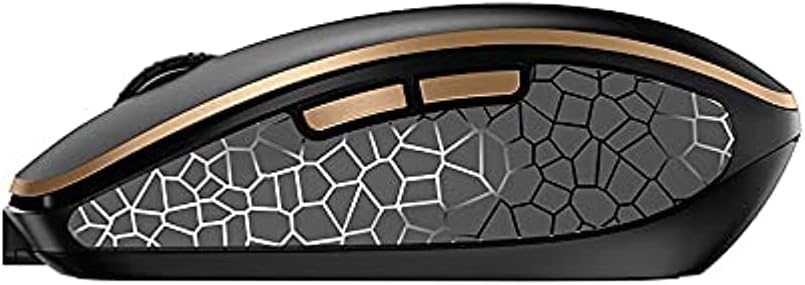
Hình ảnh 4.4: Bên view of the CHERRY DW 9100 Slim Mouse, illustrating the ergonomic design and side buttons.
4.3 đèn LED trạng thái
Both the keyboard and mouse feature status LEDs to provide information on battery level, charging status, and mouse resolution.
- Pin yếu: The LED will flash or illuminate in a specific color (e.g., red) when the battery level is low, indicating that charging is required.
- Sạc: The LED will illuminate while charging and typically change color or turn off when fully charged.
- Mouse Resolution (DPI): When adjusting the DPI, the mouse LED may briefly flash to indicate the current setting.
5. Bảo trì
5.1 Vệ sinh
To maintain the performance and appearance of your devices:
- Hãy ngắt kết nối các thiết bị khỏi máy tính trước khi vệ sinh.
- Sử dụng một miếng vải mềm, không xơ vải lau nhẹampđược làm sạch bằng nước hoặc dung dịch tẩy rửa nhẹ.
- Tránh sử dụng hóa chất mạnh, chất tẩy rửa có tính mài mòn hoặc dung môi, vì chúng có thể làm hỏng bề mặt.
- Đối với bàn phím, hãy sử dụng khí nén để loại bỏ bụi và mảnh vụn bám giữa các phím.
5.2 Chăm sóc pin
The integrated lithium batteries are designed for long-term use.
- Hãy sạc pin cho thiết bị khi đèn báo pin yếu sáng lên.
- Tránh xả hết pin thường xuyên để kéo dài tuổi thọ của pin.
- If storing the devices for an extended period, charge them to approximately 50% before storage.
KHAI THÁC. Xử lý sự cố
If you encounter issues with your CHERRY DW 9100 Slim set, refer to the following common solutions:
6.1 Các vấn đề về kết nối
- No Connection (2.4 GHz):
- Hãy đảm bảo rằng đầu thu nano USB được cắm chắc chắn vào cổng USB đang hoạt động.
- Verify the keyboard and mouse connectivity switches are set to the 2.4 GHz chức vụ.
- Hãy thử cắm bộ thu vào một cổng USB khác.
- Ensure the devices are sufficiently charged.
- Không có kết nối (Bluetooth):
- Ensure the keyboard and mouse connectivity switches are set to the Bluetooth chức vụ.
- Confirm Bluetooth is enabled on your computer/device.
- Remove previous pairings from your device's Bluetooth settings and attempt to re-pair.
- Ensure the devices are sufficiently charged.
6.2 Các vấn đề về nguồn điện và sạc
- Thiết bị không sạc:
- Check that the USB-C charging cable is properly connected to both the device and the power source.
- Try a different USB-C cable or a different USB power source.
- Hãy đảm bảo nguồn điện đang hoạt động.
- Tuổi thọ pin ngắn:
- Hãy đảm bảo thiết bị đã được sạc đầy trước khi sử dụng.
- Battery life can vary based on usage patterns.
6.3 Các vấn đề về theo dõi chuột
- Inaccurate or No Tracking:
- Đảm bảo cảm biến chuột sạch sẽ và không có mảnh vụn nào.
- Use the mouse on a suitable surface (e.g., mouse pad). Highly reflective or transparent surfaces may cause issues.
- Điều chỉnh cài đặt DPI bằng công tắc DPI trên chuột.
7. Thông số kỹ thuật
| Tính năng | Chi tiết |
|---|---|
| Số hiệu mẫu | JD-9100US-2 |
| Kích thước sản phẩm | 17.32 x 5.12 x 0.59 inch |
| Trọng lượng sản phẩm | 2.35 pound |
| Pin | Rechargeable Lithium (USB-C) |
| Công nghệ kết nối | Bluetooth, 2.4 GHz Radio Frequency (USB) |
| Tính năng đặc biệt | Rechargeable, Silent Keystroke (SX Scissor Mechanism) |
| Thiết bị tương thích | Máy tính cá nhân |
| Nhà sản xuất | Anh đào |
Note on Batteries: The product description indicates USB-C rechargeable lithium batteries. The specification "1 AA batteries required. (included)" in the source data appears to be a discrepancy. Please rely on the USB-C rechargeable feature for this model.
8. Bảo hành và Hỗ trợ
CHERRY products are manufactured to high-quality standards. For detailed warranty information, including terms and conditions, please refer to the official CHERRY webtrang web hoặc thẻ bảo hành đi kèm với sản phẩm của bạn.
For technical support, troubleshooting assistance beyond this manual, or to inquire about replacement parts, please visit the official CHERRY support portal or contact their customer service directly.
- Official CHERRY Webđịa điểm: www.cherry.de/en/ (hoặc tương đương theo khu vực)
- Hỗ trợ khách hàng: Tham khảo webtrang web để biết chi tiết liên hệ.


