Giới thiệu
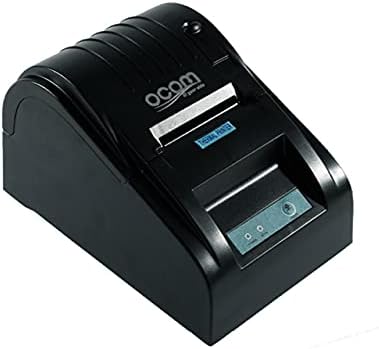
This image shows the OCOM OCPP-585A-U-B Thermal Receipt Printer from a slightly elevated front-right angle. The printer is black with a sleek, compact design. The paper output slot is visible at the top, and the control panel with 'POWER' and 'MODE' indicators is located on the front.
This manual provides detailed instructions for the OCOM OCPP-585A-U-B Thermal Receipt Printer. Please read this manual carefully before using the printer to ensure proper operation and longevity.
Hướng dẫn thiết lập
1. Tháo dỡ
Carefully remove the printer and all accessories from the packaging. Verify that all components are present: printer unit, power adapter, USB cable, and a roll of thermal paper.
2. Nạp giấy in nhiệt
- Open the paper cover by pushing the cover open button (usually located on the side or front).
- Insert the thermal paper roll into the paper compartment, ensuring the printing side of the paper faces the print head. The paper should feed smoothly from the bottom of the roll.
- Pull out a small length of paper beyond the paper exit slot.
- Đóng chặt nắp giấy cho đến khi nghe tiếng "tách".
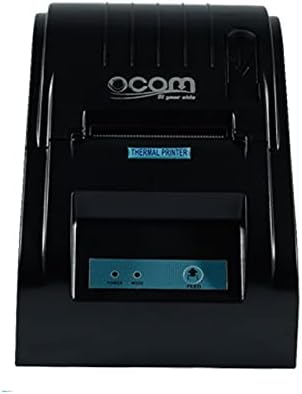
This image displays the OCOM OCPP-585A-U-B Thermal Receipt Printer from a direct top-down perspective. The paper compartment is visible, showing a thermal paper roll correctly inserted. The 'THERMAL PRINTER' label and the control panel with 'POWER' and 'MODE' indicators are clearly visible.
3. Kết nối máy in
- Connect the power adapter to the printer's power input port and then plug it into a power outlet.
- Connect the USB cable to the printer's USB port and the other end to your computer or POS system.
- Nhấn nút nguồn để bật máy in. Đèn báo nguồn sẽ sáng lên.
Hướng dẫn sử dụng
In cơ bản
Once connected and powered on, the printer is ready to receive print commands from your connected device. Ensure the correct printer driver is installed on your computer/POS system.
- Mở tài liệu hoặc ứng dụng mà bạn muốn in từ đó.
- Select 'Print' from the file thực đơn.
- Choose 'OCOM OCPP-585A-U-B' as your printer.
- Adjust print settings if necessary (e.g., paper size, print quality).
- Nhấp vào 'In'.
Self-Test Print
To perform a self-test print, ensure the printer is off. Hold down the 'FEED' button (if available, or a combination of buttons as per specific model) while turning on the printer. Release the button once printing begins. This will print a configuration page, confirming basic printer functionality.
BẢO TRÌ
Vệ sinh đầu in
Regular cleaning of the print head ensures optimal print quality and extends printer life.
- Tắt máy in và rút dây nguồn.
- Mở nắp giấy.
- Sử dụng tăm bông nhẹ nhàngampened with isopropyl alcohol to gently wipe the thermal print head (the dark strip inside the printer).
- Hãy đợi đầu in khô hoàn toàn trước khi đóng nắp và bật nguồn máy in.
Cleaning the Paper Path
Dùng bàn chải mềm hoặc khí nén để loại bỏ bụi giấy hoặc mảnh vụn bám trên đường dẫn giấy.
Xử lý sự cố
| Vấn đề | Nguyên nhân có thể | Giải pháp |
|---|---|---|
| Máy in không bật nguồn | Dây nguồn bị lỏng; Ổ cắm điện bị lỗi | Check power connections; Try a different outlet |
| Không có đầu ra in | Paper loaded incorrectly; Out of paper; Driver not installed/selected | Reload paper correctly; Replace paper roll; Install/select correct printer driver |
| Faint or blank print | Thermal paper loaded upside down; Print head dirty; Paper quality issue | Flip paper roll; Clean print head; Try new thermal paper |
| Máy in ngoại tuyến | USB cable disconnected; Printer driver issue | Reconnect USB cable; Reinstall printer driver |
Thông số kỹ thuật
| Tính năng | Chi tiết |
|---|---|
| Ngày đầu tiên có sẵn | Ngày 2021 tháng 20 năm XNUMX |
| Nhà sản xuất | OCOM |
| ASIN | B097LSGP62 |
| Số hiệu mẫu sản phẩm | OCPP-585-U-B |
| Tên thương hiệu | OCOM |
| Công nghệ kết nối | USB |
| Công nghệ máy in | Nhiệt |
| Màu sắc | Đen |
| Tên mẫu | OCPP 585 U B |
| Phương tiện in ấn | Nhãn |
| Loại máy quét | Biên lai |
Bảo hành và Hỗ trợ
This OCOM printer typically comes with a standard manufacturer's warranty. Please refer to the warranty card included with your product for specific terms and conditions, or visit the official OCOM webtrang web để biết thông tin bảo hành chi tiết.
For technical support, driver downloads, or further assistance, please visit the OCOM official support website or contact their customer service. Keep your model number (OCPP-585A-U-B) and purchase details ready when seeking support.


