1. Giới thiệu
This manual provides detailed instructions for the setup, operation, maintenance, and troubleshooting of your HP Sprocket Studio Plus 4x6 Instant Photo Printer. Please read this manual thoroughly before using the device to ensure optimal performance and longevity.
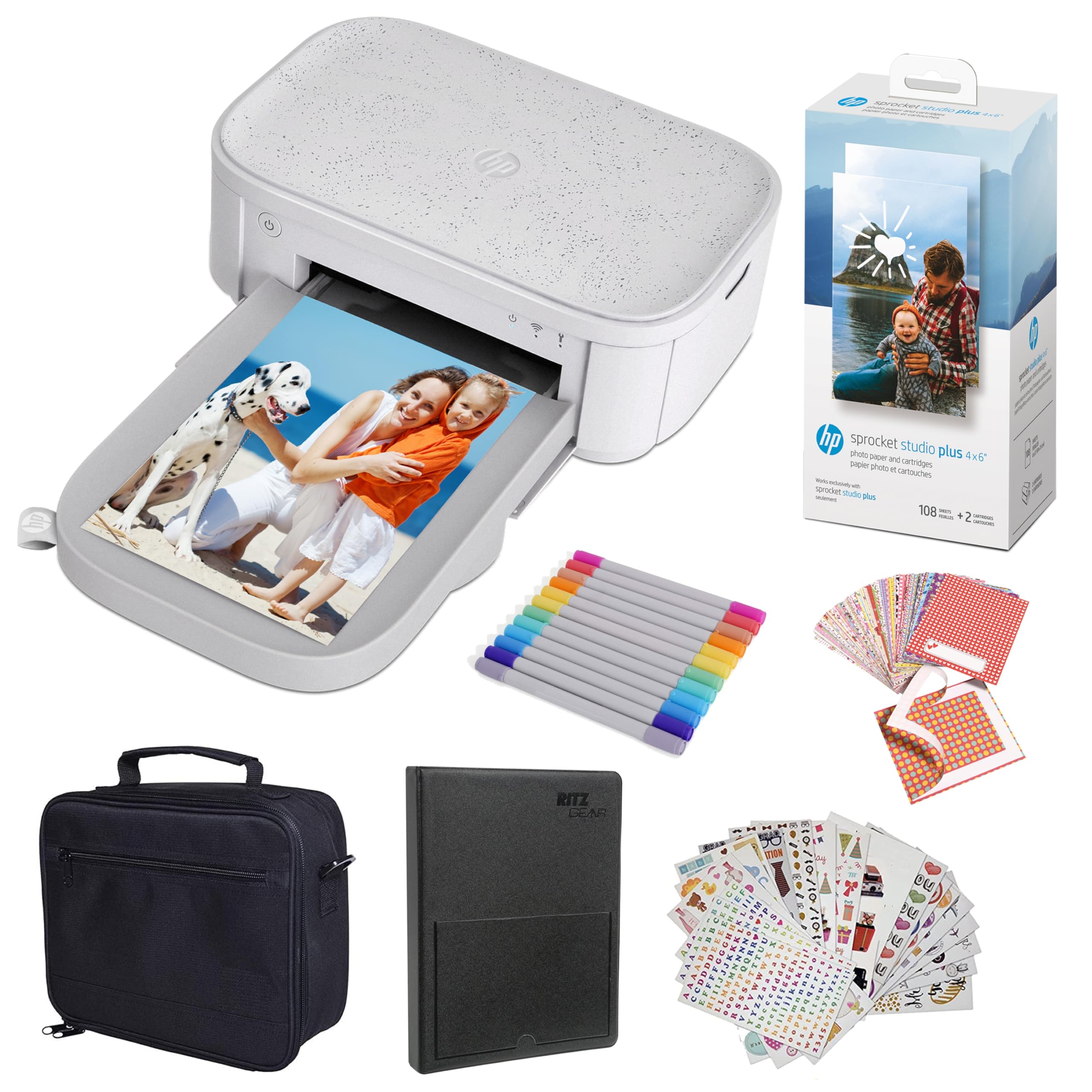
Image: The HP Sprocket Studio Plus 4x6 Instant Photo Printer, shown in white, with a smartphone displaying an image and a printed photo emerging from the printer.
2. Có gì trong hộp
Xác minh rằng tất cả các mục đều có trong gói hàng:
- HP Sprocket Studio Plus 4x6 Instant Photo Printer
- Album ảnh
- Trường hợp
- Photo paper and cartridges
- Điểm đánh dấu
- Sticker sets
- Bộ đổi nguồn

Image: A pack of HP Sprocket Studio Plus 4x6 photo paper and two ink cartridges, ready for installation.
3. Hướng dẫn cài đặt
3.1 Bật nguồn ban đầu
- Kết nối bộ chuyển đổi nguồn với máy in và ổ cắm điện.
- Press and hold the power button on the printer to turn it on.
- Wait for the indicator lights to stabilize, indicating the printer is ready.
3.2 Loading Photo Paper and Cartridge
- Mở nắp khay giấy.
- Insert the photo paper stack into the tray, glossy side up. Ensure the paper is aligned correctly.
- Open the cartridge compartment.
- Insert the ink cartridge until it clicks into place.
- Đóng cả hai nắp lại một cách an toàn.

Hình ảnh: Cận cảnh view demonstrating the correct way to insert the ink cartridge (1) and load photo paper (2) into the HP Sprocket Studio Plus printer.
3.3 Installing the HP Sprocket App
The HP Sprocket app is required to operate your printer. Download it from your device's app store (iOS or Android).
- Đối với thiết bị iOS: Tìm kiếm "HP Sprocket" in the Apple App Store.
- Đối với thiết bị Android: Tìm kiếm "HP Sprocket" in the Google Play Store.
- Install the app and follow the on-screen prompts.
3.4 Kết nối máy in của bạn
Your HP Sprocket Studio Plus printer can connect via Wi-Fi or Hotspot mode. Refer to the video below for a visual guide on connecting your printer.
Video: This video demonstrates how to connect the HP Sprocket Studio Plus printer to your mobile device via Wi-Fi and Hotspot mode using the HP Sprocket app. It covers turning on the printer, navigating the app's printer management settings, and entering Wi-Fi credentials or the default hotspot password.
3.4.1 Kết nối Wi-Fi
- Hãy đảm bảo máy in của bạn đã được bật nguồn.
- Open the HP Sprocket app on your mobile device.
- Navigate to the main menu (usually a hamburger icon).
- Select "Manage Printers".
- Tap "Add New Printer".
- Select your printer from the list of available printers (e.g., "HP Sprocket Studio Plus OB78").
- The app will prompt you to connect the printer to your Wi-Fi network. Enter your Wi-Fi credentials (network name and password).
- Confirm the setup is complete.
3.4.2 Hotspot Mode Connection
Use Hotspot Mode if a Wi-Fi network is not available or for direct connection.
- Hãy đảm bảo máy in của bạn đã được bật nguồn.
- Open the HP Sprocket app on your mobile device.
- Điều hướng đến menu chính.
- Select "Manage Printers".
- Tap "Add New Printer".
- Select your printer from the list.
- When prompted to connect to Wi-Fi, select "No network available" or similar option to initiate Hotspot Mode.
- Go to your mobile device's Wi-Fi settings.
- Select the printer's direct Wi-Fi network (e.g., "DIRECT-6C-HPISPS").
- Nhập mật khẩu mặc định: 12345678.
- Return to the HP Sprocket app and confirm the connection.
4. Vận hành máy in của bạn
4.1 In ảnh
- Open the HP Sprocket app.
- Select the photo(s) you wish to print from your gallery or social media accounts.
- Use the in-app editing tools to customize your photos (see section 4.2).
- Nhấn vào biểu tượng in.
- Confirm print settings (e.g., number of copies).
- The printer will begin printing your photo(s).

Image: A smartphone screen showing the HP Sprocket app interface with a photo selected for printing, next to the HP Sprocket Studio Plus printer.
4.2 Customization Features
The HP Sprocket app offers various tools to enhance your photos before printing:
- Bộ lọc: Apply different visual effects to your photos.
- Khung: Add decorative borders around your images.
- Nhãn dán: Place digital stickers on your photos for a personalized touch.
- Collages: Ghép nhiều ảnh lại thành một bản in duy nhất.
- Photo IDs: Create passport-style photos.

Image: The HP Sprocket app displaying a collage feature, allowing users to arrange multiple photos into a single layout for printing.

Image: The HP Sprocket app interface showing options for creating photo IDs, with a portrait photo displayed on the screen.
4.3 Hỗ trợ nhiều người dùng
Multiple users can connect to the HP Sprocket Studio Plus printer simultaneously, allowing for shared printing experiences.
5. Bảo trì
5.1 Replacing Ink Cartridges and Photo Paper
The HP Sprocket Studio Plus uses dye-sublimation technology, requiring specific photo paper and cartridges. It is recommended to replace both the paper and cartridge at the same time, as they are designed to run out concurrently (approximately 108 sheets per cartridge).
- When the printer indicates low ink or paper, open the paper tray and cartridge compartment.
- Remove the used ink cartridge and empty paper stack.
- Insert a new HP Sprocket Studio Plus ink cartridge and a fresh stack of 4x6 photo paper.
- Đóng chặt nắp lại.

Image: A package of HP Sprocket Studio Plus 4x6 photo paper and cartridges, indicating it includes 108 sheets and 2 cartridges.
5.2 Vệ sinh máy in
To maintain print quality, periodically clean the exterior of the printer with a soft, dry cloth. Avoid using liquid cleaners directly on the printer.
KHAI THÁC. Xử lý sự cố
6.1 Các vấn đề thường gặp và giải pháp
- Máy in không kết nối được với Wi-Fi:
- Ensure your Wi-Fi network is 2.4GHz, as the printer may not be compatible with 5GHz networks.
- Xác minh mật khẩu Wi-Fi đã được nhập chính xác.
- Restart both your printer and mobile device.
- Try connecting using Hotspot Mode as an alternative.
- Kẹt giấy:
- Turn off the printer and carefully open the paper tray.
- Gently remove any jammed paper. Do not force it.
- Hãy đảm bảo giấy được nạp đúng cách và không bị quá tải.
- Khởi động lại máy in.
- Chất lượng in kém:
- Check if the ink cartridge and photo paper are correctly installed and not expired.
- Ensure you are using genuine HP Sprocket Studio Plus photo paper and cartridges.
- Clean the printer as described in the maintenance section.
- Máy in không phản hồi:
- Hãy đảm bảo máy in đã được bật nguồn và kết nối với nguồn điện.
- Khởi động lại máy in.
- Check the app for any error messages or connection issues.
7. Thông số kỹ thuật
| Tính năng | Đặc điểm kỹ thuật |
|---|---|
| Kích thước sản phẩm | 6.65"D x 10.75"W x 2.68"H |
| Loại bộ điều khiển | Android, iOS |
| Kích thước phương tiện tối đa | 4x6 inch |
| Phương tiện in ấn | Giấy ảnh bóng |
| Công suất tờ đầu vào tối đa | 80 tờ |
| Thiết bị tương thích | Điện thoại thông minh |
| Độ phân giải in màu tối đa | [CAO] |
| Độ phân giải in đen trắng tối đa | 1200dpi |
| In hai mặt | KHÔNG |
| Giao diện phần cứng | Bluetooth |
| Màu mực | Đầy đủ màu sắc |
| Phương pháp kiểm soát | Ứng dụng |
| Dòng mô hình | Sprocket Studio Plus |
| Loại mực máy in | Hộp mực màu |
| Trọng lượng sản phẩm | 1 pound |
| Công nghệ kết nối | Bluetooth |
| Công nghệ in ấn | Nhuộm thăng hoa |
| Tính năng đặc biệt | Network-Ready, Portable |
| Màu sắc | Trắng |
| Tốc độ in tối đa (Màu) | 1 trang/phút |
8. Bảo hành và Hỗ trợ
8.1 Thông tin bảo hành
The HP Sprocket Studio Plus 4x6 Instant Photo Printer comes with a Bảo hành có giới hạn 1 năm. For specific terms and conditions, please refer to the warranty documentation included with your product or visit the official HP support webđịa điểm.
8.2 Hỗ trợ khách hàng
For further assistance, technical support, or to purchase replacement supplies, please visit the official HP support webhoặc liên hệ với bộ phận chăm sóc khách hàng của HP. Bạn có thể tìm thấy thông tin liên hệ trên trang web của HP. webtrang web hoặc trong bao bì sản phẩm của bạn.
- Hỗ trợ HP Webđịa điểm: www.hp.com/support