1. Giới thiệu
This manual provides instructions for the i-tec USB C Dual Monitor Docking Station (Model C31DUALDPDOCKPD). This docking station is designed to expand the connectivity of your USB-C or Thunderbolt 3 enabled laptop, tablet, or smartphone, allowing for dual external monitor support, multiple USB peripheral connections, Gigabit Ethernet, and power delivery up to 100W.

Image 1.1: i-tec USB C Dual Monitor Docking Station.
2. Sản phẩm hếtview
The i-tec USB C Dual Monitor Docking Station offers a comprehensive set of ports for enhanced productivity and connectivity.
2.1. Bố trí cổng

Image 2.1: Front Panel Ports (USB-C 3.1 Gen 2, USB 3.0, Audio/Mic Jack).

Image 2.2: Rear Panel Ports (2x DisplayPort, Gigabit Ethernet, USB-C Power Delivery, Kensington Lock Slot).
2.2. All Connections Diagram

Image 2.3: Comprehensive diagram of all ports and their functions.
3. Hướng dẫn thiết lập
Follow these steps to set up your i-tec USB C Dual Monitor Docking Station.
- Kết nối nguồn điện (Tùy chọn nhưng được khuyến nghị): Connect your original USB-C charger (up to 100W) to the USB-C Power Delivery (USB-C PD) port on the docking station. This provides power to the docking station and charges your connected laptop. If not using a power adapter, some USB 3.0 and USB-C data ports may not function optimally with high-power devices.
- Kết nối với thiết bị chủ: Use the integrated USB-C cable to connect the docking station to your laptop's USB-C or Thunderbolt 3 port.
- Kết nối màn hình ngoài: Connect your monitors to the two DisplayPort outputs on the docking station.
- Windows/Ubuntu: Supports up to two 4K/60Hz external monitors with extended or mirrored display modes.
- hệ điều hành Mac: Supports up to one 4K/60Hz external monitor. When connecting two monitors, both will display the same image due to macOS not supporting Multi-Stream Transport (MST) technology.
- Kết nối thiết bị ngoại vi: Connect your USB devices (keyboard, mouse, external drives) to the available USB 3.0 and USB 2.0 ports. Connect your Ethernet cable to the Gigabit Ethernet (LAN) port for a wired network connection. Connect headphones or a microphone to the combined audio/mic jack.
Video 3.1: Official i-tec USB C Dual Monitor Docking Station setup and feature overview. This video demonstrates the connection process and various functionalities of the docking station.
4. Hướng dẫn vận hành
4.1. Nút nguồn
The docking station features a power button on the top panel. Press and hold the power button for approximately 2 seconds to turn the unit on or off. This delay prevents accidental shutdowns.
4.2. Cấu hình hiển thị
After connecting external monitors, configure your display settings through your operating system. Options typically include:
- Mở rộng: Each monitor displays a separate desktop, expanding your workspace.
- Mirror/Duplicate: All monitors display the same content.
- Chỉ hiển thị trên màn hình thứ hai: Only the external monitor(s) display content, with the laptop screen turned off.
4.3. Chức năng sạc
When a compatible USB-C charger is connected to the docking station's USB-C PD port, the docking station will pass through up to 100W of power to charge your connected laptop. Additionally, the USB-C 3.1 Gen 2 port on the front panel supports fast charging for smartphones and tablets.
5. Khả năng tương thích
The docking station is compatible with devices featuring a USB-C or Thunderbolt 3 port that supports video output (DisplayPort Alternate Mode).
5.1. Hệ điều hành được hỗ trợ
- Windows 10 trở lên
- macOS X and later
- Android
- ChromeOS
- Linux
5.2. Display Output Limitations

Image 5.1: Display output capabilities across different operating systems.
Lưu ý dành cho người dùng macOS: macOS does not support Multi-Stream Transport (MST) technology. This means that when two monitors are connected to the docking station on a macOS device, both monitors will display the same image (mirroring), not an extended desktop across two separate displays. For extended desktop functionality on macOS, only one external monitor can be used with the docking station.
5.3. VESA Mounting Support
The docking station features VESA support, allowing for vertical installation behind a VESA compatible monitor. This helps in creating a clean and organized workspace.

Image 5.2: Docking station mounted behind a VESA compatible monitor for a clean desk setup.
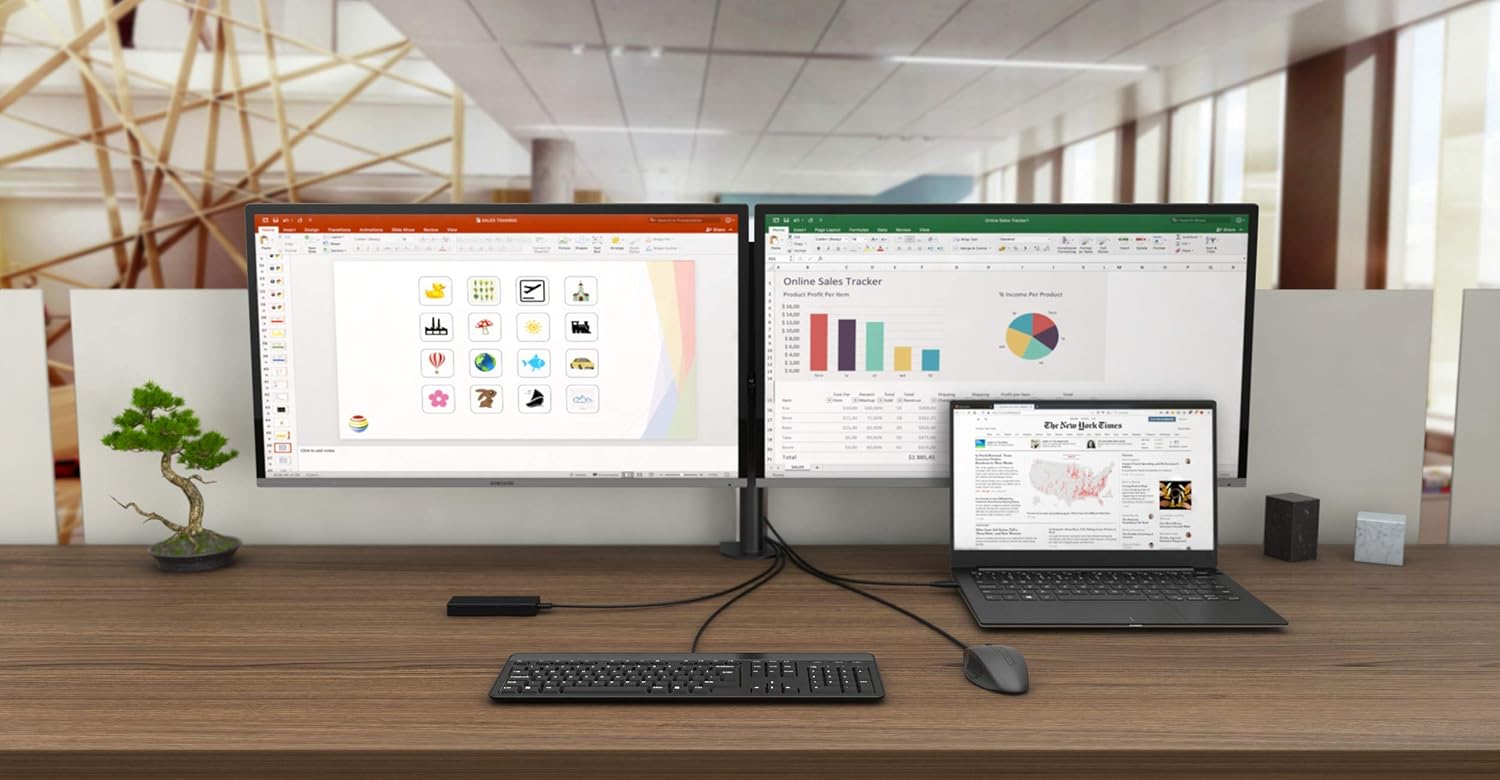
Hình ảnh 5.3: Ví dụample of a complete workstation setup utilizing the docking station.
6. Bảo trì
To ensure optimal performance and longevity of your docking station, follow these maintenance guidelines:
- Hãy bảo quản thiết bị ở nơi khô ráo, tránh ánh nắng trực tiếp và nhiệt độ quá cao hoặc quá thấp.
- Tránh để thiết bị tiếp xúc với nước hoặc các chất lỏng khác.
- Vệ sinh thiết bị bằng vải mềm, khô. Không sử dụng hóa chất mạnh hoặc chất tẩy rửa có tính mài mòn.
- Hãy đảm bảo thông gió tốt xung quanh trạm kết nối để tránh quá nhiệt.
KHAI THÁC. Xử lý sự cố
Nếu bạn gặp sự cố với đế cắm, hãy tham khảo các sự cố và giải pháp phổ biến sau đây:
- Không có đầu ra hiển thị:
- Hãy đảm bảo cổng USB-C trên máy tính xách tay của bạn hỗ trợ Chế độ thay thế DisplayPort.
- Verify that the DisplayPort cables are securely connected to both the docking station and the monitors.
- Check your operating system's display settings to ensure external monitors are detected and configured correctly.
- If using macOS, remember that only one external monitor will extend the desktop; two monitors will mirror.
- USB Devices Not Functioning:
- Ensure the docking station is connected to a power adapter, especially for high-power USB devices like external SSDs. Without a power adapter, USB 3.0 and USB-C data ports may have limited functionality.
- Hãy thử kết nối thiết bị USB vào một cổng khác trên đế cắm.
- Ensure device drivers are up to date on your host system.
- Không có kết nối mạng:
- Hãy kiểm tra xem cáp Ethernet đã được kết nối chắc chắn với cả đế cắm và bộ định tuyến/modem của bạn chưa.
- Kiểm tra cài đặt mạng trên thiết bị chủ của bạn.
- Máy tính xách tay không sạc được:
- Ensure your original USB-C charger is connected to the USB-C PD port on the docking station.
- Hãy kiểm tra xem cổng USB-C trên máy tính xách tay của bạn có hỗ trợ Power Delivery hay không.
8. Thông số kỹ thuật
| Thương hiệu | tôi-tec |
| Người mẫu | C31DUALDPDOCKPD |
| Giao diện phần cứng | Thunderbolt 3, USB Type C |
| Thiết bị tương thích | Devices with USB-C or Thunderbolt-3 ports |
| Đầu ra video | 2x DisplayPort (up to 4K/60Hz each) |
| Cổng USB | 3x USB 3.1, 1x USB-C 3.1 (Gen 2), 2x USB 2.0 |
| Mạng Ethernet | Cổng Ethernet Gigabit RJ-45 (10/100/1000 Mbps) |
| Âm thanh | Combined Audio/Microphone Jack |
| Cung cấp điện | Up to 100W (via USB-C PD port) |
| Bảo vệ | Kensington Lock Khe |
| Kích thước (D x R x C) | 4.45" x 1.57" x 4.45" (11.3cm x 4cm x 11.3cm) |
| Cân nặng | 245 gam |
9. Bảo hành và Hỗ trợ
i-tec products are covered by a manufacturer's warranty. For detailed warranty information, please refer to the warranty card included with your product or visit the official i-tec webđịa điểm.
9.1. Hỗ trợ kỹ thuật
For technical assistance, product inquiries, or further support, please contact i-tec customer service:
- Webđịa điểm: www.i-tec.pro
- E-mail: support@itecproduct.com
- Điện thoại: +420 596 637 125


