Giới thiệu
This manual provides essential information for setting up, operating, and maintaining your HP 27f 4K Monitor. Please read these instructions carefully before using your monitor to ensure proper functionality and longevity.
Các tính năng chính
- Ultra High Definition 4K: Experience cinematic quality with the incredible definition of 4K.
- Height Adjustment Stand: Easily adjust your display to the most comfortable position with 100 mm range of travel.
- Toàn cảnh View: Góc siêu rộng 178° viewvới chi tiết nhất quán và màu sắc sống động.
- Thiết kế hiện đại: A sleek design that complements your workspace.
- Micro-edge Display: Virtually no bezel encircling the display for an ultra-wide viewing experience and seamless multi-monitor setups.
- Công nghệ tấm nền IPS: Provides consistent color and image clarity across a wide viewgóc ing.
- AMD FreeSync™: Reduces blurring and tearing for smoother visuals.
Có gì trong hộp
Xác minh rằng tất cả các thành phần đều có trong bao bì:
- HP 27f 4K Monitor
- A/C power cable (1.9 m / 6.2 ft)
- Power adapter (1.0 m / 3.3 ft)
- HDMI cable (1.8 m / 5.9 ft)
- Quick setup poster
- Thẻ danh sách điện thoại dịch vụ
- tài liệu bảo hành
Cài đặt
1. Lắp ráp màn hình
Carefully remove the monitor and stand components from the packaging. Attach the stand base to the stand column, then secure the stand to the back of the monitor. Ensure all connections are firm.
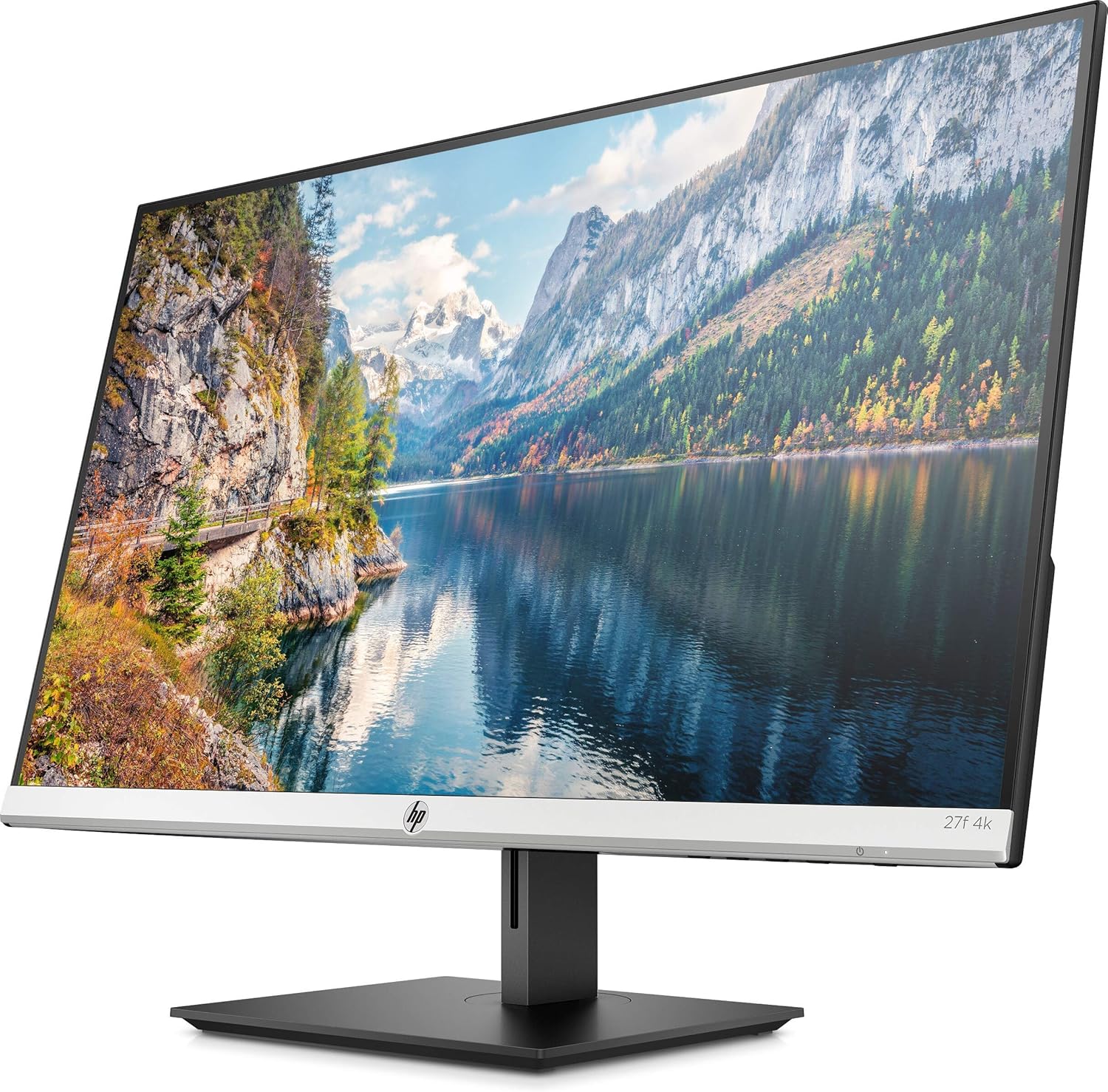
Hình 1: Mặt trước view of the HP 27f 4K Monitor with its stand.
2. Cáp kết nối
Connect the power adapter to the monitor's power input and then to a power outlet. Use the provided HDMI cable to connect your computer to one of the HDMI ports on the monitor. Alternatively, use a DisplayPort cable if your computer supports it.

Hình 2: Phía sau view of the monitor displaying the HDMI and DisplayPort inputs.
3. Bật nguồn
Press the power button on the monitor to turn it on. The monitor should automatically detect the input signal from your computer.
Vận hành màn hình
Điều chỉnh màn hình
The HP 27f 4K Monitor features a height-adjustable stand and can be tilted and rotated for optimal viewing comfort. Adjust the height by gently pushing or pulling the monitor up or down. Tilt the screen forward or backward as needed. The monitor can also be rotated to a portrait orientation.

Hình 3: Mặt bênfile of the monitor demonstrating its adjustable stand.
Menu hiển thị trên màn hình (OSD)
Use the buttons located on the bottom bezel of the monitor to access the On-Screen Display (OSD) menu. This menu allows you to adjust various settings such as brightness, contrast, color temperature, input source, and other display preferences.
Thiết lập nhiều màn hình
The micro-edge bezel design allows for seamless multi-monitor configurations, enhancing your productivity and immersive experience.

Hình 4: Ví dụample of a multi-monitor setup using HP 27f 4K Monitors.
Trải nghiệm hình ảnh
The HP 27f 4K Monitor delivers stunning 4K resolution and utilizes IPS Panel Technology for wide viewing angles and vibrant colors. AMD FreeSync™ technology helps reduce screen tearing and stuttering for a smoother visual experience, especially during fast-paced content.
Video 1: An official HP video showcasing the stunning 4K clarity of the HP 27f 4K Display.
BẢO TRÌ
Vệ sinh màn hình
Để vệ sinh màn hình, hãy lau nhẹ bằng vải sợi nhỏ mềm, không xơ. Đối với các vết bẩn cứng đầu, hãy lau nhẹ.ampen the cloth with water or a screen-cleaning solution specifically designed for monitors. Avoid using harsh chemicals, abrasive cleaners, or spraying liquid directly onto the screen.
To clean the monitor's exterior, use a soft, damp cloth. Ensure the monitor is powered off and unplugged before cleaning.
Xử lý sự cố
Không có điện
- Đảm bảo cáp nguồn được kết nối chắc chắn với màn hình và ổ cắm điện đang hoạt động.
- Kiểm tra xem bộ điều hợp nguồn có được kết nối đúng cách không.
- Kiểm tra ổ cắm điện có hoạt động không bằng cách cắm thiết bị khác.
No Signal/Blank Screen
- Confirm that the video cable (HDMI or DisplayPort) is securely connected to both the monitor and your computer.
- Hãy đảm bảo máy tính của bạn đang bật nguồn và không ở chế độ ngủ.
- Use the OSD menu to manually select the correct input source (e.g., HDMI 1, HDMI 2, DisplayPort).
- Try connecting the monitor to a different video port on your computer or using a different video cable to rule out cable or port issues.
Display Issues (Flickering, Blurry Image)
- Kiểm tra xem cáp video có bị hỏng hoặc kết nối có lỏng không.
- Hãy đảm bảo rằng trình điều khiển đồ họa của máy tính bạn đã được cập nhật.
- Adjust the display resolution and refresh rate settings on your computer to match the monitor's capabilities.
- If using AMD FreeSync™, ensure it is enabled in both the monitor's OSD and your graphics card settings.
Thông số kỹ thuật
Detailed technical specifications for the HP 27f 4K Monitor:

Figure 5: Diagram illustrating the dimensions of the HP 27f 4K Monitor.
| Tính năng | Đặc điểm kỹ thuật |
|---|---|
| Kích thước màn hình đứng | 27 inch |
| Độ phân giải màn hình | 3840x2160 (4K UHD 2160p) |
| Độ phân giải màn hình tối đa | 3840 điểm ảnh |
| Thương hiệu | HP |
| Loạt | HP 27f 4K Display |
| Số hiệu mẫu sản phẩm | 27f 4K |
| Trọng lượng sản phẩm | 10.56 pound |
| Kích thước sản phẩm | 24.16 x 7.62 x 19.74 inch |
| Màu sắc | Natural silver and Black |
| Tậptage | 240 Vôn (AC) |
| Tỷ lệ khung hình | 16:9 |
| Mô tả bề mặt màn hình | Chống chói |
Bảo hành và Hỗ trợ
Your HP 27f 4K Monitor comes with a standard manufacturer's warranty. Please refer to the warranty documentation included in your product packaging for specific terms and conditions.
Để được hỗ trợ kỹ thuật, tải xuống trình điều khiển hoặc biết thêm thông tin sản phẩm, vui lòng truy cập trang hỗ trợ chính thức của HP. website or contact HP customer service using the contact information provided in your documentation.