Giới thiệu
This manual provides comprehensive instructions for the setup, operation, maintenance, and troubleshooting of your Aluratek 10" WIFI Digital Photo Frame. Please read this manual thoroughly to ensure proper use and to maximize the features of your device.
Nội dung gói
Xác minh rằng tất cả các mục đều có trong gói hàng:
- Aluratek 10" WIFI Digital Photo Frame
- Bộ đổi nguồn
- Hướng dẫn bắt đầu nhanh
- Khung đứng
Cài đặt
1. Thiết lập vật lý
Place the digital photo frame on a stable, flat surface or mount it on a wall using a compatible VESA mount. Attach the included frame stand for tabletop use.
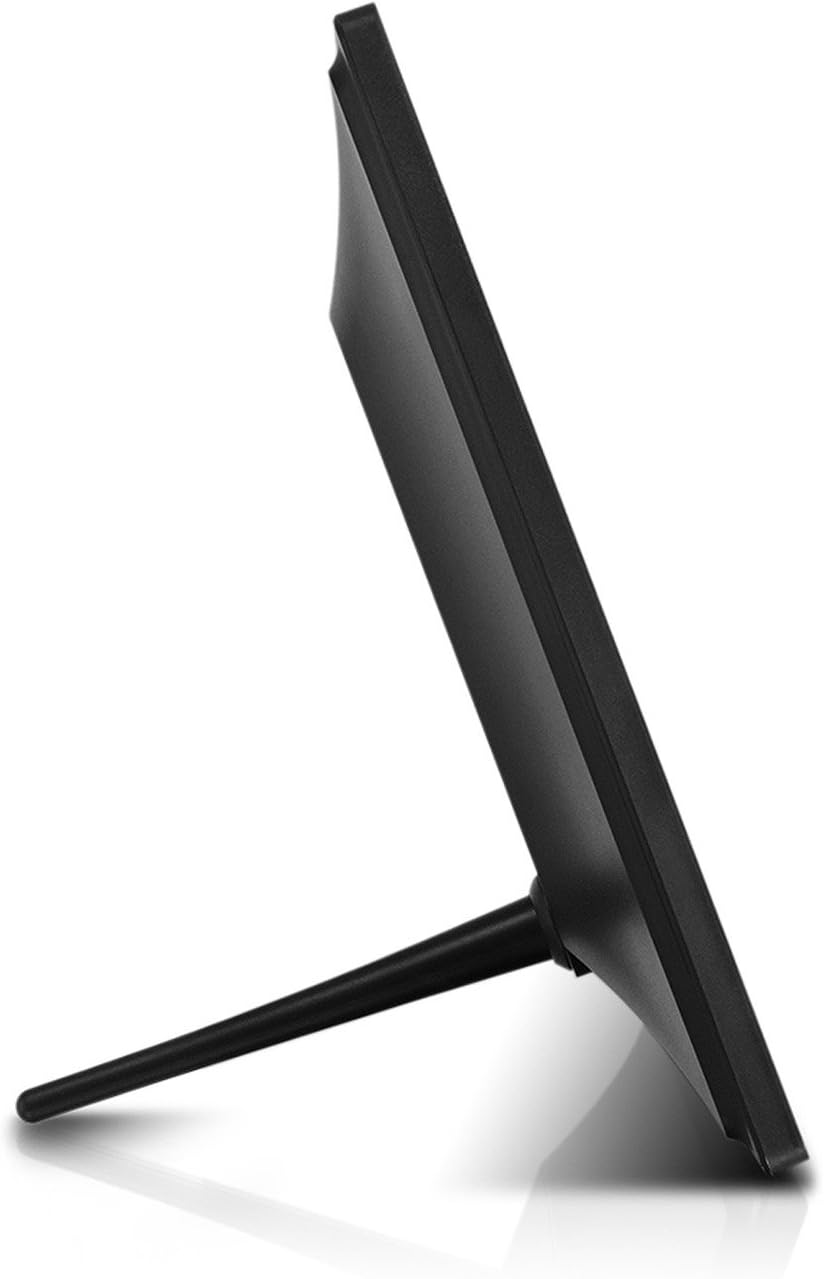
Hình ảnh: Bên view of the Aluratek 10-inch digital photo frame with its stand attached, illustrating how the stand supports the frame for tabletop display.
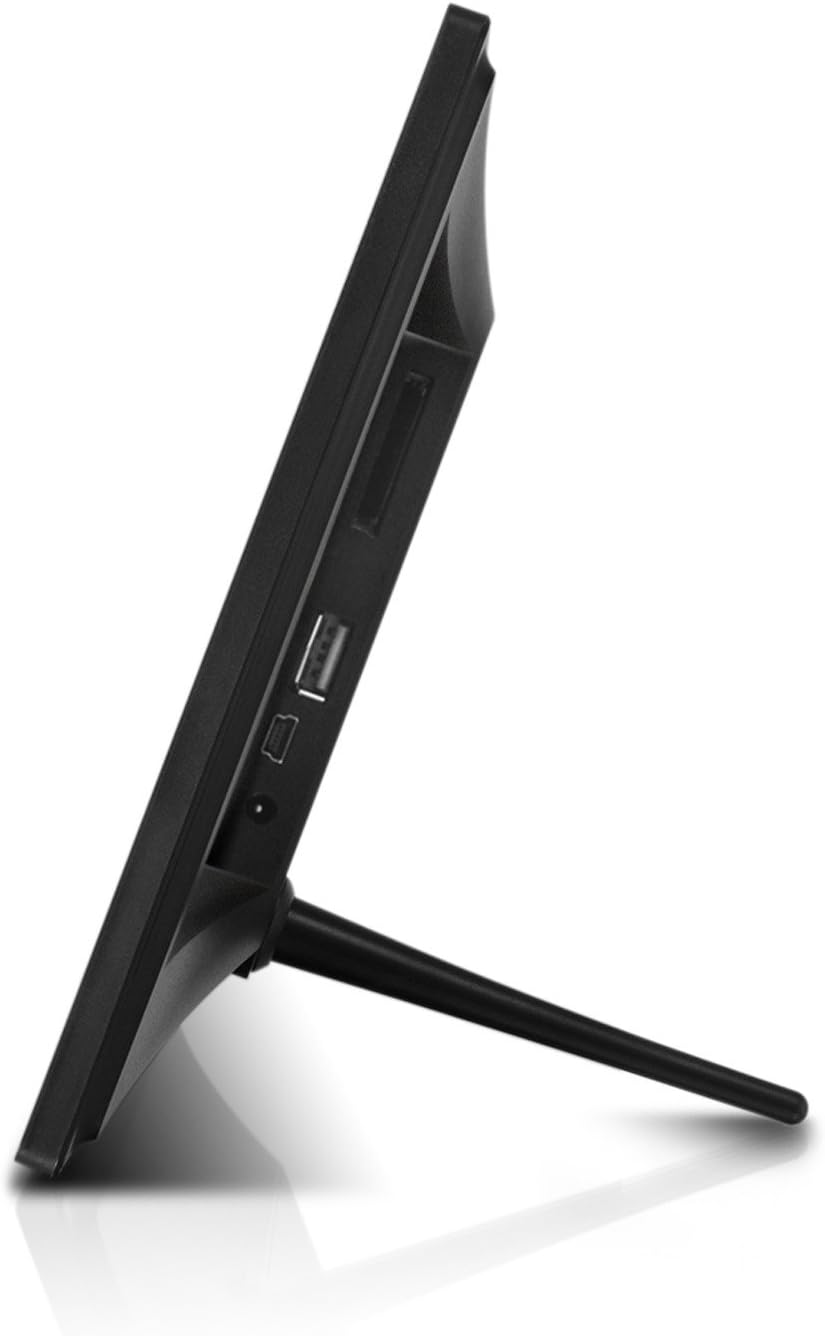
Hình ảnh: Bên view of the Aluratek 10-inch digital photo frame, highlighting the various ports available for connectivity, including USB and power input.
2. Bật nguồn
Connect the power adapter to the DC IN port on the back of the frame and plug the other end into a power outlet. The frame will automatically power on.
3. Thiết lập Wi-Fi ban đầu
Upon first use, the frame will guide you through the Wi-Fi setup process. Select your Wi-Fi network from the list and enter the password using the on-screen keyboard. A stable Wi-Fi connection is essential for sharing photos wirelessly and accessing online features.
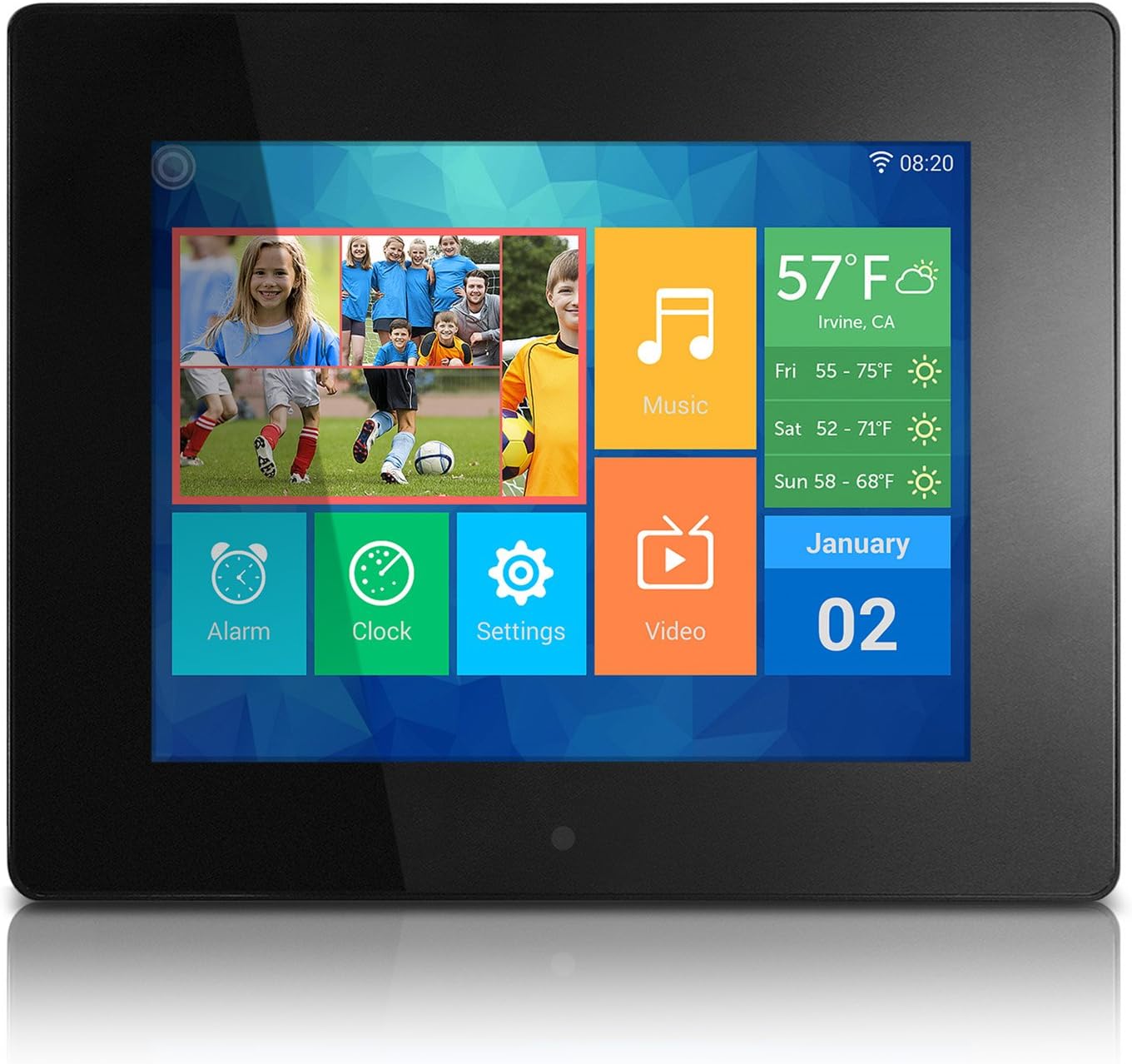
Image: The main menu interface of the Aluratek 10-inch digital photo frame, showing icons for various functions like photos, music, settings, and weather.
4. Đặt ngày và giờ
After connecting to Wi-Fi, the frame should automatically synchronize the date and time. If not, navigate to Cài đặt > Cài đặt hệ thống to manually adjust these parameters.
Hướng dẫn sử dụng
1. Navigating the Touchscreen Interface
The Aluratek digital photo frame features a responsive touchscreen for intuitive navigation. Tap icons to open applications, swipe to browse through content, and use the back arrow to return to previous screens.
2. Thêm ảnh và video
There are multiple ways to add media to your frame:
- Truyền không dây: Use the dedicated Photo Partner App (available for smartphones and tablets) to send photos and videos directly to your frame over Wi-Fi. You can also share from Facebook and Twitter accounts.
- Ổ đĩa flash USB: Insert a USB flash drive into the USB 2.0 port on the back of the frame. The frame will detect the drive, allowing you to browse and import media.
- Thẻ SD/SDHC: Insert an SD or SDHC memory card into the card slot on the back of the frame. Similar to USB, you can browse and import media directly from the card.

Image: A smartphone screen displaying selected photos, with an arrow indicating wireless transfer to the Aluratek digital photo frame, which shows the received images.

Hình ảnh: Phía sau view of the Aluratek 10-inch digital photo frame, showing an SD card partially inserted into its dedicated slot, indicating external storage capability.
3. Viewing Ảnh và Video
Từ menu chính, chạm vào Hình ảnh or Băng hình icon to access your media. You can view content stored in the internal memory, cloud storage, or connected USB/SD devices. The frame supports various playback modes, including slideshows with customizable intervals.
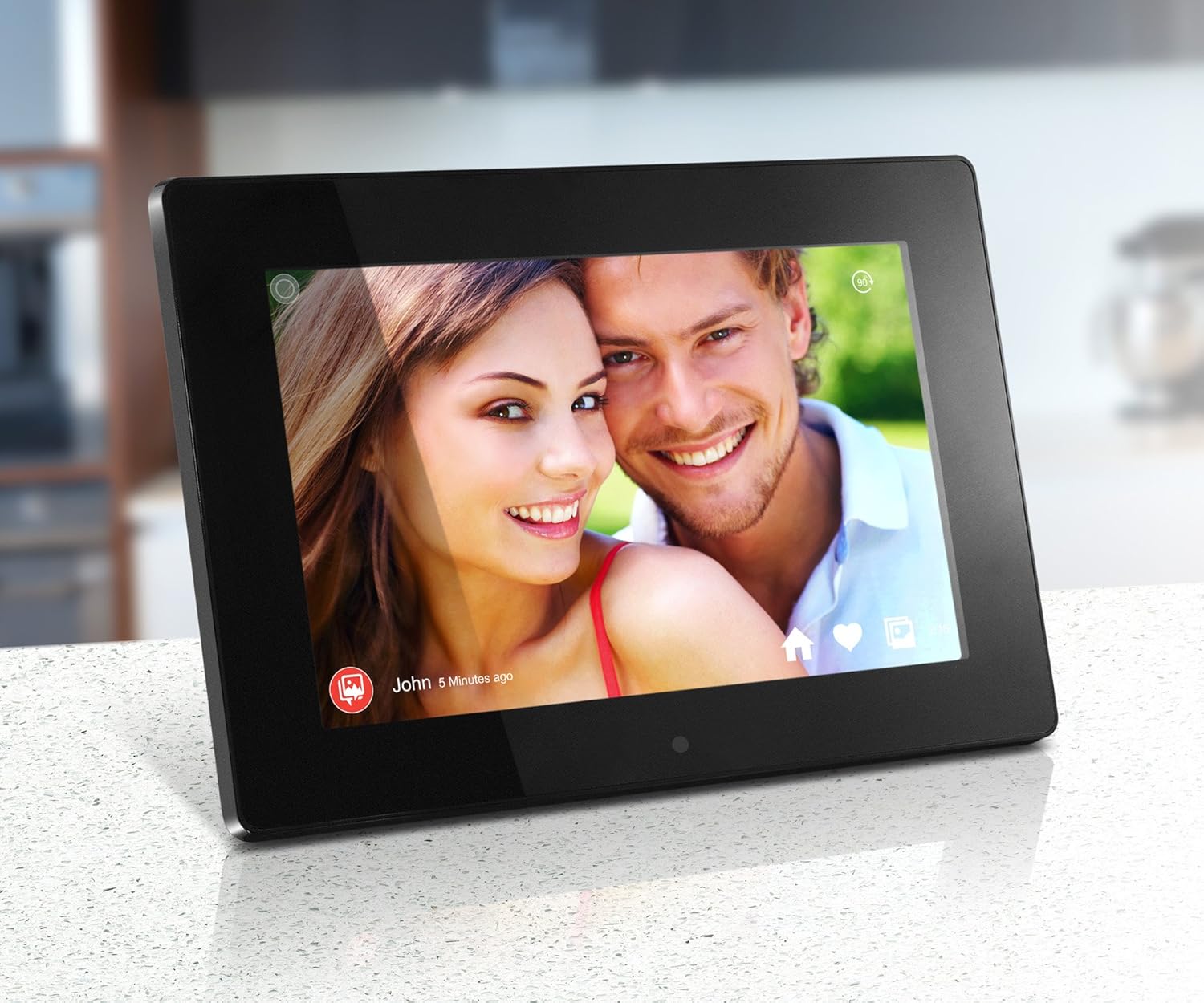
Image: The Aluratek 10-inch digital photo frame displaying a vibrant photo of a smiling couple, showcasing the IPS display quality.

Image: The Aluratek 10-inch digital photo frame displaying a warm family photo, demonstrating its use as a personal display for cherished memories.
For a visual guide on how to use the frame's features, including media playback, please refer to the official product video:
Video: An official Aluratek product video demonstrating the features and functionality of the 10" Hi-Res WIFI Digital Photo Frame, including touchscreen navigation, media playback, and app integration.
4. Using Built-in Apps
The frame includes several useful built-in applications:
- Cái đồng hồ: Hiển thị thời gian hiện tại.
- Lịch: Provides a monthly calendar view.
- Báo thức: Đặt báo thức để nhắc nhở hoặc gọi điện đánh thức.
- Thời tiết: Displays local weather information (requires internet connection).
BẢO TRÌ
1. Vệ sinh màn hình
To clean the touchscreen display, gently wipe it with a soft, lint-free cloth. For stubborn smudges, slightly dampLau khăn bằng nước hoặc dung dịch vệ sinh an toàn cho màn hình. Tránh sử dụng vật liệu mài mòn hoặc hóa chất mạnh.
2. Cập nhật phần mềm
Periodically check for software updates in the Cài đặt menu. Updates can provide new features, performance improvements, and bug fixes. Ensure the frame is connected to Wi-Fi and has sufficient battery life (if applicable) or is plugged into power during updates.
3. Quản lý lưu trữ
The frame comes with 32GB of internal memory. To manage storage, you can delete unwanted photos or videos directly from the frame's media library. For large transfers or backups, consider using a USB flash drive or SD card.
Xử lý sự cố
This section addresses common issues you might encounter. For more detailed troubleshooting, please refer to the full user manual available as a PDF.
| Vấn đề | Giải pháp |
|---|---|
| Khung không bật được nguồn. | Hãy đảm bảo bộ chuyển đổi nguồn được kết nối chắc chắn với cả khung và ổ cắm điện đang hoạt động. Thử cắm vào một ổ cắm khác. |
| Không thể kết nối với Wi-Fi. | Verify your Wi-Fi password. Ensure the frame is within range of your router. Restart both the frame and your router. |
| Ảnh/video không hiển thị. | Kiểm tra xem phương tiện truyền thông có phù hợp không files are in a supported format. Ensure USB drives or SD cards are properly inserted and formatted. Try restarting the frame. |
| Màn hình cảm ứng không phản hồi. | Restart the frame by unplugging and re-plugging the power adapter. Ensure the screen is clean and free of debris. |
Thông số kỹ thuật
- Trưng bày: 10" Touchscreen IPS LCD Display
- Nghị quyết: 1280 x 800 (WSVGA)
- Bộ nhớ trong: 32GB
- Kết nối: Wi-Fi
- Thiết bị tương thích: Smartphone, USB Flash Drive, SD/SDHC Card
- Màu sắc: Đen
- Kích thước sản phẩm: 7.36 x 10.75 x 0.99 inch
- Trọng lượng sản phẩm: 1.25 pound
- Số hiệu mẫu: AWDMPF110F
- Nhà sản xuất: Aluratek
Bảo hành và Hỗ trợ
Aluratek products are designed for reliability and performance. For warranty information and technical support, please visit the official Aluratek website or refer to the warranty card included with your product. You can also download the complete user manual in PDF format for detailed instructions and support information.
Hướng dẫn sử dụng chính thức (PDF): Tải xuống tại đây