1. Kết thúcview
The MoKo Bluetooth Wireless Keyboard is designed to enhance your Microsoft Surface Pro experience, offering a comfortable typing solution with advanced features. This keyboard provides a seamless wireless connection, a practical trackpad, and customizable 7-color backlighting, making it suitable for various environments and tasks.

Image: MoKo Bluetooth Wireless Keyboard attached to a Microsoft Surface Pro tablet, showcasinVới thiết kế đẹp mắt và khả năng tích hợp vượt trội.
2. Nội dung gói hàng
Vui lòng kiểm tra gói hàng để biết các mục sau:
- MoKo Bluetooth Wireless Keyboard
- Cáp sạc USB
- Hướng dẫn sử dụng (tài liệu này)

Image: A USB Type-C charging cable, included for recharging the keyboard's internal battery.
3. Khả năng tương thích
This keyboard is designed for specific Microsoft Surface Pro models. Please verify your device model before use.
- Microsoft Surface Pro 7 Plus (2021)
- Microsoft Surface Pro 7 (2019)
- Máy tính bảng Surface Pro 6
- Microsoft Surface Pro 5 (Pro 2017)
- Máy tính bảng Surface Pro 4
- Máy tính bảng Surface Pro 3
Note: This keyboard is NOT compatible with Surface Go (2018) or Surface Go 2.
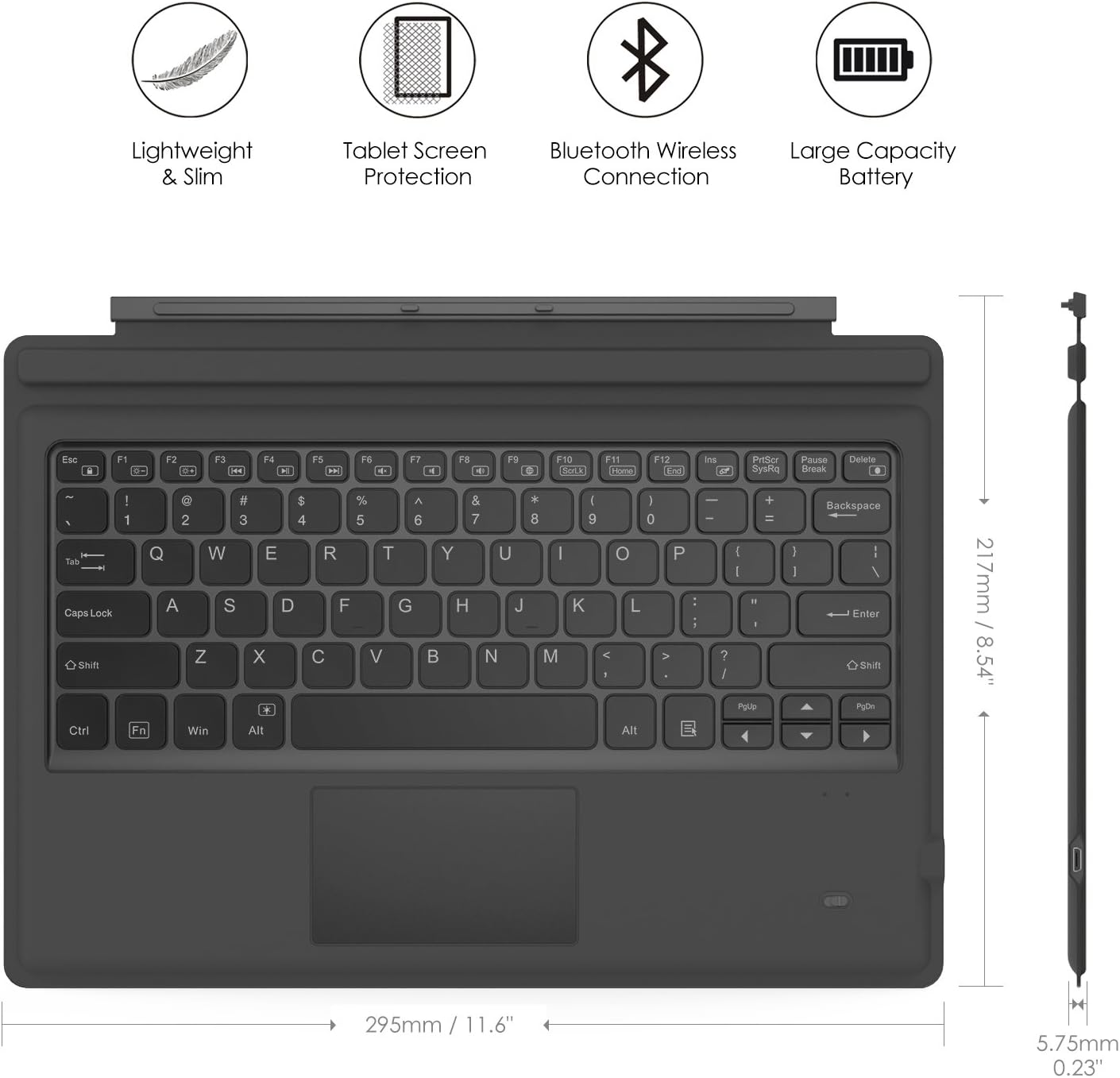
Image: A visual guide indicating compatible Microsoft Surface Pro models (Pro 7 Plus, Pro 7, Pro 6, Pro 5, Pro 4, Pro 3, Pro LTE) and incompatible models (Surface Go, Surface Go 2).
4. Thiết lập
4.1. Sạc bàn phím
Before initial use, fully charge the keyboard. Connect the provided USB charging cable to the keyboard's charging port and a USB power source. The charging indicator light will show the charging status.
- Battery Capacity: 750mAh (rechargeable lithium battery)
- Thời gian sạc: Khoảng 2-3 giờ
- Working Time (backlight off): Up to 180 hours
- Working Time (backlight on): Up to 5 hours
- Thời gian chờ: Lên đến 180 ngày

Image: An illustration depicting the keyboard's battery and charging specifications, including charge time and standby duration.
4.2. Ghép nối Bluetooth
Follow these steps to pair your keyboard with your Microsoft Surface Pro:
- Bật bàn phím bằng cách gạt công tắc nguồn sang vị trí 'ON'. Đèn báo sẽ nhấp nháy.
- Nhấn nút Fn + C keys simultaneously to activate Bluetooth pairing mode. The Bluetooth indicator light will start blinking rapidly.
- Trên máy tính bảng Microsoft Surface Pro của bạn, hãy truy cập vào... Cài đặt > Thiết bị > Bluetooth và các thiết bị khác.
- Ensure Bluetooth is enabled and select Thêm Bluetooth hoặc thiết bị khác.
- Chọn Bluetooth từ các tùy chọn.
- Select the keyboard (usually named "Bluetooth Keyboard" or similar) from the list of available devices.
- Follow any on-screen prompts to complete the pairing process. Once paired, the Bluetooth indicator light on the keyboard will stop blinking.

Image: A diagram illustrating the Bluetooth wireless connection process, showing the keyboard both attached and detached from the tablet, with a note on connection distance.
5. Hướng dẫn vận hành
5.1. Điều khiển đèn nền
The keyboard features a 7-color LED backlight with adjustable brightness levels.
- To turn the backlight ON/OFF: Press the Bóng đèn chìa khóa.
- Để thay đổi màu đèn nền: Nhấn Alt + Light Bulb key. Cycle through 7 different colors.
- Để điều chỉnh độ sáng đèn nền: Nhấn fn+alt keys. This will cycle through different brightness modes.

Image: Instructions on how to change the backlight color by pressing Alt + Light Bulb key.

Image: Instructions on how to adjust backlight brightness by pressing Fn + Alt keys.
5.2. Using the Trackpad
The integrated trackpad provides precise cursor control, similar to a mouse. It supports multi-touch gestures for enhanced navigation.
- To activate/deactivate the trackpad: Press Fn + Trackpad icon chìa khóa.
- Left Click: Press the left side of the trackpad or tap once.
- Right Click: Press the right side of the trackpad or tap with two fingers.
- Scrolling: Use two fingers to scroll up or down.

Image: An illustration highlighting the responsive trackpad with left and right click areas, and the scissor switch mechanism of the keys for comfortable typing.
5.3. Dual-Angle Adjustment
The keyboard features a magnetic attachment stripe that allows for two different typing angles, providing ergonomic comfort for various uses.
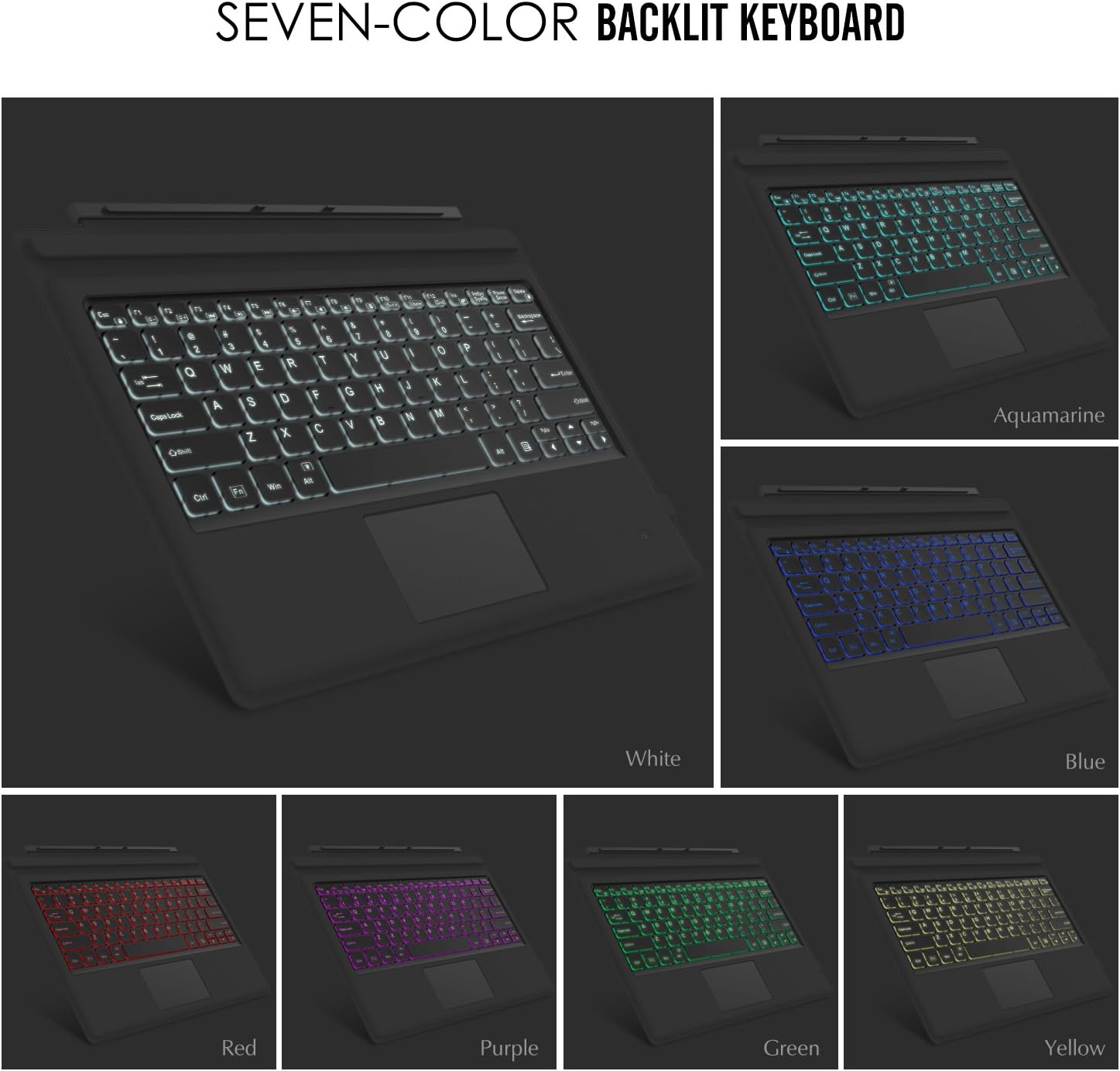
Image: A visual representation of the keyboard's dual-angle adjustment, showing two distinct positions for typing comfort.
6. Bảo trì
- Keep the keyboard away from liquids and extreme temperatures.
- Clean the keyboard with a soft, damp vải. Tránh các hóa chất khắc nghiệt.
- Không được tự ý tháo rời bàn phím, vì việc này có thể làm mất hiệu lực bảo hành.
- Bảo quản nơi khô ráo khi không sử dụng trong thời gian dài.
KHAI THÁC. Xử lý sự cố
7.1. Bàn phím không kết nối qua Bluetooth
- Đảm bảo bàn phím được sạc đầy.
- Đảm bảo công tắc nguồn của bàn phím được BẬT.
- Verify that Bluetooth is enabled on your Surface Pro.
- Re-enter pairing mode on the keyboard (Fn + C) and attempt to pair again from your Surface Pro's Bluetooth settings.
- If previously paired, try 'forgetting' the device on your Surface Pro and then re-pairing.
7.2. Đèn nền không hoạt động
- Hãy đảm bảo bàn phím đã được sạc đầy đủ pin.
- Press the Light Bulb key to toggle the backlight.
- Adjust brightness using Fn + Alt keys.
7.3. Trackpad Not Responding
- Ensure the trackpad is activated by pressing Fn + Trackpad icon key.
- Lau sạch bề mặt bàn di chuột để loại bỏ bụi bẩn hoặc mảnh vụn.
- Restart the keyboard and your Surface Pro.
8. Thông số kỹ thuật
| Tính năng | Chi tiết |
|---|---|
| Thương hiệu | MoKo |
| Số hiệu mẫu | LYSB01AJOX7LU-ELECTRNCS |
| Màu sắc | Xám |
| Công nghệ kết nối | Bluetooth |
| Mô tả bàn phím | Ergonomic, QWERTY US International |
| Tính năng đặc biệt | Wireless, Magnetic, Backlit (7 Colors), Trackpad |
| Nguồn điện | Battery (Rechargeable Lithium) |
| Dung lượng pin | 750mAh |
| Pin Voltage | 3 vôn |
| Kích thước sản phẩm | 29.49 x 21.69 x 0.58 cm (11.6 x 8.54 x 0.23 inch) |
| Trọng lượng sản phẩm | 500 gam |
| Thiết bị tương thích | Microsoft Surface Pro 7 Plus (2021) / Pro 7 (2019) / Pro 6 / Surface Pro 5 (Pro 2017) / Pro 4 / Pro 3 |
| Hệ điều hành | Cửa sổ |

Image: A diagram illustrating the precise dimensions of the MoKo Bluetooth Wireless Keyboard.
9. Bảo hành và Hỗ trợ
For warranty information and technical support, please refer to the product packaging or contact MoKo customer service directly. Keep your purchase receipt for warranty claims.


