1. Giới thiệu
The BenQ GP20 is an Ultra-Lite LED 700 Lumen Projector designed for versatile use, offering high-definition projection in various environments. This compact projector features 720p HD resolution, built-in 3W speakers with SRS surround sound, and 3D-ready projection capabilities. It supports unparalleled multimedia connectivity, including wireless display functions and MHL for mobile devices.
This manual provides essential information for setting up, operating, and maintaining your BenQ GP20 projector to ensure optimal performance and longevity.
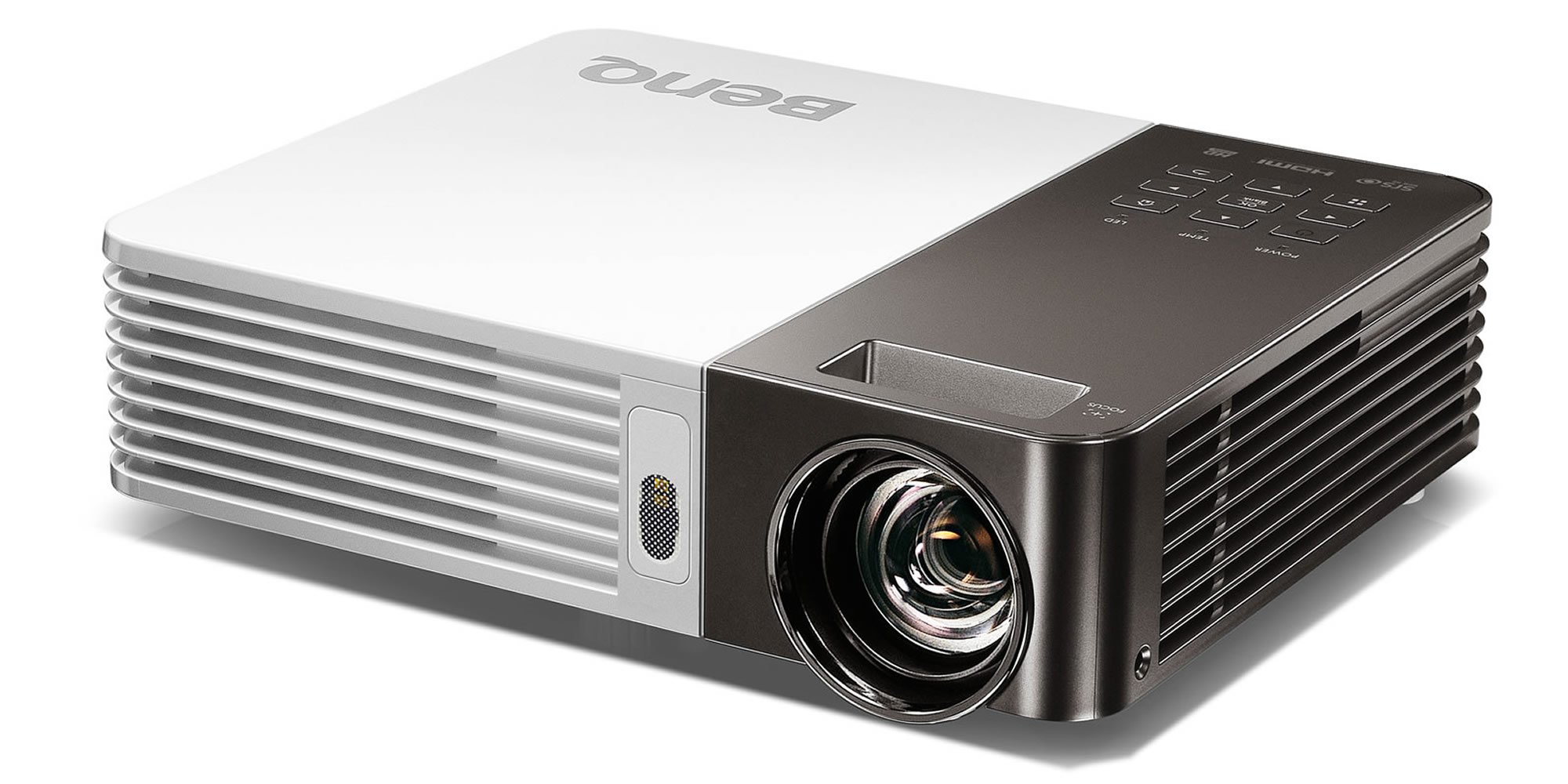
Image 1.1: The BenQ GP20 Wireless Ultra-Lite LED 700 Lumen Projector, showcasinVới thiết kế nhỏ gọn và ống kính chất lượng.
2. Mở hộp và Nội dung gói hàng
Upon opening the BenQ GP20 package, ensure all components are present and undamaged. The standard package includes the projector unit, a remote control, power cables, and a carrying case. Additional accessories such as a wireless dongle and various connection cables may also be included.

Image 2.1: The BenQ GP20 projector box, with various accessories including cables, remote, and carrying case laid out.
3. Hướng dẫn thiết lập
3.1 Vị trí ban đầu
Place the projector on a stable, flat surface. For optimal image quality, position the projector perpendicular to the projection surface (screen or wall). The short-throw projection technology allows for a large 40-inch picture from approximately one meter distance.
3.2 kết nối nguồn
- Kết nối cáp nguồn vào cổng nguồn điện của máy chiếu.
- Cắm đầu còn lại của dây nguồn vào ổ cắm điện phù hợp.
- Nhấn nút nguồn trên máy chiếu hoặc điều khiển từ xa để bật thiết bị.
3.3 Điều chỉnh hình ảnh
The GP20 features an automatic keystone correction function. This feature automatically adjusts misshaped images, graphics, and charts into a perfect square, eliminating the need for manual adjustments.
4. Hướng dẫn vận hành
4.1 Giao diện người dùng
The GP20 user interface is designed for ease of use, featuring navigation elements similar to popular multimedia devices. This intuitive design minimizes the need for extensive manual consultation.
4.2 Content Source Selection
The projector can automatically detect and select content sources when devices like SD cards or USB drives are plugged in. Manual selection is also available through the on-screen menu.
4.3 Chức năng điều khiển từ xa
Use the provided remote control to navigate menus, adjust settings, and control playback. Familiarize yourself with the buttons for power, source selection, volume, and menu navigation.
5. Kết nối
5.1 Màn hình không dây
The GP20 supports wireless display functions, allowing connection via notebooks, PCs, or mobile devices. The EZ QPresenter 2.0 for PC offers wireless connectivity from your PC to the GP20, with options for extending to a secondary display or projecting streaming video. The iOS EZ QPresenter 2.0 app allows projection of PDF, MS Office, and iWorks documents directly from an iPhone or iPad, including Dropbox streaming.
5.2 MHL Connectivity
The projector features MHL (Mobile High-Definition Link) functionality, enabling you to mirror content from compatible Android devices to the big screen. Your device will also charge while connected via MHL.
5.3 Các kết nối khác
The GP20 offers various ports for multimedia connectivity, including USB. Refer to the port labels on the projector for specific connection types.
6. Tính năng nâng cao
6.1 LED Projection Technology
Utilizing RGB LEDs as the light source, the GP20 delivers vibrant, color-rich images with a 10000:1 contrast ratio and 100% NTSC color gamut. This technology ensures a long lifespan for the light source, up to 30,000 hours in Eco Mode, without a decrease in brightness.
6.2 Auto Blank Eye Protection
The Auto Blank feature is designed for eye protection, particularly around young children. It detects movements within 20 to 30 centimeters in front of the lens and automatically cuts off the projection light to prevent direct exposure.
6.3 3D-Ready Projection
The BenQ GP20 is 3D-ready, allowing for immersive 3D content viewing with compatible 3D glasses and source material.
7. Bảo trì
7.1 Vệ sinh máy chiếu
- Bên ngoài: Use a soft, lint-free cloth to gently wipe the projector's exterior. Avoid abrasive cleaners or solvents.
- Ống kính: Use a lens cleaning cloth or specialized lens paper with a small amount of lens cleaning solution. Do not touch the lens directly with your fingers.
- Thông gió: Đảm bảo các lỗ thông gió không có bụi và vật cản để tránh quá nhiệt.
7.2 Lưu trữ
When not in use, store the projector in its carrying case in a cool, dry place away from direct sunlight and extreme temperatures.
KHAI THÁC. Xử lý sự cố
If you encounter issues with your BenQ GP20 projector, consider the following basic troubleshooting steps:
- Không có điện: Ensure the power cable is securely connected to both the projector and the electrical outlet. Check if the power outlet is functional.
- Không có hình ảnh: Verify that the correct input source is selected. Check all cable connections between the projector and the source device.
- Bức ảnh bị mờ: Allow the automatic keystone correction to function. Ensure the projection surface is flat and the projector is stable.
- Không có âm thanh: Check the volume settings on both the projector and the source device. Ensure audio cables are correctly connected if not using HDMI.
- Điều khiển từ xa không hoạt động: Check and replace the batteries in the remote control. Ensure there are no obstructions between the remote and the projector's IR receiver.
For persistent issues, consult the BenQ support webtrang web hoặc liên hệ với dịch vụ khách hàng.
9. Thông số kỹ thuật
| Tính năng | Đặc điểm kỹ thuật |
|---|---|
| Thương hiệu | BenQ |
| Số hiệu mẫu | GP20 |
| Độ phân giải màn hình | 1280 x800 |
| Độ sáng | 700 Lumen |
| Nguồn sáng | DẪN ĐẾN |
| Tỷ lệ tương phản | 10000:1 |
| Gam màu | 100% NTSC |
| Loại loa | Built-In (Two 3W Stereo Speakers with SRS HD) |
| Công nghệ kết nối | USB, Wireless Display, MHL-Enabled HDMI |
| Tính năng đặc biệt | 3D-Ready, Auto Keystone, Auto Blank Eye Protection |
| Trọng lượng sản phẩm | 3.5 pound |
| Kích thước sản phẩm | 2.4 x 8.6 x 6.9 inch |
| Nguồn điện | 1 pin Lithium Ion (đi kèm) |
| Hiệu quả năng lượng | Chứng nhận Energy Star |
10. Bảo hành và Hỗ trợ
For warranty information, please refer to the warranty card included with your product or visit the official BenQ website. For technical support, product registration, or service inquiries, please contact BenQ customer support through their official channels.


