Giới thiệu
This manual provides instructions for the installation and operation of your Intel Centrino 2230 Mini PCI Express Wi-Fi/Bluetooth Combo Adapter. This adapter integrates both Wi-Fi (802.11n) and Bluetooth 4.0 capabilities into a single Mini PCI Express card, designed for compatible laptop systems.
Important Compatibility Note: This adapter does NOT support HP and Lenovo computers due to specific hardware whitelists implemented by these manufacturers. Please verify your system's compatibility before installation.
Thông tin an toàn
- Always disconnect power from your computer before opening the chassis or installing any internal components.
- Use appropriate anti-static precautions (e.g., anti-static wrist strap) to prevent electrostatic discharge (ESD) damage to components.
- Hãy cầm bộ chuyển đổi bằng các cạnh của nó để tránh chạm vào các bộ phận nhạy cảm.
- Keep small parts (screws, antenna connectors) away from children.
Nội dung gói
Gói của bạn phải chứa các mục sau:
- Intel Centrino 2230 Mini PCI Express Wi-Fi/Bluetooth Combo Adapter (Model: 2230BNHMW)
- (Note: Additional accessories like screws or antenna cables may vary by retailer and are not always included.)
Thiết lập và cài đặt
1. Kiểm tra trước khi lắp đặt
- Khả năng tương thích: Ensure your laptop has a Mini PCI Express slot and is not an HP or Lenovo model. Refer to your laptop's service manual for slot location and compatibility.
- Công cụ: You will typically need a small Phillips head screwdriver.
- Trình điều khiển: It is recommended to download the latest drivers for the Intel Centrino 2230 from the official Intel support website onto a USB drive before starting the installation. Tìm kiếm "Intel Centrino Wireless-N 2230 drivers".
2. Cài đặt vật lý
- Tắt nguồn: Tắt hoàn toàn máy tính xách tay và ngắt kết nối bộ chuyển đổi nguồn và pin.
- Bảng điều khiển truy cập: Locate and remove the access panel on the bottom of your laptop that covers the Mini PCI Express slot. Consult your laptop's service manual for exact instructions.
- Xóa thẻ cũ (nếu có): If replacing an existing Wi-Fi card, carefully disconnect the antenna cables (MAIN and AUX) and remove the screw securing the card. The card should pop up slightly, allowing you to slide it out.
- Thêm thẻ mới: Align the Intel Centrino 2230 adapter with the Mini PCI Express slot. Gently push the card into the slot at an angle until it is fully seated.
- Thẻ bảo mật: Push the card down and secure it with the screw.
- Kết nối Ăng-ten: Carefully connect the antenna cables to the corresponding connectors on the adapter. The main antenna typically connects to the "MAIN" (1) connector, and the auxiliary antenna to the "AUX" (2) connector. These are small, delicate connectors; apply gentle, even pressure until they click into place.
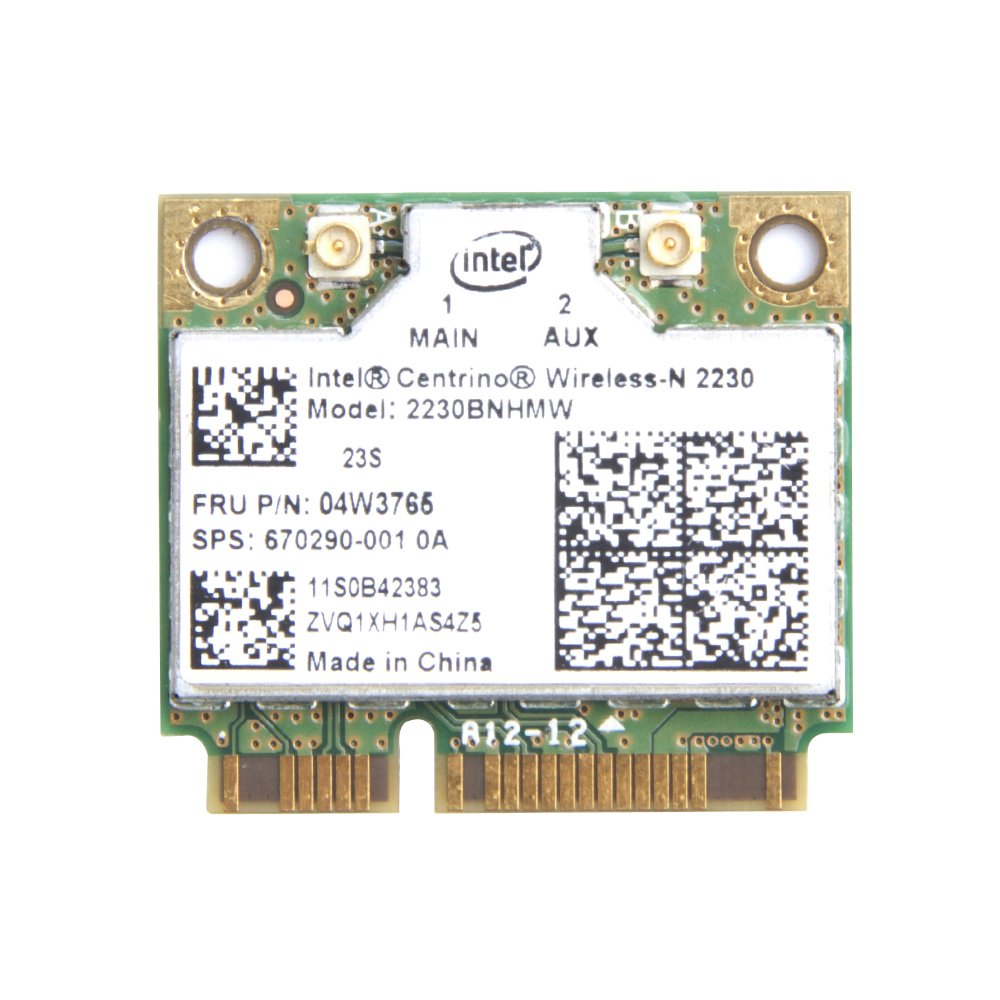
Image: Intel Centrino 2230 Mini PCI Express Wi-Fi/Bluetooth Combo Adapter. The image displays the top side of the card, highlighting the "MAIN" (1) and "AUX" (2) antenna connectors, the Intel logo, and the model number "2230BNHMW" clearly printed on the label.
- Lắp ráp lại: Replace the access panel and reconnect the battery and power adapter.
3. Cài đặt trình điều khiển
- Bật nguồn: Start your laptop.
- Cài đặt trình điều khiển: Navigate to the downloaded driver files (from step 1) and run the installer. Follow the on-screen prompts to complete the installation for both Wi-Fi and Bluetooth components.
- Khởi động lại: Khởi động lại máy tính sau khi quá trình cài đặt trình điều khiển hoàn tất.
Hướng dẫn sử dụng
Kết nối Wi-Fi
- After successful driver installation and system restart, the Wi-Fi icon should appear in your system tray (Windows) or menu bar (Linux/macOS).
- Click on the Wi-Fi icon to view Các mạng không dây khả dụng.
- Chọn mạng bạn muốn sử dụng và nhấn "Kết nối".
- Nhập khóa bảo mật mạng (mật khẩu) nếu được yêu cầu.
- Once connected, the icon will indicate an active Wi-Fi connection.
Ghép nối thiết bị Bluetooth
- Ensure Bluetooth is enabled on your computer. This can usually be done through system settings or a dedicated function key.
- Put your Bluetooth device (e.g., headphones, mouse) into pairing mode. Refer to your device's manual for specific instructions.
- On your computer, go to Bluetooth settings (e.g., "Bluetooth & other devices" in Windows).
- Nhấp vào "Thêm Bluetooth hoặc thiết bị khác" và chọn "Bluetooth".
- Chọn thiết bị của bạn từ danh sách các thiết bị đã được tìm thấy và làm theo hướng dẫn trên màn hình để hoàn tất quá trình ghép nối.
BẢO TRÌ
- Cập nhật trình điều khiển: Kiểm tra hỗ trợ chính thức của Intel theo định kỳ website for updated Wi-Fi and Bluetooth drivers. Keeping drivers current can improve performance and resolve compatibility issues.
- Vệ sinh: If your laptop requires internal cleaning, ensure the adapter is free from dust accumulation, which can affect performance and heat dissipation. Always power off and disconnect the laptop before cleaning.
Xử lý sự cố
- Adapter not detected or not working:
- Ensure the card is fully seated in the Mini PCI Express slot and secured with a screw.
- Verify that the antenna cables are securely connected to the "MAIN" and "AUX" ports on the adapter.
- Check Device Manager (Windows) to see if the device is listed. If there are yellow exclamation marks, drivers may be missing or corrupted.
- Reinstall the drivers from the Intel support webđịa điểm.
- Đối với người dùng Windows 10: Some users have reported issues with this specific card on Windows 10, including dropped connections or the card disappearing. Ensure you have the absolute latest drivers directly from Intel, not generic Windows drivers.
- Confirm your laptop is not an HP or Lenovo model, as these are known to have compatibility restrictions.
- Wi-Fi connection issues (drops, slow speed):
- Update Wi-Fi drivers to the latest version from Intel.
- Đảm bảo chương trình cơ sở của bộ định tuyến được cập nhật.
- Try connecting to a different Wi-Fi network to rule out router-specific issues.
- Kiểm tra xem có nhiễu sóng từ các thiết bị 2.4GHz khác hay không.
- Bluetooth not pairing or connecting:
- Ensure Bluetooth drivers are correctly installed and up to date.
- Verify that Bluetooth is enabled in your system settings.
- Đặt thiết bị Bluetooth vào chế độ ghép nối.
- Hãy xóa mọi kết nối đã từng thực hiện trước đó của thiết bị với máy tính của bạn và thử kết nối lại.
- Khởi động lại máy tính của bạn.
Thông số kỹ thuật
| Số hiệu mẫu | 2230BNHMW |
| Loại không dây | Chuẩn IEEE 802.11b/g/n |
| Tốc độ truyền dữ liệu | Lên đến 300 Mbps (Wi-Fi) |
| Phiên bản Bluetooth | Bluetooth 4.0 |
| Giao diện | PCI Express nhỏ |
| Kích thước (DxRxC) | 2.9 x 2 x 1.1 inch (xấp xỉ) |
| Cân nặng | 0.16 ounces / 4.54 g (approximate) |
Thông tin bảo hành
This Intel product is typically covered by a limited warranty provided by Intel or the reseller. Warranty terms and duration may vary depending on your region and point of purchase. Please retain your proof of purchase for warranty claims. For detailed warranty information, refer to the official Intel warranty policy available on their webtrang web hoặc liên hệ với nhà bán lẻ của bạn.
Ủng hộ
For technical assistance, driver downloads, and further product information, please visit the official Intel support website. You can typically find support resources by searching for "Intel Centrino Wireless-N 2230 support" on their site. For issues related to your purchase, please contact your retailer.
Hỗ trợ của Intel Webđịa điểm: https://www.intel.com/content/www/us/en/support.html


