1. Giới thiệu
The Genius Wireless Ring Mouse is a compact, innovative input device designed for convenient in-air cursor control and scrolling. It features a 2.4GHz wireless connection, a 1000 dpi optical sensor, and Genius Touch Control Technology for intuitive operation. This manual provides essential information for its proper use and care.
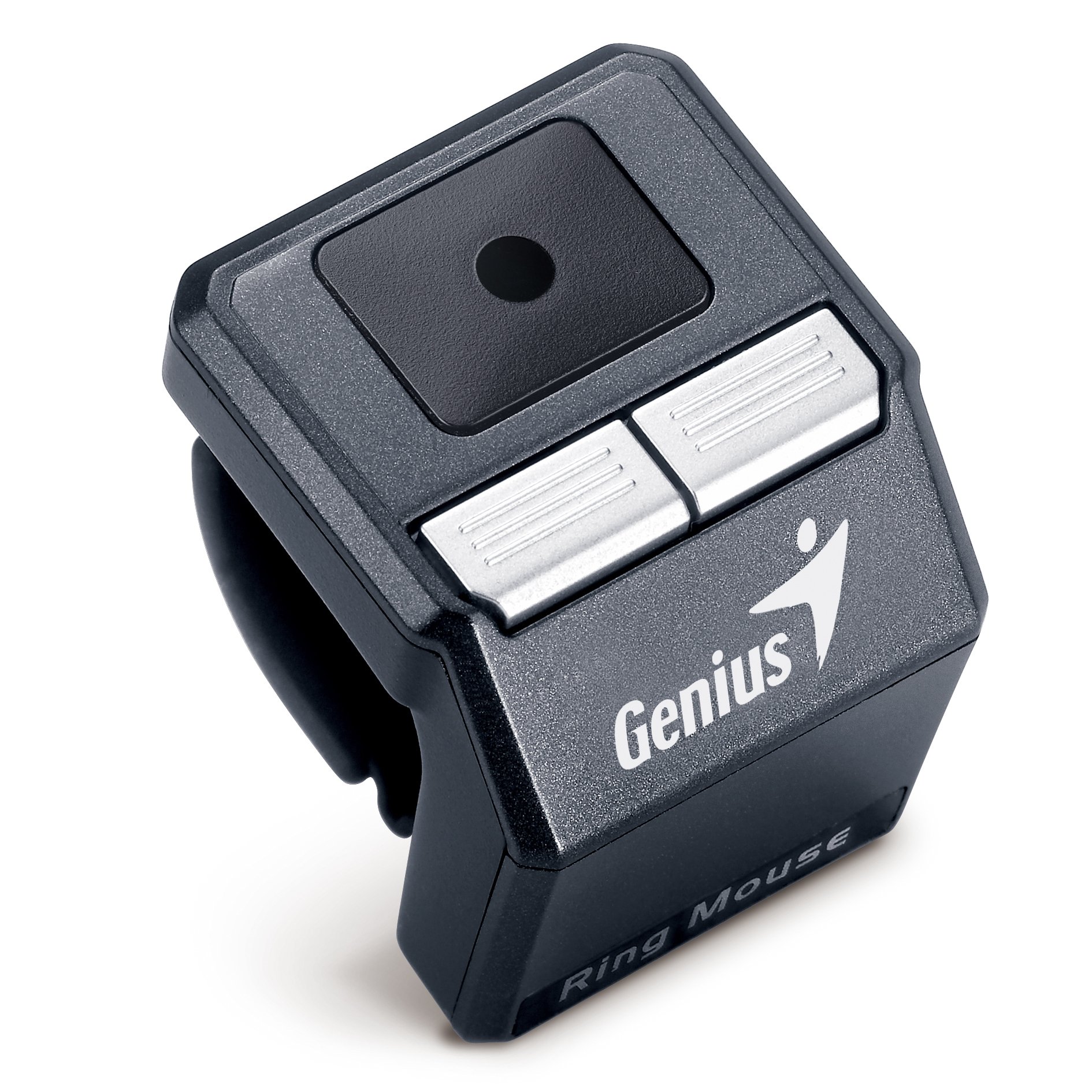
Image 1.1: The Genius Wireless Ring Mouse and its retail packaging.
2. Tính năng sản phẩm
- Ring Design: Unique ring concept with comfortable rubber grip for secure wear.
- Không dây 2.4 GHz: Minimizes interference and extends working distance up to 10 meters.
- OptoWheel Touch Control: Innovative Touch Control technology with a 1000 dpi optical sensor for precise movement.
- Air Cursor Movement and Scrolling: Slide your thumb on the touch panel area for in-air cursor control and scrolling.
- Portable USB Charger: Charge the built-in Li-ion battery from a notebook or PC.
- Hộp đựng: Provides reliable protection for the Ring Mouse.

Image 2.1: Key features of the Genius Wireless Ring Mouse, including 2.4GHz wireless, OptoWheel Touch Control, and air cursor functionality.
3. Thiết lập
3.1. Sạc thiết bị
- Locate the portable USB charger.
- Connect the Ring Mouse to the USB charger.
- Plug the USB charger into an available USB port on your notebook or PC.
- Allow the device to charge fully before first use. The charging indicator light (if present) will typically change color or turn off when charging is complete.
3.2. Kết nối đầu thu
- Locate the Pico Receiver.
- Insert the Pico Receiver into an available USB port on your computer.
- Máy tính của bạn sẽ tự động phát hiện và cài đặt các trình điều khiển cần thiết. Đây là thiết bị cắm là chạy.

Image 3.1: Illustrations of the Ring Mouse design, how to charge it via USB, and the compact Pico Receiver.
4. Hướng dẫn vận hành
4.1. Wearing the Ring Mouse
Slide the Ring Mouse onto your index finger. Ensure the touch panel is positioned conveniently for your thumb to access. The comfortable rubber grip should provide a secure fit.
4.2. Cursor Movement and Scrolling
- Chuyển động con trỏ: Gently slide your thumb across the central touch panel area to move the cursor on your screen. The 1000 dpi optical sensor provides responsive tracking.
- Cuộn: Use specific gestures on the touch panel (refer to the device's quick start guide or manufacturer's software for detailed gestures) to scroll through documents or web trang.
4.3. Chức năng nút
The Ring Mouse features buttons for various functions. Typically, these include left-click, right-click, and a scroll lock or mode switch. Consult the specific button layout on your device and any accompanying software for customization options.
- Mouse Mode (Default): Standard mouse functionality for everyday computing.
- Chế độ trình bày: Optimized for presentations, allowing easy slide navigation.
- Media Center Mode: Designed for controlling media playback.
Switch between modes using the designated button or software settings to adapt the mouse's functionality to your task.
5. Bảo trì
5.1. Vệ sinh
To clean the Ring Mouse, gently wipe its surface with a soft, dry, or slightly damp cloth. Avoid using harsh chemicals, abrasive cleaners, or excessive moisture, as these can damage the device.
5.2. Chăm sóc pin
- The device uses a built-in Li-ion battery. For optimal battery life, avoid fully discharging the battery frequently.
- Bảo quản thiết bị ở nơi khô ráo, thoáng mát khi không sử dụng trong thời gian dài.
- Use only the provided USB charger or a compatible charging cable.
5.3. Lưu trữ
When transporting or storing the Ring Mouse, use the provided carrying case to protect it from dust, scratches, and impacts.
KHAI THÁC. Xử lý sự cố
6.1. Thiết bị không phản hồi
- Kiểm tra pin: Ensure the Ring Mouse is sufficiently charged. Connect it to a USB power source and allow it to charge.
- Kiểm tra người nhận: Verify that the Pico Receiver is securely plugged into a working USB port on your computer. Try a different USB port.
- Khôi phục kết nối: If the connection is lost, try unplugging and re-plugging the Pico Receiver. Some devices may have a re-pairing button; consult the manufacturer's website if this is the case.
- Sự can thiệp: Move the mouse closer to the receiver or away from other wireless devices that might cause interference.
6.2. Inaccurate Cursor Movement
- Cảm biến sạch: Ensure the optical sensor on the underside of the mouse is clean and free from dust or debris.
- Thumb Placement: Ensure your thumb is making consistent contact with the touch panel. Practice delicate movements for precision.
- Bề mặt: While designed for in-air use, ensure there are no obstructions between the mouse and the receiver.
6.3. Difficulty with Clicking/Dragging
- Luyện tập: The unique design may require practice to achieve precise clicks and drag actions without inadvertently moving the cursor.
- Cài đặt phần mềm: Check if there are any software settings from Genius that allow adjustment of click sensitivity or drag functionality.
7. Thông số kỹ thuật
| Tính năng | Chi tiết |
|---|---|
| Kích thước sản phẩm | 1.2 x 1.3 x 1.3 inch |
| Trọng lượng sản phẩm | 4.2 ounce |
| Số hiệu mẫu | 31030048102 |
| ASIN | B004RF52DO |
| Pin | 1 pin Lithium Ion (đi kèm) |
| Công nghệ không dây | 2.4GHz RF |
| Công nghệ cảm biến | 1000 dpi Optical (OptoWheel Touch Control) |
| Nhà sản xuất | Thiên tài |
| Ngày đầu tiên có sẵn | Ngày 25 tháng 2011 năm XNUMX |
8. Thông tin bảo hành
For detailed warranty information regarding your Genius Wireless Ring Mouse, please refer to the warranty card included with your product or visit the official Genius webtrang web. Điều khoản và điều kiện bảo hành có thể thay đổi tùy theo khu vực và ngày mua.
9. Hỗ trợ khách hàng
If you require further assistance or have questions not covered in this manual, please contact Genius customer support. You can typically find contact information (phone numbers, email, or support portals) on the official Genius webđịa điểm: www.geniusnet.com.


