Giới thiệu
This manual provides instructions for the setup, operation, and maintenance of your Microsoft Wireless Comfort Desktop 5000. This product combines a wireless keyboard and a wireless mouse designed for comfortable and efficient computer interaction.
The Microsoft Wireless Comfort Desktop 5000 features an ergonomically designed Comfort Curve keyboard and a mouse utilizing BlueTrack Technology for versatile surface tracking. It operates on a 2.4 GHz wireless connection, offering a reliable connection with a range of up to 30 feet.
Hướng dẫn thiết lập
Có gì trong hộp
- Microsoft Wireless Comfort Desktop 5000 Keyboard
- Microsoft Wireless Comfort Desktop 5000 Mouse
- USB Mini-Transceiver
- 2 AA Alkaline Batteries (for keyboard)
- 1 AA Alkaline Battery (for mouse)
Yêu cầu hệ thống
- Hệ điều hành: Windows 8, Windows 7, Windows Vista, Windows XP (trừ Windows XP 64-bit)
- Ổ cứng: 100 MB dung lượng trống
- Cảng: Cổng USB
Lắp đặt pin
The keyboard requires two AA alkaline batteries, and the mouse requires one AA alkaline battery. Batteries are included with the product.
- Hãy tìm ngăn chứa pin ở mặt dưới của bàn phím và chuột.
- Mở nắp ngăn chứa pin.
- Lắp pin AA vào, đảm bảo đúng cực (+/-).
- Đóng chặt nắp ngăn chứa pin.
Connecting the Wireless Transceiver
The wireless desktop set connects to your computer via a USB mini-transceiver.
- Locate the USB mini-transceiver. It may be stored in the mouse's battery compartment for transport.
- Insert the USB mini-transceiver into an available USB port on your computer.
- Máy tính của bạn sẽ tự động phát hiện và cài đặt trình điều khiển cần thiết. Quá trình này có thể mất vài phút.
- Sau khi cài đặt trình điều khiển, bàn phím và chuột sẽ sẵn sàng để sử dụng.

Figure 1: The compact USB mini-transceiver for wireless connection.

Figure 2: The underside of the mouse showing the storage slot for the USB mini-transceiver.
Hướng dẫn sử dụng
Tính năng bàn phím

Hình 3: Từ trên xuống view of the Comfort Curve keyboard layout.
- Comfort Curve Design: The keyboard features an ergonomist-approved Comfort Curve design that encourages a natural wrist posture, reducing strain during extended use.
- Quiet Touch Keys: Experience comfortable typing with low-profile, quiet-touch keys.
- Chỗ kê tay: A soft-touch palm rest is integrated to provide additional comfort and support for your wrists.
- Removable Feet: Adjustable feet on the underside allow you to set the keyboard at a preferred angle for a more comfortable wrist posture.
- Taskbar Favorites for Windows 7: Easily access programs pinned to the Windows Taskbar using dedicated shortcut keys. The keys automatically adapt if you rearrange icons in the Taskbar.
- Media Center Controls: Control media playback directly from your keyboard using dedicated media keys (e.g., play/pause, volume up/down, mute).

Hình 4: Góc cạnh view highlighting the integrated palm rest and Comfort Curve design.
Tính năng chuột

Hình 5: Góc cạnh view of the wireless mouse.
- Công nghệ BlueTrack: The mouse utilizes Microsoft's BlueTrack Technology, combining the power of optical with the precision of laser for remarkable tracking on virtually any surface, including granite, carpet, and wood.
- Cuộn bốn chiều: The tilt wheel allows for four-way scrolling (up, down, left, and right), enhancing efficiency and comfort when navigating documents or web trang.
- Các nút tùy chỉnh: The mouse buttons can be customized for quick access to programs, files, media, and webpages you use most often. Refer to your operating system's mouse settings for customization options.
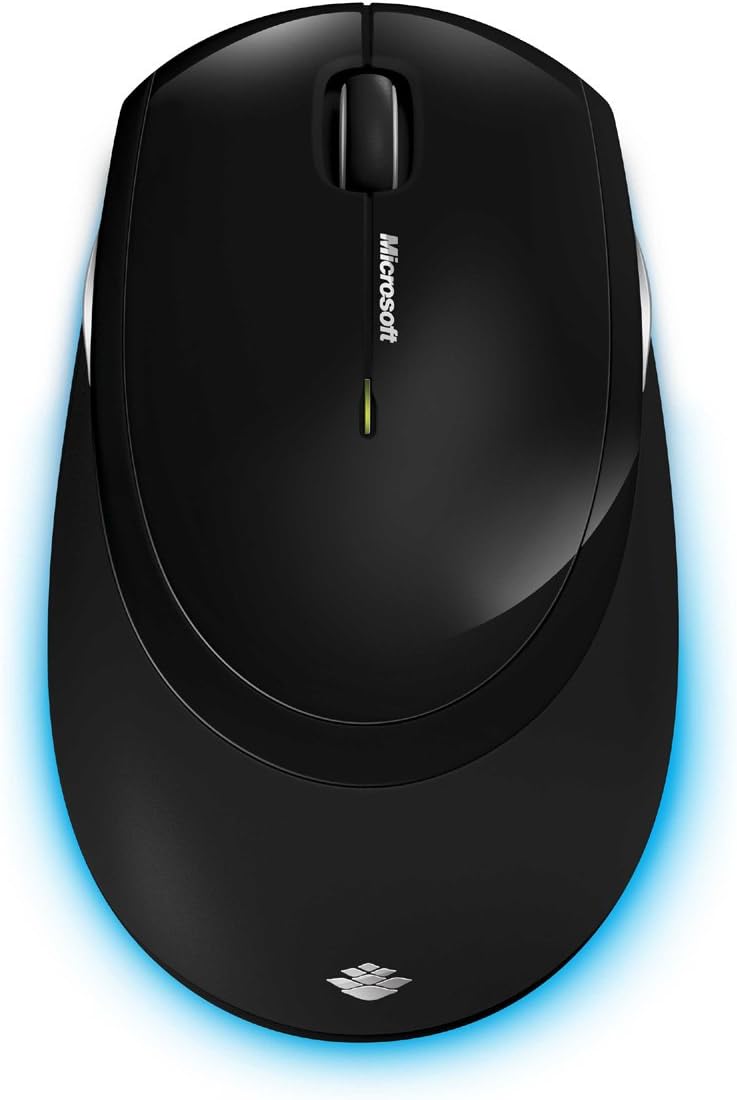
Hình 6: Từ trên xuống view of the wireless mouse.
BẢO TRÌ
Vệ sinh
To maintain the performance and appearance of your Microsoft Wireless Comfort Desktop 5000, follow these cleaning guidelines:
- Disconnect the USB transceiver from your computer before cleaning.
- Sử dụng một miếng vải mềm, không xơ vải lau nhẹampđược làm sạch bằng nước hoặc dung dịch tẩy rửa nhẹ.
- Tránh sử dụng hóa chất mạnh, chất tẩy rửa có tính mài mòn hoặc dung môi, vì chúng có thể làm hỏng bề mặt.
- Đối với bàn phím, bạn có thể sử dụng khí nén để loại bỏ bụi bẩn và mảnh vụn giữa các phím.
- For the mouse, gently wipe the optical sensor area on the bottom to ensure optimal tracking performance.
Thay thế pin
When the batteries are low, the indicator light on the keyboard or mouse may flash. Replace the batteries as described in the "Battery Installation" section under Setup Guide.
- Always use new, high-quality AA alkaline batteries.
- Vứt bỏ pin đã qua sử dụng theo quy định của địa phương.
Xử lý sự cố
Các vấn đề kết nối
- No response from keyboard/mouse:
- Ensure the USB mini-transceiver is securely plugged into a working USB port on your computer.
- Check if the batteries in the keyboard and mouse are correctly installed and have sufficient charge. Replace if necessary.
- Try plugging the transceiver into a different USB port.
- Khởi động lại máy tính của bạn.
- Sự can thiệp:
- The 2.4 GHz wireless technology can be affected by other wireless devices. Move the transceiver closer to the keyboard and mouse, or move other wireless devices away.
- Avoid placing the transceiver near large metal objects, which can block the wireless signal.
Các vấn đề về theo dõi chuột
- Erratic or no tracking:
- Ensure the BlueTrack sensor on the bottom of the mouse is clean and free of debris.
- Try using the mouse on a different surface. While BlueTrack is versatile, highly reflective or transparent surfaces (like clear glass) may still cause issues.
Thông số kỹ thuật
| Tính năng | Chi tiết |
|---|---|
| Thương hiệu | Microsoft |
| Số hiệu mẫu | CSD-00001 |
| Công nghệ kết nối | Wireless (USB Transceiver) |
| Loại không dây | Tần số vô tuyến 2.4 GHz |
| Thiết bị tương thích | Máy tính cá nhân |
| Khả năng tương thích của hệ điều hành | Windows 8, Windows 7, Windows Vista, Windows XP (trừ Windows XP 64-bit) |
| Màu sắc | Đen |
| Trọng lượng sản phẩm | 2.9 pound |
| Kích thước sản phẩm (DxRxC) | 8.7 x 2.9 x 18.54 inch |
| Nguồn điện | Pin chạy bằng |
| Pin cần thiết | 3 pin AA (2 pin cho bàn phím, 1 pin cho chuột) |
| Ngày đầu tiên có sẵn | Ngày 29 tháng 2009 năm XNUMX |
Thông tin bảo hành
Specific warranty details for the Microsoft Wireless Comfort Desktop 5000 are not provided within this manual. For comprehensive warranty information, including terms, conditions, and duration, please refer to the official Microsoft website or the warranty card included with your product packaging.
Ủng hộ
For further assistance, technical support, or to download the latest drivers and software for your Microsoft Wireless Comfort Desktop 5000, please visit the official Microsoft support webđịa điểm:
You can also visit the Microsoft Store on Amazon for product information and related accessories:
Thông tin quan trọng
Tuyên bố miễn trừ trách nhiệm pháp lý
Please note that the "Legal Disclaimer" provided with the product pertains to sales terms and conditions, such as return policies and shipping details, and is separate from the operational instructions in this user manual. For specific product usage and safety guidelines, please refer to the relevant sections of this manual.


