
1. Sản phẩm hếtview
The Omezizy D450BT is a compact Bluetooth thermal label printer designed for efficient label printing in various settings, including small businesses and home offices. It supports both Bluetooth and USB connectivity, offering versatility for different operating systems.
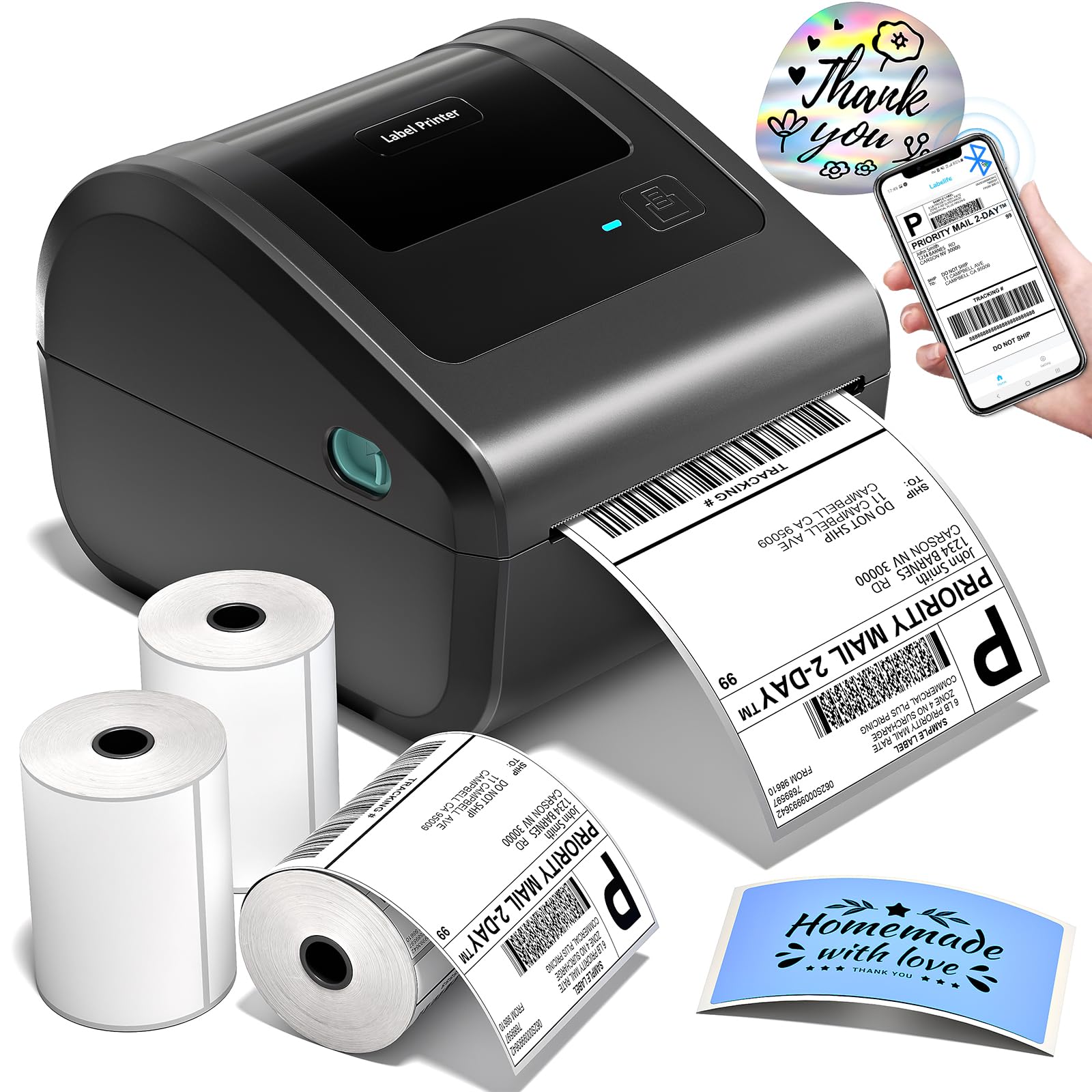
Figure 1: Omezizy D450BT Thermal Label Printer (Grey)
Có gì trong hộp

Figure 2: Contents of the Omezizy D450BT printer box. Includes the printer, power adapter, USB cable, and label rolls.
Gói này thường bao gồm:
- Omezizy D450BT Thermal Label Printer
- Bộ đổi nguồn và cáp
- Cáp USB
- Label Rolls (quantity may vary)
- Hướng dẫn bắt đầu nhanh
Tính năng máy in

Figure 3: D450BT Bluetooth Label Printer highlighting multi-platform compatibility.
- Thiết kế nhỏ gọn: Space-saving dimensions of 7.3"D x 6.3"W x 5.35"H.
- Thùng đựng giấy tích hợp: For internal roll paper and rear folded paper, eliminating the need for external holders.
- Kết nối kép: Supports Bluetooth for wireless printing and USB for stable wired connections across Android, iOS, Windows, macOS, Linux, and ChromeOS.
- In tốc độ cao: Up to 72 labels per minute (127mm/s).
- Độ phân giải cao: 203 DPI for clear and crisp prints.
- Hỗ trợ nhãn đa năng: Accommodates label widths from 1 to 4.6 inches, suitable for shipping, mailing, barcode, and various other labels.
- In nhiệt không cần mực: Uses thermal labels, requiring no ink or toner.
2. Thiết lập và Cài đặt
2.1 Kết nối máy in
The D450BT printer offers both Bluetooth and USB connection options.
USB Connection (PC)
- Attach the power cord to the adapter, then connect the adapter cable to the printer.
- Connect the USB Type-C cable from the printer to your computer.
- Turn on the power switch (I: On; O: Off) located at the rear of the printer. The indicator light on the printer will turn blue.
- Install the printer driver on your computer. Refer to the included software CD or download the latest driver from the Omezizy webđịa điểm.
Bluetooth Connection (PC/Mobile)
For Bluetooth connection, you will need to download the "Labelife" app from Google Play or the App Store for mobile devices, or use the Labelife software for PC.
- Ensure the printer is powered on and the indicator light is blue.
- On your device (PC or mobile), open the Labelife application.
- Navigate to the printer connection settings within the app.
- Select "Wireless connection" (Bluetooth).
- Choose your printer from the list of available devices and click "Connect".
- Once connected, the app will confirm the connection status. You can view device information to confirm the Bluetooth connection.
Video 1: Demonstrates connecting the Omezizy D450BT printer via Bluetooth to a computer using the Labelife software.
Video 2: Shows how to download the Labelife app, connect the printer via Bluetooth, and crop/print a PDF from a mobile device.
2.2 Tải nhãn
The D450BT supports both roll labels (internal compartment) and fan-fold labels (rear feed).
Roll Labels Loading
- Press the release latches on both sides of the printer to open the top cover.
- Disassemble the paper roll holder and install the label roll onto it. Ensure the print side of the labels faces upward.
- Insert the assembled label roll into the internal paper compartment.
- Pull the leading edge of the labels through the paper guide until it extends slightly out of the printer's front slot. Ensure the label is straight and smooth.
- Adjust the paper guides to fit the label width snugly.
- Đóng nắp máy in cho đến khi nghe tiếng "tách" báo hiệu đã khớp.
Fan-Fold Labels Loading
- Mở nắp trên của máy in.
- Place the fan-fold labels into the rear feed slot. Ensure the print side of the labels faces upward.
- Pull the leading edge of the labels through the paper guide until it extends slightly out of the printer's front slot. Ensure the label is straight and smooth.
- Adjust the paper guides to fit the label width snugly.
- Đóng nắp máy in cho đến khi nghe tiếng "tách" báo hiệu đã khớp.
Video 3: Comprehensive guide on printer PC connection, paper loading for both roll and fan-fold labels, automatic label recognition, printing a test page, pausing/resuming printing, and restoring factory settings.
3. Vận hành máy in
3.1 Automatic Label Recognition
The printer features an automatic label recognition function to detect label size. This is crucial when changing label types or sizes.
- Ensure the label is inserted straight and smooth.
- When the printer's indicator light is blue (standby mode), press and hold the Feed Button for approximately 3 seconds.
- Release the Feed Button. The printer will automatically feed a few labels to learn the size.
Ghi chú: Every time the continuous paper is changed to another type of paper roll, the automatic label recognition function needs to be manually operated to learn the labels.
3.2 In trang thử nghiệm
To verify printer functionality and label alignment:
- Ensure the label is inserted correctly and the printer is in standby mode (blue light).
- Double-click the Feed Button. The printer will print a test page.
3.3 Pausing and Resuming Printing
During a print job, you can pause and resume printing:
- ĐẾN tạm dừng printing: When the printer is actively printing, press the Feed Button once. The printing will stop.
- ĐẾN bản tóm tắt printing: When the printer is paused, press the Feed Button once again. Printing will continue from where it left off.
4. Bảo trì
Bảo trì thường xuyên đảm bảo hiệu suất tối ưu và kéo dài tuổi thọ của máy in.
4.1 Vệ sinh đầu in
Clean the print head if print quality degrades (e.g., faint lines, missing dots).
- Tắt máy in và rút dây nguồn.
- Mở nắp trên.
- Use an alcohol swab (70% isopropyl alcohol) to gently wipe the print head surface.
- Hãy đợi đầu in khô hoàn toàn trước khi đóng nắp và bật máy in.
4.2 Vệ sinh con lăn trục in
Clean the platen roller if labels are not feeding smoothly or if there are adhesive residues.
- Tắt máy in và rút dây nguồn.
- Mở nắp trên.
- Use an alcohol swab to clean the platen roller, rotating it manually to clean the entire surface.
- Allow it to dry completely before closing the cover and turning on the printer.
KHAI THÁC. Xử lý sự cố
Phần này giải quyết những vấn đề phổ biến mà bạn có thể gặp phải.
5.1 Các vấn đề chung
- Không có điện: Ensure the power adapter is securely connected to both the printer and a working power outlet. Check the power switch is in the 'On' position.
- Máy in không kết nối được: For USB, ensure the cable is properly connected and drivers are installed. For Bluetooth, verify Bluetooth is enabled on your device, the printer is discoverable, and you've connected through the Labelife app/software.
- Blank Labels or Faint Prints: Check if the thermal labels are loaded with the print side facing up. Clean the print head as described in the maintenance section. Ensure you are using thermal labels.
- Nhãn không hoạt động đúng cách: Ensure labels are inserted straight and the paper guides are adjusted to the label width. Perform automatic label recognition. Clean the platen roller if necessary.
- Printer Stops Mid-Print: Check for paper jams or low label supply. If paused, press the Feed Button to resume.
5.2 Khôi phục cài đặt gốc
If you experience persistent issues, restoring factory settings may help.
- Tắt máy in.
- Press and hold the Feed Button.
- While holding the Feed Button, turn on the printer.
- Continue holding the Feed Button until the red indicator light flashes 5 times.
- Release the Feed Button. The printer will reset to factory defaults.
6. Thông số kỹ thuật
| Tính năng | Đặc điểm kỹ thuật |
|---|---|
| Thương hiệu | omezizy |
| Tên mẫu | D450-BT |
| Công nghệ kết nối | Bluetooth, USB |
| Công nghệ in ấn | Nhiệt |
| Tính năng đặc biệt | Bluetooth and USB Connection, Compatible with Mobile Phone & PC, Thermal Printing, No ink No toner, Auto Detection, Built-in Paper Bin |
| Màu sắc | Xám |
| Đầu ra máy in | Đơn sắc |
| Đơn sắc tốc độ in tối đa | 72 ppm (127 mm/giây) |
| Trọng lượng sản phẩm | 0.97 Kilôgam |
| Kích thước sản phẩm | 7.3"D x 6.3"W x 5.35"H |
7. Bảo hành và Hỗ trợ
For warranty information, technical support, or further assistance, please refer to the official Omezizy webtrang web hoặc liên hệ trực tiếp với bộ phận dịch vụ khách hàng của họ. Giữ lại biên lai mua hàng để yêu cầu bảo hành.