
1. Giới thiệu
The EPOMAKER TH108 PRO is a full-size mechanical keyboard designed for versatility and performance. It features a 104-key layout, tri-mode connectivity (USB-C, 2.4GHz wireless, Bluetooth), a customizable smart screen with a multi-function knob, hot-swappable switches, and vibrant RGB backlighting. This manual provides comprehensive instructions to help you set up, operate, and maintain your keyboard.
2. Nội dung gói hàng
- EPOMAKER TH108 PRO Full-Size Gaming Keyboard x 1
- USB A-to-C Cable x 1
- Wireless 2.4Ghz Receiver x 1 (stored under the left kickstand)
- Công tắc dự phòng x 2
- Dụng cụ tháo công tắc và nắp phím 2 trong 1 x 1
- Multi-language Manual x 1
3. Thiết lập
3.1 Sạc ban đầu
Before first use, connect the keyboard to a USB power source using the provided USB A-to-C cable to fully charge the 10000mAh battery. The screen will indicate charging status.
3.2 Chế độ kết nối
The TH108 PRO supports three connection modes: Wired (USB-C), 2.4GHz Wireless, and Bluetooth. Use the switch located on the back of the keyboard to select your desired mode.

Image: Tri-mode connectivity options (USB-C, 2.4GHz, Bluetooth) and compatible devices (Tablets, Laptops, PC, Phone).
3.2.1 Kết nối có dây (USB-C)
- Set the mode switch on the back of the keyboard to 'USB'.
- Kết nối cáp USB-C với bàn phím và đầu USB-A với máy tính của bạn.
- Bàn phím sẽ được nhận diện tự động.
3.2.2 Kết nối không dây 2.4 GHz
- Locate the 2.4GHz receiver stored under the left kickstand of the keyboard.
- Hãy chuyển công tắc chế độ ở phía sau bàn phím sang chế độ '2.4G'.
- Cắm bộ thu 2.4 GHz vào cổng USB có sẵn trên máy tính của bạn.
- Bàn phím sẽ tự động kết nối.

Image: The 2.4GHz dongle storage slot located on the back of the keyboard.
3.2.3 Kết nối Bluetooth
- Set the mode switch on the back of the keyboard to 'BT'.
- Nhấn và giữ Fn + 1, Fn + 2, hoặc Fn + 3 for 3 seconds to enter pairing mode. The corresponding key's backlight will flash rapidly.
- On your device (PC, Mac, Android), search for Bluetooth devices and select 'TH108 PRO'.
- Once paired, the backlight will stop flashing. You can pair up to 3 Bluetooth devices.
- Switch between paired Bluetooth devices by pressing FN + 1/2/3.
3.3 Kickstand Adjustment
The TH108 PRO features 2-stage adjustable kickstands, allowing you to choose from 3 typing angles for ergonomic comfort.
3.4 Cài đặt phần mềm
For advanced customization, including key remapping, macro recording, and screen customization, download the web-based driver from the official EPOMAKER website. The software is compatible with Mac and Windows operating systems.

Image: The customizable software interface for TFT Screen, Macro Manager, Lighting Settings, System Settings, and Custom Keys.
4. Hướng dẫn vận hành
4.1 Các chức năng chính cơ bản
The TH108 PRO is a standard 104-key full-size keyboard. All keys function as labeled in their default state.
4.2 Smart Screen & Knob Functions
The integrated smart screen displays important information such as time, battery level, and connectivity mode. The multi-function knob allows for quick adjustments.
- Núm xoay: Adjusts volume by default.
- Nhấn núm: Tắt/bật âm thanh theo mặc định.
- FN + Knob Press: Switches the knob's function between volume control and screen control (e.g., RGB brightness, speed).
- Tùy chỉnh: Use the software to upload custom GIFs or images to the screen.
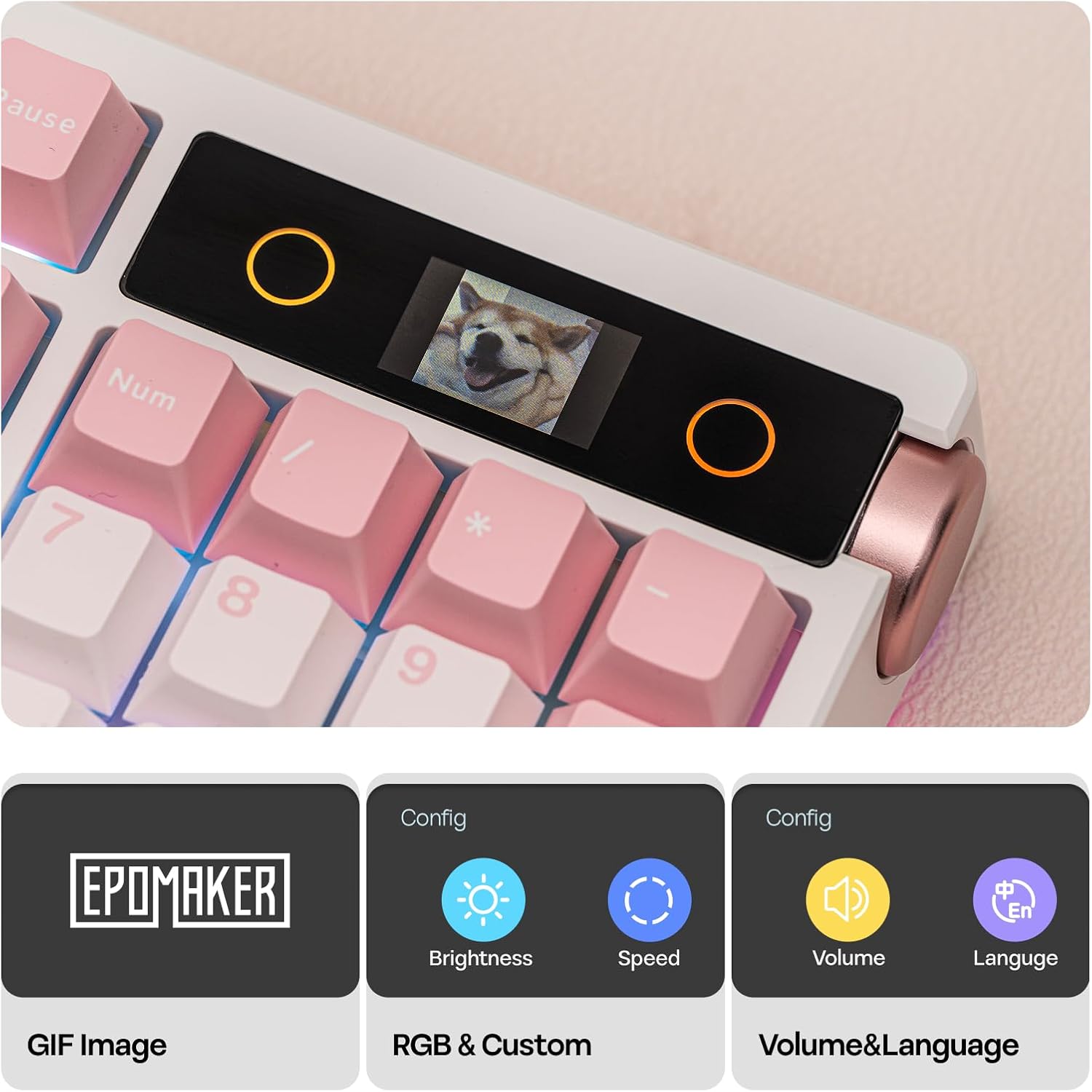
Image: The smart screen and knob offer customization for GIF images, RGB settings, volume, and language.
4.3 Đèn nền RGB
The keyboard features south-facing, per-key RGB LEDs. You can adjust lighting effects, colors, brightness, and speed using the keyboard's function keys or the customization software.
- FN + \|: Thay đổi hiệu ứng ánh sáng.
- FN + Phím mũi tên: Adjust brightness and speed.
- Phần mềm: For advanced RGB customization and dynamic effects.
4.4 Mac/Windows Compatibility
The TH108 PRO is compatible with both Mac and Windows operating systems. Use the dedicated switch or key combination (if available) to switch between layouts. The customization software also supports both OS.
Image: The keyboard features a switch for Win/Mac compatibility.
5. Bảo trì
5.1 Vệ sinh bàn phím
- Ngắt kết nối bàn phím khỏi mọi nguồn điện.
- Sử dụng một miếng vải mềm, không xơ vải lau nhẹampDùng nước hoặc dung dịch tẩy rửa nhẹ để lau sạch các phím và vỏ máy.
- Đối với bụi bẩn và mảnh vụn giữa các phím, hãy sử dụng khí nén hoặc một chiếc chổi nhỏ.
- Tránh xa hóa chất mạnh hoặc vật liệu mài mòn.
5.2 Thay thế nắp phím và công tắc (có thể thay nóng)
The TH108 PRO features a hot-swappable PCB, allowing you to change switches without soldering. It is compatible with 5-pin mechanical switches.

Image: A switch being removed from the hot-swappable socket, showing south-facing LEDs and finely-tuned stabilizers.
- Tháo nắp phím: Sử dụng dụng cụ tháo nắp phím được cung cấp để nhẹ nhàng tháo các nắp phím bằng cách kéo thẳng lên.
- Tháo công tắc: Use the provided switch puller to carefully grip the top and bottom clips of the switch and pull it straight out.
- Cài đặt công tắc: Căn chỉnh các chân của công tắc mới với các lỗ trên mạch in. Nhấn nhẹ công tắc xuống cho đến khi nghe thấy tiếng tách. Đảm bảo các chân không bị cong.
- Cài đặt Keycaps: Align the keycap with the switch stem and push down firmly.
5.3 Chăm sóc pin
- Tránh để bàn phím tiếp xúc với nhiệt độ quá cao.
- Hãy sạc pin thường xuyên, nhưng tránh để pin cạn kiệt hoàn toàn trong thời gian dài.
- For optimal battery life, consider turning off RGB lighting when not needed.

Image: The keyboard offers up to 42 hours of battery life with RGB on and 200 hours with RGB off.
KHAI THÁC. Xử lý sự cố
6.1 Bàn phím không phản hồi
- Đảm bảo bàn phím đã được sạc.
- Hãy kiểm tra xem công tắc chế độ kết nối (USB, 2.4G, BT) đã được đặt đúng chưa.
- Đối với chế độ có dây, hãy thử cổng USB hoặc cáp khác.
- For 2.4GHz, ensure the receiver is securely plugged in and try a different USB port.
- For Bluetooth, re-pair the device or try connecting to a different Bluetooth slot (FN+1/2/3).
- Khởi động lại máy tính của bạn.
6.2 Các vấn đề về chiếu sáng RGB
- Ensure RGB is enabled via FN key combinations or software.
- Kiểm tra cài đặt độ sáng.
- If specific keys are not lighting up, check if the switch is properly seated or if the LED is damaged (requires switch replacement).
6.3 Smart Screen Not Displaying
- Đảm bảo bàn phím đã được bật nguồn.
- Check if the screen brightness is set too low.
- If custom content was uploaded, ensure it is in a compatible format.
- Try resetting the keyboard (refer to software or manufacturer's webtrang web để biết hướng dẫn cụ thể).
6.4 Phần mềm không nhận diện bàn phím
- Hãy đảm bảo bàn phím được kết nối qua cổng USB-C.
- Close and reopen the software.
- Reinstall the software from the official EPOMAKER webđịa điểm.
- Update your operating system drivers.
7. Thông số kỹ thuật
| Tính năng | Sự miêu tả |
|---|---|
| Thương hiệu | máy làm EPOM |
| Người mẫu | TH108 CHUYÊN NGHIỆP |
| Cách trình bày | 100% Full-Size (104 keys) |
| Kết nối | USB-C Wired, 2.4GHz Wireless, Bluetooth (up to 3 devices) |
| Khả năng tương thích | Mac, Windows, Android |
| Ắc quy | 10000mAh có thể sạc lại |
| Tỷ lệ bỏ phiếu | 1000Hz (USB, 2.4GHz), 125Hz (Bluetooth) |
| Độ trễ | 2ms (USB), 5ms (2.4GHz), 11ms (Bluetooth) |
| Cấu trúc lắp đặt | Gioăng gắn |
| Vật liệu vỏ máy | Thick ABS Plastic |
| Vật liệu tấm | PC Plastic (Flex-cut) |
| Chất ổn định | Plate-mount, finely tuned |
| Âm thanh Dampăn cơm | 5 layers (PORON sandwich foam, IXPE switch pad, PET, PORON switch socket foam, bottom silicone) |
| Keycap Profile | Cherry Profile |
| Chất liệu keycap | Double-shot PBT Plastic |
| Công tắc | Hot-swappable (5-pin mechanical switches) |
| RGB | South-facing, per-key LED |
| Chống bóng mờ | Rollover phím N (NKRO) |
7.1 EPOMAKER Sea Salt Silent V2 Switch Specifications
| Tham số | Giá trị |
|---|---|
| Loại công tắc | 5-pin Mechanical, Silent, Linear, Pre-lubed |
| lực lượng kích hoạt | 45 ± 5 gf |
| Lực chạm đáy | 51 ± 5 gf |
| Trước khi đi du lịch | 1.8 ± 0.4mm |
| Tổng số chuyến đi | 3.5 ± 0.4mm |
| Trường hợp hàng đầu | PC trong suốt |
| Trường hợp dưới cùng | Light Blue PA66 |
| Thân cây | Yellow POM |
| Tính năng đặc biệt | Chống bụi |
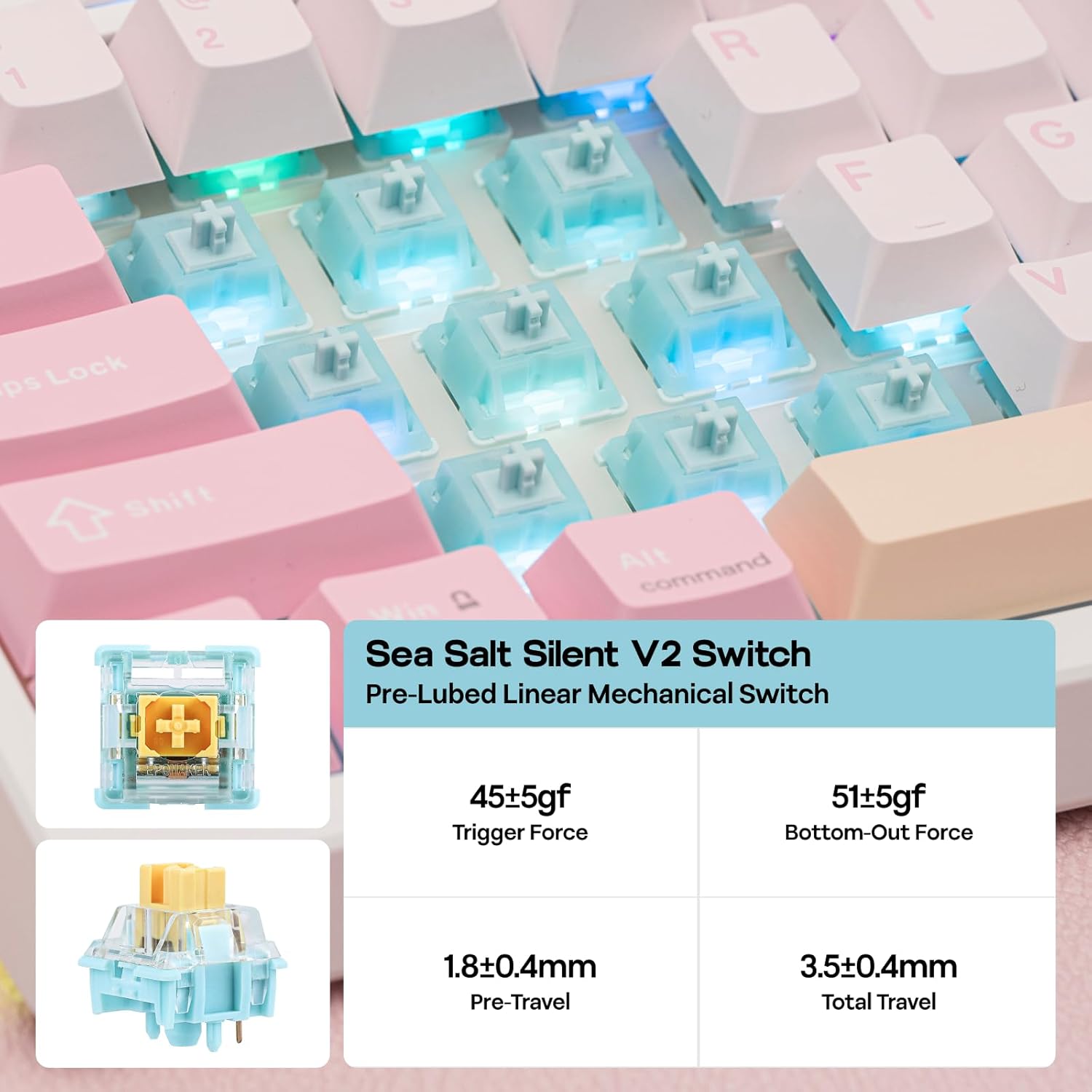
Image: Detailed specifications for the Sea Salt Silent V2 Switch.
8. Bảo hành
EPOMAKER products typically come with a standard manufacturer's warranty. For detailed information regarding warranty periods, coverage, and claims, please refer to the official EPOMAKER webhoặc liên hệ trực tiếp với bộ phận hỗ trợ khách hàng của họ. Giữ lại bằng chứng mua hàng để xác nhận bảo hành.
9. Hỗ trợ
If you encounter any issues or have questions not covered in this manual, please visit the official EPOMAKER support page or contact their customer service team. You can usually find contact information and FAQs on their webđịa điểm:


