
1. Sản phẩm hếtview
The Darmoshark M5Air is a high-performance gaming mouse designed for precision and comfort. It features a lightweight carbon fiber construction, a PAW3950 optical sensor, and versatile tri-mode connectivity (wired, 2.4GHz wireless, and Bluetooth). This manual provides instructions for setup, operation, and maintenance of your M5Air gaming mouse.
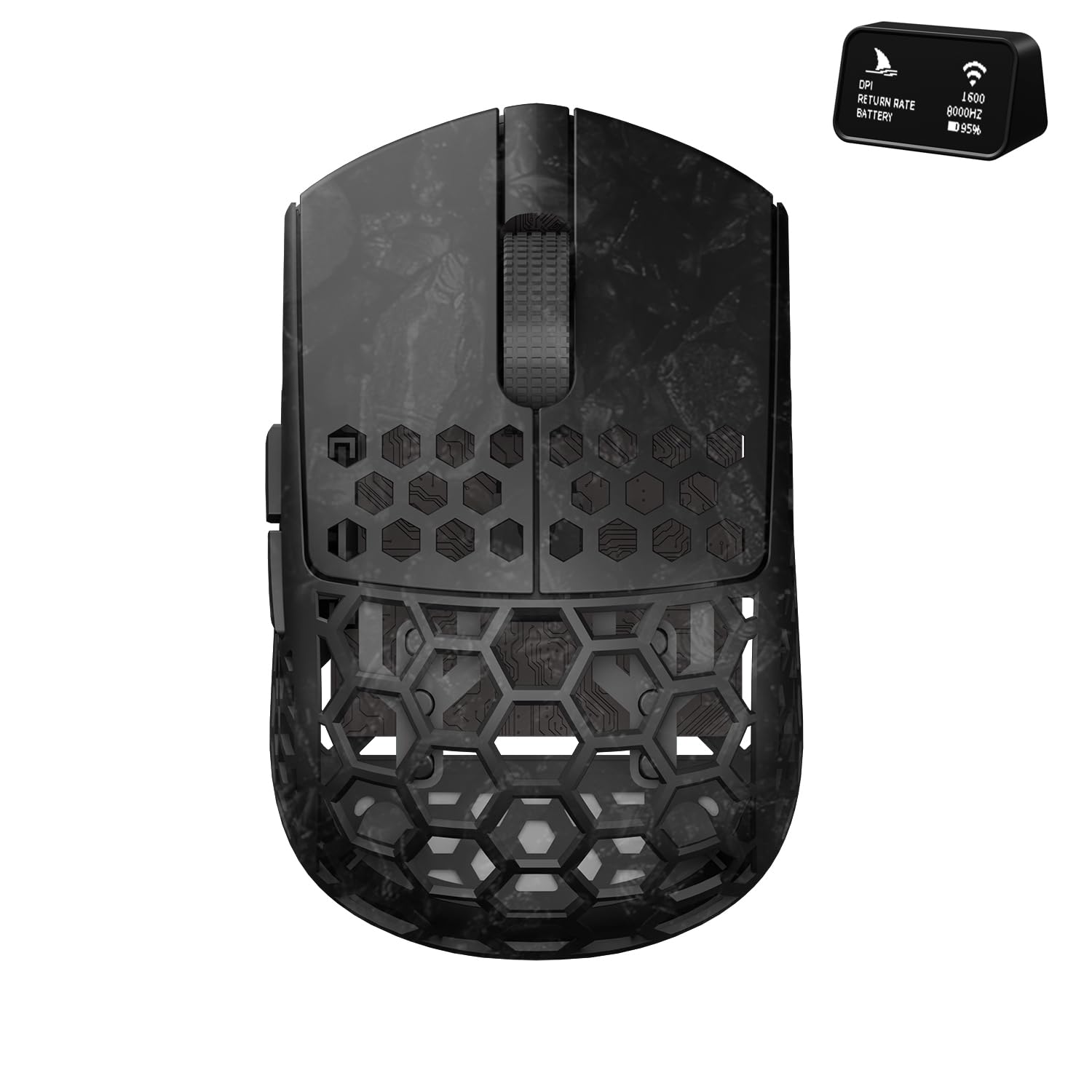
Figure 1: Darmoshark M5Air Gaming Mouse, Black. This image shows the top-down view of the M5Air mouse, highlighting its honeycomb carbon fiber shell and main buttons.
2. Nội dung gói hàng
Xác minh rằng tất cả các mục đều có trong gói hàng:
- Darmoshark M5Air Gaming Mouse
- Cáp USB-C sang USB-A
- 8K Wireless Receiver with Digital Display
- Bộ băng quấn tay cầm
- Miếng lót chuột bổ sung
- Hướng dẫn sử dụng (tài liệu này)
Video 1: Mở hộp và kết thúcview of the Darmoshark M5Air Mini 8K Wireless Gaming Mouse. This video demonstrates the mouse and its included accessories, such as the cable, 8K receiver, and grip tape.
3. Thiết lập
3.1 Sạc ban đầu
Before first use, connect the mouse to your computer using the provided USB-C cable. The mouse will charge automatically. The 8K wireless receiver's display will show the battery level. A full charge typically takes approximately 2-3 hours.

Figure 2: USB-C charging port on the front of the Darmoshark M5Air mouse. This image highlights the location of the USB-C port for charging and wired connection.
3.2 Connecting the 8K Wireless Receiver
Plug the 8K wireless receiver into an available USB-A port on your computer. The receiver features a digital display that shows the current DPI, polling rate, and mouse battery status.

Figure 3: Darmoshark M5Air mouse alongside its 8K wireless receiver. The receiver's display shows real-time mouse information.
4. Chế độ hoạt động
The M5Air mouse supports three connectivity modes: 2.4GHz wireless (via 8K receiver), Bluetooth, and wired (via USB-C cable).
4.1 Chế độ chuyển đổi
A switch on the bottom of the mouse allows you to select between modes. The positions typically correspond to: OFF/Wired, Không dây 2.4GHz, Và Bluetooth.
4.2 2.4GHz Wireless Mode (via 8K Receiver)
- Ensure the 8K wireless receiver is plugged into your computer.
- Set the switch on the bottom of the mouse to the 2.4GHz wireless icon (often a small antenna or Wi-Fi symbol).
- The mouse should automatically connect. The receiver's display will confirm the connection and show current settings.
4.3 Chế độ Bluetooth
- Set the switch on the bottom of the mouse to the Bluetooth icon.
- Trên máy tính hoặc thiết bị của bạn, hãy vào cài đặt Bluetooth và tìm kiếm các thiết bị mới.
- Select "Darmoshark M5Air" from the list of available devices to pair.
4.4 Chế độ có dây
Connect the USB-C cable to the front of the mouse and the USB-A end to your computer. The mouse will function in wired mode and charge simultaneously. This mode also allows for firmware updates and software configuration.
5. Điều chỉnh DPI
The M5Air mouse features a dedicated DPI adjustment button, typically located on the bottom of the mouse or accessible via software. Press this button to cycle through preset DPI levels. The 8K receiver's display will show the current DPI setting.
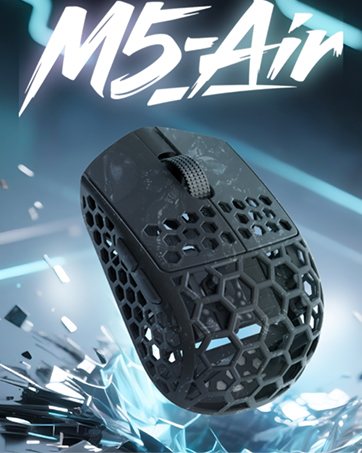
Hình 4: Dưới cùng view of the Darmoshark M5Air mouse, showing the DPI adjustment button and mode switch.
6. Cài đặt và Tùy chỉnh Phần mềm
To unlock advanced features and customize your M5Air mouse, download the official Darmoshark software from the official webTrang web. Phần mềm cho phép:
- Customizing DPI settings and profiles.
- Programming the 5 buttons.
- Adjusting polling rate (up to 8K Hz).
- Setting Lift-Off Distance (LOD).
- Creating macros.
- Đang cập nhật chương trình cơ sở.
Thăm nom www.darmoshark.cn for the latest software and drivers.

Hình 5: Ví dụample of the Darmoshark M5Air software interface, showing customization options for buttons, DPI, and other settings.
7. Bảo trì
7.1 Vệ sinh
Dùng vải mềm, khô để lau chuột. Đối với vết bẩn cứng đầu, hãy lau nhẹamp cloth can be used, ensuring no liquid enters the mouse's internal components. Avoid harsh chemicals or abrasive materials.
7.2 Chăm sóc pin
The M5Air uses a built-in rechargeable battery. For optimal battery life, avoid fully discharging the mouse frequently. Charge the mouse when the battery indicator on the 8K receiver shows low power.
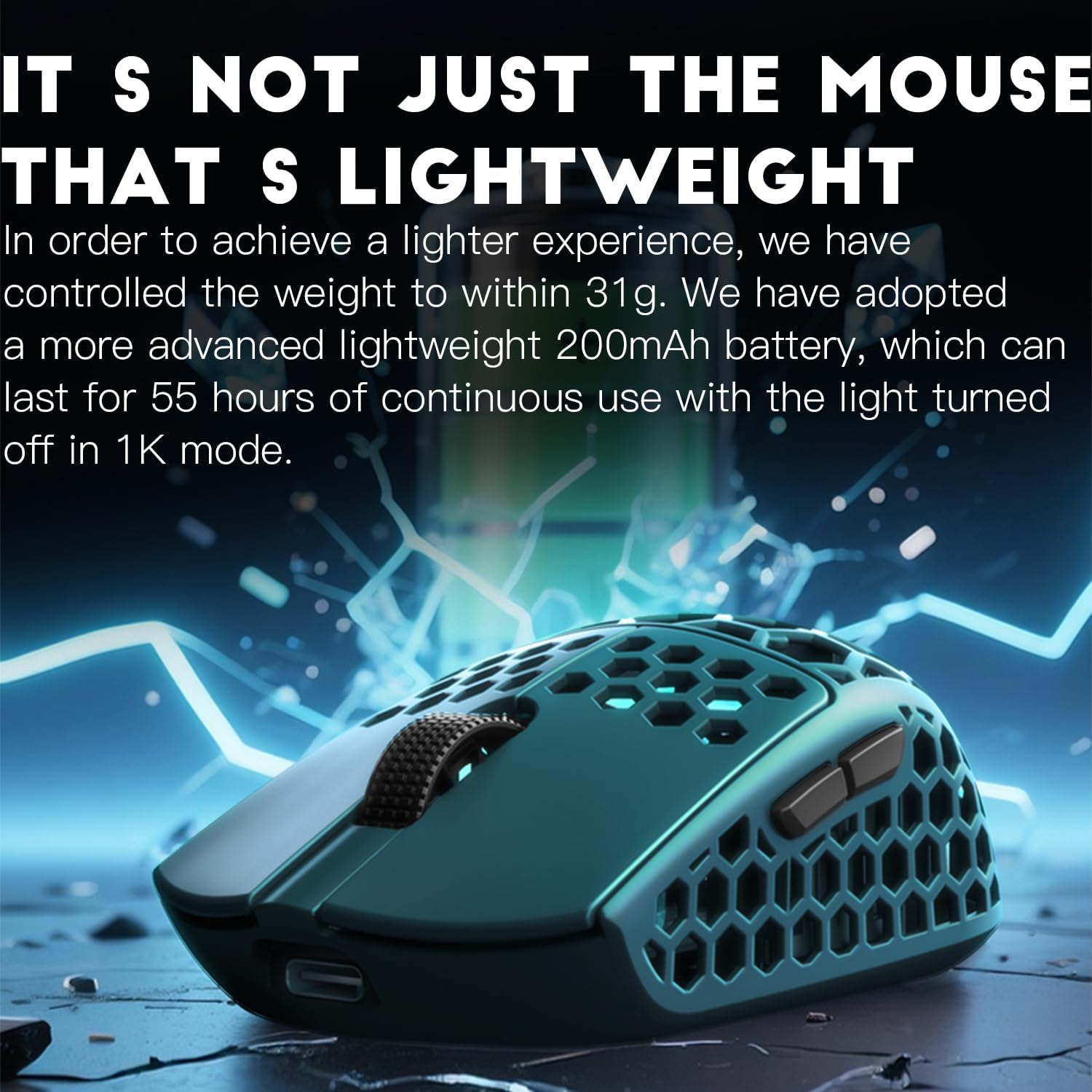
Figure 6: Illustration of the M5Air's lightweight battery, emphasizing its contribution to the mouse's overall low weight and extended usage time.
KHAI THÁC. Xử lý sự cố
8.1 Chuột không phản hồi
- Kiểm tra pin: Hãy đảm bảo chuột đã được sạc đầy. Kết nối chuột bằng cáp USB-C để sạc.
- Kiểm tra chế độ chuyển đổi: Verify the mouse is in the correct operating mode (2.4GHz, Bluetooth, or Wired).
- Ghép nối lại thiết bị không dây: For 2.4GHz, unplug and re-plug the 8K receiver. For Bluetooth, remove the device from your computer's Bluetooth settings and re-pair.
- Hãy thử chế độ có dây: Connect the mouse directly with the USB-C cable to rule out wireless connectivity issues.
8.2 Kết nối gián đoạn
- Giảm nhiễu: Move the 8K receiver closer to the mouse. Avoid placing the receiver near other wireless devices or large metal objects.
- Cập nhật trình điều khiển/phần mềm: Ensure your mouse drivers and firmware are up to date via the Darmoshark software.
8.3 Phần mềm không nhận diện chuột
- Kết nối có dây: Ensure the mouse is connected via USB-C cable when attempting to use the software for configuration or firmware updates.
- Cài đặt lại phần mềm: Uninstall and reinstall the Darmoshark software.
9. Thông số kỹ thuật
| Tính năng | Chi tiết |
|---|---|
| Người mẫu | M5Air |
| Cảm biến | Cảm biến quang học PAW3950 |
| Kết nối | Tri-Mode (2.4GHz Wireless, Bluetooth, Wired USB-C) |
| ĐẦU TƯ PHIẾU | Lên đến 30000 DPI |
| Tỷ lệ bỏ phiếu | Up to 8000 Hz (8K) |
| Nút | 5 nút có thể lập trình |
| Cân nặng | Khoảng 31g |
| Vật liệu | Sợi Carbon |
| Ắc quy | 200mAh (up to 55 hours in 1K mode with lights off) |
| Hệ điều hành | Windows 7/8/10/11, MacOS |

Hình 7: Hếtview of the Darmoshark M5Air's core technical features, including the PAW3950 sensor, Nordic52840 chip, 31-gram weight, and carbon fiber material.
10. Bảo hành và Hỗ trợ
The Darmoshark M5Air Gaming Mouse comes with a Bảo hành có giới hạn 1 năm kể từ ngày mua. Bảo hành này bao gồm các lỗi sản xuất và tay nghề trong điều kiện sử dụng bình thường.
Bảo hành không bao gồm:
- Damage caused by accidents, abuse, misuse, or improper installation.
- Hư hỏng do sửa chữa hoặc sửa đổi trái phép.
- Hao mòn thông thường.
For warranty claims or technical support, please contact Darmoshark customer service through their official webđịa điểm: www.darmoshark.cn.