
1. Giới thiệu
The TABWEE 10.1 Inch WiFi Digital Calendar, Model P10, is an interactive touchscreen display designed to streamline family organization. It integrates calendars, task management, meal planning, and digital photo frame capabilities into a single device. This manual provides detailed instructions to help you set up and utilize all features of your new digital calendar.

Hình ảnh 1.1: The TABWEE Digital Calendar in use, showcasing its calendar interface and mobile app synchronization.
2. Thông tin an toàn
- Đảm bảo thiết bị được đặt trên bề mặt phẳng, ổn định để tránh bị rơi.
- Chỉ sử dụng bộ chuyển đổi nguồn được cung cấp kèm theo thiết bị. Việc sử dụng bộ chuyển đổi không được ủy quyền có thể làm hỏng thiết bị và làm mất hiệu lực bảo hành.
- Giữ thiết bị tránh xa nước, độ ẩm và nhiệt độ khắc nghiệt.
- Do not attempt to open or repair the device yourself. Refer to qualified service personnel for any maintenance or repair needs.
- Keep out of reach of small children to prevent accidental ingestion of small parts or damage to the device.
3. Nội dung gói hàng
Xác minh rằng tất cả các mục đều có trong gói hàng:
- TABWEE 10.1 Inch WiFi Digital Calendar (Model P10)
- Bộ đổi nguồn
- Hướng dẫn sử dụng (tài liệu này)
4. Sản phẩm hếtview
Familiarize yourself with the physical components of your TABWEE Digital Calendar.

Hình ảnh 4.1: Technical details and component layout of the TABWEE Digital Calendar.
- Nút Bật / Tắt nguồn: Located on the side for turning the device on or off.
- Các nút Tăng / Giảm âm lượng: Điều chỉnh đầu ra âm thanh của thiết bị.
- Cảm biến ánh sáng: Tự động điều chỉnh độ sáng màn hình dựa trên ánh sáng xung quanh.
- Support Stand: Integrated stand for desk placement.
5. Thiết lập
5.1 Bật nguồn ban đầu
- Connect the provided power adapter to the device's power port.
- Plug the adapter into a standard electrical outlet. The device will automatically power on.
- Làm theo lời nhắc trên màn hình để chọn ngôn ngữ và khu vực của bạn.
5.2 Kết nối mạng
- On the initial setup screen, select your Wi-Fi network from the list.
- Enter your Wi-Fi password and tap 'Connect'.
- Ensure the device is connected to a stable internet connection for full functionality.
5.3 Cài đặt ứng dụng và tạo tài khoản
To fully utilize the calendar's features, download and set up the companion 'eCalendar' app on your smartphone (iOS or Android).

Hình ảnh 5.1: Steps for downloading and creating an account on the eCalendar app.
- Scan the QR code displayed on the calendar screen or search for 'eCalendar' in your device's app store (Google Play Store for Android, Apple App Store for iOS).
- Tải xuống và cài đặt ứng dụng.
- Open the eCalendar app and follow the prompts to create a new account or log in if you already have one.
- Bạn đồng ý với Thỏa thuận người dùng và Chính sách bảo mật.
5.4 Device Linking
Link your TABWEE Digital Calendar to your eCalendar app account.

Hình ảnh 5.2: Linking the calendar device to the eCalendar app and setting up your unique calendar email.
- In the eCalendar app, select the option to 'Add Device' or 'Activate a new eCalendar Frame'.
- Follow the on-screen instructions to pair your device. This may involve scanning a QR code displayed on the calendar or entering a pairing code.
- Once linked, you can set up your unique calendar email address within the app.
6. Hoạt động
6.1 Điều hướng cơ bản
The TABWEE Digital Calendar features a responsive touchscreen. Navigate through menus and features by tapping, swiping, and pinching as you would on a tablet device.
6.2 Quản lý lịch
The core function of your device is calendar management, allowing for seamless synchronization and event organization.
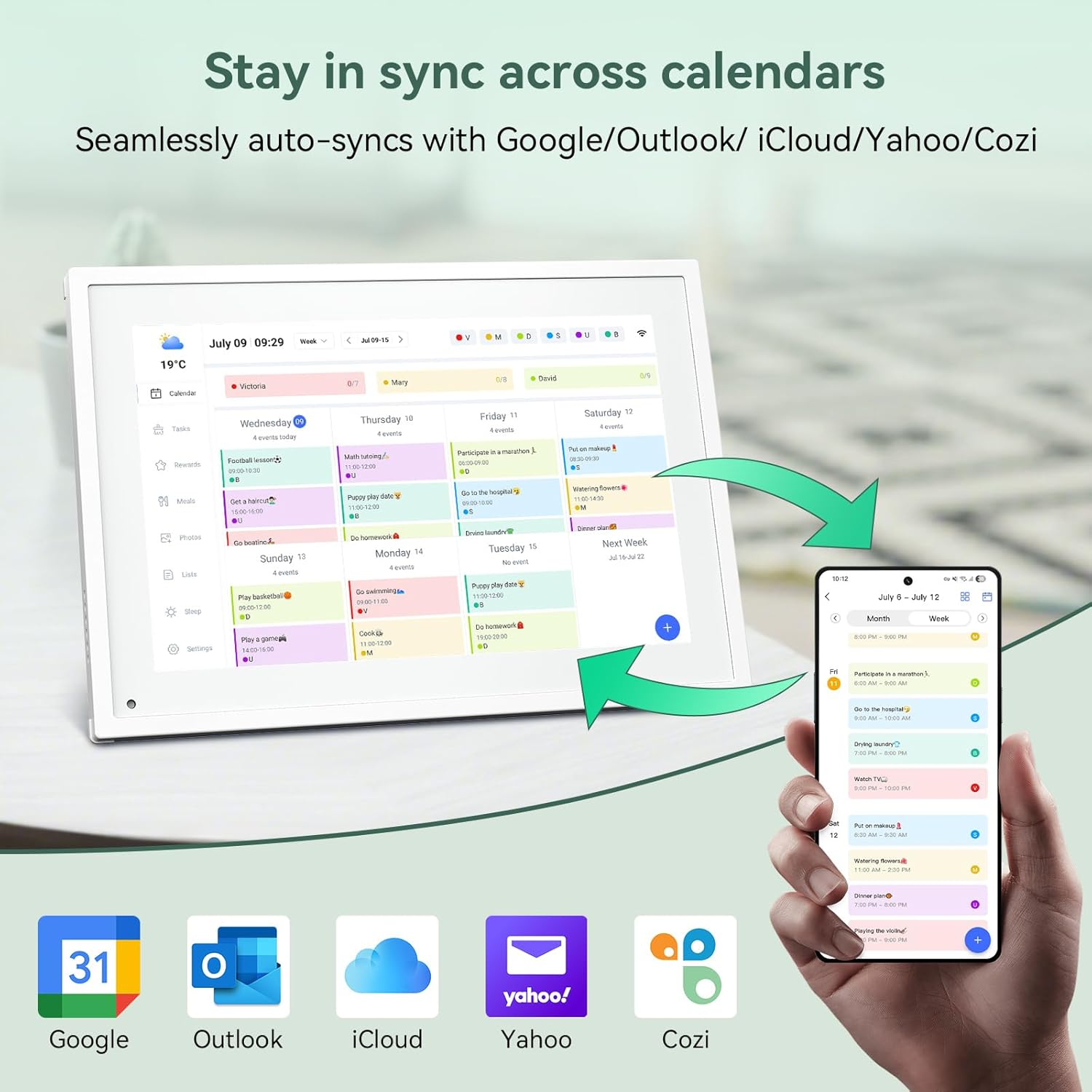
Hình ảnh 6.1: Seamless synchronization of the digital calendar with various external calendar services.
- Syncing External Calendars: Within the eCalendar app settings, you can link your Google, Apple, Outlook, Yahoo, or Cozi calendars. Events from these linked accounts will automatically appear on your TABWEE Digital Calendar.
- Adding/Editing Events: Tap on a date or time slot on the calendar display or use the eCalendar app to add new events. You can specify event details, set reminders, and assign participants.
- Tùy chỉnh Views: Switch between day, week, or month views directly on the device or through the app.
6.3 Task Management (Chore Chart)
Organize tasks and chores for family members with a built-in reward system.
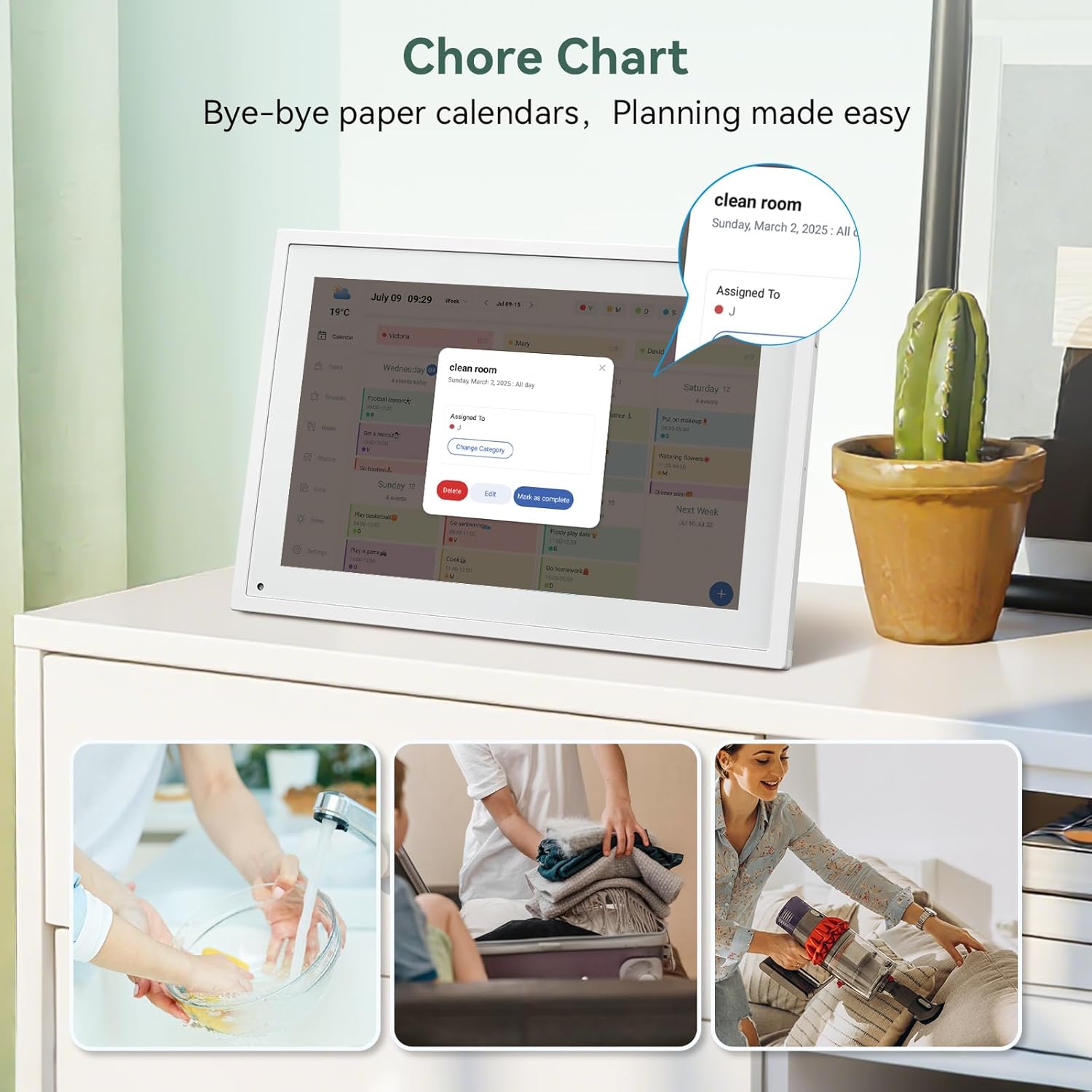
Hình ảnh 6.2: Managing tasks and chores on the digital calendar interface.
- Creating Tasks: Use the 'Tasks' section on the device or app to create new tasks. Assign them to specific individuals, set due dates, and configure recurring tasks.
- Theo dõi tiến độ: Users can mark tasks as complete. The system tracks completion and can be configured to award points.
- Hệ thống phần thưởng: Set up a star-point reward system within the app. Points earned from completed tasks can be redeemed for custom rewards, encouraging participation.

Hình ảnh 6.3: The task manager and rewards interface, designed for engaging users.
6.4 Lập kế hoạch bữa ăn
Plan your meals directly on the device or through the app.

Hình ảnh 6.4: Visual meal planning interface on the digital calendar.
- Create Meal Plans: Access the 'Meals' section to plan breakfasts, lunches, dinners, and snacks for the week.
- Custom Recipes: Upload and store your favorite recipes.
- Grocery Lists: Generate grocery lists based on your meal plans.
6.5 Digital Photo Frame Functionality
The device can also function as a digital photo frame.

Hình ảnh 6.5: The digital calendar switching between calendar and photo frame modes, in both landscape and portrait orientations.
- Chế độ chuyển đổi: Navigate to the 'Photos' section on the device or app to activate the digital photo frame mode.
- Tải ảnh lên: Upload your favorite memories directly from your smartphone via the eCalendar app.
- Định hướng: The device supports both landscape and portrait orientations, automatically adjusting the display.
6.6 Các tính năng khác
The TABWEE Digital Calendar includes additional smart features to enhance usability.
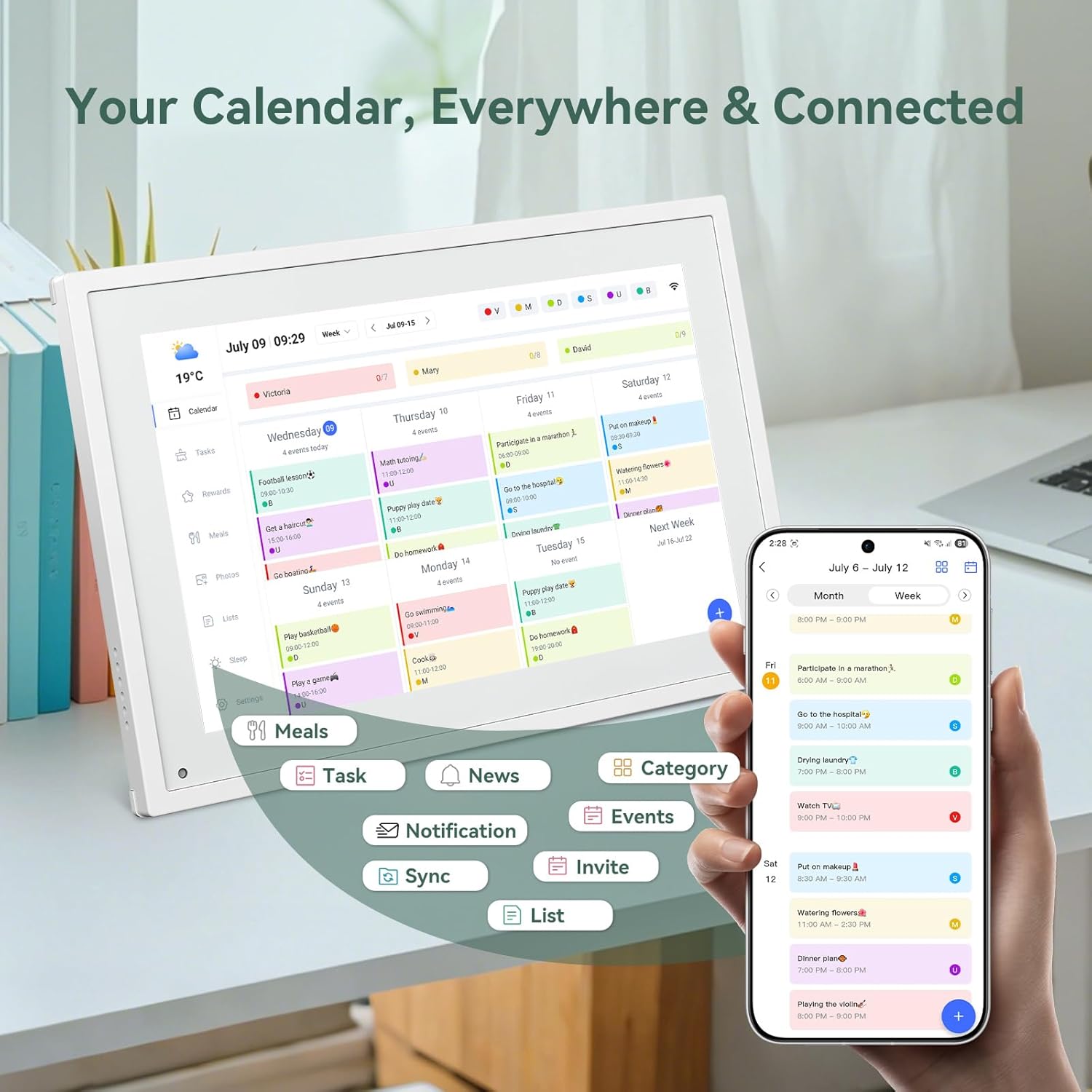
Hình ảnh 6.6: Quaview of smart features and app connectivity.
- Live Weather Forecasts: Hiển thị điều kiện thời tiết hiện tại và dự báo.
- Độ sáng tự động: The built-in light sensor automatically adjusts screen brightness for optimal viewđang.
- Chế độ ngủ: Configure scheduled times for the device to enter a low-power sleep mode.
- Custom Lists: Create and manage various lists (e.g., shopping lists, packing lists).
- Mã màu: Assign different colors to events or tasks for easy visual identification.
7. Bảo trì
7.1 Vệ sinh thiết bị
- Nhẹ nhàng lau màn hình bằng vải mềm, không xơ. Đối với các vết bẩn cứng đầu, hãy lau nhẹampLau sạch khăn bằng nước hoặc dung dịch vệ sinh màn hình.
- Tránh sử dụng hóa chất mạnh, vật liệu mài mòn hoặc bình xịt trực tiếp lên thiết bị.
- Đảm bảo thiết bị đã tắt và rút phích cắm trước khi vệ sinh.
7.2 Cập nhật phần mềm
Thiết bị có thể nhận được các bản cập nhật phần mềm định kỳ để cải thiện hiệu năng và bổ sung các tính năng mới. Hãy đảm bảo thiết bị của bạn được kết nối với Wi-Fi để nhận các bản cập nhật này. Thông thường, bạn sẽ nhận được thông báo trên màn hình khi có bản cập nhật.
KHAI THÁC. Xử lý sự cố
| Vấn đề | Nguyên nhân có thể | Giải pháp |
|---|---|---|
| Thiết bị không bật nguồn. | Bộ đổi nguồn không được kết nối hoặc bị lỗi. | Đảm bảo bộ đổi nguồn được kết nối chắc chắn với thiết bị và ổ cắm điện đang hoạt động. |
| Không thể kết nối với Wi-Fi. | Sai mật khẩu, nằm ngoài phạm vi phủ sóng hoặc gặp sự cố mạng. | Verify Wi-Fi password. Move the device closer to the router. Restart your router. |
| Calendar events are not syncing. | App not linked, external calendar not connected, or internet issue. | Check app-device linking. Ensure external calendars are correctly linked in the eCalendar app. Verify internet connection. |
| Màn hình không phản hồi. | Lỗi phần mềm tạm thời. | Restart the device by holding the power button until it turns off, then power it back on. |
9. Thông số kỹ thuật
| Tính năng | Chi tiết |
|---|---|
| Số hiệu mẫu | P10 |
| Kích thước màn hình | 10.1 inch |
| Kiểu hiển thị | Màn hình cảm ứng |
| Kết nối | Wi-Fi |
| Kích thước sản phẩm | 10.51 x 0.91 x 7.32 inch (26.7 x 2.3 x 18.6 cm) |
| Trọng lượng sản phẩm | 2.58 pound (1.17 kg) |
| Kiểu lắp đặt | Desk Mount (not wall-mountable) |
| Nguồn điện | Plug-in (no internal battery) |
| Màu sắc | Trắng |
10. Bảo hành và Hỗ trợ
The TABWEE Digital Calendar comes with a standard manufacturer's warranty. For specific warranty terms and conditions, please refer to the warranty card included in your product packaging or visit the official TABWEE webđịa điểm.
For technical support, troubleshooting assistance, or any inquiries regarding your product, please contact TABWEE customer service through their official webtrang web hoặc thông tin liên hệ được cung cấp trong tài liệu sản phẩm của bạn.


