
1. Giới thiệu
This manual provides essential information for setting up, operating, maintaining, and troubleshooting your Lenovo Laptop Computer 2026 Edition, Model IdeaPad Slim 3. Please read this manual thoroughly before using your device to ensure proper function and longevity.
2. Nội dung gói hàng
Xác minh rằng tất cả các mục đều có trong gói hàng của bạn:
- Lenovo Laptop Computer 2026 Edition (IdeaPad Slim 3)
- Bộ đổi nguồn
- Đầu đọc thẻ SD
- Hướng dẫn bắt đầu nhanh (nếu có)
- Warranty Information Card (if included)
3. Sản phẩm hếtview
Familiarize yourself with the components and features of your Lenovo IdeaPad Slim 3 laptop.
3.1 Các tính năng chính

This image displays the Lenovo IdeaPad Slim 3 laptop and highlights its primary features. It includes an Intel Core i7-13620H processor, a 15.3-inch WUXGA IPS display (1920x1200 resolution), and an HD camera with a privacy shutter. The laptop is 0.70 inches thin and weighs 3.51 lbs. It comes with 24GB DDR5 RAM, upgradable to 40GB, and a 512GB SSD, upgradable to 4TB. Audio is provided by dual 2W speakers. The device supports Rapid Charge Boost and features a Metal A Cover for durability, meeting Military Grade standards.
3.2 Display and Keyboard

This image focuses on the laptop's display and keyboard. The 15.3-inch WUXGA IPS display offers a 1920x1200 resolution, 300 nits brightness, anti-glare properties, and a 16:10 aspect ratio. It boasts up to a 90% active area ratio and is an Eyesafe Display, TÜV Rheinland Certified for low blue light. The keyboard is non-backlit and includes a numeric keypad.
3.3 Power and Audio
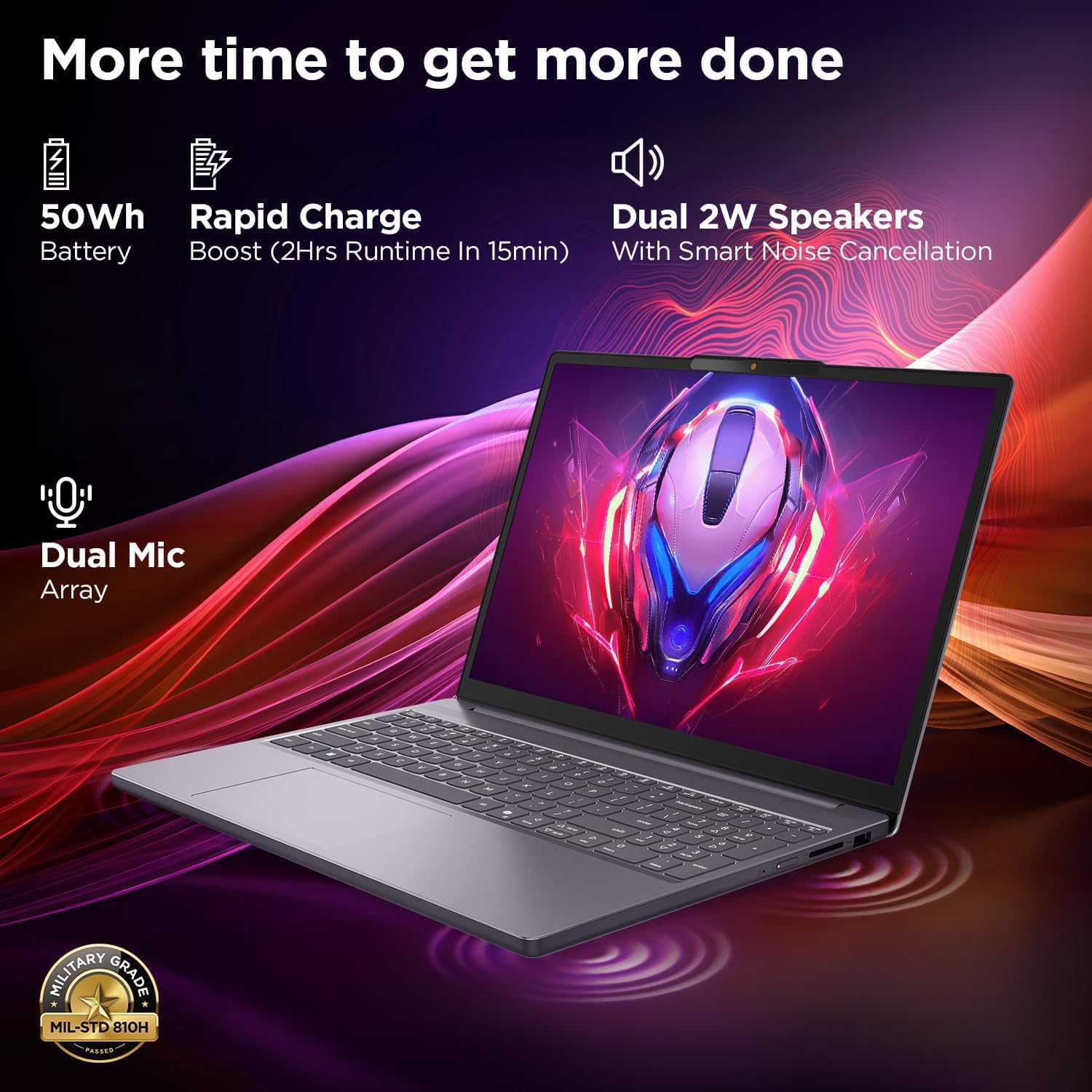
This image highlights the laptop's power and audio capabilities. It features a 50Wh battery with Rapid Charge Boost, providing 2 hours of runtime from a 15-minute charge. Dual 2W speakers with Smart Noise Cancellation and a Dual Mic Array enhance audio quality. The laptop also meets Military Grade MIL-STD 810H durability standards.
3.4 Cổng và kết nối

This image illustrates the various ports available on the Lenovo IdeaPad Slim 3. These include a power button, an SD card reader, a power connector, two USB-A ports (5Gbps), an HDMI port, and a USB-C port (5Gbps) with USB Power Delivery 3.0 and DisplayPort 1.2 support for data transfer and external displays. A headphone/microphone combo jack (3.5mm) is also present.
3.5 Keyboard and Touchpad Layout
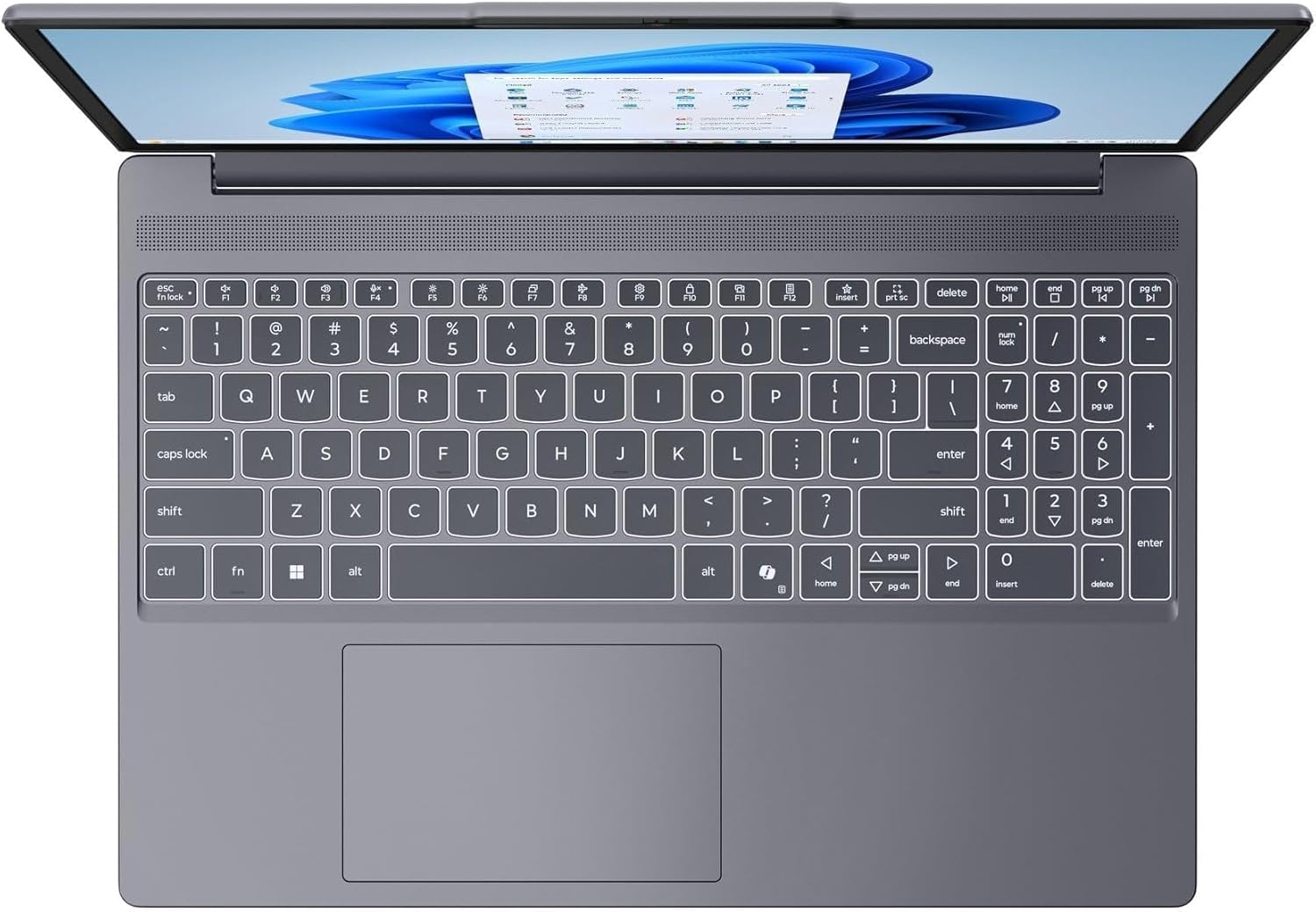
Hình ảnh này cung cấp một góc nhìn từ trên xuống view of the laptop's full-size keyboard with a numeric keypad and the integrated touchpad. It shows the standard QWERTY layout along with function keys and dedicated navigation keys.
3.6 Laptop Exterior (Closed)
This image shows the top cover of the Lenovo IdeaPad Slim 3 laptop when closed, featuring the Lenovo brand logo centrally placed on the grey metallic surface.
3.7 Laptop Bottom View

This image displays the bottom panel of the Lenovo IdeaPad Slim 3 laptop, showing the ventilation grilles for cooling and rubber feet for stability.
4. Thiết lập
4.1 Bật nguồn và sạc ban đầu
- Kết nối bộ đổi nguồn: Cắm bộ chuyển đổi nguồn vào cổng nguồn của máy tính xách tay, sau đó cắm vào ổ cắm điện trên tường.
- Sạc pin: Sạc máy tính xách tay ít nhất 30 phút trước khi sử dụng lần đầu hoặc cho đến khi đèn báo pin hiển thị mức pin đủ.
- Bật nguồn: Open the laptop lid and press the power button located on the side or keyboard deck.
- Thiết lập Windows: Hãy làm theo hướng dẫn trên màn hình để hoàn tất quá trình cài đặt Windows 11 Home, bao gồm chọn ngôn ngữ, khu vực, kết nối mạng và tạo tài khoản người dùng.
4.2 Kết nối với mạng
- Wi-Fi: During Windows setup or later, click the Wi-Fi icon in the taskbar, select your network, enter the password, and click Connect.
- Ethernet (if applicable via adapter): Connect an Ethernet cable from your router/modem to a compatible USB-C adapter (not included) and then to the laptop's USB-C port.
5. Hướng dẫn vận hành
5.1 Sử dụng Bàn phím và Bàn di chuột
- Bàn phím: The laptop features a full-size keyboard with a numeric keypad. Use the Fn key in combination with function keys (F1-F12) for special functions like adjusting brightness, volume, or enabling/disabling Wi-Fi.
- Bàn di chuột: Bàn di chuột tích hợp hỗ trợ các cử chỉ đa chạm để điều hướng, cuộn và phóng to. Tham khảo cài đặt Windows để tùy chỉnh các cử chỉ bàn di chuột.
5.2 Kết nối các thiết bị bên ngoài
- Thiết bị USB: Connect USB peripherals (mouse, keyboard, external drives) to the available USB-A or USB-C ports.
- HDMI/DisplayPort: Use the HDMI port or USB-C (with DP 1.2 support) to connect an external monitor or projector.
- Thiết Bị Bluetooth: Enable Bluetooth in Windows settings to pair wireless headphones, speakers, or other Bluetooth accessories.
- Thẻ SD: Insert an SD card into the dedicated SD card reader slot for data transfer.
5.3 Quản lý nguồn điện
- Chế độ ngủ: Đóng nắp hoặc nhấn nhanh nút nguồn để đưa máy tính xách tay vào chế độ ngủ.
- Tắt máy: Click the Start button, then Power, and select "Shut down" to turn off the laptop completely.
- Khởi động lại: Click the Start button, then Power, and select "Restart" to reboot the laptop.
6. Bảo trì
6.1 Vệ sinh máy tính xách tay
- Màn hình: Dùng vải mềm, không có xơ vải nhẹ nhàng dampLàm sạch bằng nước hoặc dung dịch vệ sinh màn hình. Không xịt trực tiếp chất lỏng lên màn hình.
- Bàn phím và khung máy: Sử dụng một miếng vải mềm, khô. Đối với vết bẩn cứng đầu, hãy lau nhẹamp có thể sử dụng vải thấm dung dịch xà phòng nhẹ, đảm bảo không có chất lỏng nào lọt vào các lỗ hở.
- Thông gió: Thường xuyên vệ sinh các khe thông gió bằng khí nén để ngăn ngừa bụi bám, vì bụi có thể ảnh hưởng đến hiệu suất làm mát.
6.2 Chăm sóc pin
- Tránh nhiệt độ quá cao.
- Không nên xả hết pin thường xuyên.
- If storing the laptop for an extended period, charge the battery to about 50-60%.
6.3 Cập nhật phần mềm
- Thường xuyên kiểm tra các bản cập nhật Windows thông qua Cài đặt > Cập nhật Windows.
- Hãy truy cập trang hỗ trợ chính thức của Lenovo. website for driver and firmware updates specific to your IdeaPad Slim 3 model.
KHAI THÁC. Xử lý sự cố
| Vấn đề | Giải pháp khả thi |
|---|---|
| Máy tính xách tay không bật được nguồn. | Ensure the power adapter is securely connected and the outlet is functional. Try a different outlet. If the battery is completely drained, allow it to charge for a while before attempting to power on. |
| Màn hình trống hoặc đen. | Check if the laptop is powered on. Adjust screen brightness using function keys. Connect an external monitor to check if the issue is with the laptop's internal display. |
| Sự cố kết nối Wi-Fi. | Ensure Wi-Fi is enabled in Windows settings. Restart your router/modem. Check for updated Wi-Fi drivers on the Lenovo support webđịa điểm. |
| Hiệu suất chậm. | Close unnecessary applications. Check Task Manager for resource-intensive processes. Ensure Windows and drivers are up to date. Run a disk cleanup. |
| Bàn phím hoặc bàn di chuột không phản hồi. | Restart the laptop. Check for driver updates. Ensure no physical obstructions are present. |
8. Thông số kỹ thuật
| Tính năng | Chi tiết |
|---|---|
| Thương hiệu | Lenovo |
| Tên mẫu | IdeaPad Mỏng 3 |
| Kích thước màn hình | 15.3 Inches WUXGA IPS |
| Nghị quyết | 1920 x 1200 pixel |
| Bộ xử lý | 13th Gen Intel Core i7-13620H (2.4 GHz, up to 4.9 GHz) |
| ĐẬP | 24GB DDR5 RAM (Upgradable to 40GB) |
| Kho | 1TB NVMe M.2 SSD (Upgradable to 4TB) |
| Hệ điều hành | Windows 11 Trang chủ |
| Đồ họa | Tích hợp |
| Kết nối không dây | WiFi 6 (802.11ax) |
| Bluetooth | Bluetooth 5.2 |
| Cổng | 2x USB-A (5Gbps), 1x USB-C (5Gbps, PD 3.0, DP 1.2), 1x HDMI, 1x Headphone/Mic Combo, 1x SD Card Reader, Power Connector |
| Webcam | HD Camera with Privacy Shutter |
| Âm thanh | Dual 2W Speakers with Smart Noise Cancellation, Dual Mic Array |
| Ắc quy | 50Wh, Rapid Charge Boost |
| Kích thước (Dài x Rộng x Dày) | 13.52" x 9.43" x 0.7" |
| Cân nặng | 3.51 pound |
| Tính năng đặc biệt | Privacy Shutter, Power Delivery, Military Grade Durability (MIL-STD 810H) |
9. Thông tin bảo hành
Your Lenovo Laptop Computer 2026 Edition (IdeaPad Slim 3) comes with a Bảo hành có giới hạn. The specific terms and duration of your warranty may vary by region and purchase date. For detailed warranty information, including coverage, terms, and conditions, please refer to the warranty card included with your product or visit the official Lenovo support webđịa điểm:
https://support.lenovo.com/warranty
It is recommended to register your product on the Lenovo website to facilitate warranty claims and receive important updates.
10. Hỗ trợ
For further assistance, technical support, or to download the latest drivers and manuals, please visit the official Lenovo Support webđịa điểm:
You may also contact Lenovo customer service directly. Contact information can typically be found on the support webtrang web dành cho khu vực cụ thể của bạn.