
1. Giới thiệu
The Machenike KG98 is a versatile mechanical gaming keyboard designed for various uses including work, gaming, and study. It features multi-device connectivity, hot-swappable switches, an ergonomic structure, and customizable RGB lighting. This manual provides detailed instructions for setup, operation, and maintenance to ensure optimal performance and user experience.
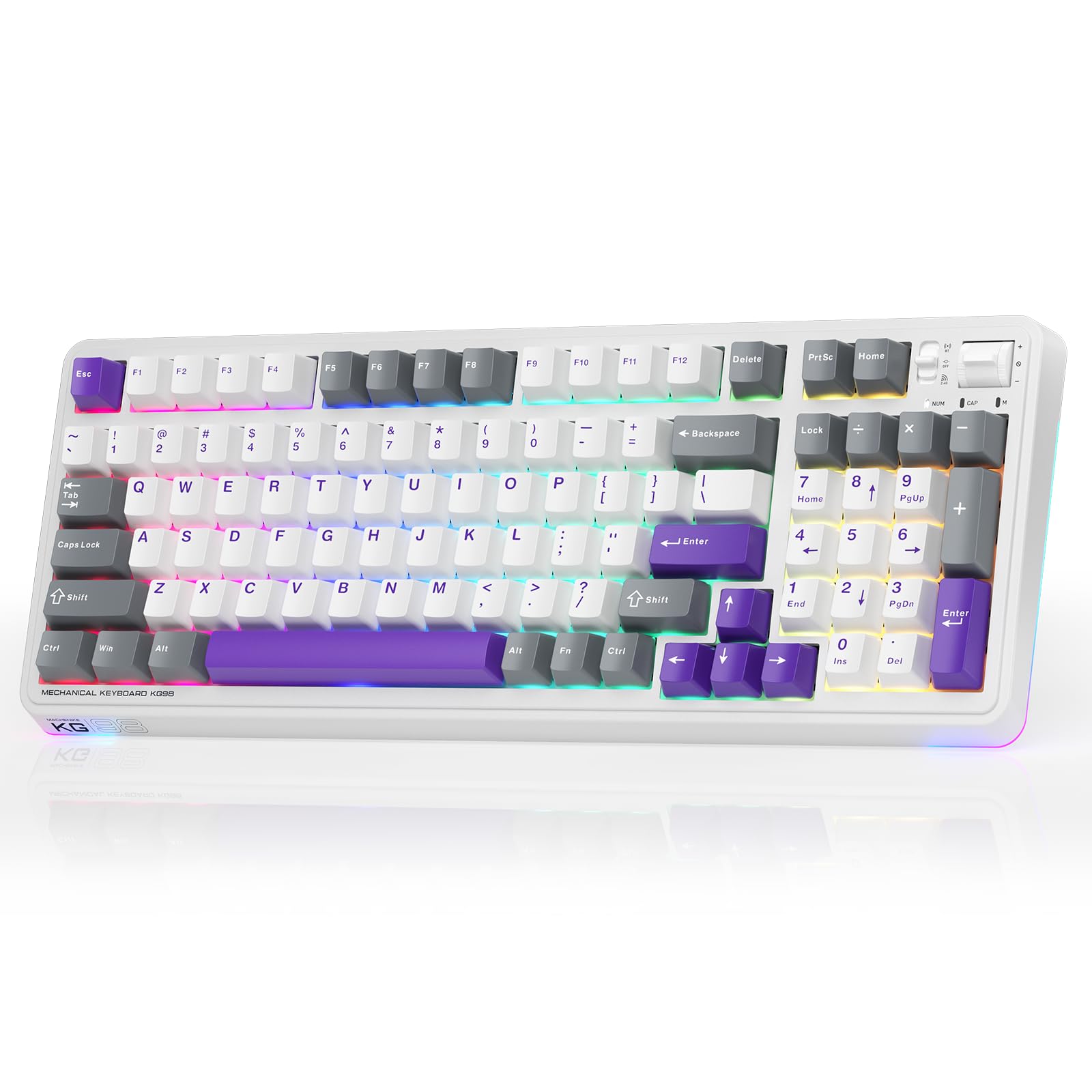
Figure 1: Machenike KG98 Mechanical Gaming Keyboard
2. Có gì trong hộp
Vui lòng kiểm tra xem tất cả các mặt hàng có đầy đủ hay không khi mở hộp:
- Machenike KG98 Mechanical Keyboard
- Công tắc tuyến tính Extra 2 màu xám được bôi trơn sẵn
- Dụng cụ kéo bàn phím
- Cáp USB (Loại A sang Loại C)
- Hướng dẫn sử dụng (tài liệu này)

Figure 2: Box Contents of the KG98 Keyboard
3. Thiết lập
3.1 Chế độ kết nối
The KG98 keyboard supports three connection modes: Wired (USB-C), 2.4G Wireless, and Bluetooth (BT5.0). A mode switch is located on the top-right side of the keyboard.
- Chế độ có dây: Connect the provided USB-C cable to the keyboard and your computer. The mode switch should be in the middle (USB) position.
- Chế độ không dây 2.4G: Locate the 2.4G USB dongle (usually stored magnetically on the keyboard's underside). Insert the dongle into your computer's USB port. Slide the mode switch to the bottom (2.4G) position. The keyboard will automatically connect.
- Chế độ Bluetooth: Slide the mode switch to the top (BT) position. On your device (computer, tablet, smartphone), search for Bluetooth devices and select 'Machenike KG98'. The keyboard's indicator light will flash blue during pairing.
3.2 Sạc bàn phím
The keyboard is equipped with an 8000mAh battery. To charge, connect the USB-C cable to the keyboard and a power source (e.g., computer USB port, USB wall adapter). The indicator light will show charging status.

Figure 3: Connectivity and Multimedia Control Switches
Video 1: Machenike KG98 Mechanical Keyboard Overview (Seller Content)
This video demonstrates the unboxing, various features, and connectivity options of the Machenike KG98 Mechanical Keyboard, including switch removal and typing sound tests.
4. Hướng dẫn vận hành
4.1 Tổ hợp phím chức năng
The KG98 keyboard utilizes the 'Fn' key for various secondary functions. Refer to the included user manual for a comprehensive list of Fn key combinations for both Windows and macOS, including multimedia controls, brightness adjustments, and system functions.
4.2 Điều khiển ánh sáng RGB
The keyboard features 16.8 million customizable RGB backlighting and dual-sided RGB light strips. Use the following key combinations to adjust the lighting:
- Fn + Shift: Chuyển đổi qua lại giữa các hiệu ứng ánh sáng RGB khác nhau.
- Fn + Enter: Change the solid color of the current lighting effect.
- Phím Fn + Mũi tên lên/xuống: Điều chỉnh độ sáng đèn nền (4 mức).
- Fn + Mũi tên Trái/Phải: Adjust animation speed (4 levels).
- Fn + Page Up/Page Down: Change side light strip color.
- Fn + Home/End: Change side light strip mode/speed.
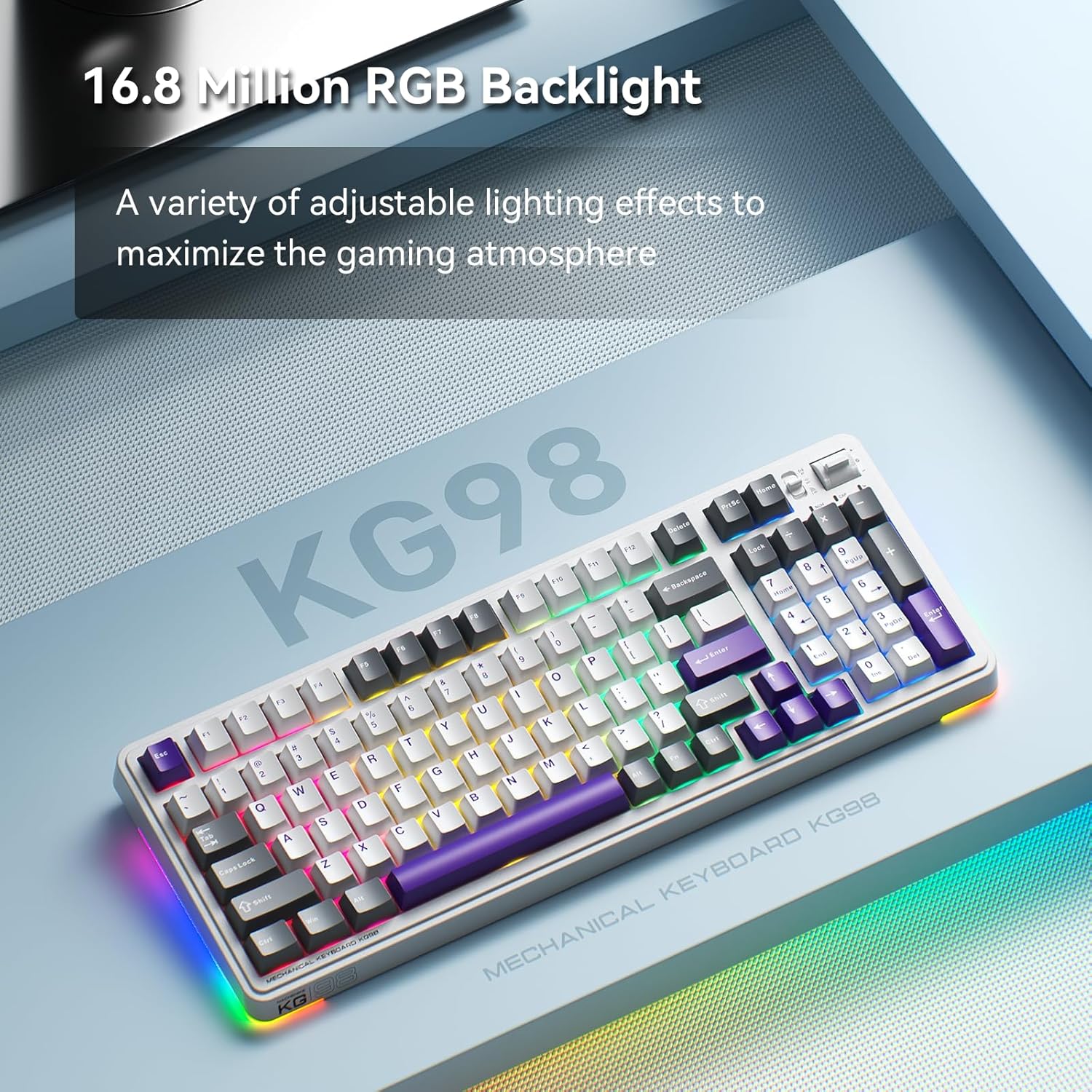
Hình 4: Đèn nền RGB có thể tùy chỉnh
4.3 Multimedia and Volume Controls
A multi-functional toggle switch is located on the top-right of the keyboard, allowing for quick adjustments:
- Quay: Điều chỉnh âm lượng lên hoặc xuống.
- Nhấn: Tắt/bật âm thanh.
- Nhấn và giữ: Chuyển đổi giữa các chế độ chiếu sáng RGB.
5. Tùy chỉnh
5.1 Công tắc có thể hoán đổi nóng
The KG98 keyboard features hot-swappable sockets, allowing you to easily replace switches without soldering. This enables personalization of typing feel and sound. Use the included keycap puller and switch puller to remove and install switches. The keyboard supports both 3-pin and 5-pin switches.

Hình 5: Các công tắc có thể thay thế nóng
5.2 Thay thế nắp phím
The keyboard comes with durable PBT keycaps. You can replace these with aftermarket keycaps of your choice to further customize the keyboard's aesthetics. Use the keycap puller to safely remove keycaps.
5.3 Tùy chỉnh phần mềm
Download the official Machenike software to unlock advanced customization options, including:
- Key remapping for individual keys.
- Macro recording and assignment.
- Detailed RGB lighting effects and color customization.
- Adjusting debounce time and sleep settings.
6. Thông số kỹ thuật
| Số hiệu mẫu | KG98 |
| Kích thước sản phẩm | Dài 16.61" x Rộng 7.48" x Cao 2.16" |
| Trọng lượng sản phẩm | 3.39 pound |
| Công nghệ kết nối | BT5.0 (Bluetooth), 2.4G Wireless, USB-C Wired |
| Mô tả bàn phím | Bàn phím cơ không dây Gasket |
| Đèn nền bàn phím | RGB |
| Ắc quy | 1 pin Lithium Ion (đi kèm) |
| Tính năng đặc biệt | Noise-canceling, Hot-swappable switches, Multi-functional switch |
| Thiết bị tương thích | Máy chơi game, Máy tính xách tay, PC, Điện thoại thông minh, Máy tính bảng |
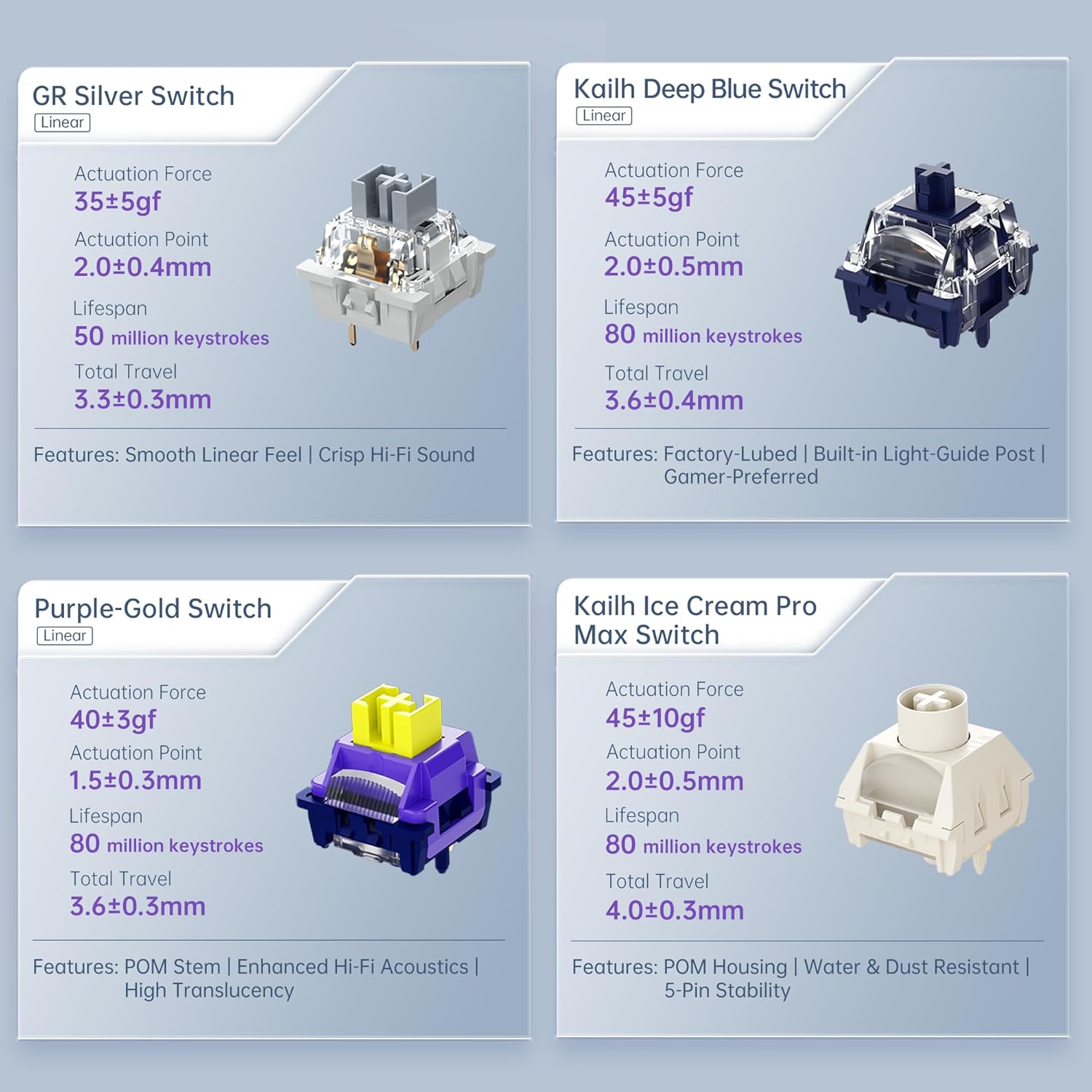
Figure 6: Premium 5-Layer Acoustic Filling Design
7. Bảo trì
To ensure the longevity and optimal performance of your Machenike KG98 keyboard, follow these maintenance guidelines:
- Vệ sinh: Regularly clean the keyboard with a soft, dry cloth. For deeper cleaning, remove keycaps using the provided puller and use compressed air to clear debris from between switches.
- Tránh chất lỏng: Do not expose the keyboard to liquids. If spills occur, immediately disconnect the keyboard and allow it to dry completely before re-using.
- Kho: Bảo quản bàn phím ở nơi khô ráo, thoáng mát, tránh ánh nắng trực tiếp và nhiệt độ cao.
KHAI THÁC. Xử lý sự cố
If you encounter issues with your Machenike KG98 keyboard, try the following troubleshooting steps:
- Không phản hồi: Ensure the keyboard is properly connected in wired mode, or that the 2.4G dongle/Bluetooth is correctly paired and the mode switch is in the correct position. Check battery level.
- Các vấn đề kết nối: For wireless modes, ensure the keyboard is within range of your device. Try re-pairing Bluetooth or re-inserting the 2.4G dongle.
- Đèn RGB không hoạt động: Check brightness settings (Fn + Up Arrow). Ensure the lighting mode is active (Fn + Shift).
- Các phím không đăng ký: If individual keys are not working, try replacing the switch using the provided tools and extra switches.
- Sự cố phần mềm: Ensure you have the latest version of the Machenike software installed. Restart your computer and the software.
- Khôi phục cài đặt gốc: If problems persist, you can perform a factory reset via the customization software.
9. Bảo hành và Hỗ trợ
For warranty information, technical support, or service inquiries, please contact Machenike customer support through their official webTrang web hoặc thông tin liên hệ được cung cấp khi bạn mua hàng. Giữ lại bằng chứng mua hàng để yêu cầu bảo hành.