
1. Sản phẩm hếtview
The NETUM GY80U is an ultra-rugged industrial barcode scanner designed for demanding environments. It features advanced DPM (Direct Part Mark) scanning capabilities, IP67 waterproof and dustproof rating, and a robust design capable of withstanding drops from up to 3 meters. This scanner supports 1D, 2D, and QR codes, including those that are blurry, damaged, or dirty. Connectivity options include 2.4G wireless, Bluetooth, and wired (USB HID, RS232), ensuring wide compatibility with various operating systems and devices.
2. Thành phần sản phẩm
Gói hàng thường bao gồm các mục sau:
- NETUM GY80U Industrial Barcode Scanner
- Charging Stand / Multi-Function Dock
- 2 x 3200mAh Removable Batteries
- Cáp USB (để sạc và kết nối có dây)
- RS232 Cable (for serial connection)
- Hướng dẫn sử dụng (tài liệu này)

Figure 2.1: NETUM GY80U Barcode Scanner, Charging Stand, and Connectivity Cables.

Hình 2.2: Chi tiết view of the Multi-Function Dock, showing battery charging bay, magnetic charging port, and functional indicators.
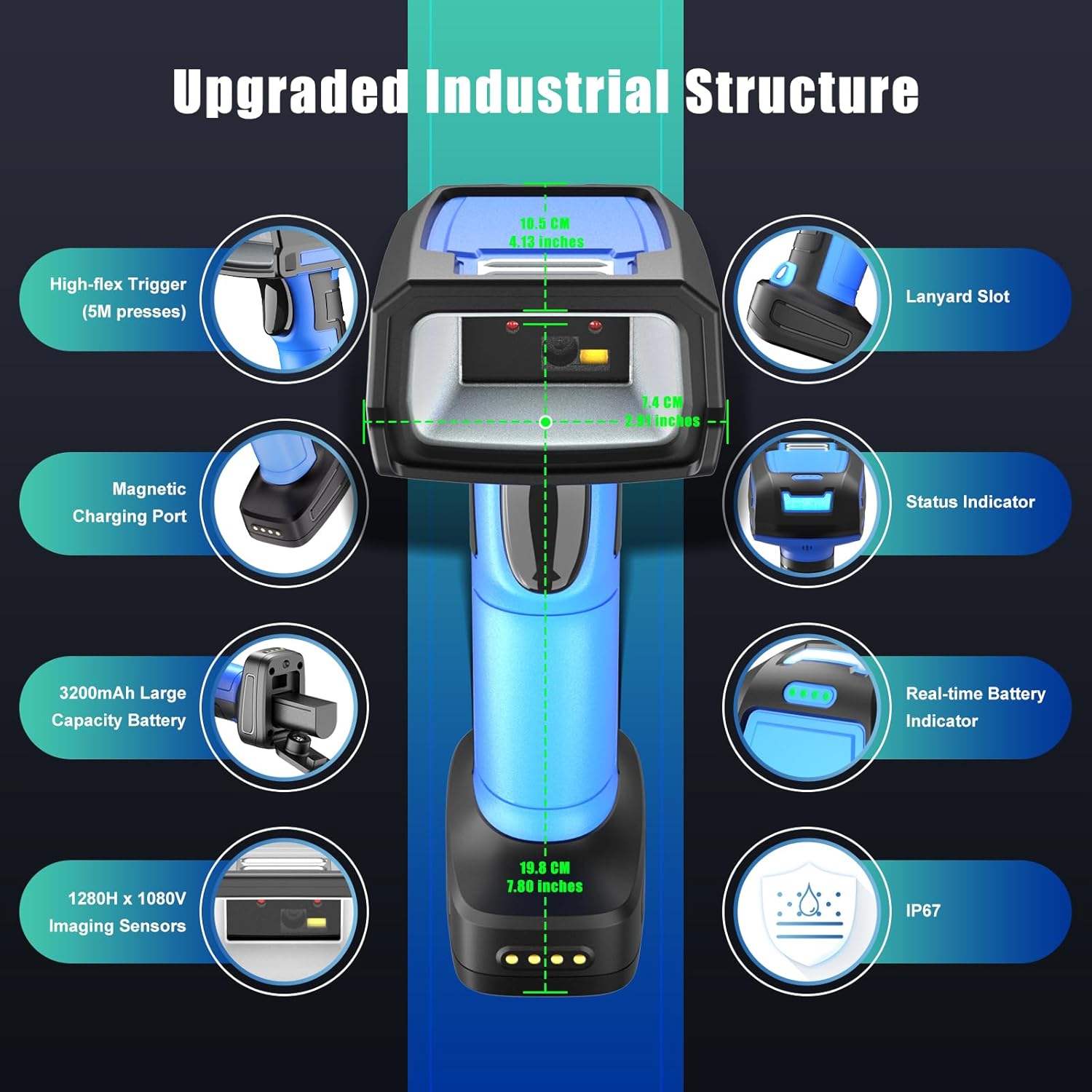
Hình 2.3: Hếtview of the scanner's industrial structure, highlighting the high-flex trigger, lanyard slot, status indicator, real-time battery indicator, magnetic charging port, 3200mAh battery, 1280H x 1080V imaging sensors, and IP67 rating.
3. Hướng dẫn thiết lập
3.1 Lắp đặt và sạc pin
- Cài đặt pin: Open the detachable battery cover on the scanner. Insert one of the provided 3200mAh batteries into the battery compartment, ensuring correct polarity. Close the cover securely.
- Charge Scanner Battery: Place the scanner into the charging bay of the multi-function dock. The battery charging indicator on the dock will blink to indicate charging. It will turn solid when fully charged.
- Sạc pin dự phòng: The dock also features a dedicated bay for charging a spare battery simultaneously. Insert the second 3200mAh battery into this bay.
- Kết nối nguồn: Connect the USB cable from the charging dock to a power source (e.g., computer USB port, USB wall adapter).
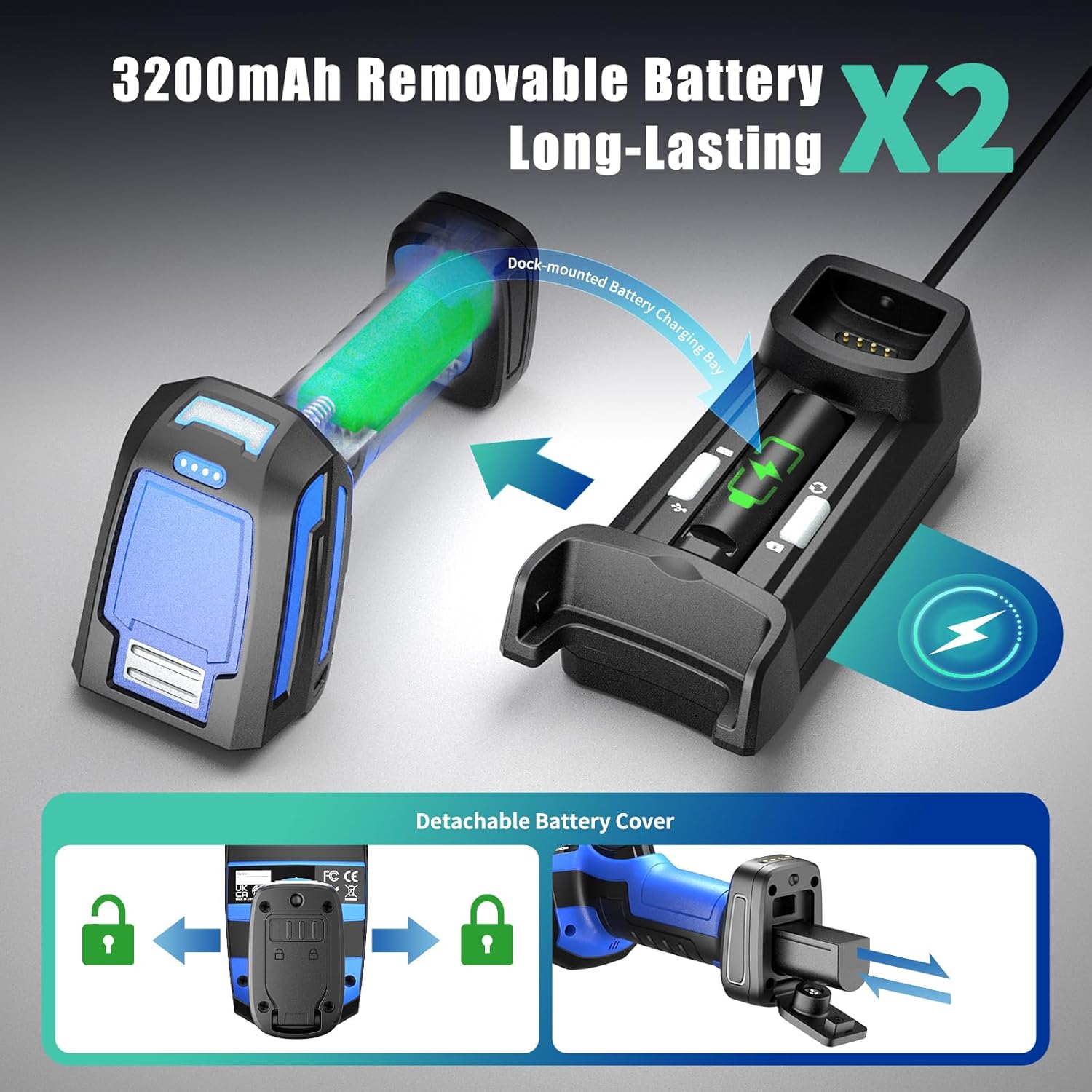
Figure 3.1: Battery installation and simultaneous charging of scanner and spare battery in the dock.
3.2 Kết nối ban đầu
The scanner supports three connection modes: 2.4G Wireless, Bluetooth, and Wired (USB/RS232). Choose the appropriate mode for your application.

Hình 3.2: Hếtview of the scanner's versatile connectivity options.
3.2.1 Kết nối không dây 2.4G
- Ensure the charging dock is connected to your computer via the USB cable. The dock acts as the 2.4G wireless receiver.
- Bật máy quét.
- The scanner will automatically attempt to connect to the dock. A successful connection is indicated by a specific sound or light pattern (refer to scanner's LED indicator guide for details).
- The 2.4G wireless connection offers an extended transmission range of up to 500 meters (1640 feet) in open areas.
3.2.2 Kết nối Bluetooth
- Bật máy quét.
- Scan the Bluetooth pairing barcode (usually found in a separate quick start guide or on the scanner itself).
- On your host device (e.g., computer, tablet, smartphone), enable Bluetooth and search for available devices.
- Select "NETUM GY80U" or a similar name from the list of devices to pair.
- Kết nối thành công được thể hiện bằng một kiểu âm thanh hoặc ánh sáng cụ thể.
- Bluetooth connection supports HID, SPP, and BLE data transmission modes with a range of up to 20 meters (66 feet).
3.2.3 Wired Connection (USB HID / RS232)
- Connect the scanner directly to your computer using the provided USB cable for USB HID (keyboard emulation) or USB COM mode.
- Alternatively, use the RS232 cable to connect the scanner to a device with a serial port.
- The scanner will be recognized by your operating system. No additional drivers are typically required for USB HID mode. For USB COM or RS232, specific drivers or software configurations might be needed depending on your system.
4. Hướng dẫn vận hành
4.1 Quét cơ bản
- Ensure the scanner is powered on and connected to your host device via one of the supported modes.
- Point the scanner's imaging window at the barcode you wish to scan.
- Press and hold the trigger button. An aimer will project onto the barcode.
- Position the aimer to cover the entire barcode.
- Upon a successful scan, the scanner will emit a beep and/or the status indicator will change color. The decoded data will be transmitted to your host device.
The GY80U features superior 1280H x 1080V imaging sensors, allowing it to accurately read 1D and 2D barcodes as small as 3 mil. It can decode various code types, including QR-code, DataMatrix, PDF-417, and challenging DPM codes.
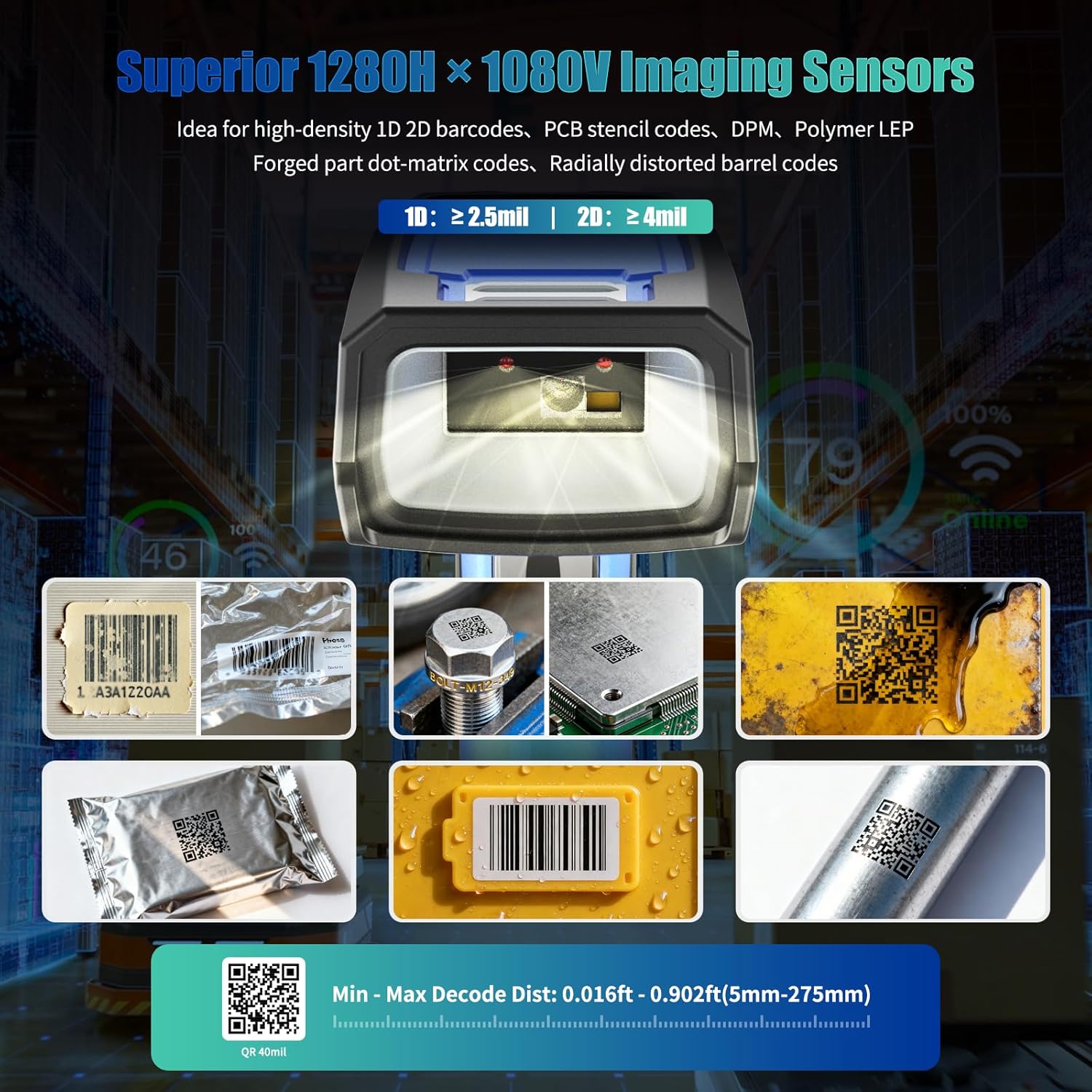
Figure 4.1: The scanner's advanced imaging capabilities for diverse barcode types, including DPM codes on metal, cast, oily, and curved surfaces.
4.2 DPM (Direct Part Mark) Scanning
The NETUM GY80U is specifically designed for DPM barcode scanning. It can read codes that are:
- Laser-etched on reflective metal surfaces
- Dot-peen marked on cast surfaces
- Engraved on oily or dirty surfaces
- Cut-out codes on PCB boards
- Laser-marked on resin
- Laser-engraved on cylindrical objects
For optimal DPM scanning, ensure proper lighting and angle. The integrated LED aimer assists in targeting these challenging codes.
4.3 Các tình huống ứng dụng

Hình 4.2: Ví dụamples of the scanner's use in warehouse inventory, manufacturing, and quality control for scanning barcodes on packages, circuit boards, industrial parts, and lumber.
5. Bảo trì
5.1 Vệ sinh máy quét
- Regularly clean the scanner's imaging window with a soft, lint-free cloth.
- Đối với vết bẩn cứng đầu, hãy chà nhẹampen the cloth with water or a mild, non-abrasive cleaning solution. Do not spray liquids directly onto the scanner.
- Avoid using harsh chemicals, solvents, or abrasive materials, as these can damage the scanner's housing or imaging window.
5.2 Bảo vệ môi trường
The NETUM GY80U is designed with an IP67 rating, making it waterproof and dustproof. It is also built with sturdy ABS and thickened soft TPU material, allowing it to withstand drops from up to 3 meters (9.84 feet).
- While rugged, avoid unnecessary exposure to extreme temperatures, direct sunlight for prolonged periods, or corrosive substances.
- Ensure the battery cover is securely closed to maintain the IP67 rating.

Figure 5.1: The scanner's durable housing provides IP67 protection and resistance to drops from significant heights.
5.3 Chăm sóc pin
- Use only the original 3200mAh batteries provided with the scanner.
- Charge batteries using the dedicated charging dock.
- Store spare batteries in a cool, dry place.
- If the scanner will not be used for an extended period, remove the battery.
KHAI THÁC. Xử lý sự cố
| Vấn đề | Nguyên nhân có thể | Giải pháp |
|---|---|---|
| Máy quét không bật được. | Pin đã hết hoặc chưa được lắp đặt đúng cách. | Ensure battery is fully charged and correctly inserted. Try a different charged battery. |
| Scanner does not connect wirelessly. | Out of range, incorrect pairing, or interference. | Move scanner closer to the receiver/host device. Re-pair the scanner. Check for other wireless devices causing interference. |
| Máy quét không đọc được mã vạch. | Barcode damaged, dirty, or incorrect symbology enabled. Imaging window is dirty. | Clean the imaging window. Ensure the barcode is readable. Check scanner settings to enable the required barcode symbology. Try scanning a known good barcode. |
| Dữ liệu quét không chính xác hoặc không đầy đủ. | Partial scan, incorrect data format settings. | Ensure the entire barcode is within the aimer. Review scanner programming guide for data format settings. |
| Đèn báo sạc không hoạt động. | Power cable not connected, faulty dock/cable. | Check power connections. Try a different USB port or cable. Ensure the scanner/battery is correctly seated in the dock. |
7. Thông số kỹ thuật
| Tính năng | Chi tiết |
|---|---|
| Số hiệu mẫu | DPM-GY80U |
| Kích thước | 19.81 x 10.49 x 10.49cm |
| Trọng lượng sản phẩm | 1.4 Kilôgam |
| Pin | 2 x 3200mAh C batteries (included) |
| Công nghệ kết nối | 2.4G wireless, Bluetooth (HID, SPP, BLE), USB (HID, COM), RS232 |
| Công nghệ cảm biến quang học | CMOS (1280H x 1080V Imaging Sensors) |
| Khả năng giải mã | 1D, 2D, QR codes, DPM (Direct Part Mark) codes as small as 3 mil |
| Độ bền | IP67 Waterproof & Dustproof, 3M (9.84 ft) Drop-resistant |
| Khả năng tương thích | Windows, Mac, iOS, Android, iPad OS, Linux |
8. Bảo hành và Hỗ trợ
The NETUM GY80U Industrial Barcode Scanner comes with a Bảo hành 1 năm kể từ ngày mua. Bảo hành này bao gồm các lỗi sản xuất và trục trặc trong quá trình sử dụng bình thường.
For technical support, warranty claims, or further assistance, please contact NETUM customer service. Refer to the product packaging or the official NETUM webtrang web để biết thông tin liên lạc mới nhất.
Nhà sản xuất: GUANGZHOU NETUM ELECTRONIC TECHNOLOGY CO., LTD
Địa chỉ: Room 301, 6th Floor and full 3rd Floor, Building A, Guangzhou, Guangdong, 511300, CN