
Xprinter XP-420B
Xprinter XP-420B USB Direct Thermal Label Printer User Manual
Model: XP-420B
1. Sản phẩm hếtview
The Xprinter XP-420B is a high-speed direct thermal label printer designed for various applications, including shipping labels. It offers a maximum print speed of 152 mm/s (6 inches/second) and a resolution of 203 DPI, ensuring clear and precise prints. Its robust double-walled clamshell design enhances durability, and the intelligent print head temperature control system ensures stable output. This printer is compatible with both Windows and Mac operating systems, making it a versatile solution for your labeling needs.
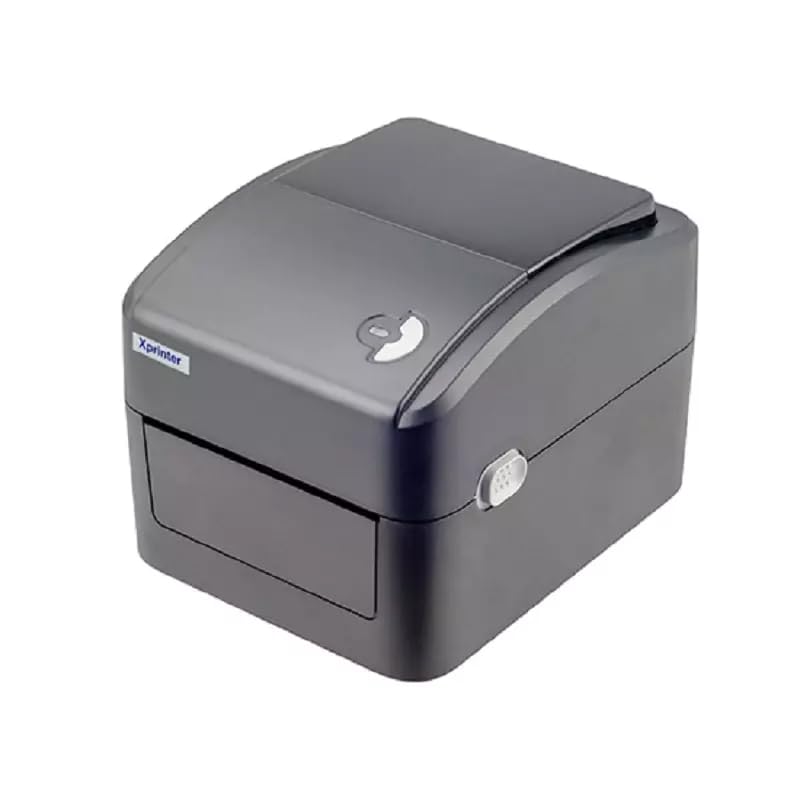
Hình 1: Mặt trước view of the Xprinter XP-420B thermal label printer.
2. Hướng dẫn cài đặt
2.1 Tháo dỡ và kiểm tra ban đầu
- Cẩn thận lấy máy in và tất cả các phụ kiện ra khỏi bao bì.
- Verify that all components are present: printer unit, power adapter, USB cable, and user manual.
- Inspect the printer for any visible damage that may have occurred during transit.
2.2 Kết nối máy in
- Kết nối bộ chuyển đổi nguồn với cổng nguồn của máy in, sau đó cắm vào ổ cắm điện.
- Kết nối một đầu của cáp USB được cung cấp vào cổng USB của máy in và đầu kia vào một cổng USB khả dụng trên máy tính của bạn.
- Power on the printer using the power switch, usually located on the side or rear.

Figure 2: Xprinter XP-420B showing USB connectivity.
2.3 Tải nhãn
- Open the printer's top cover by pressing the release latches on both sides.
- Place the roll of thermal labels onto the label spindle, ensuring the labels feed from the bottom of the roll.
- Feed the leading edge of the labels through the label guide until it extends slightly past the print head.
- Adjust the movable label guides to fit the width of your labels snugly, without pinching them.
- Close the top cover firmly until it latches securely.
- The printer will automatically calibrate and detect the label size.
2.4 Cài đặt trình điều khiển
Before printing, you must install the appropriate printer drivers on your computer. Drivers are typically provided on a CD included with the printer or can be downloaded from the official Xprinter website. The XP-420B supports both Windows and Mac operating systems.
- Đối với Windows: Run the setup executable from the driver CD or downloaded file và làm theo hướng dẫn trên màn hình.
- Đối với máy Mac: Download the Mac driver from the Xprinter website and follow the installation prompts.
3. Hướng dẫn vận hành
3.1 In ấn cơ bản
- Đảm bảo máy in đã được bật nguồn và kết nối với máy tính.
- Mở tài liệu hoặc ứng dụng mà bạn muốn in (ví dụ: phần mềm vận chuyển, trình xử lý văn bản).
- Chọn "In" từ menu của ứng dụng.
- Choose "Xprinter XP-420B" as your printer.
- In the printer settings or preferences, ensure the correct label size is selected. The printer supports adjustable label sizes.
- Nhấp vào "In" để gửi lệnh in đến máy in.
3.2 Adjusting Label Size
The XP-420B allows for adjustable label sizes. This adjustment is primarily done through the printer driver settings on your computer and by physically adjusting the label guides within the printer.
- Điều chỉnh phần mềm: In your printing application or printer driver settings, navigate to the "Page Setup" or "Paper Size" options. Select or define the custom dimensions for your labels (e.g., 4x6 inches for shipping labels).
- Điều chỉnh về thể chất: As described in Section 2.3, ensure the internal label guides are set correctly to the width of your loaded labels.
4. Bảo trì
4.1 Vệ sinh đầu in
Regular cleaning of the print head is crucial for maintaining print quality and extending the printer's lifespan. It is recommended to clean the print head after every roll of labels or if print quality degrades.
- Tắt máy in và rút dây nguồn.
- Mở nắp trên của máy in.
- Wait a few minutes for the print head to cool down if the printer has been recently used.
- Gently wipe the print head surface with an alcohol swab or a lint-free cloth lightly dampđược tẩm cồn isopropyl.
- Để đầu in khô hoàn toàn trước khi đóng nắp và cắm lại nguồn điện.
4.2 Tổng vệ sinh
- Sử dụng vải mềm, khô để lau bên ngoài máy in.
- Remove any dust or label debris from the inside of the printer using a soft brush or compressed air.
- Không sử dụng chất tẩy rửa hoặc dung môi có tính mài mòn.
KHAI THÁC. Xử lý sự cố
| Vấn đề | Nguyên nhân có thể | Giải pháp |
|---|---|---|
| Máy in không phản hồi | Power off; USB cable disconnected; Driver issue. | Ensure power is on and connected. Check USB cable. Reinstall printer driver. |
| Chất lượng in kém (nhạt, có đường kẻ) | Dirty print head; Incorrect label type; Low print density setting. | Clean the print head (Section 4.1). Ensure you are using direct thermal labels. Adjust print density in driver settings. |
| Nhãn không được nạp đúng cách | Labels improperly loaded; Label guides not adjusted; Sensor obstruction. | Reload labels correctly. Adjust label guides. Clean any dust or debris from sensors. |
| Printer prints blank labels | Labels loaded upside down; Not a direct thermal label. | Ensure labels are loaded with the printable side facing up. Verify labels are direct thermal. |
6. Thông số kỹ thuật sản phẩm
| Tính năng | Chi tiết |
|---|---|
| Thương hiệu | Máy in Xprinter |
| Tên mẫu | XP-420B |
| Công nghệ kết nối | USB |
| Công nghệ in ấn | Nhiệt trực tiếp |
| Nghị quyết | 203 DPI |
| Tốc độ in tối đa | 152 mm/s (6 inches/second) |
| Ký ức | SDRAM 8 MB, bộ nhớ flash 8 MB |
| Đầu ra máy in | Đơn sắc |
| Trọng lượng sản phẩm | 3 Kilôgam |
| Kích thước sản phẩm | 20D x 6W x 10H Centimet |
| Khả năng tương thích | Windows, Mac |
7. Bảo hành và Hỗ trợ
7.1 Thông tin bảo hành
The Xprinter XP-420B comes with a Bảo hành 1 năm kể từ ngày mua. Bảo hành này bao gồm các lỗi sản xuất và trục trặc trong quá trình sử dụng bình thường. Vui lòng giữ lại hóa đơn mua hàng để yêu cầu bảo hành.
7.2 Hỗ trợ khách hàng
For technical assistance, troubleshooting beyond this manual, or warranty service, please contact Xprinter customer support. Refer to the contact information provided with your product packaging or visit the official Xprinter webtrang web để biết thông tin hỗ trợ mới nhất.
Ask a question about this manual
Ask about setup, troubleshooting, compatibility, parts, safety, or missing instructions. Manuals+ will review the question and use this page’s manual context to help answer it.