
1. Giới thiệu
This manual provides comprehensive instructions for setting up, operating, and maintaining your ATTACK SHARK X11 Ultra-Light Triple Mode Gaming Mouse. Please read this manual carefully before use to ensure optimal performance and longevity of your device.
2. Nội dung gói hàng
Xác minh rằng tất cả các mục đều có trong gói hàng của bạn:
- ATTACK SHARK X11 Gaming Mouse
- Đế sạc từ tính
- Cáp USB-C sang USB-A
- Bộ thu USB 2.4GHz
- Hướng dẫn sử dụng (tài liệu này)
3. Sản phẩm hếtview
Familiarize yourself with the components of your X11 gaming mouse.

Image 3.1: The ATTACK SHARK X11 Gaming Mouse with its magnetic charging dock.

Image 3.2: Exploded diagram showing internal components like the lightweight material case, engineering curved keys, PCB, lithium battery, TTC encoder, Huano switches, PAW3311 sensor, and mouse bottom case.
Các thành phần của chuột:
- Các nút chuột trái/phải: Equipped with Huano micro switches for tactile feedback.
- Bánh xe cuộn: For navigation and additional programmable function.
- Side Buttons (x2): Có thể lập trình cho nhiều chức năng khác nhau.
- Nút DPI: Located on the underside for adjusting sensitivity.
- Chuyển đổi chế độ: Located on the underside to select connectivity mode (Wired, 2.4GHz, Bluetooth).
- Cổng USB-C: Dùng để kết nối có dây và sạc pin.
- Cảm biến quang học: PAW3311 sensor for precise tracking.
Đế sạc từ tính:
- Chân sạc từ tính: For effortless wireless charging.
- Đèn RGB: Hiệu ứng ánh sáng có thể tùy chỉnh.
- Cổng USB-A: To store the 2.4GHz USB receiver.
4. Hướng dẫn cài đặt
4.1 Sạc chuột
The X11 mouse can be charged using the magnetic charging dock or directly via the USB-C cable.
- Sử dụng đế sạc từ tính:
- Kết nối cáp USB-C với đế sạc, sau đó kết nối với nguồn điện (ví dụ: cổng USB của máy tính, bộ chuyển đổi nguồn USB).
- Place the mouse onto the charging dock. The magnetic connection will secure it, and charging will begin automatically.
- The dock features touch-sensitive RGB lighting control. Tap the dock to cycle through lighting effects or turn them off.
- Sạc trực tiếp qua cổng USB-C:
- Connect the USB-C cable directly to the mouse's USB-C port and then to a power source.
- Chuột có thể được sử dụng ở chế độ có dây trong khi đang sạc.

Image 4.1: The X11 mouse charging on its magnetic dock, showcasing the RGB lighting.
A full charge provides approximately 65 hours of usage. Charging time is typically 2-3 hours.
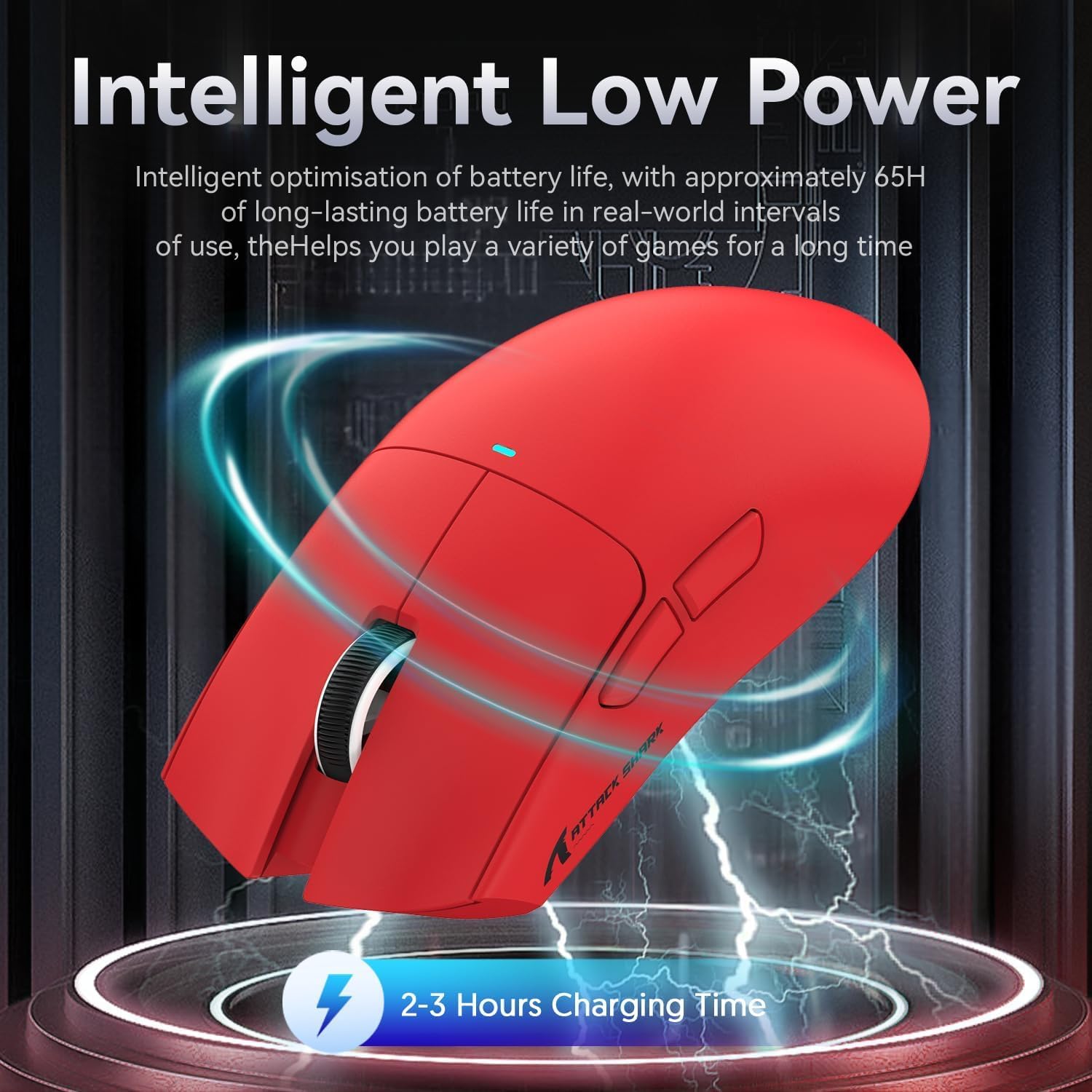
Image 4.2: Visual representation of the X11 mouse's intelligent low power consumption, offering 65 hours of use and a 2-3 hour charging time.
4.2 Connecting the Mouse (Triple Mode Connectivity)
The X11 mouse supports three connection modes: 2.4GHz Wireless, Bluetooth 5.0, and Wired USB-C.

Image 4.3: Illustration of the X11 mouse's triple-mode connectivity options.
- Chế độ không dây 2.4GHz:
- Locate the 2.4GHz USB receiver, typically stored in the magnetic charging dock's USB-A port or in a compartment on the mouse's underside.
- Cắm bộ thu USB vào cổng USB-A trống trên máy tính của bạn.
- Switch the mode selector on the underside of the mouse to "2.4G".
- Chuột sẽ tự động kết nối.
- Chế độ Bluetooth 5.0:
- Switch the mode selector on the underside of the mouse to "BT".
- Press and hold the Bluetooth toggle button (usually near the mode switch) for 3 seconds to enter pairing mode. The mouse's indicator light will flash.
- Trên máy tính hoặc thiết bị của bạn, hãy vào cài đặt Bluetooth và tìm kiếm thiết bị mới.
- Select "ATTACK SHARK X11" (or similar) from the list to pair.
- The mouse supports up to three Bluetooth channels (BT1/BT2/BT3). Short press the Bluetooth key to switch between channels.
- Chế độ USB-C có dây:
- Connect the USB-C cable to the mouse's USB-C port and the other end to your computer's USB-A or USB-C port.
- Chuột sẽ tự động chuyển sang chế độ có dây và bắt đầu sạc.
4.3 Cài đặt trình điều khiển (Tùy chọn)
For advanced customization, including programmable buttons, DPI settings, and macro functions, download the official ATTACK SHARK X11 driver software from the ATTACK SHARK official webđịa điểm or store page.

Image 4.4: The X11 driver software allows for comprehensive customization of mouse settings.
5. Hướng dẫn vận hành
5.1 Điều chỉnh DPI
The X11 mouse features a PixArt 3311 sensor with up to 22,000 DPI and 6 adjustable levels. The DPI button is located on the underside of the mouse.
- Nhấn nút DPI để chuyển đổi giữa các mức DPI được thiết lập sẵn.
- Customize DPI levels and assign them to specific buttons using the driver software.

Image 5.1: Details of the PixArt PAW3311 sensor, highlighting its precision and adjustable DPI.
5.2 nút có thể lập trình
The X11 mouse has 5 programmable buttons (left, right, scroll click, and two side buttons). Use the driver software to assign custom functions, macros, or keybinds to these buttons.
5.3 Điều khiển ánh sáng RGB
The magnetic charging dock and the mouse itself feature customizable RGB lighting. Use the driver software to adjust lighting effects, colors, and brightness. The dock's lighting can also be controlled by tapping its surface.
5.4 Angle Snap Feature
The Angle Snap feature helps to smooth out diagonal mouse movements, which can be useful for certain tasks requiring straight lines. This feature can be toggled On or Off via the driver software.
Video 5.1: Demonstration of the Angle Snap feature, showing how it can be toggled on and off in the software to affect mouse movement precision.
6. Bảo trì
6.1 Vệ sinh
- Hãy dùng một miếng vải mềm, khô để lau chuột và đế sạc.
- Đối với vết bẩn cứng đầu, hãy chà nhẹampLau vải bằng nước hoặc dung dịch tẩy rửa nhẹ. Tránh sử dụng hóa chất mạnh.
- Do not immerse the mouse or dock in water.
6.2 Chăm sóc pin
- Tránh xả hết pin thường xuyên để kéo dài tuổi thọ của pin.
- Nếu không sử dụng chuột trong thời gian dài, hãy bảo quản ở nơi khô ráo, thoáng mát.
KHAI THÁC. Xử lý sự cố
| Vấn đề | Giải pháp |
|---|---|
| Chuột không phản hồi ở chế độ không dây. |
|
| DPI not changing. |
|
| Magnetic charging dock RGB not working. |
|
| Mouse cursor erratic or lagging. |
|
8. Thông số kỹ thuật
| Tính năng | Chi tiết |
|---|---|
| Người mẫu | X11 |
| Cảm biến | Cảm biến quang học PixArt PAW3311 |
| ĐẦU TƯ PHIẾU | Độ phân giải lên đến 22,000 DPI (6 mức điều chỉnh) |
| Kết nối | Kết nối có dây USB-C, không dây 2.4GHz, Bluetooth 5.0 |
| Cân nặng | 63g (± 3g) |
| Công tắc | Huano Micro Switches (20 million click lifespan) |
| Tuổi thọ pin | Xấp xỉ 65 giờ |
| Sạc | Magnetic Charging Dock, USB-C |
| Nút có thể lập trình | 5 |
| Kích thước | 7.01 x 4.57 x 2.01 inch (Gói hàng) |
9. Bảo hành và Hỗ trợ
For warranty information, technical support, or further assistance, please visit the official Cửa hàng ATTACK SHARK trên Amazon hoặc liên hệ trực tiếp với bộ phận chăm sóc khách hàng của họ.
Vui lòng giữ lại bằng chứng mua hàng của bạn để yêu cầu bảo hành.