

1. Giới thiệu
This manual provides comprehensive instructions for setting up, operating, and maintaining your EPOMAKER X Aula F65 PRO Wireless Mechanical Gaming Keyboard. Designed for peak performance and personalized perfection, the F65 PRO features hot-swappable pre-lubed switches, a sound-dampened Gasket structure, programmable keys, RGB lighting, and versatile tri-mode connectivity.
2. Có gì trong hộp
Upon unboxing your EPOMAKER X Aula F65 PRO keyboard, please ensure all the following items are present:
- EPOMAKER X Aula F65 PRO Wireless Mechanical Gaming Keyboard
- Dụng cụ tháo nắp phím và công tắc 2 trong 1
- Cáp USB (Loại A sang Loại C)
- Bộ thu không dây 2.4GHz
- 3 công tắc bổ sung
- Hướng dẫn sử dụng (tài liệu này)
Video: EPOMAKER X Aula F65 PRO Unboxing & Showing & Typing Video. This video demonstrates the unboxing process and shows the contents of the package, including the keyboard and accessories.
Video: F65 PRO Wireless Mechanical Gaming Keyboard Unboxing Video. This video provides a quick overview of the unboxing experience for the F65 PRO keyboard.
3. Thiết lập
3.1 Chế độ kết nối
The F65 PRO keyboard supports three connectivity modes: Bluetooth (BT), 2.4GHz Wireless, and USB-C Wired.
- Chế độ Bluetooth (BT): Ideal for connecting to multiple devices (up to 3) such as smartphones, tablets, and laptops. Switch the mode selector on the keyboard to 'BT'. Follow your device's Bluetooth pairing instructions.
- Chế độ không dây 2.4GHz: Provides a stable and low-latency connection for gaming. Insert the 2.4GHz USB receiver into your computer's USB port. Switch the mode selector on the keyboard to '2.4G'.
- Chế độ có dây USB-C: For a direct, zero-latency connection and charging. Connect the provided USB-C cable to the keyboard and your computer. Switch the mode selector on the keyboard to 'Wired'.

Image: Tri-Mode Connectivity. This image illustrates the various connectivity options available for the F65 PRO keyboard, highlighting its compatibility with multiple device types.
3.2 Thiết lập vật lý
Place the keyboard on a stable, flat surface. The keyboard features silicone stage-feet for stability and an ergonomic typing angle.

Image: Ergonomic Typing Angle. This image highlights the comfortable typing angle and stable feet of the F65 PRO keyboard.
4. Hướng dẫn vận hành
4.1 Điều khiển đèn nền RGB
The F65 PRO features dynamic RGB backlighting with various effects and customization options.
- Bật/Tắt đèn nền: Nhấn FN + Xóa lùi.
- Bật/tắt hiệu ứng đèn nền: Nhấn FN + \ |.
- Bật/tắt màu đèn nền: Nhấn FN + Nhập.
- Điều chỉnh độ sáng đèn nền: Nhấn Fn + ↓ (giảm) hoặc FN + ↑ (tăng).
- Adjust Backlight Effect Speed: Nhấn FN + ← (giảm) hoặc Fn + → (tăng).
- Toggle Light Strip Effect: Nhấn FN + R_SHIFT.
- Adjust Light Strip Brightness: Nhấn FN + . > (giảm) hoặc FN + / ? (tăng).
- Toggle Light Strip Color: Nhấn FN + / ? (while holding FN).
Video: EPOMAKER X Aula F65 PRO RGB Setting. This video demonstrates how to adjust the RGB lighting settings on the keyboard.
Video: EPOMAKER X Aula F65 PRO Lighting Effect Check. This video showcases various lighting effects and how to cycle through them.
4.2 Núm xoay đa chức năng
The rotary knob on the F65 PRO provides intuitive control over volume and backlight settings.
- Nhấn: Tắt/Bật âm thanh.
- Quay: Adjust system volume (clockwise to increase, counter-clockwise to decrease).
- Toggle Knob Function: Nhấn FN + Núm xoay to switch the knob's default function to the Home key. Press again to revert to volume control.

Image: Multi-Functional Knob. This image highlights the rotary knob and its functions for volume and lighting.
4.3 Game Mode and Office Mode
The keyboard can switch between Game Mode and Office Mode for optimized performance.
- Vào Chế độ trò chơi: Press the knob for 3 seconds. The L_Win and Caps keys will flash blue.
- Enter Office Mode: Press the knob for 3 seconds again while in Game Mode. The L_Win and Caps keys will flash green.
4.4 Tùy chỉnh phần mềm
Customize your keyboard's settings, key assignments, macros, and lighting effects using the dedicated software.
- Thiết lập hệ thống: Adjust general keyboard parameters.
- Key Remap: Phân công lại chức năng cho từng phím riêng lẻ.
- Macro Record: Tạo và gán các chuỗi macro phức tạp.
- Cài đặt ánh sáng: Tinh chỉnh hiệu ứng ánh sáng và màu sắc RGB.
- Nhịp điệu âm nhạc: Synchronize lighting with audio output.
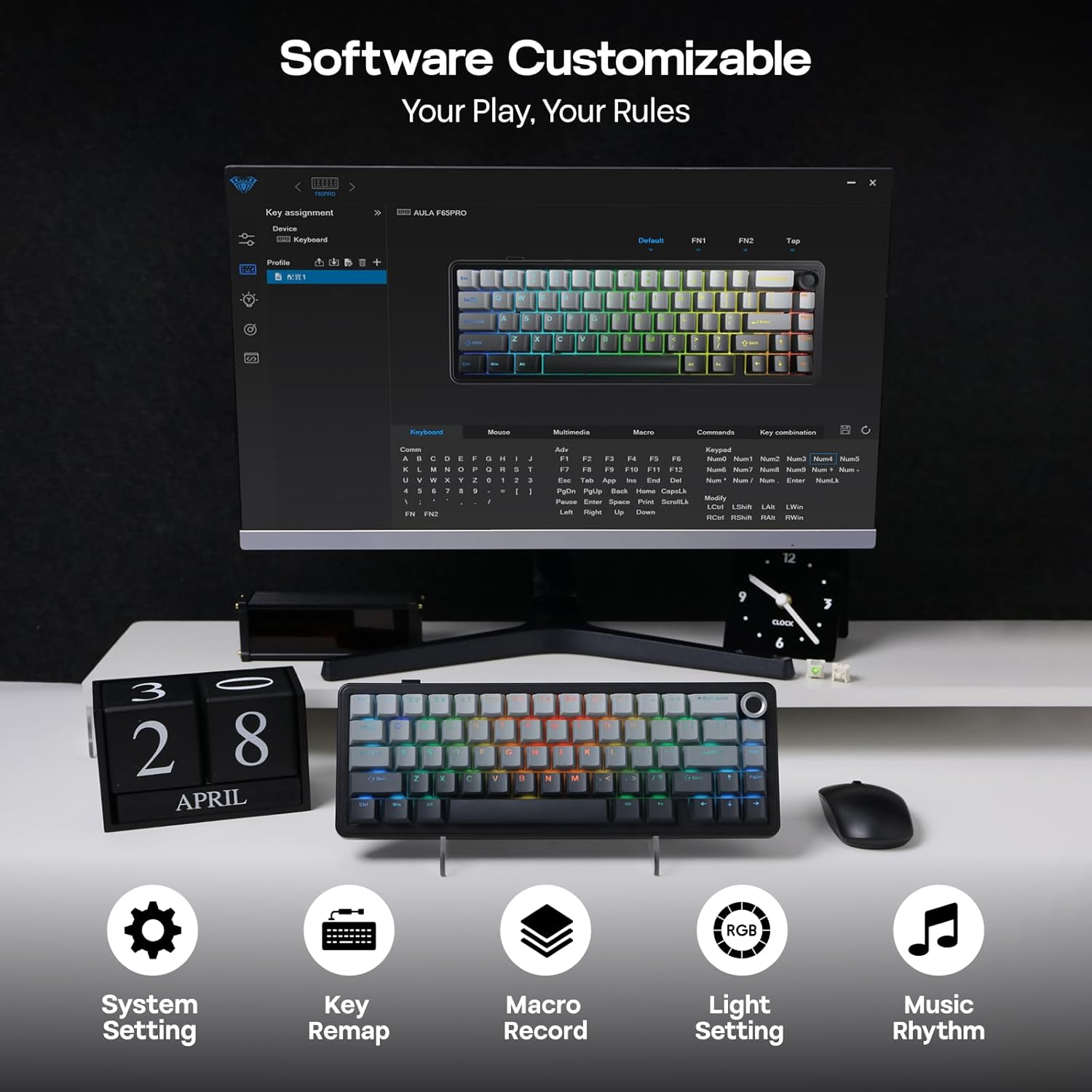
Image: Software Customizable. This image shows the keyboard's software interface for advanced customization.
5. Tính năng kết thúcview
The EPOMAKER X Aula F65 PRO is engineered with several advanced features for an enhanced user experience:
- Công tắc có thể hoán đổi nóng: Easily change 3-pin or 5-pin mechanical switches without soldering, allowing for personalized typing feel.
- Creamy Gasket-Mount Structure: Features a 5-layer sound-dampening system for a satisfyingly muted thud and responsive feel with each keystroke.
- Bộ phím PBT trong suốt: Premium PBT keycaps with topographic lines and shine-through legends for durability and vibrant RGB illumination.
- Pin 4000mAh: Offers extended wireless usage, with approximately 20 hours with RGB backlight on and 200 hours with RGB backlight off.
- Hiệu suất độ trễ thấp: Achieves 1-3ms response time in USB-C wired and 2.4GHz wireless modes, and 8ms in BT 125Hz mode.
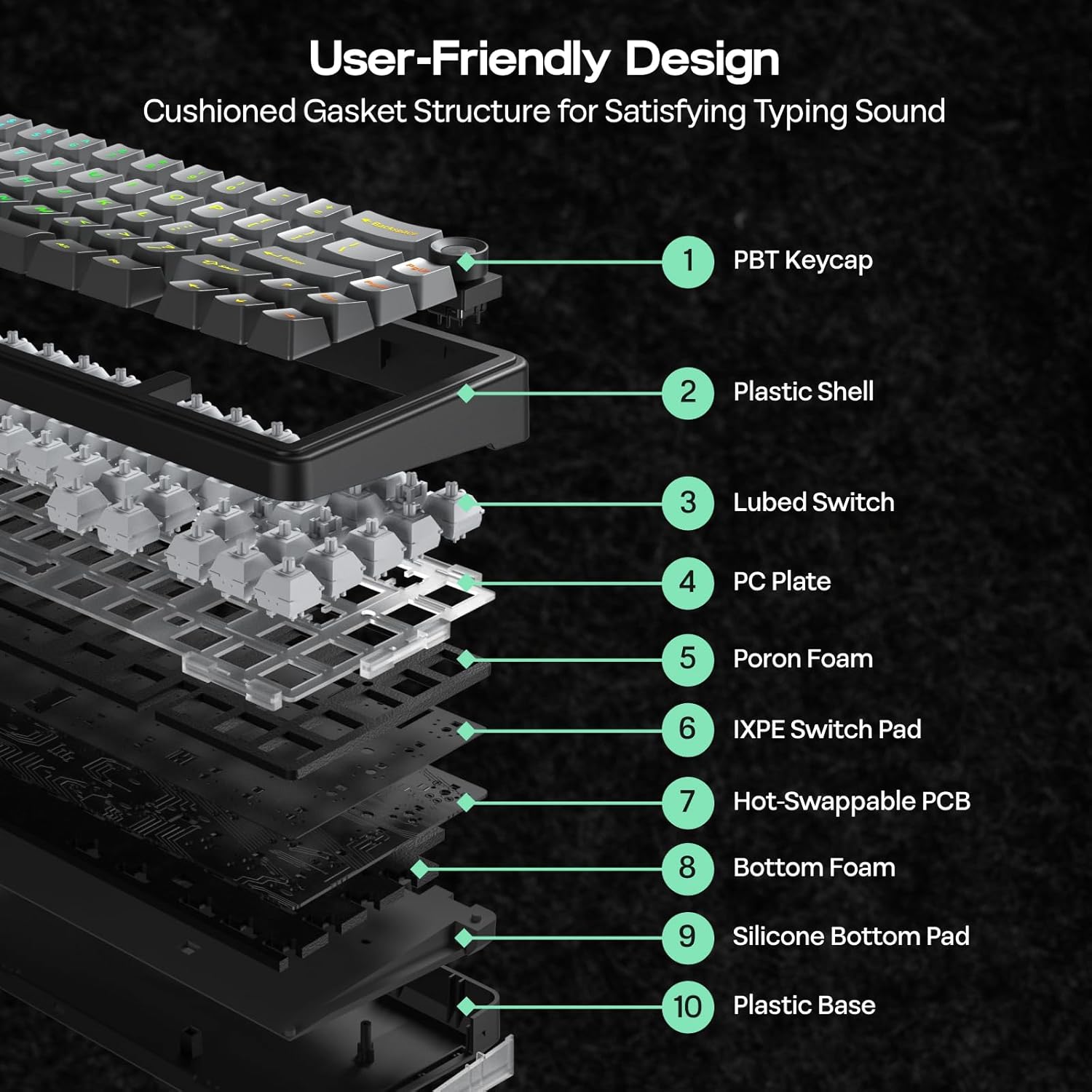
Image: User-Friendly Design (Cushioned Gasket Structure). This diagram illustrates the 5-layer sound-dampening gasket structure of the keyboard.
Image: Hot Swappable Socket. This image demonstrates the hot-swappable nature of the keyboard's switches.
Video: F65 PRO Wireless Mechanical Gaming Keyboard - Typing Sound. This video demonstrates the typing sound profile of the F65 PRO keyboard.
Video: EPOMAKER X Aula F65 PRO Typing ASMR. This video provides an ASMR-style demonstration of the keyboard's typing sound.
Video: EPOMAKER X Aula F65 PRO Typing Video. This video demonstrates the typing experience on the F65 PRO keyboard.
6. Thông số kỹ thuật
| Tính năng | Chi tiết |
|---|---|
| Thương hiệu | máy làm EPOM |
| Số hiệu mẫu | F65 CHUYÊN NGHIỆP |
| Công nghệ kết nối | 2.4Ghz Wireless, BT, USB A to C Cable |
| Mô tả bàn phím | Cơ khí |
| Tính năng đặc biệt | 5-Layer Padding, Backlit, Gasket Structure, Hot-Swappable, Knob |
| Màu sắc | Gradient Xám |
| Đèn nền bàn phím | RGB |
| Kích thước sản phẩm (D x R x C) | Dài 4.4" x Rộng 12.8" x Cao 1.2" |
| Vật liệu | Nhựa |
| Nguồn điện | Pin chạy bằng |
| Loại công tắc | Linear (Graywood V3 Switch) |
| Bố trí bàn phím | BÀN PHÍM QWERTY |
| Số lượng chìa khóa | 66 |
| Thiết bị tương thích | Máy chơi game, Máy tính xách tay, PC, Điện thoại thông minh, Máy tính bảng |
| Hệ điều hành tối thiểu cần thiết | Android 14.0, Windows 11 |
7. Bảo trì
To ensure the longevity and optimal performance of your EPOMAKER X Aula F65 PRO keyboard, follow these maintenance guidelines:
- Vệ sinh thường xuyên: Use a soft, dry cloth to wipe down the keycaps and chassis. For deeper cleaning, use a can of compressed air to remove dust and debris from between the keys.
- Tháo nắp phím và công tắc: Use the provided 2-in-1 keycap-and-switch puller for safe removal of keycaps and switches. Avoid using excessive force to prevent damage.
- Tránh tiếp xúc với chất lỏng: Keep liquids away from the keyboard to prevent internal damage. In case of spills, immediately disconnect the keyboard and allow it to dry completely before reconnecting.
- Chăm sóc pin: For optimal battery life, avoid fully discharging the keyboard frequently. Charge it regularly using the provided USB-C cable.
KHAI THÁC. Xử lý sự cố
If you encounter any issues with your EPOMAKER X Aula F65 PRO keyboard, please refer to the following common troubleshooting steps:
- Bàn phím không phản hồi:
- Đảm bảo bàn phím đã được sạc.
- Check the connectivity mode switch (BT, 2.4G, Wired) matches your connection method.
- For 2.4GHz, ensure the USB receiver is properly inserted and recognized by your device.
- For Bluetooth, ensure the keyboard is paired correctly and within range. Try re-pairing if necessary.
- For wired mode, ensure the USB-C cable is securely connected to both the keyboard and your device.
- Đèn nền RGB không hoạt động:
- Nhấn FN + Xóa lùi để bật/tắt đèn nền.
- Điều chỉnh độ sáng bằng cách sử dụng Phím FN + ↑/↓.
- Hãy đảm bảo bàn phím không ở chế độ tiết kiệm pin.
- Các phím không đăng ký:
- Kiểm tra xem có vật cản nào dưới nắp phím không.
- If a specific switch is faulty, use the provided switch puller to replace it with one of the extra switches.
- Các vấn đề về kết nối (Độ trễ/Mất kết nối):
- Ensure the keyboard is close to the receiver/device for wireless connections.
- Tránh gây nhiễu từ các thiết bị không dây khác.
- Update keyboard firmware if available through the customization software.
9. Bảo hành và Hỗ trợ
The EPOMAKER X Aula F65 PRO Wireless Mechanical Gaming Keyboard comes with a Bảo hành 1 năm kể từ ngày mua.
For technical support, warranty claims, or further assistance, please visit the official EPOMAKER store or contact their customer service directly. You can find more information and support resources at the Cửa hàng EPOMAKER trên Amazon.