
1. Giới thiệu
The Delton F75 Foldable Bluetooth Keyboard with Touchpad is designed for portability and convenience, offering a full-sized typing experience in a compact form factor. This manual provides detailed instructions for setting up, operating, and maintaining your keyboard to ensure optimal performance across various devices.
2. Nội dung gói hàng
Vui lòng kiểm tra gói hàng để biết các mục sau:
- 1 x Delton F75 Foldable Bluetooth Keyboard with Touchpad
- Cáp sạc 1 x USB-C
- 1 x Hướng dẫn sử dụng (tài liệu này)
3. Sản phẩm hếtview
Familiarize yourself with the key components of your Delton F75 keyboard.
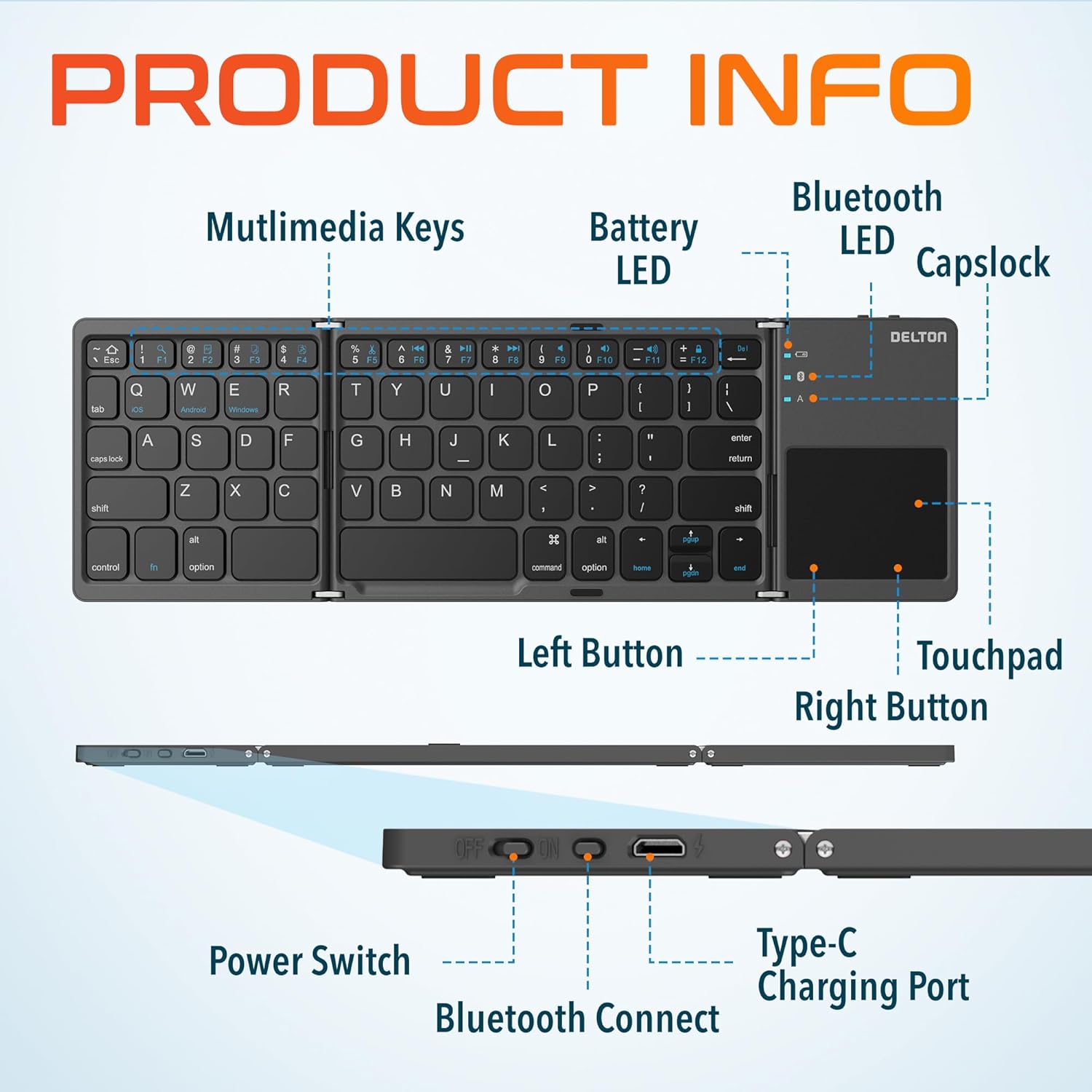
Image: Diagram showing multimedia keys, battery LED, Bluetooth LED, Capslock, Left/Right Touchpad Buttons, Touchpad, Power Switch, Bluetooth Connect button, and Type-C Charging Port.
- Các phím đa phương tiện: Access various functions like volume control, media playback, and more.
- Đèn LED pin: Cho biết trạng thái pin.
- Đèn LED Bluetooth: Chỉ ra trạng thái kết nối Bluetooth.
- Capslock Indicator: Shows when Caps Lock is active.
- Bàn di chuột: For navigation and gesture control.
- Các nút cảm ứng trái/phải: Function as mouse clicks.
- Công tắc điện: Bật hoặc tắt bàn phím.
- Nút kết nối Bluetooth: Khởi tạo chế độ ghép nối Bluetooth.
- Cổng sạc Type-C: For recharging the keyboard's internal battery.
4. Thiết lập và kết nối
4.1 Sạc ban đầu
Before first use, fully charge the keyboard. Connect the provided USB-C charging cable to the keyboard's Type-C port and the other end to a USB power source (e.g., computer, wall adapter). The Battery LED will indicate charging status.
4.2 Bật / Tắt nguồn
To power on the keyboard, slide the Power Switch to the "ON" position. To power off, slide it to the "OFF" position.
4.3 Ghép nối Bluetooth
- Unfold the keyboard completely. This action often automatically powers on the device.
- Nhấn nút Nút kết nối Bluetooth (usually indicated by a Bluetooth icon) to enter pairing mode. The Bluetooth LED will blink, indicating it is discoverable.
- Trên thiết bị của bạn (máy tính để bàn, máy tính xách tay, máy tính bảng, điện thoại thông minh), hãy vào cài đặt Bluetooth.
- Tìm kiếm available Bluetooth devices and select "Delton F75" (or similar name).
- Follow any on-screen prompts to complete the pairing process. The Bluetooth LED will stop blinking and remain solid once connected.
The keyboard supports seamless integration across Windows, macOS, iOS, and Android operating systems.

Image: Visual representation of the Delton F75 keyboard's compatibility with various tablets, phones, and laptops/PCs, including iPad, Galaxy Tab, iPhone, Galaxy, Google Pixel, OnePlus, iMac, Macbook, Dell, and HP, and operating systems like Windows, macOS, and iOS.
5. Hướng dẫn vận hành
5.1 Typing
The Delton F75 features an optimized key layout and scissor switch keys for comfortable and precise typing. The quiet keys minimize disturbance, making it suitable for various environments.
5.2 Sử dụng bàn di chuột
The integrated touchpad supports full gesture functions, eliminating the need for an additional mouse. It includes left and right-click buttons for standard mouse operations.

Image: Close-up of the Delton F75 keyboard's sensitive touchpad, highlighting its gesture control capabilities with a finger touching the pad.
Refer to your device's operating system documentation for specific touchpad gestures supported.
5.3 Phím đa phương tiện
The keyboard includes dedicated multimedia keys. These keys often require pressing the Fn (Function) key simultaneously with the desired multimedia key to activate their secondary functions (e.g., volume up/down, play/pause).
6. Sạc và tuổi thọ pin
The Delton F75 keyboard is equipped with a rechargeable battery that provides up to 50 hours of continuous use on a single charge. When the battery is low, the Battery LED will indicate this status. Connect the keyboard to a power source using the USB-C cable for recharging.
7. Bảo trì
- Giữ bàn phím sạch sẽ bằng cách lau bằng vải mềm, khô.
- Tránh để bàn phím tiếp xúc với nhiệt độ quá cao, độ ẩm quá cao hoặc ánh nắng trực tiếp.
- Không sử dụng hóa chất mạnh hoặc chất tẩy rửa ăn mòn.
- Store the keyboard in its folded, compact state when not in use to protect the keys and touchpad.
KHAI THÁC. Xử lý sự cố
- Bàn phím không kết nối được qua Bluetooth: Ensure the keyboard is charged and powered on. Make sure Bluetooth is enabled on your device and the keyboard is in pairing mode (Bluetooth LED blinking). Try unpairing and re-pairing the device.
- Phím không phản hồi: Check if the keyboard is powered on and connected. Ensure the battery is not depleted.
- Bàn di chuột không hoạt động: Verify the keyboard is connected. Some devices may require specific settings for external touchpads.
- Kết nối không liên tục: Ensure there are no obstructions between the keyboard and your device. Move closer to your device. Avoid strong electromagnetic interference.
- Độ trễ khi gõ phím: This can sometimes be due to interference or a low battery. Try recharging the keyboard or moving closer to your device.
9. Thông số kỹ thuật
| Tính năng | Đặc điểm kỹ thuật |
|---|---|
| Số hiệu mẫu | F75 |
| Kích thước sản phẩm (Mở ra) | 11.9 x 6 x 0.7 inch (Dài x Rộng x Cao) |
| Trọng lượng sản phẩm | 8.4 ounce |
| Công nghệ kết nối | Bluetooth |
| Thiết bị tương thích | Laptop, PC, Tablet, Smartphone (Windows, macOS, iOS, Android) |
| Mô tả bàn phím | Ergonomic, Scissor Switch Keys |
| Tính năng đặc biệt | Foldable, Portable, Touchpad, Rechargeable, Hotkeys and Media Keys, Lightweight, Compact |
| Tuổi thọ pin | Lên đến 50 giờ sử dụng liên tục |
| Cổng sạc | Loại C |
| Vật liệu | Nhựa và Kim loại |
| Màu sắc | Đen |
10. Bảo hành và Hỗ trợ
For warranty information or technical support, please refer to the documentation included with your purchase or visit the official Delton webtrang web. Giữ lại bằng chứng mua hàng để yêu cầu bảo hành.