
1. Giới thiệu
Cảm ơn bạn đã muaasing the AGPTEK External Blu-ray Drive, Model G01R13. This portable optical drive offers versatile read and write capabilities for Blu-ray, DVD, and CD formats, featuring high-speed USB 3.0 and Type-C connectivity. Its compact design and multi-port functionality make it an ideal solution for various computing needs across Windows, macOS, and Linux operating systems. This manual provides essential information for proper setup, operation, maintenance, and troubleshooting to ensure optimal performance and longevity of your device.

Figure 1: AGPTEK External Blu-ray Drive, Model G01R13
2. Sản phẩm hếtview
2.1 Nội dung gói
- AGPTEK External Blu-ray Drive (Model G01R13) x 1
2.2 Device Features and Components
The AGPTEK External Blu-ray Drive is designed for convenience and functionality. It features an integrated cable for easy storage and dual USB 3.0 and Type-C connectivity. Additionally, it includes multiple ports, allowing it to function as a USB hub.

Figure 2: Key features of the AGPTEK External Blu-ray Drive
The drive incorporates a silent design to minimize noise during operation, making it suitable for quiet environments. Its lightweight and slim profile (approximately 350g) enhance portability.
3. Thiết lập
3.1 Kết nối với máy tính của bạn
The drive supports both USB 3.0 (Type-A) and Type-C connections. Use the appropriate cable to connect the drive to an available USB port on your computer.
- For USB Type-A: Connect the USB 3.0 Type-A connector to your computer's USB-A port.
- For USB Type-C: Connect the USB Type-C connector to your computer's USB-C port.

Figure 3: Connecting the drive to a laptop
3.2 Nguồn điện
The drive is primarily powered via USB bus power. In most cases, a single USB connection will provide sufficient power for operation. However, if you experience unstable operation or power-intensive tasks (e.g., Blu-ray playback or burning), an auxiliary power source can be used.
- Công suất phụ trợ: Connect a Micro USB cable (not always included, may require separate purchase) from the drive's auxiliary power port to a USB power adapter or another USB port on your computer. This ensures stable power delivery, especially during extended use or when playing Blu-ray discs.
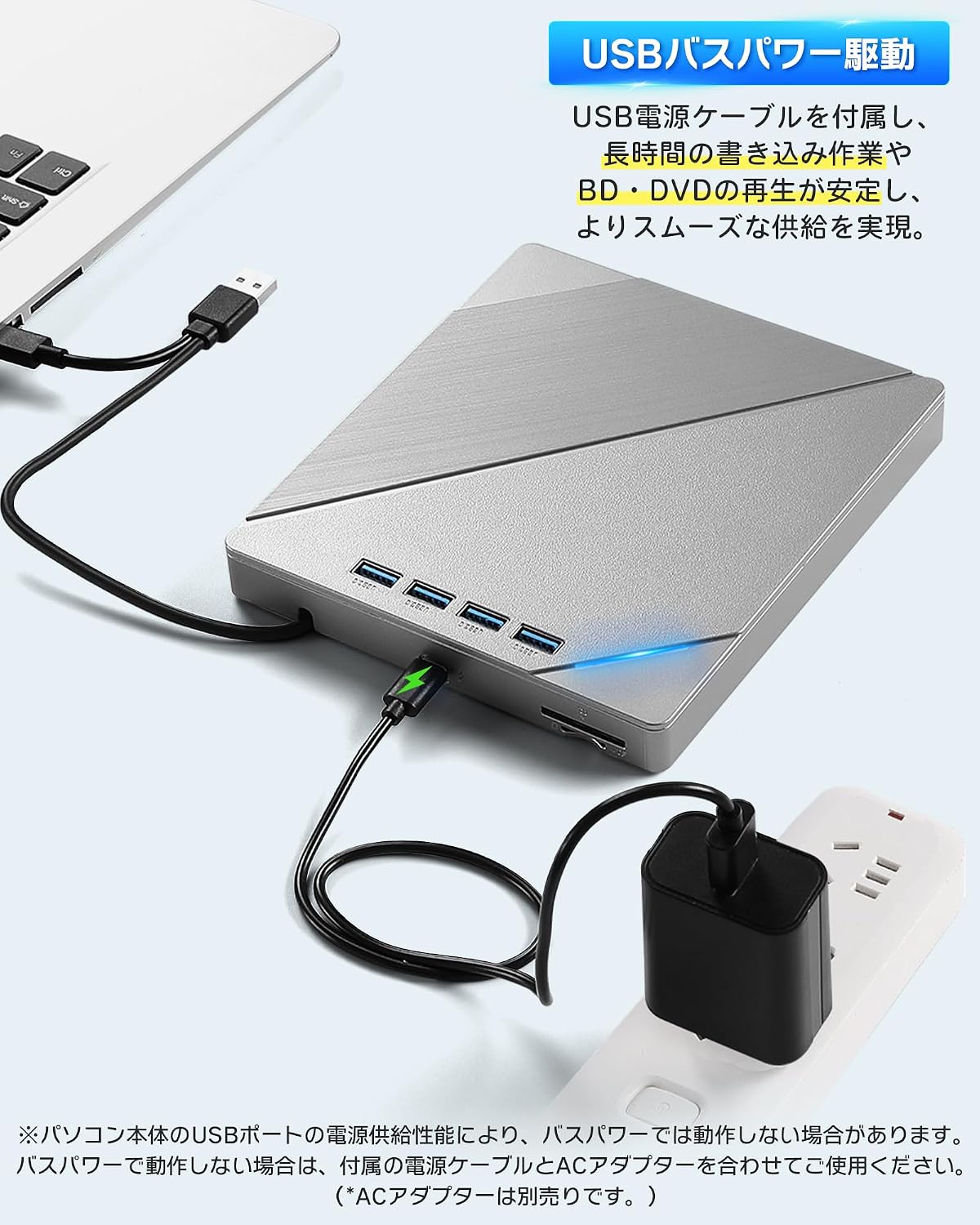
Figure 4: Connecting auxiliary power to the drive
3.3 Khả năng tương thích của hệ điều hành
The AGPTEK External Blu-ray Drive is compatible with a wide range of operating systems, including:
- Windows (Windows 7, 8, 10, 11, XP)
- macOS
- Linux
No additional drivers are typically required for basic plug-and-play functionality.
4. Hướng dẫn vận hành
4.1 Đưa đĩa vào và đẩy đĩa ra
- Chèn vào: Gently press the eject button on the front of the drive to open the disc tray. Place the disc label-side up onto the tray, ensuring it is centered on the spindle. Gently push the tray back into the drive until it clicks into place.
- Để đẩy ra: Press the eject button on the front of the drive. Alternatively, you can eject the disc through your computer's operating system (e.g., right-click the drive icon and select 'Eject').

Figure 5: Inserting a disc
4.2 Phát đĩa
After inserting a disc, your computer's operating system should recognize it. You may need compatible software to play Blu-ray movies, DVDs, or audio CDs. This drive does not include playback software.
- For Blu-ray/DVD Movies: Install a third-party Blu-ray/DVD playback software (e.g., Leawo Blu-ray Player, VLC Media Player, CyberLink PowerDVD).
- For Audio CDs: Most operating systems have built-in media players that can play audio CDs.
- For Data Discs: The disc contents should appear in your file người khám phá/tìm kiếm.
4.3 Burning Discs
To burn data to a blank Blu-ray, DVD, or CD, you will need compatible burning software. This drive does not include burning software.
- Insert a blank recordable disc (BD-R, DVD-R, CD-R, etc.) into the drive.
- Open your preferred burning software and follow its instructions to select filevà khởi động quá trình đốt cháy.
4.4 Using the Integrated USB Hub and Card Readers
The drive features multiple ports, allowing it to function as a USB hub. You can connect various peripherals simultaneously:
- Cổng USB: Connect USB memory sticks, external hard drives, mice, keyboards, or other USB devices.
- Khe cắm thẻ nhớ SD / TF: Insert SD or TF (MicroSD with adapter) cards to access their contents.
Note that while the drive offers expandability, simultaneous heavy usage of all ports and the optical drive might require auxiliary power for stable operation.
5. Bảo trì
5.1 Cleaning the Drive
- Keep the drive clean and free from dust. Use a soft, dry cloth to wipe the exterior.
- Không sử dụng chất tẩy rửa dạng lỏng hoặc vật liệu mài mòn.
- Avoid opening the drive casing, as this may void the warranty and expose sensitive components.
5.2 Handling Discs
- Luôn cầm đĩa bằng cạnh để tránh dấu vân tay và trầy xước bề mặt dữ liệu.
- Store discs in their cases when not in use to protect them from dust and damage.
- Lau sạch đĩa bẩn bằng vải mềm, không xơ, lau từ giữa ra ngoài.
5.3 Lưu trữ
When not in use, store the drive in a cool, dry place away from direct sunlight and extreme temperatures. Ensure the integrated cable is neatly stored in its compartment.
KHAI THÁC. Xử lý sự cố
6.1 Ổ đĩa không được máy tính nhận diện
- Hãy đảm bảo cáp USB được kết nối chắc chắn với cả ổ cứng và máy tính.
- Thử kết nối với một cổng USB khác trên máy tính của bạn.
- If using a desktop PC, try connecting to a USB port on the back of the computer, which typically provides more stable power.
- Connect the auxiliary power cable if the drive is not receiving sufficient power from a single USB port.
- Khởi động lại máy tính của bạn.
6.2 Disc Read/Write Errors
- Ensure the disc is clean and free from scratches or smudges.
- Verify that the disc type is compatible with the drive (refer to Specifications).
- Ensure you are using appropriate playback or burning software.
- Connect the auxiliary power cable to ensure stable power delivery, especially for Blu-ray discs or during burning.
- Hãy thử một đĩa khác để loại trừ khả năng đĩa bị lỗi.
6.3 Hiệu suất chậm
- Ensure the drive is connected to a USB 3.0 or Type-C port on your computer for optimal speed. Connecting to a USB 2.0 port will result in slower transfer rates.
- Avoid running multiple demanding applications simultaneously.
- If using the integrated USB hub, disconnect other peripherals if you need maximum speed for disc operations.
7. Thông số kỹ thuật
| Tính năng | Sự miêu tả |
|---|---|
| Thương hiệu | TUỔI |
| Số hiệu mẫu | G01R13 |
| Tốc độ ghi dữ liệu lưu trữ quang học | 6X (Blu-ray) |
| Tốc độ đọc bộ nhớ quang | 24X (CD), 8X (DVD), 6X (Blu-ray) |
| Tốc độ truyền dữ liệu | 5 Gigabyte mỗi giây (USB 3.0) |
| Giao diện kết nối | USB 3.0, USB Type-C |
| Yếu tố hình thức | Cầm tay |
| Nền tảng phần cứng | Desktop PC, Notebook PC |
| Hỗ trợ hệ điều hành | Windows, macOS, Linux |
| Supported Disc Formats (Read/Write) | BD-R, BD-R DL, BD-RE, BD-RE DL, DVD-R, DVD-ROM, DVD-R DL, DVD-RW, DVD-RAM, DVD+R, DVD+R9, DVD+RW, CD-R, CD-RW, Blu-ray, 3D Blu-ray, BDXL |
| Các mặt hàng bao gồm | Đơn vị chính x 1 |
| Nước xuất xứ | Trung Quốc |
8. Bảo hành và Hỗ trợ
8.1 Thông tin bảo hành
This AGPTEK External Blu-ray Drive (Model G01R13) comes with a 180-day warranty from the date of purchase. This warranty covers manufacturing defects under normal use. Please retain your proof of purchase for warranty claims.
Bảo hành không bao gồm thiệt hại gây ra bởi:
- Accident, abuse, misuse, or improper installation.
- Sửa chữa hoặc sửa đổi trái phép.
- Power surges or external electrical faults.
- Use with incompatible accessories.
8.2 Hỗ trợ khách hàng
For technical assistance, warranty claims, or product inquiries, please contact AGPTEK customer support through the retailer's platform where you purchased the product or visit the official AGPTEK webtrang web để biết thông tin liên hệ.