
Giới thiệu
Thank you for choosing the NEWFAST WiFi 6E PCIe Network Card. This card is designed to provide high-speed wireless connectivity and Bluetooth functionality for your desktop PC. Featuring the Intel AX210 chipset, it supports the latest WiFi 6E standard, offering tri-band operation (2.4GHz, 5.8GHz, and 6GHz) with speeds up to 5374Mbps. The integrated Bluetooth 5.3 ensures fast and reliable connections to your wireless peripherals. This manual will guide you through the installation process, operation, and provide troubleshooting tips.

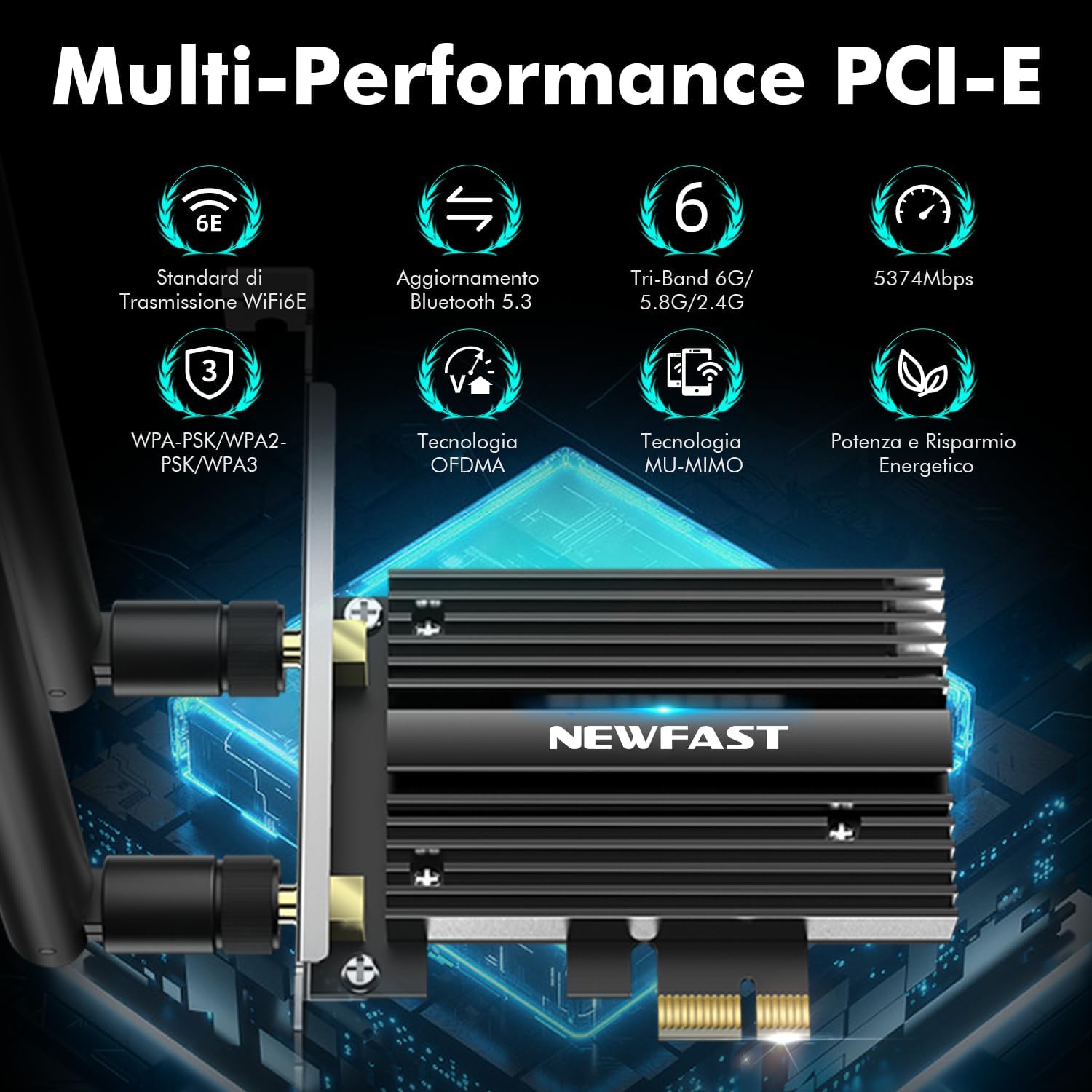
Quaview of the NEWFAST WiFi 6E PCIe Card's multi-performance features, including WiFi 6E standard, Bluetooth 5.3 upgrade, Tri-Band support (6GHz/5.8GHz/2.4GHz), 5374Mbps speed, WPA-PSK/WPA2-PSK/WPA3 security, OFDMA, MU-MIMO technology, and power saving capabilities.
Có gì trong hộp
Vui lòng kiểm tra nội dung gói hàng để đảm bảo có đầy đủ tất cả các mục:
- 1 x NEWFAST WiFi 6E PCIe Network Card
- 1 x Multi-language Instruction Manual (this document)
- 1 x Cáp Bluetooth
- 2 ăng-ten 5dBi
- 2 x Vít
Thông số kỹ thuật
| Tính năng | Chi tiết |
|---|---|
| Thương hiệu | MỚINHANH CHÓNG |
| Người mẫu | NF-P395 |
| Bộ vi mạch | Intel AX210 |
| chuẩn không dây | WiFi 6E (IEEE 802.11ax) |
| Giao thức liên kết dữ liệu | IEEE 802.11ac/a/b/g/n, IEEE 802.11ax |
| Dải tần số | 2.4GHz, 5.8GHz, 6GHz (Ba băng tần) |
| Tốc độ truyền dữ liệu tối đa | 5374 Mbps (2.4GHz: 574Mbps, 5.8GHz: 2400Mbps, 6GHz: 2400Mbps) |
| Phiên bản Bluetooth | Bluetooth 5.3 |
| Giao diện phần cứng | PCI-E X1, X4, X8, X16 (PCI slots not supported) |
| Ăng-ten | 2 ăng-ten ngoài 5dBi |
| Tính năng bảo mật | WPA-PSK/WPA2-PSK/WPA3 |
| Hệ điều hành được hỗ trợ | Windows 10 (64-bit), Windows 11 (64-bit) |
| Kích thước (Gói) | 19.9 x 11.9 x 3.4cm |
| Trọng lượng sản phẩm | 230 gam |

Detailed breakdown of WiFi 6E speeds across 6GHz, 5.8GHz, and 2.4GHz bands, highlighting the Intel AX210 chip and Bluetooth 5.3 capabilities.
Hướng dẫn thiết lập
1. Cài đặt phần cứng
- Tắt máy tính của bạn: Before starting, ensure your computer is completely powered off and unplugged from the power outlet.
- Vỏ máy tính mở: Tháo tấm ốp bên hông của vỏ máy tính để tiếp cận bo mạch chủ.
- Tìm khe cắm PCI-E: Find an available PCI-E X1, X4, X8, or X16 slot on your motherboard. Note: Standard PCI slots are not compatible.
- Lắp thẻ WiFi: Carefully align the NEWFAST WiFi 6E PCIe card with the chosen PCI-E slot and press it firmly until it is securely seated.
- Bảo mật thẻ: Use the provided screw to fasten the card's bracket to your PC case.
- Kết nối cáp Bluetooth: Connect one end of the provided Bluetooth cable to the 9-pin USB header on the WiFi card and the other end to an available F_USB header on your motherboard. This connection is essential for Bluetooth functionality.
- Gắn Anten: Screw the two 5dBi external antennas onto the connectors at the back of the WiFi card. Adjust their orientation for optimal signal reception.
- Đóng vỏ máy tính: Replace the side panel of your computer case and reconnect the power cable.

Illustration of compatible PCI-E slots on a desktop motherboard.
The NEWFAST WiFi 6E PCIe Card with its two external antennas.
2. Cài đặt trình điều khiển
After hardware installation, power on your PC. You will need to install the drivers for both WiFi and Bluetooth functionality. Drivers are typically available on the manufacturer's website. If you do not have internet access, you may need to download them on another device and transfer them via USB.
- Tải xuống trình điều khiển: Hãy truy cập trang web chính thức của NEWFAST. website or the Intel support page for the AX210 chipset to download the latest WiFi and Bluetooth drivers for Windows 10 (64-bit) or Windows 11 (64-bit).
- Cài đặt trình điều khiển WiFi: Locate the downloaded WiFi driver file (usually an executable .exe file) and run it. Follow the on-screen instructions to complete the installation.
- Cài đặt trình điều khiển Bluetooth: Similarly, locate and run the Bluetooth driver file. Follow the installation wizard.
- Khởi động lại máy tính: Sau khi cài đặt cả hai trình điều khiển, hãy khởi động lại máy tính để đảm bảo tất cả các thay đổi có hiệu lực.

The WiFi card supports Windows 10 (64-bit) and Windows 11 (64-bit).
Hướng dẫn sử dụng
1. Kết nối với mạng WiFi
- Truy cập Cài đặt Mạng: On your Windows desktop, click the WiFi icon in the system tray (usually bottom-right corner).
- Chọn mạng: A list of available WiFi networks will appear. Select your desired network.
- Nhập mật khẩu: If prompted, enter the network security key (password) and click 'Connect'.
- Xác minh kết nối: Once connected, the WiFi icon will indicate an active connection. You can now browse the internet.
2. Sử dụng Bluetooth 5.3
Ensure the Bluetooth cable is correctly connected to your motherboard's F_USB header for Bluetooth functionality.
- Bật Bluetooth: Go to Windows Settings > Devices > Bluetooth & other devices. Ensure Bluetooth is turned 'On'.
- Ghép nối thiết bị: Nhấp vào 'Thêm Bluetooth hoặc thiết bị khác' và chọn 'Bluetooth'.
- Cho phép thiết bị được tìm thấy: Put your Bluetooth device (e.g., headphones, mouse, controller) into pairing mode. Refer to your device's manual for specific instructions.
- Chọn và Kết nối: Your PC will scan for nearby Bluetooth devices. Select your device from the list and follow any on-screen prompts to complete pairing.

The Bluetooth 5.3 feature allows connection to various peripherals with improved speed and range.
BẢO TRÌ
The NEWFAST WiFi 6E PCIe Network Card is designed for reliable, long-term performance with minimal maintenance. Follow these guidelines:
- Luôn cập nhật trình điều khiển: Regularly check the NEWFAST or Intel website for the latest WiFi and Bluetooth drivers to ensure optimal performance and security.
- Đảm bảo luồng không khí thích hợp: Make sure your PC case has adequate ventilation to prevent overheating, which can affect the card's performance. The card's aluminum heatsink is designed for efficient heat dissipation.
- Clean Antennas: Occasionally wipe the antennas with a soft, dry cloth to remove dust.
- Tránh sát thương vật lý: Handle the card with care during installation and avoid bending or stressing the antennas.
Xử lý sự cố
If you encounter issues with your NEWFAST WiFi 6E PCIe Network Card, refer to the following common problems and solutions:
- Không có kết nối WiFi:
- Ensure the card is properly seated in the PCI-E slot.
- Verify that WiFi drivers are correctly installed and updated.
- Check if the antennas are securely attached.
- Confirm that your router is powered on and broadcasting a WiFi signal.
- Try restarting your PC and router.
- No Bluetooth Functionality:
- Ensure the Bluetooth cable is securely connected to both the WiFi card and the motherboard's F_USB header. This is crucial for Bluetooth.
- Verify that Bluetooth drivers are correctly installed and updated.
- Check Windows Bluetooth settings to ensure Bluetooth is enabled.
- Hãy thử khởi động lại máy tính của bạn.
- Tốc độ WiFi chậm:
- Ensure you are connected to a WiFi 6E compatible router for optimal speeds.
- Kiểm tra sự can thiệp từ các thiết bị điện tử khác.
- Adjust antenna orientation for better signal reception.
- Cập nhật chương trình cơ sở của bộ định tuyến.
- Ensure your PC is within a reasonable range of your WiFi router.
- Thiết bị không được phát hiện:
- Double-check all physical connections, including the PCI-E slot and Bluetooth cable.
- Hãy đảm bảo hệ điều hành của bạn là Windows 10 (64-bit) hoặc Windows 11 (64-bit).
- Check Device Manager in Windows for any unknown devices or driver errors.
Bảo hành và Hỗ trợ
NEWFAST products are designed for quality and reliability. For specific warranty information, please refer to the warranty card included with your product or visit the official NEWFAST webđịa điểm.
If you encounter any configuration issues, technical problems, or require further assistance, please do not hesitate to contact NEWFAST customer support. Our team is ready to help you.
- Hỗ trợ trực tuyến: Hãy truy cập trang web chính thức của NEWFAST. webTrang web này cung cấp các câu hỏi thường gặp, hướng dẫn tải xuống trình điều khiển và thông tin liên hệ hỗ trợ.
- Hỗ trợ qua Email: Tham khảo bao bì sản phẩm của bạn hoặc chính thức webtrang web cung cấp địa chỉ email hỗ trợ khách hàng.