
Giới thiệu
The Ergodriven Om Handshake Vertical Mouse is designed to provide a comfortable and natural hand position, reducing tension and fatigue associated with traditional mouse use. This manual provides comprehensive instructions for setting up, operating, maintaining, and troubleshooting your device to ensure optimal performance and ergonomic benefits.

Image: The Ergodriven Om Handshake Vertical Mouse, showcasing its unique vertical design for a natural grip.
Why a Vertical Mouse?
Traditional flat mice often force the wrist into an unnatural, pronated position, leading to internal shoulder rotation, tense wrists, and pressure on the palm. The Ergodriven Om Vertical Mouse promotes a neutral, handshake grip, aligning the wrist and forearm in a more relaxed, externally rotated shoulder position. This design aims to alleviate stress and discomfort during prolonged computer use.

Image: Visual comparison of hand and arm posture using a flat mouse versus the Ergodriven Om Vertical Mouse, illustrating the healthier, neutral wrist position.
chìa khóa tiên tiếntages of the Ergodriven Om
- Hình dáng công thái học: Designed for the most natural hand position, reducing tension and fatigue.
- Silent Click Micro-Force Switches: Minimize clicking effort and noise, further reducing strain.
- Pin sạc: Ultra-long life Li-ion battery for extended use without frequent charging.
- Màn hình OLED: Onboard display for easy adjustment of DPI settings and custom button functions.
- Các nút tùy chỉnh: Five programmable buttons for enhanced productivity without software installation.
- Kết nối kép: Seamless wireless connection via 2.4GHz dongle or Bluetooth.
Video: Một kết thúcview of the Ergodriven Om Vertical Handshake Ergonomic Mouse, highlighting its design and benefits.
Cài đặt
1. Sạc chuột
The Ergodriven Om mouse comes with at least a 50% battery charge. For initial use or when the battery is low, connect the mouse to a USB power source using the provided USB-C cable. The OLED screen will indicate the charging status.
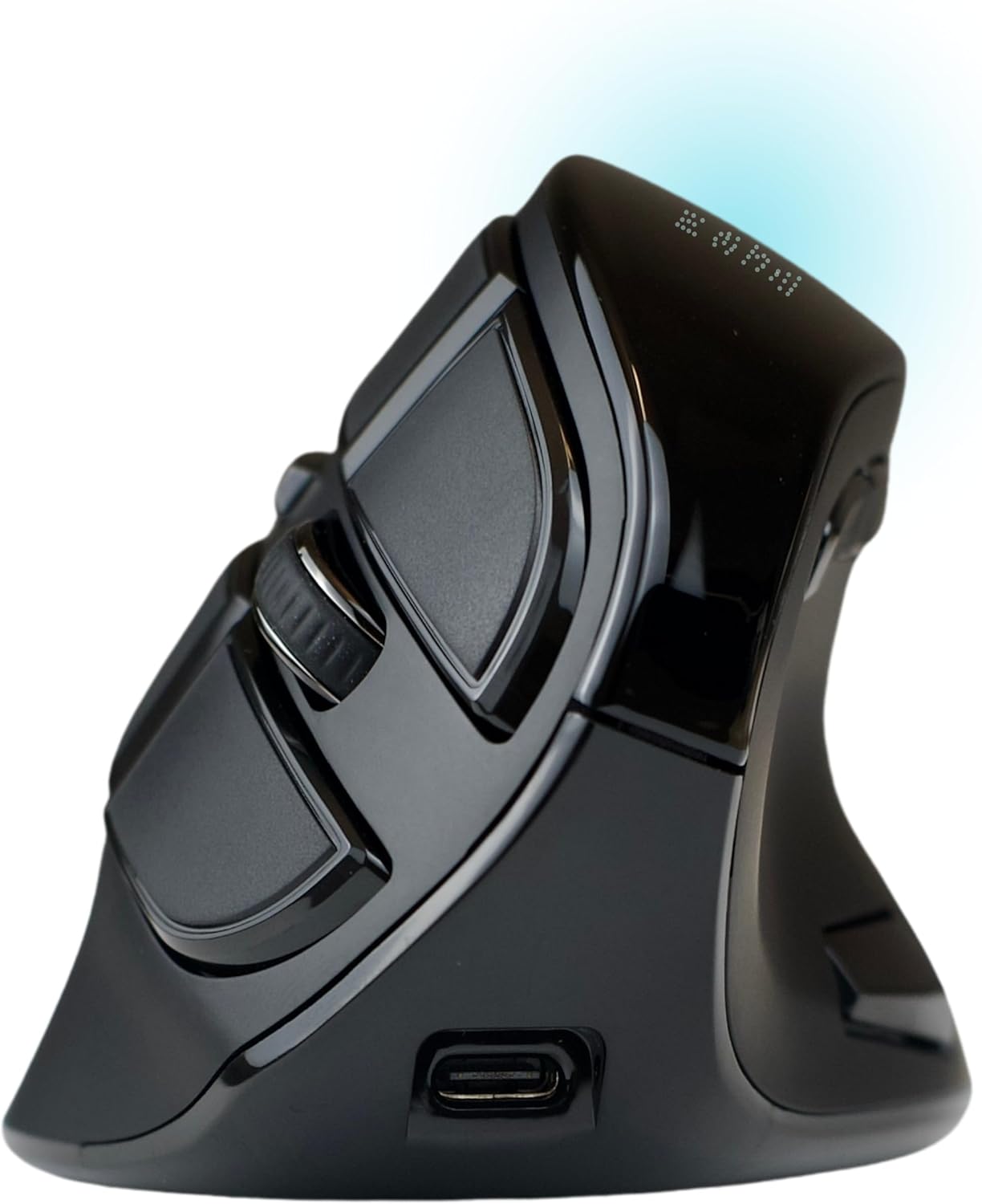
Image: The side of the Ergodriven Om mouse, featuring the USB-C charging port for convenient power replenishment.
2. Kết nối với thiết bị của bạn
The mouse offers two wireless connectivity options: 2.4GHz via a USB dongle or Bluetooth. The switch for selecting the connection mode is located on the bottom of the mouse.

Image: The underside of the Ergodriven Om mouse, displaying the connectivity switch and the integrated storage slot for the 2.4GHz USB dongle.
- Kết nối không dây 2.4 GHz:
- Locate the USB dongle stored in the compartment on the bottom of the mouse.
- Cắm dongle vào cổng USB có sẵn trên máy tính của bạn.
- Gạt công tắc ở phía dưới chuột sang vị trí "2.4G".
- Chuột sẽ tự động kết nối.
- Kết nối Bluetooth:
- Gạt công tắc ở phía dưới chuột sang vị trí "BT".
- Press the "Connect" button (usually a small blue button near the switch) to enter pairing mode.
- On your computer, navigate to Bluetooth settings and select "Ergodriven Om" from the list of available devices to pair.
- The OLED screen will display "Bluetooth Mode Connected" upon successful pairing.
Hướng dẫn sử dụng
Chức năng cơ bản
The Ergodriven Om mouse features standard left and right click buttons, a scroll wheel, and additional customizable buttons. The primary click buttons are designed with silent, micro-force switches for reduced effort.

Image: Detail of the Ergodriven Om mouse, emphasizing the micro-force buttons designed for light and silent clicks.
Cài đặt DPI
The mouse offers four adjustable DPI (Dots Per Inch) settings: 1200, 1600, 2000, and 2400. These settings control the sensitivity of the mouse cursor. You can cycle through DPI settings using the dedicated DPI/Program button, and the current DPI will be displayed on the OLED screen.
Tùy chỉnh nút
The Ergodriven Om mouse allows for easy customization of five buttons directly on the device, without requiring any software installation. This feature enhances productivity by assigning frequently used functions.

Image: A visual guide to the fixed and customizable buttons on the Ergodriven Om mouse, indicating their default and programmable functions.
- Press and hold the DPI/Program button until the OLED screen displays "Custom Function Setting".
- Press the button you wish to customize.
- Use the scroll wheel to navigate through the list of available functions (e.g., Copy, Paste, Forward, Back, Mute, etc.).
- Once the desired function is highlighted, press the chosen button again to confirm the assignment. The screen will display "Success!".
- To exit customization mode, press and hold the DPI/Program button again, or wait for the screen to time out.
Video: Demonstration on how to assign custom functions to the buttons of the Ergodriven Om Ergonomic Mouse using its onboard screen.
BẢO TRÌ
Vệ sinh
Để duy trì hiệu suất tối ưu, hãy thường xuyên vệ sinh chuột. Sử dụng khăn mềm, khô để lau bên ngoài. Đối với vết bẩn cứng đầu, có thể dùng khăn ẩm nhẹ.amp cloth can be used, ensuring no moisture enters the device. Avoid harsh chemicals or abrasive materials.
Chăm sóc pin
The integrated Li-ion battery is designed for long life. To prolong battery health, avoid fully discharging the mouse frequently. Recharge when the OLED screen indicates a low battery level. Store the mouse in a cool, dry place when not in use for extended periods.
Xử lý sự cố
| Vấn đề | Giải pháp khả thi |
|---|---|
| Chuột không phản hồi |
|
| Con trỏ chuột di chuyển không ổn định hoặc chậm. |
|
| Custom button function not working |
|
Thông số kỹ thuật
- Kích thước sản phẩm: 4.25 x 3 x 0.1 inch
- Trọng lượng sản phẩm: 5.6 ounce
- Số hiệu mẫu: 14001
- Công nghệ kết nối: Bluetooth, USB 2.4GHz
- Công nghệ phát hiện chuyển động: Quang học
- Tính năng đặc biệt: Ergonomic Design, OLED Screen, Rechargeable, Silent Click, Vertical Mouse
- Màu sắc: Đen
- Nhà sản xuất: Ergodriven
Bảo hành và Hỗ trợ
The Ergodriven Om Handshake Vertical Mouse comes with a Bảo hành 2 năm của nhà sản xuất. This warranty covers defects in materials and workmanship under normal use. For warranty claims or technical support, please visit the official Ergodriven webtrang web hoặc liên hệ với dịch vụ khách hàng của họ.
For additional resources and frequently asked questions, please refer to the Ergodriven support page.