
1. Kết thúcview of the Samsung Galaxy Z Flip 6
The Samsung Galaxy Z Flip 6 is a cutting-edge foldable smartphone, combining a compact design with powerful features. It offers a unique user experience with its flexible display and innovative form factor, designed for enhanced portability and convenience.
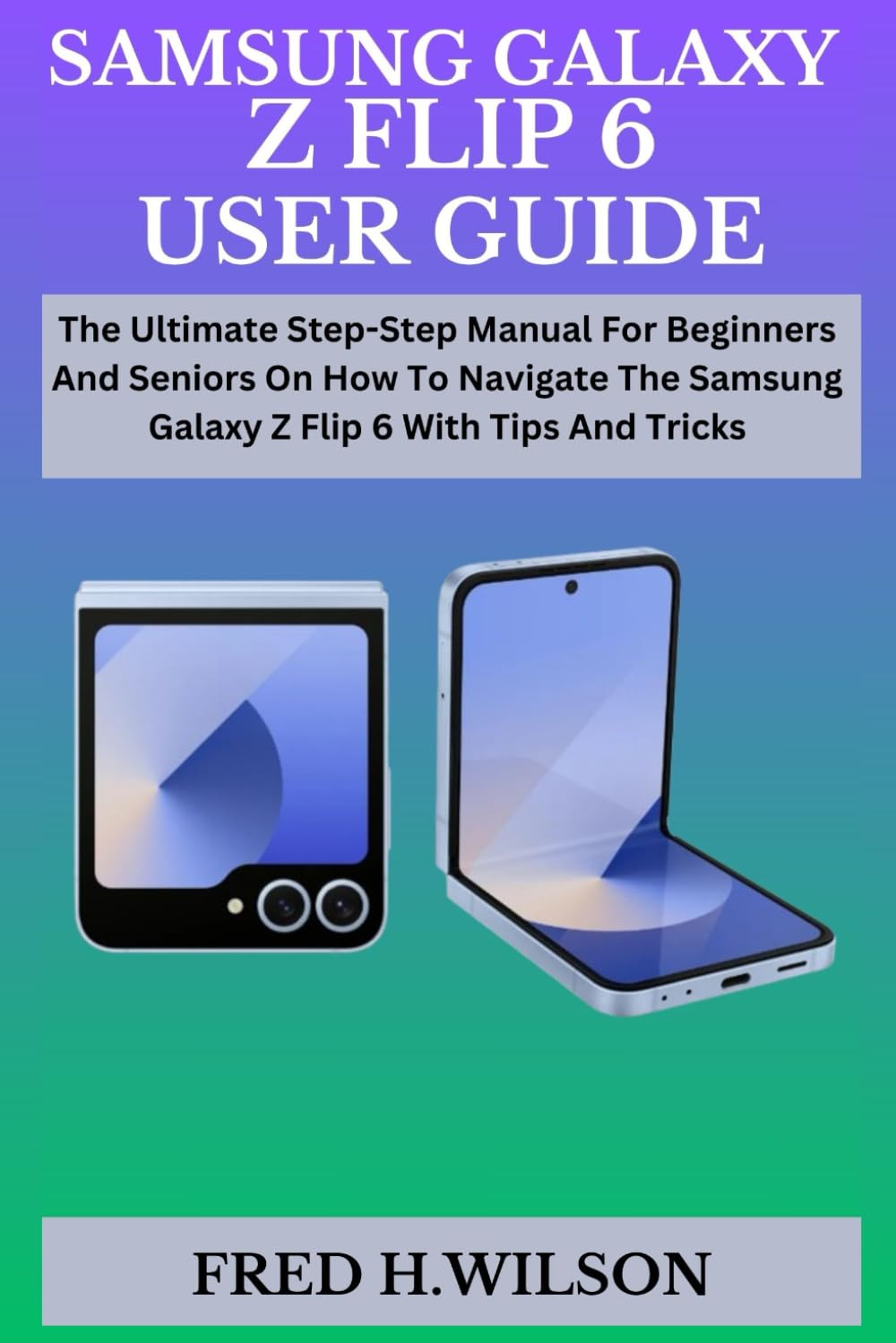
Image 1.1: Cover of the user guide for the Samsung Galaxy Z Flip 6.
Các tính năng chính
- Thiết kế có thể gập lại: Compact and portable, fitting easily into pockets or small bags.
- Hiển thị nâng cao: High-resolution flexible screen for immersive viewđang.
- Độ bền được cải thiện: Upgraded hinge and display for increased resilience.
- Tích hợp AI thiên hà: Smart assistant features to streamline daily tasks.
- High-Quality Cameras: Capable of stunning portraits, professional-level editing, and detailed video recording.
- Hiệu suất mạnh mẽ: Equipped with a modern processor and ample RAM for smooth multitasking.
- S Pen Compatibility: Supports S Pen for enhanced productivity and creativity (S Pen sold separately).
2. Thiết lập và Bắt đầu
2.1 Thiết lập thiết bị ban đầu
Upon first powering on your Samsung Galaxy Z Flip 6, you will be guided through an initial setup process. Follow the on-screen prompts to select your language, connect to Wi-Fi, and sign in with your Google or Samsung account.
2.2 Cấu hình cài đặt cơ bản
After initial setup, explore the device settings to personalize your experience. This includes setting up security features, display preferences, sound profiles, and network connections.
2.3 Truyền dữ liệu
Transferring data from your old device to your new Galaxy Z Flip 6 can be done using Samsung Smart Switch.
- Từ Android: Install Smart Switch on both devices and follow the instructions to transfer data wirelessly or via a USB cable.
- From iOS: Install Smart Switch on your Galaxy Z Flip 6 and connect your iPhone using a USB-C to Lightning cable, or transfer data wirelessly via iCloud.
2.4 Activating Your Device and Personalization
Ensure your SIM card is inserted and activated with your carrier. You can then transfer your personalized settings and app data using Smart Switch or by restoring from a cloud backup.
3. Operating Your Samsung Galaxy Z Flip 6
3.1 Customizing Your Home Screen
Long-press on an empty area of your home screen to access options for wallpapers, widgets, and themes. You can also add or remove app icons by dragging them.
3.2 Using Dark Mode
To enable Dark Mode, go to Settings > Display > Dark mode. This changes the system-wide interface to a darker color scheme, which can reduce eye strain and save battery life.
3.3 Khoanh tròn để tìm kiếm
Utilize Circle to Search by long-pressing the home button or navigation bar. Circle, highlight, or tap on any image or text on your screen to perform a quick search without leaving your current app.
3.4 Taking Handwritten Notes
Use the Samsung Notes app to take handwritten notes. If you have an S Pen, you can write directly on the screen. The app can convert your handwriting to text.
3.5 Setting Up Bixby
Activate Bixby by pressing and holding the Side key, or by saying "Hi Bixby." Follow the prompts to set up your voice profile and customize Bixby's functions.
3.6 Cấu hình mở khóa bằng khuôn mặt
Set up Face Unlock for convenient and secure access. Go to Cài đặt > Bảo mật và quyền riêng tư > Sinh trắc học > Nhận diện khuôn mặt and follow the registration steps.
3.7 Managing the Taskbar
The taskbar provides quick access to your favorite apps. You can enable or disable it in Settings > Display > Taskbar. To add or remove apps, drag them to or from the taskbar.
3.8 Voice Control and Voice-to-Text
Control your device using voice commands through Bixby or Google Assistant. For voice-to-text, tap the microphone icon on your keyboard and speak your message.
3.9 Tính năng của máy ảnh
- Night Photos: Use Night mode in the Camera app for improved low-light photography.
- Vùng AR: Explore augmented reality features like AR Emoji and AR Doodle in the AR Zone app.
- Viewing and Organizing Media: Access your photos and videos in the Gallery app. Move them into albums for better organization.
- Extracting Text from Video: Pause a video and use the Smart Select feature or Gallery's text extraction tool to copy text from frames.
- Sharing Media: Select photos or videos in the Gallery and use the share icon to send them via various apps or services.
- Tạo Album: In the Gallery, tap the three dots menu, select "Create album," and choose the media you wish to include.
3.10 Nhắn tin
Use the Messages app to create and send text messages. If you accidentally delete a message, check the "Trash" or "Recycle Bin" section within the Messages app settings to recover it within a certain timeframe.
3.11 Samsung Wallet Setup
Set up Samsung Wallet for secure mobile payments and digital passes. Open the Samsung Wallet app, sign in with your Samsung account, and add your payment cards.
3.12 Samsung One UI 6
Your Galaxy Z Flip 6 runs on Samsung's One UI 6, offering a refined and intuitive user experience. Key features include enhanced customization options, improved privacy controls, and optimized performance.
- Latest Features: Explore new lock screen customizations, updated quick panel layout, and improved multitasking gestures.
- Mẹo và thủ thuật: Discover hidden features and shortcuts within One UI 6 to enhance your daily usage.
4. Bảo trì
4.1 Vệ sinh thiết bị của bạn
Gently wipe your device with a soft, lint-free cloth. For stubborn smudges, slightly dampLau khăn bằng nước cất hoặc chất tẩy rửa màn hình chuyên dụng cho thiết bị điện tử. Tránh sử dụng hóa chất mạnh hoặc vật liệu mài mòn.
4.2 Cập nhật phần mềm
Thường xuyên kiểm tra các bản cập nhật phần mềm để đảm bảo thiết bị của bạn có các tính năng, bản vá bảo mật và cải tiến hiệu suất mới nhất. Truy cập Cài đặt > Cập nhật phần mềm > Tải xuống và cài đặt.
4.3 Chăm sóc pin
To prolong battery life, avoid extreme temperatures, use the official charger, and consider enabling power-saving modes when needed. Avoid fully discharging the battery frequently.
4.4 Backing Up Your Device
Regularly back up your data to Samsung Cloud, Google Drive, or a computer to prevent data loss. Go to Cài đặt> Tài khoản và sao lưu để có thêm lựa chọn.
5. Xử lý sự cố thường gặp
5.1 Thiết bị không phản hồi
If your device is unresponsive, perform a force restart by pressing and holding the Power button and Volume Down button simultaneously for about 7-10 seconds until the device restarts.
5.2 Các vấn đề kết nối
For Wi-Fi or Bluetooth issues, try toggling the respective settings off and on. If the problem persists, restart your device or reset network settings in Cài đặt > Quản lý chung > Đặt lại > Đặt lại cài đặt mạng.
5.3 Ứng dụng bị treo hoặc đóng băng
Close and reopen the app. If it continues to crash, clear the app's cache and data in Cài đặt > Ứng dụng > [Tên ứng dụng] > Lưu trữ. Biện pháp cuối cùng là gỡ cài đặt và cài đặt lại ứng dụng.
5.4 Pin hết nhanh
Kiểm tra mức sử dụng pin trong Cài đặt > Pin và chăm sóc thiết bị > Pin to identify apps consuming excessive power. Adjust screen brightness, disable unnecessary features, and restrict background app activity.
6. Specifications (Illustrative for Samsung Galaxy Z Flip 6)
Please note: The following specifications are illustrative and based on typical high-end foldable smartphones. For exact specifications, refer to the official Samsung product page for the Galaxy Z Flip 6.
| Tính năng | Chi tiết |
|---|---|
| Màn hình (Chính) | Dynamic AMOLED 2X, 6.7-inch, FHD+, 120Hz adaptive refresh rate |
| Màn hình (Vỏ bọc) | Super AMOLED, 3.4-inch, 60Hz refresh rate |
| Bộ xử lý | Qualcomm Snapdragon 8 Gen 3 for Galaxy (or equivalent) |
| ĐẬP | 8GB hoặc 12GB |
| Kho | 128GB, 256GB, or 512GB (UFS 4.0) |
| Camera sau | Dual Camera: 50MP Wide, 12MP Ultra-Wide |
| Camera trước | 10MP |
| Ắc quy | 3700mAh (typical) with Fast Charging and Wireless Charging |
| Hệ điều hành | Android with One UI 6 |
| Kết nối | 5G, Wi-Fi 6E, Bluetooth 5.3, NFC, USB-C |
| Kích thước (Gấp lại) | Khoảng 85 x 72 x 17 mm |
| Kích thước (Mở ra) | Khoảng 165 x 72 x 7 mm |
| Cân nặng | Khoảng 187g |
7. Bảo hành và Hỗ trợ
7.1 Bảo hành sản phẩm
Your Samsung Galaxy Z Flip 6 comes with a limited manufacturer's warranty. Please refer to the warranty card included with your device or visit the official Samsung webtrang web để biết các điều khoản và điều kiện chi tiết, bao gồm thời hạn bảo hiểm và các trường hợp loại trừ.
7.2 Hỗ trợ khách hàng
For technical assistance, troubleshooting, or service inquiries, please contact Samsung Customer Support. You can find contact information, FAQs, and support resources on the official Samsung webtrang web hoặc thông qua ứng dụng Samsung Members trên thiết bị của bạn.
- Hỗ trợ trực tuyến: Thăm nom www.samsung.com/support
- Hỗ trợ qua điện thoại: Vui lòng tham khảo Samsung tại khu vực của bạn. webtrang web để biết số điện thoại liên lạc tại địa phương.
- Trung tâm dịch vụ: Tìm các trung tâm dịch vụ ủy quyền của Samsung để được hỗ trợ trực tiếp.