
1. Sản phẩm hếtview
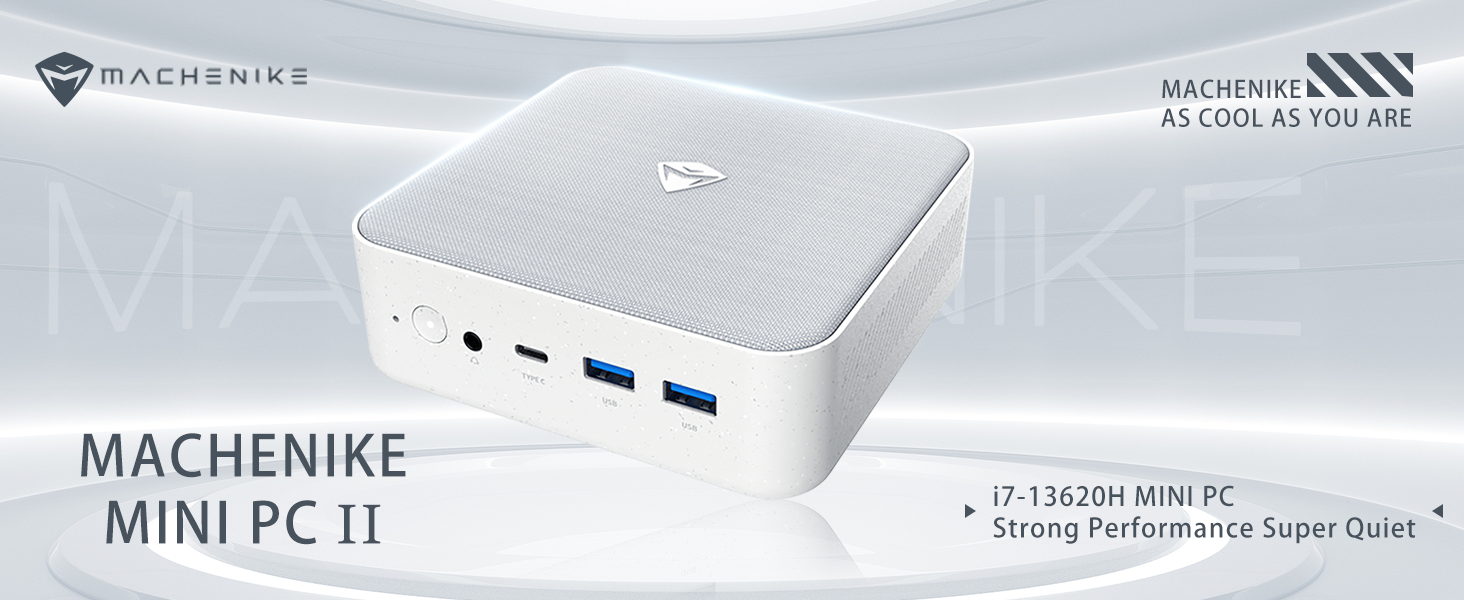
The Machenike Machcreator Mini Desktop, Model 4762H, is a compact and powerful computing solution designed for various applications, from business to everyday use. It features a 13th Gen Intel Core i7-13620H processor, 16GB DDR5 RAM, and a 512GB PCIe M.2 SSD, providing high-speed performance and efficient multitasking capabilities. This mini PC supports 4K dual monitor output and comes pre-installed with Windows 11 Pro.
Hình ảnh: Trênview of the Intel Core i7 processor, highlighting 10 Cores, 16 Threads, 4.90 GHz Max Turbo Frequency, and 24 MB L3 Cache.
Các tính năng chính:
- Bộ xử lý: Bộ xử lý Intel Core i7-13620H (10 lõi, 16 luồng, tốc độ lên đến 4.9 GHz)
- Ký ức: 16GB DDR5 SODIMM RAM (expandable up to 64GB)
- Kho: 512GB PCIe M.2 Solid State Drive (supports dual M.2 expansion)
- Hệ điều hành: Windows 11 Pro
- Đồ họa: Integrated Intel UHD Graphics, supporting 4K dual monitor output via HDMI 2.0 and DisplayPort 1.4
- Kết nối: Wi-Fi 6, Bluetooth, 2 x RJ45 Ethernet, USB 3.2 Gen2 Type-A, USB Type-C
- Hệ thống làm mát: Quạt làm mát tuabin kép với bộ tản nhiệt bằng đồng nguyên chất cao cấp.
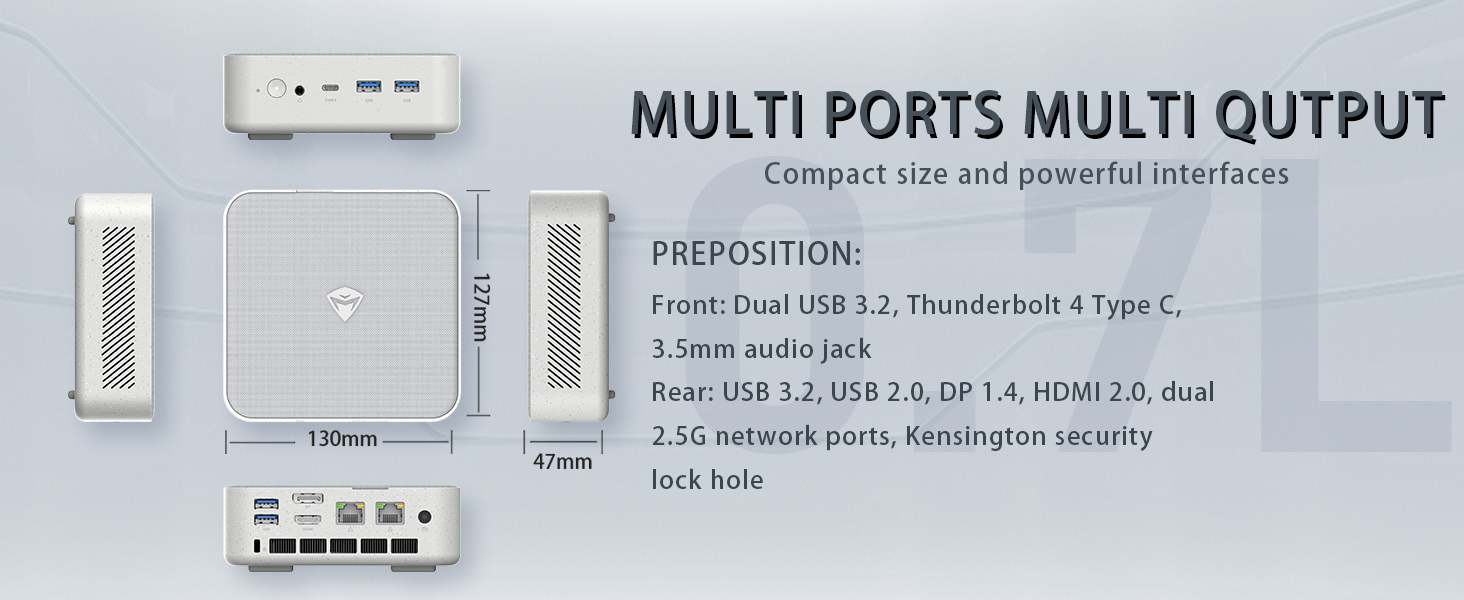
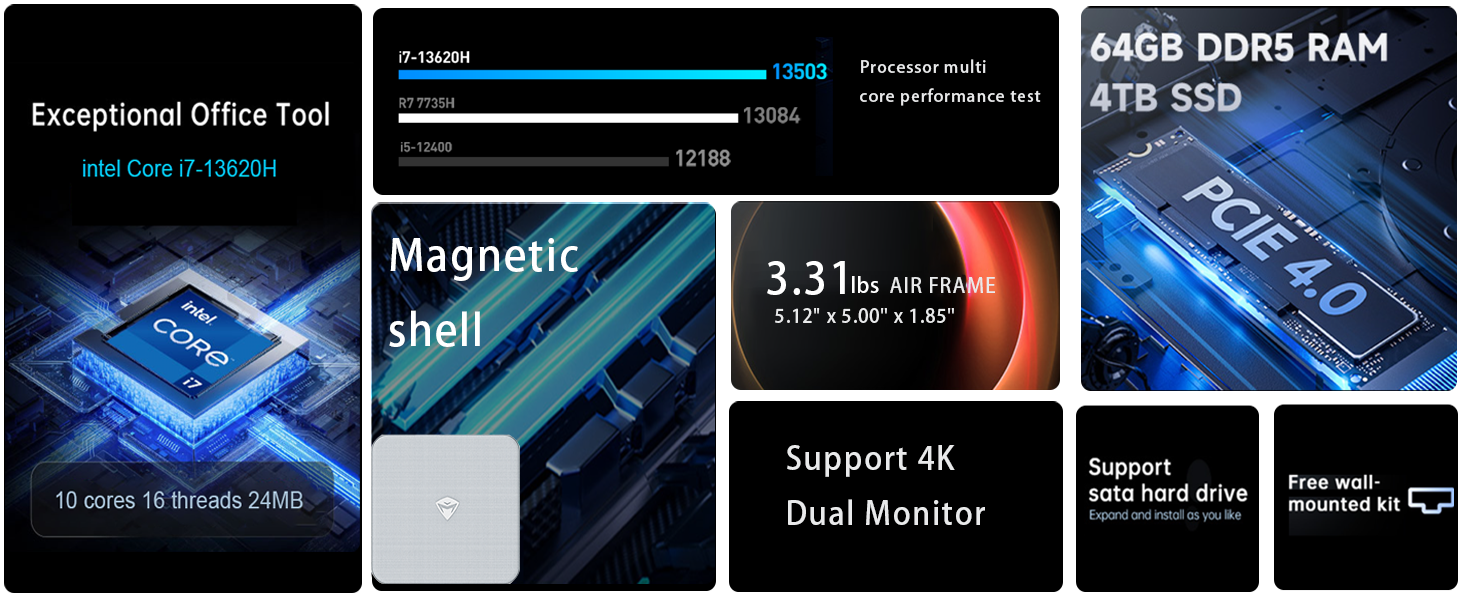
Image: Illustration of PCIe 4.0 SSD and memory slots, indicating support for up to 64GB DDR5 RAM and up to 4TB PCIe SSD expansion.
2. Hướng dẫn cài đặt
2.1 Mở hộp thiết bị
Cẩn thận lấy tất cả các thành phần ra khỏi bao bì. Đảm bảo có đầy đủ các mục sau:
- Machenike Machcreator Mini Desktop (Model 4762H)
- Bộ đổi nguồn
- Hướng dẫn sử dụng (tài liệu này)
- (Tùy chọn) Bộ gắn VESA
2.2 Kết nối thiết bị ngoại vi
Trước khi bật nguồn, hãy kết nối các thiết bị ngoại vi cần thiết:
- Trưng bày: Connect your monitor(s) to the HDMI 2.0 or DisplayPort 1.4 ports on the rear of the mini PC. The USB Type-C port also supports video output.
- Bàn phím và chuột: Connect your USB keyboard and mouse to any of the available USB 3.2 Gen2 Type-A ports.
- Mạng: For a wired connection, connect an Ethernet cable to one of the RJ45 ports. For wireless, ensure your Wi-Fi network is available.
- Quyền lực: Connect the power adapter to the DC-in port on the mini PC, then plug the adapter into a power outlet.
Hình ảnh: Chi tiết view of the mini PC's front and rear ports, including USB 3.2 Gen2 Type-A, USB Type-C, 3.5mm Audio Jack, HDMI 2.0, DisplayPort 1.4, and RJ45 Ethernet ports. Dimensions are also shown.
2.3 Initial Boot-up and Windows 11 Pro Setup
- Nhấn nút nguồn nằm ở mặt trước của máy tính mini.
- The system will boot into the Windows 11 Pro setup wizard. Follow the on-screen instructions to configure your language, region, network, and user account.
- Once setup is complete, your mini PC is ready for use.
3. Hướng dẫn vận hành
3.1 Bật/Tắt nguồn
- Bật nguồn: Nhấn nút nguồn một lần.
- Tắt máy: Nhấp vào nút Bắt đầu trong Windows, sau đó chọn Nguồn > Tắt máy.
- Khởi động lại: Nhấp vào nút Bắt đầu trong Windows, sau đó chọn Nguồn > Khởi động lại.
- Ngủ: Nhấp vào nút Bắt đầu trong Windows, sau đó chọn Nguồn > Ngủ.
3.2 Cấu hình hiển thị
The mini PC supports up to two 4K displays simultaneously. To configure display settings:
- Nhấp chuột phải vào màn hình nền và chọn "Cài đặt hiển thị".
- Here you can detect multiple displays, arrange them, change resolution, and adjust scaling.
3.3 Kết nối mạng
- Wi-Fi: Click the network icon in the taskbar, select your Wi-Fi network, enter the password, and connect.
- Mạng Ethernet: Nếu kết nối cáp Ethernet, hệ thống sẽ tự động thiết lập kết nối mạng có dây.
3.4 Cooling System Modes
The mini PC features an advanced cooling system with adjustable modes via the BIOS to optimize performance and noise levels. These modes include:
- Chế độ im lặng: Prioritizes quiet operation, suitable for light tasks.
- Chế độ cân bằng: Offers a good balance between performance and noise.
- Chế độ hiệu suất: Maximizes performance (up to 65W power release), ideal for demanding applications.
To change these settings, access the BIOS during startup (typically by pressing Xóa or F2 repeatedly after powering on) and navigate to the relevant power or performance settings.
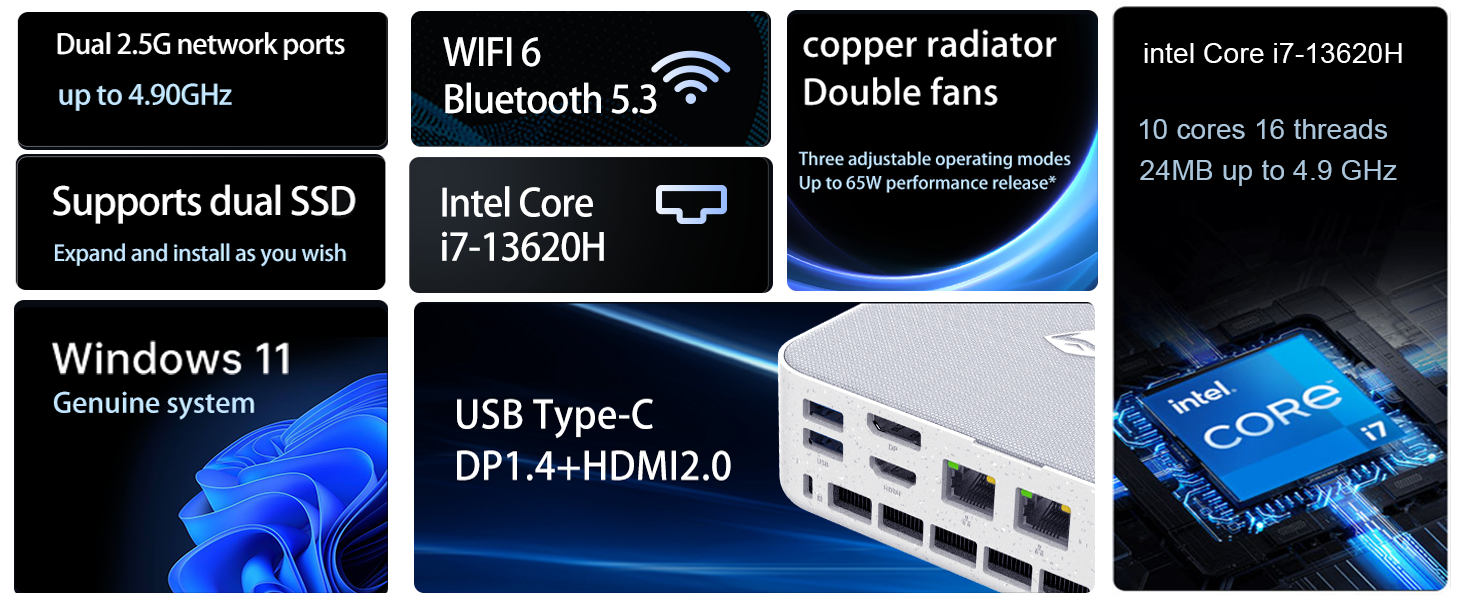
Image: Illustration of the twin turbine cooling fan and deluxe all-copper radiator, explaining how it prevents slowdowns due to overheating and offers silence, balance, and performance modes.
4. Bảo trì
4.1 Vệ sinh thiết bị
Để đảm bảo hiệu suất và độ bền tối ưu, hãy thường xuyên vệ sinh máy tính mini của bạn:
- Power off the device and disconnect it from the power outlet.
- Dùng vải mềm, khô để lau bên ngoài.
- Use compressed air to gently clear dust from ventilation openings. Do not insert any objects into the vents.
4.2 Cập nhật phần mềm
Keep your Windows 11 Pro operating system and drivers updated to ensure security and performance:
- Cập nhật Windows: Vào Start > Settings > Windows Update và kiểm tra các bản cập nhật.
- Cập nhật trình điều khiển: Visit the Machenike official website for the latest drivers for your specific model.
4.3 Mở rộng bộ nhớ và lưu trữ
The Machenike Machcreator Mini Desktop supports upgrades for both RAM and storage:
- ĐẬP: The device has 2 SODIMM slots and supports up to 64GB DDR5 RAM.
- Kho: It supports dual PCIe M.2 SSDs, allowing for significant storage expansion up to 4TB.
Ghi chú: Opening the device for upgrades may void your warranty. Consult a qualified technician or refer to specific upgrade guides from Machenike if available.
KHAI THÁC. Xử lý sự cố
Phần này đề cập đến các vấn đề thường gặp mà bạn có thể gặp phải. Đối với các vấn đề phức tạp hơn, vui lòng liên hệ với bộ phận hỗ trợ khách hàng.
5.1 Không có điện
- Đảm bảo bộ đổi nguồn được kết nối chắc chắn với cả máy tính mini và ổ cắm điện đang hoạt động.
- Kiểm tra ổ cắm điện có hoạt động không bằng cách cắm thiết bị khác.
- Kiểm tra bộ đổi nguồn xem có hư hỏng nào không.
5.2 Không có đầu ra hiển thị
- Hãy xác nhận rằng màn hình đã được bật nguồn và nguồn đầu vào chính xác đã được chọn.
- Ensure the HDMI or DisplayPort cable is securely connected to both the mini PC and the monitor.
- Hãy thử cáp màn hình hoặc màn hình khác nếu có.
- If using multiple displays, try connecting only one display at a time.
5.3 Các vấn đề về kết nối mạng
- Có dây (Ethernet): Check if the Ethernet cable is properly connected to both the mini PC and the router/modem. Verify router/modem status.
- Không dây (Wi-Fi): Hãy đảm bảo Wi-Fi đã được bật trong cài đặt Windows. Khởi động lại bộ định tuyến/modem của bạn. Kiểm tra xem các thiết bị khác có thể kết nối với mạng Wi-Fi hay không.
- Run Windows Network Troubleshooter (Start > Settings > Network & internet > Advanced network settings > Network troubleshooter).
6. Thông số kỹ thuật
Detailed technical specifications for the Machenike Machcreator Mini Desktop, Model 4762H:
| Tính năng | Đặc điểm kỹ thuật |
|---|---|
| Thương hiệu | Máy móc |
| Số hiệu mẫu | 4762H |
| Hệ điều hành | Windows 11 Pro |
| Mô hình CPU | Bộ vi xử lý Intel Core i7-13620H |
| Tốc độ CPU | Up to 4.9 GHz (Max Turbo Frequency) |
| Kích thước bộ nhớ RAM đã cài đặt | Bộ nhớ trong 16 GB DDR5 (có thể mở rộng lên đến 64 GB) |
| Tốc độ đồng hồ bộ nhớ | 4800MHz |
| Có sẵn khe cắm bộ nhớ | 2 |
| Dung lượng lưu trữ bộ nhớ | 512 GB PCIe M.2 SSD (Supports dual M.2, up to 4TB) |
| Bộ đồng xử lý đồ họa | Đồ họa Intel UHD (Tích hợp) |
| Giao diện đầu ra video | HDMI 2.0, DisplayPort 1.4, USB Type-C |
| Độ phân giải màn hình tối đa | 3840x2160 (4K) |
| Giao diện phần cứng | 3.5mm Audio, Bluetooth, DisplayPort, Ethernet (2x RJ45), HDMI, USB, USB Type C |
| Kết nối không dây | Wi-Fi 6 (802.11ax), Bluetooth |
| Kích thước vật phẩm (LxWxH) | 5.12 x 5 x 1.85 inch |
| Trọng lượng sản phẩm | 49.8 Bảng Anh (Note: This weight may be a data entry error; actual weight for a mini PC is typically much less.) |
| Mã số UPC | 193200587317 |
7. Bảo hành và Hỗ trợ
7.1 Thông tin bảo hành
Machenike products typically come with a limited manufacturer's warranty. Please refer to the warranty card included with your purchase or visit the official Machenike website for detailed warranty terms and conditions specific to your region and product model. Keep your proof of purchase for warranty claims.
7.2 Hỗ trợ khách hàng
For technical assistance, troubleshooting beyond this manual, or warranty inquiries, please contact Machenike customer support:
- Hỗ trợ trực tuyến: Visit the official Machenike webĐịa điểm (www.machenike.com - example link, liên kết thực tế có thể khác) và điều hướng đến phần hỗ trợ.
- Hỗ trợ qua Email: Vui lòng tham khảo tài liệu sản phẩm để biết địa chỉ email hỗ trợ cụ thể.
- Hỗ trợ qua điện thoại: Check the Machenike webTrang web cung cấp số điện thoại hỗ trợ khu vực.
When contacting support, please have your product model number (4762H) and serial number ready.