
1. Giới thiệu
This manual provides detailed instructions for the installation, operation, and maintenance of your VBESTLIFE Z490 GAMING PLUS ATX Motherboard. Designed for DIY computer enthusiasts, this motherboard supports 10th and 11th generation Intel Core, Pentium Gold, and Celeron processors with an LGA 1200 socket. Please read this manual thoroughly before proceeding with installation to ensure proper setup and optimal performance.

Hình 1.1: Hếtview of the VBESTLIFE Z490 GAMING PLUS Motherboard.
2. Các tính năng chính
- Hỗ trợ bộ vi xử lý: Compatible with 10th and 11th Generation Intel Core, Pentium Gold, and Celeron processors for LGA 1200 sockets.
- Ký ức: Features two DDR4 memory slots, supporting up to 64GB of dual-channel DDR4 RAM.
- Kho: Includes a full-speed M.2 interface supporting 32GB/s data transfer for NVMe SSDs, and four Serial ATA 3.0 ports for traditional storage devices.
- Đầu ra đồ họa: Integrated DP, HDMI, and VGA video ports for versatile display connectivity.
- Khe cắm mở rộng: One PCIe Gen 3.0 x16 slot for graphics cards and one PCIe X1 slot for other expansion cards.
- Mạng lưới: Integrated 1000Mbps Gigabit LAN for high-speed network connectivity.
- Âm thanh: Utilizes an independent Realtek HiFi Sound card for enhanced audio experience.
- Kết nối USB: Multiple USB 3.2 Gen1 and USB 2.0 interfaces, including front panel headers.
- Thiết kế bền bỉ: Features pre-installed I/O shielding and stable solid-state components for extended motherboard lifespan and protection against electrostatic discharge.
3. Thiết lập và Cài đặt
Before beginning installation, ensure your system is powered off and disconnected from the power source. Handle the motherboard by its edges to avoid static discharge. It is recommended to wear an anti-static wrist strap.
3.1. Cài đặt bộ xử lý (CPU)
- Xác định vị trí khe cắm CPU LGA 1200 trên bo mạch chủ.
- Nhấn nhẹ cần gạt xuống và kéo nó ra khỏi ổ cắm để mở nắp ổ cắm CPU.
- Căn chỉnh dấu tam giác trên CPU với dấu tương ứng trên khe cắm. Cẩn thận đặt CPU vào khe cắm mà không dùng lực mạnh.
- Đóng nắp ổ cắm và đẩy cần gạt tải trở lại vị trí cũ cho đến khi nghe tiếng "tách".

Hình ảnh 3.1: Cận cảnh view of the LGA 1200 CPU socket, ready for processor installation.
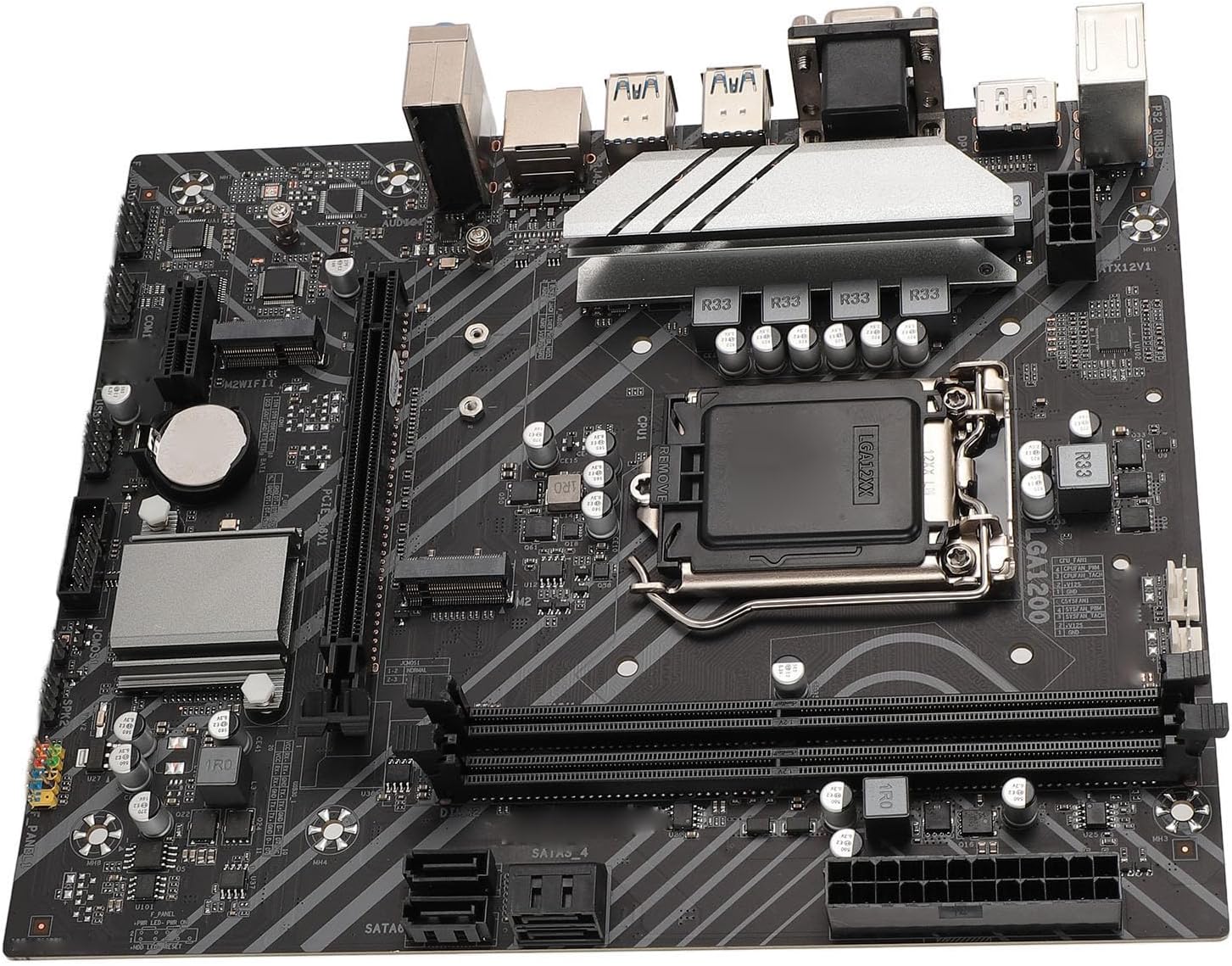
Hình ảnh 3.2: Chi tiết view of the CPU socket area, showing power delivery components.
3.2. Cài đặt bộ nhớ (RAM)
- Mở các chốt ở cả hai đầu của khe cắm bộ nhớ DDR4.
- Hãy căn chỉnh rãnh trên mô-đun bộ nhớ DDR4 sao cho khớp với rãnh định vị trong khe cắm bộ nhớ.
- Lắp chặt mô-đun bộ nhớ vào khe cắm cho đến khi các kẹp khớp vào vị trí. Đảm bảo cả hai kẹp đều được đóng hoàn toàn.
3.3. Cài đặt thiết bị lưu trữ
3.3.1. Cài đặt SSD M.2
- Xác định vị trí khe cắm M.2 trên bo mạch chủ.
- Tháo vít giữ M.2.
- Lắp SSD M.2 vào khe cắm ở góc 30 độ.
- Nhấn nhẹ ổ SSD M.2 xuống và cố định bằng ốc vít.

Image 3.3: The M.2 interface, designed for high-speed NVMe SSDs.

Image 3.4: Close-up of the M.2 slot and surrounding expansion slots and headers.
3.3.2. Cài đặt thiết bị SATA
- Kết nối một đầu của cáp dữ liệu SATA với cổng SATA 3.0 trên bo mạch chủ.
- Kết nối đầu còn lại của cáp dữ liệu SATA với ổ cứng SATA hoặc SSD của bạn.
- Kết nối cáp nguồn SATA từ bộ nguồn (PSU) của bạn với thiết bị lưu trữ.

Image 3.5: The Serial ATA 3.0 ports for connecting traditional hard drives and SSDs.
3.4. Lắp đặt thẻ mở rộng (PCIe)
- Locate the PCIe x16 slot for your graphics card or PCIe x1 slot for other expansion cards.
- Tháo nắp khe cắm mở rộng tương ứng khỏi thùng máy tính của bạn.
- Đặt thẻ thẳng hàng với khe cắm và ấn mạnh xuống cho đến khi thẻ được đặt đúng vị trí.
- Cố định thẻ vào vỏ máy tính bằng ốc vít.
3.5. Kết nối nguồn
- Connect the 24-pin ATX power connector from your PSU to the 24-pin ATXPWR socket on the motherboard.
- Connect the 8-pin ATX 12V power connector from your PSU to the 8-pin ATX12V socket on the motherboard.
3.6. Kết nối bảng I/O
Connect your peripherals to the appropriate ports on the motherboard's rear I/O panel.
- Trưng bày: Connect your monitor to the DP, HDMI, or VGA ports.
- Thiết bị USB: Connect keyboards, mice, and other USB devices to the USB 3.2 Gen1 or USB 2.0 ports.
- Mạng: Connect an Ethernet cable to the LAN port for internet access.
- Âm thanh: Kết nối loa hoặc tai nghe với các giắc cắm âm thanh.

Image 3.6: The rear I/O panel featuring DP, HDMI, VGA, USB, LAN, and audio ports.
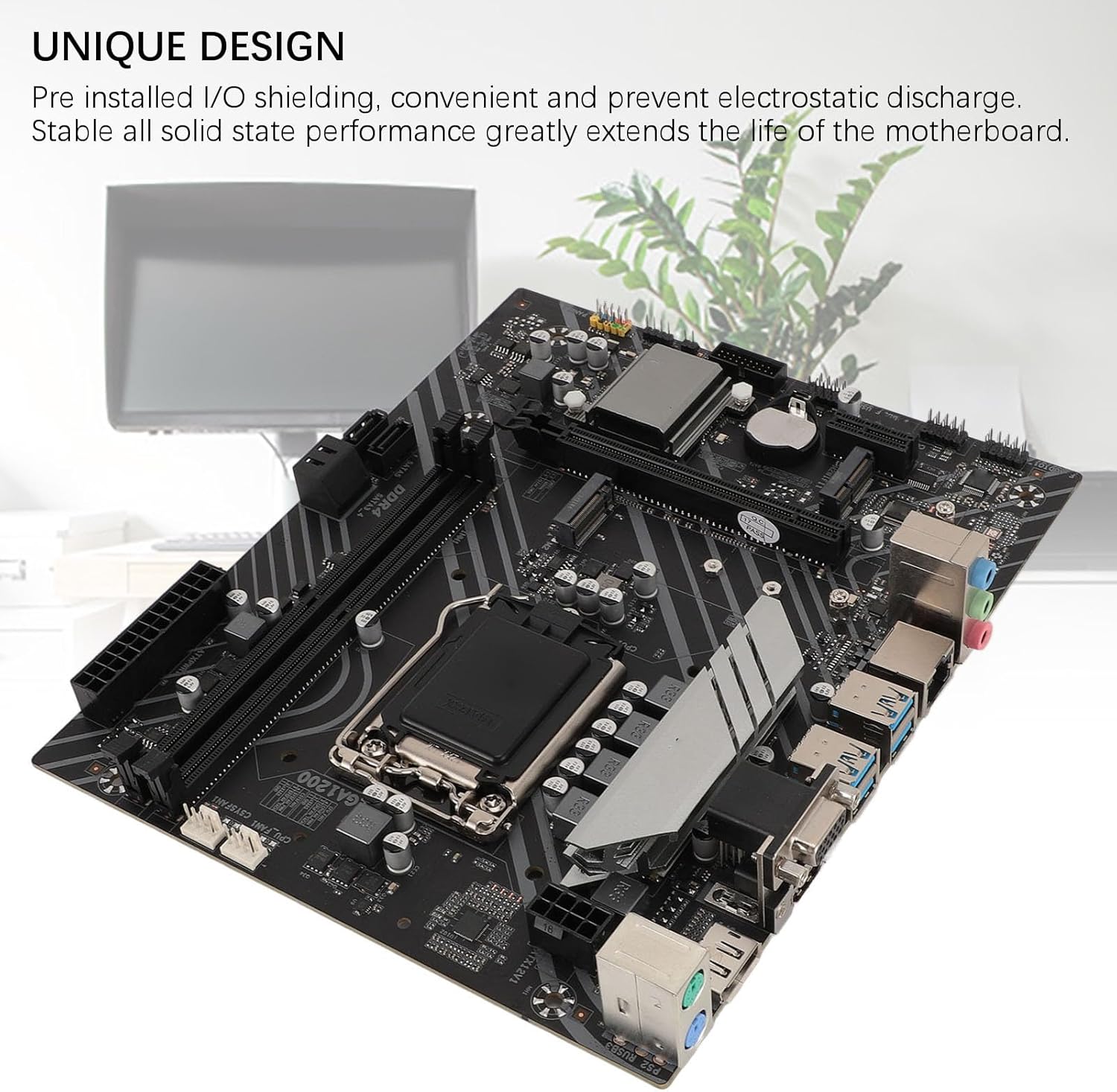
Image 3.7: The motherboard's unique design with pre-installed I/O shielding for convenience and protection.

Hình ảnh 3.8: Chi tiết view of the I/O ports and the CPU socket area.
4. Hướng dẫn vận hành
4.1. Khởi động ban đầu
After completing all hardware installations, connect your monitor, keyboard, and mouse. Power on your system. The motherboard will perform a Power-On Self-Test (POST). If all components are detected correctly, the system will proceed to boot from your installed operating system or prompt for OS installation.
4.2. Thiết lập BIOS/UEFI
To access the BIOS/UEFI setup utility, press the designated key (commonly KHÔNG or F2) repeatedly during the initial boot-up sequence. Within the BIOS/UEFI, you can configure system settings such as boot order, date/time, fan speeds, and other advanced options.
5. Thông số kỹ thuật
| Tính năng | Đặc điểm kỹ thuật |
|---|---|
| Người mẫu | Z490 GAMING PLUS |
| Motherboard Architecture | ATX |
| Kích thước Bo mạch chủ | Approx. 225x190mm / 8.9x7.5in |
| Loại ổ cắm CPU | LGA 1200 (Supports 10th/11th Gen Intel Core, Pentium Gold, Celeron Processors) |
| Bộ vi mạch | Bộ vi xử lý Intel Z490 |
| Thẻ mạng | Mạng LAN 1000Mbps |
| Integrated Sound Card | Realtek HiFi Sound |
| Khe cắm card đồ họa | PCIE X16 Gen 3.0 |
| Loại bộ nhớ được hỗ trợ | 2 khe cắm DIMM DDR4 |
| Dung lượng bộ nhớ tối đa | 64GB (32GB x 2) |
| Giao diện ATA nối tiếp | Serial ATA3.0 x 4 |
| Giao diện USB | USB3.2 Gen1 x 4, Front USB2.0 pin x 1, Front USB3.0 pin x 1 |
| Giao diện mở rộng | DP x 1, HDMI x 1, VGA x 1, M.2 Interface x 1 (Supports NGFF, NVME protocol), M.2 Wireless Fidelity Interface x 1, PCIE X1 x 1 |
| Giao diện nguồn | 1 x 24PIN ATXPWR, 1 x 8PIN ATX12V |
| Loại pin | CR2032 button cell battery (240 mAh, integrated) |
| Nhà sản xuất | VBESTLIFE |
| Số hiệu mẫu | VBESTLIFE60hydko52q |
| Nước xuất xứ | Trung Quốc |
6. Bảo trì
- Vệ sinh: Thường xuyên vệ sinh bụi bẩn trên bo mạch chủ và các linh kiện bằng khí nén. Đảm bảo hệ thống đã tắt nguồn và rút phích cắm trước khi vệ sinh.
- Xử lý: Always handle the motherboard by its edges. Avoid touching components directly to prevent electrostatic discharge.
- Môi trường: Operate the motherboard in a well-ventilated area to prevent overheating. Avoid extreme temperatures and humidity.
- Cập nhật BIOS: Kiểm tra định kỳ của nhà sản xuất website for BIOS/UEFI updates. Follow update instructions carefully to avoid system instability.
KHAI THÁC. Xử lý sự cố
7.1. Không có nguồn điện / Không khởi động
- Ensure all power cables (24-pin ATX, 8-pin ATX12V) are securely connected to the motherboard and PSU.
- Verify that the power supply unit (PSU) is switched on and functioning correctly.
- Check front panel connections (power button, reset button) to ensure they are correctly plugged into the motherboard headers.
- Hãy thử khởi động với các thành phần tối thiểu (CPU, một thanh RAM, card đồ họa nếu không có đồ họa tích hợp) để xác định nguyên nhân gây ra sự cố.
7.2. Không có đầu ra hiển thị
- Ensure your monitor is connected to the correct display output port (DP, HDMI, or VGA) on the motherboard or dedicated graphics card.
- Verify that the graphics card (if installed) is properly seated in its PCIe slot and has adequate power connected.
- Nếu có thể, hãy thử bằng cáp màn hình hoặc màn hình khác.
7.3. Sự không ổn định của hệ thống / Sự cố sập hệ thống
- Check that all memory modules are correctly seated in their slots.
- Ensure CPU cooler is properly installed and making good contact with the CPU. Monitor CPU temperatures.
- Hãy kiểm tra xem bộ nguồn (PSU) của bạn có cung cấp đủ công suất hay không.tage for all installed components.
- Chạy các công cụ chẩn đoán bộ nhớ để kiểm tra xem RAM có bị lỗi hay không.
8. Bảo hành và Hỗ trợ
This VBESTLIFE Z490 GAMING PLUS Motherboard comes with a Bảo hành 2 năm của nhà sản xuất. This warranty covers defects in materials and workmanship under normal use. For warranty claims or technical support, please contact your retailer or the VBESTLIFE customer service directly. Please retain your proof of purchase for warranty validation.
For further assistance, please refer to the official VBESTLIFE webtrang web hoặc liên hệ với kênh hỗ trợ của họ.


