
1. Giới thiệu
This manual provides detailed instructions for the setup, operation, and maintenance of your BPXX Bluetooth Thermal Shipping Label Printer, Model D463B. This printer is designed for efficient and clear printing of various thermal labels, including 4x6 inch shipping labels, with a resolution of 203 DPI. It supports both Bluetooth connectivity via the 'Ezlabel' mobile application and USB connection to computers.
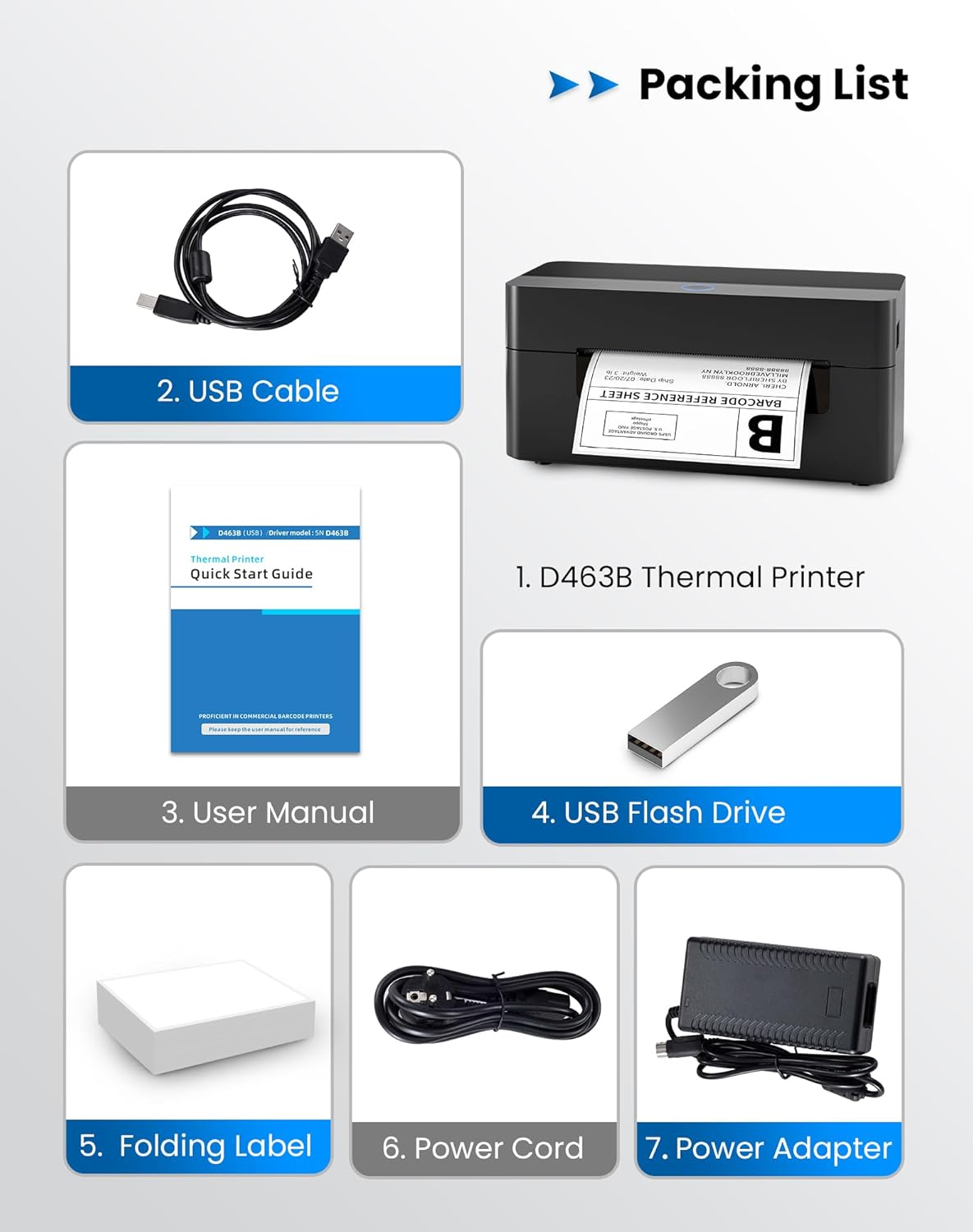
2. Danh sách đóng gói
Vui lòng xác minh rằng tất cả các mục được liệt kê dưới đây đều có trong gói hàng của bạn:
- 1 x BPXX D463B Thermal Printer
- 1 x Cáp USB
- 1 x Hướng dẫn sử dụng
- 1 ổ USB Flash (có chứa trình điều khiển)
- 1 x Folding Label (sampcuộn)
- 1 x Power Cord
- 1 x Bộ đổi nguồn
3. Hướng dẫn cài đặt
3.1 Kết nối phần cứng
- Connect the power adapter to the printer's power port and plug the power cord into an electrical outlet.
- Open the printer cover and load the thermal labels. Ensure the labels are facing the correct direction for printing and are properly aligned within the guide rails.
- Đóng nắp máy in chắc chắn.

3.2 Cài đặt phần mềm và trình điều khiển
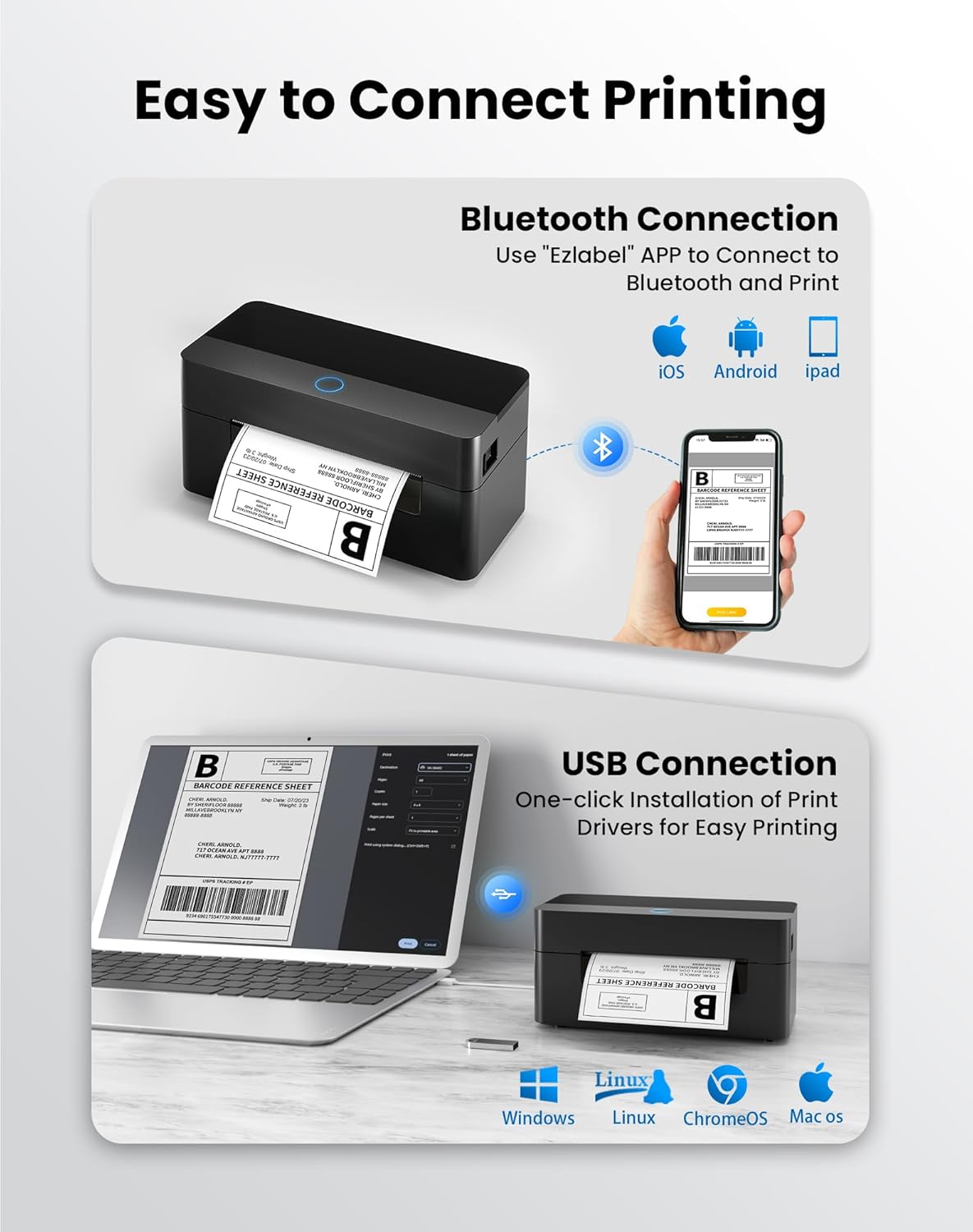
3.2.1 Ứng dụng di động (Kết nối Bluetooth)
For mobile printing, download the 'Ezlabel' application from your device's app store (available for iOS and Android).
- Tìm kiếm 'Ezlabel' in the App Store (iOS) or Google Play Store (Android).
- Tải xuống và cài đặt ứng dụng.
- Bật Bluetooth trên thiết bị di động của bạn.
- Open the 'Ezlabel' app and follow the in-app instructions to connect to your BPXX D463B printer via Bluetooth.
3.2.2 Computer Driver (USB Connection)
For computer printing, install the appropriate drivers for your operating system (Windows, Mac OS, Linux, ChromeOS). Drivers are provided on the included USB flash drive or can be downloaded from the official webđịa điểm.
- Insert the provided USB flash drive into your computer.
- Locate and run the installer for your operating system.
- Làm theo lời nhắc trên màn hình để hoàn tất cài đặt trình điều khiển.
- Alternatively, download drivers from: BPXX Driver Download
4. Hướng dẫn vận hành
4.1 Tải nhãn
Ensure the thermal labels are loaded correctly for optimal printing. The printer supports thermal labels with widths ranging from 1 to 4.5 inches, including standard 4x6 inch shipping labels.
- Mở nắp trên của máy in.
- Place the roll of thermal labels into the label compartment, ensuring the printable side faces upwards.
- Feed the first label through the printer's output slot until it is slightly extended.
- Adjust the label guides to fit the width of your labels snugly, without being too tight.
- Close the top cover. The printer will automatically detect the label size and calibrate.

4.2 Printing via Bluetooth (Mobile App)
- Ensure the printer is powered on and connected to the 'Ezlabel' app via Bluetooth.
- Open the 'Ezlabel' app on your mobile device.
- Select or create your desired label design. The app includes preset templates for various label sizes.
- Confirm print settings such as label size and quantity.
- Khởi tạo lệnh in từ ứng dụng.
4.3 Printing via USB (Computer)
- Kết nối máy in với máy tính của bạn bằng cáp USB được cung cấp.
- Ensure the printer drivers are correctly installed.
- Open the document or application from which you wish to print (e.g., a PDF viewer, shipping software).
- Select the BPXX D463B printer from your printer options.
- Adjust print settings as needed (e.g., paper size to 4x6 inches for shipping labels).
- Send the print command.
4.4 Supported Platforms and Print Quality
The BPXX D463B printer is compatible with major shipping carriers and e-commerce platforms, facilitating the printing of shipping labels, return labels, and postagNhãn điện tử.
- Shipping Carriers: FedEx, UPS, USPS, DHL, EasyPost, etc.
- E-commerce Platforms: Amazon, Shopify, Etsy, eBay, Walmart, etc.
The printer utilizes a high-quality thermal print head and advanced algorithms to deliver clear and sharp barcodes and text at 203 DPI resolution. It achieves a high-speed output of 152mm/s, capable of printing approximately 72 4x6 inch shipping labels per minute.


5. Bảo trì
Bảo trì thường xuyên đảm bảo hiệu suất tối ưu và kéo dài tuổi thọ của máy in.
- Làm sạch đầu in: Use an alcohol swab or a specialized thermal printer cleaning pen to gently wipe the print head. Ensure the printer is off and cooled down before cleaning.
- Vệ sinh bên ngoài: Lau sạch bên ngoài máy in bằng vải mềm,amp vải. Tránh sử dụng hóa chất mạnh hoặc vật liệu mài mòn.
- Loại bỏ bụi: Periodically use compressed air to clear any dust or paper debris from inside the label compartment.
KHAI THÁC. Xử lý sự cố
If you encounter issues with your BPXX D463B printer, refer to the following common problems and solutions:
- Máy in không phản hồi:
- Ensure the power cord is securely connected and the printer is turned on.
- For Bluetooth connection, verify that Bluetooth is enabled on your device and the printer is paired within the 'Ezlabel' app.
- For USB connection, check the USB cable connection and ensure drivers are correctly installed. Try a different USB port or cable.
- Poor Print Quality (Faint/Streaky Prints):
- Vệ sinh đầu in theo hướng dẫn trong phần Bảo trì.
- Hãy đảm bảo bạn đang sử dụng nhãn nhiệt chất lượng cao.
- Check print density settings in the 'Ezlabel' app or printer preferences on your computer.
- Nhãn không hoạt động đúng cách:
- Verify that labels are loaded correctly and aligned with the guide rails.
- Hãy đảm bảo không có vật cản nào trên đường đi của nhãn.
- Perform a label calibration from the printer settings or app if available.
- Printer Offline Error:
- Khởi động lại cả máy in và máy tính/thiết bị di động của bạn.
- Re-establish the Bluetooth or USB connection.
- Check printer status in your operating system's printer settings.
7. Thông số kỹ thuật sản phẩm
| Tên mẫu | D463B |
| Thương hiệu | BPXX |
| Công nghệ in ấn | Nhiệt |
| Công nghệ kết nối | Bluetooth, USB |
| Độ phân giải in tối đa | 203 x 203 Dots Per Inch (DPI) |
| Tốc độ in tối đa | 152 mm/s (72 labels per minute) |
| Kích thước phương tiện tối đa | 4 x 6 inch |
| Chiều rộng nhãn được hỗ trợ | 1 - 4.5 inch |
| Thiết bị tương thích | PC (Windows, Mac OS, Linux, ChromeOS), Smartphones (iOS, Android) |
| Phương pháp kiểm soát | App ('Ezlabel'), USB |
| Kích thước sản phẩm | 7.3"D x 3.3"W x 3.3"H |
| Trọng lượng sản phẩm | 1.6 pound |
| Các thành phần bao gồm | Printer, USB Cable, User Manual, USB Flash Drive, Sample Labels, Power Cord, Power Adapter |
8. Bảo hành và Hỗ trợ
The BPXX D463B Thermal Shipping Label Printer comes with a limited warranty. For specific warranty terms and conditions, please refer to the documentation included with your product or contact BPXX customer support.
For technical assistance, troubleshooting, or any inquiries regarding your product, please contact BPXX customer support through the official webtrang web hoặc thông tin liên lạc được cung cấp trên bao bì sản phẩm của bạn.