
Giới thiệu
The Keychron M7 is a versatile wireless gaming optical mouse designed for optimal performance and comfort. It features tri-mode connectivity (2.4 GHz wireless, Bluetooth 5.1, and wired USB), a high-precision PixArt 3395 sensor, and a lightweight ergonomic design. This manual provides instructions for setting up, operating, maintaining, and troubleshooting your Keychron M7 mouse.

Figure 1: Keychron M7 Wireless Gaming Optical Mouse (White)
Nội dung gói
Please ensure all the following items are included in your Keychron M7 package:
- Chuột Không Dây Keychron M7
- Type-C 2.4 GHz Receiver
- Bộ thu 2.4 GHz loại A
- Pin sạc (đã lắp sẵn)
- Cáp USB-C sang USB-A (để sạc và kết nối có dây)
Tính năng sản phẩm
- Kết nối ba chế độ: Seamlessly switch between 2.4 GHz wireless, Bluetooth 5.1, and wired USB connections.
- Cảm biến độ chính xác cao: Equipped with the PixArt 3395 sensor, offering up to 26,000 DPI and 650 IPS for accurate tracking.
- Thiết kế công thái học nhẹ: Weighing only 63 grams with an ergonomic curved design and grip patterns for comfortable extended use.
- Các nút tùy chỉnh: Programmable macro buttons and settings via the Keychron Engine software.
- Tuổi thọ pin dài: Up to 70 hours of continuous use on a single charge with an 800mAh battery.
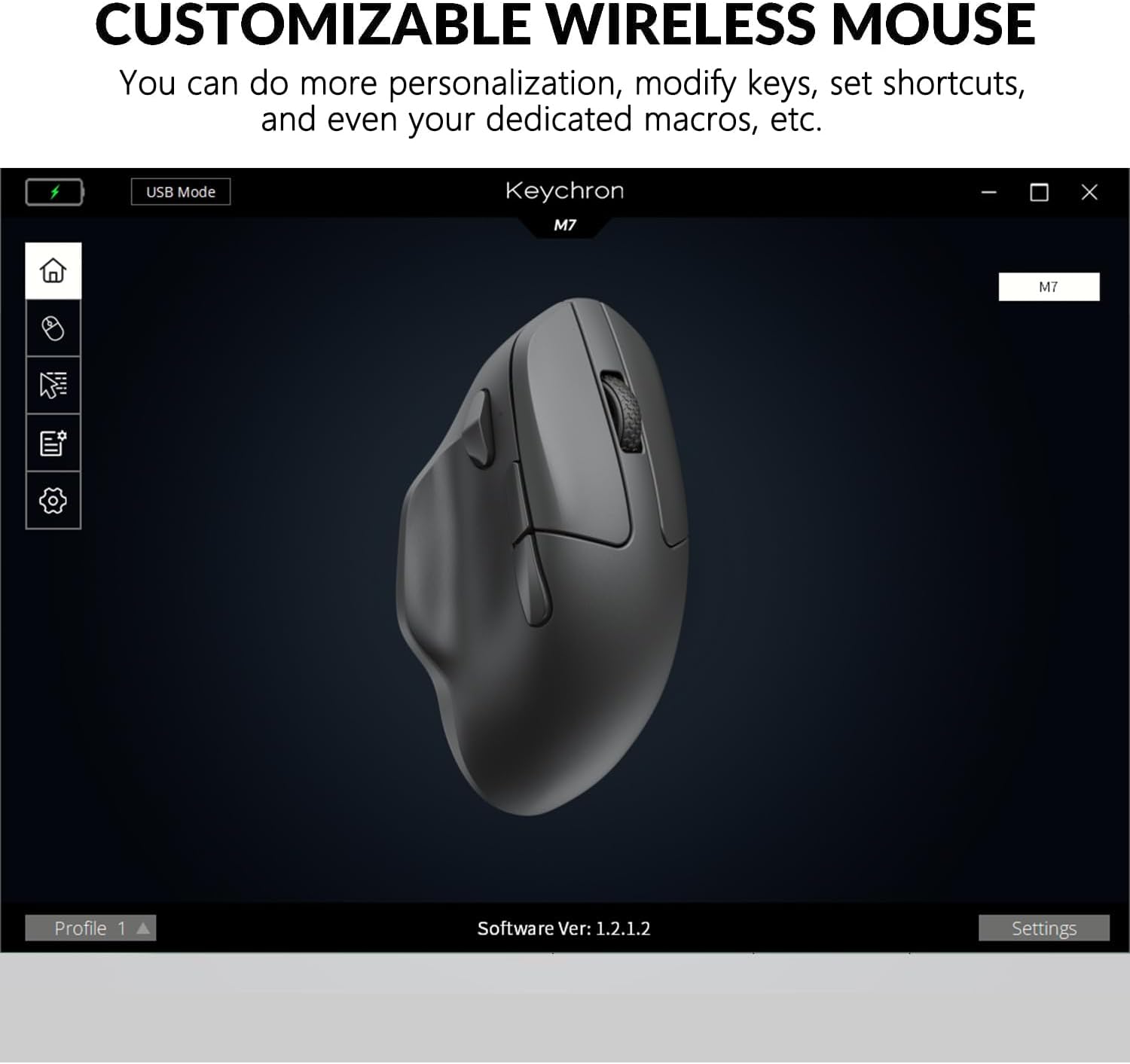
Figure 2: Keychron M7 features: 70-hour battery life and 26,000 DPI sensor.
Bắt đầu
1. Sạc chuột
Before first use, it is recommended to fully charge the mouse. Connect the provided USB-C to USB-A cable to the mouse's USB-C port and the other end to a powered USB port on your computer or a USB charger. The LED indicator will show charging status.
2. Kết nối chuột
The Keychron M7 offers three connection modes:
- Chế độ có dây: Connect the mouse directly to your computer using the USB-C to USB-A cable. The mouse will function immediately and charge simultaneously.
- Chế độ không dây 2.4 GHz:
- Locate the 2.4 GHz receiver (either Type-C or Type-A).
- Cắm đầu thu vào cổng USB có sẵn trên máy tính của bạn.
- On the bottom of the mouse, slide the switch to the 'G' (2.4 GHz) position. The mouse will automatically connect.
- Chế độ Bluetooth 5.1:
- Ở phía dưới chuột, hãy gạt công tắc sang vị trí 'B' (Bluetooth).
- Press and hold the Bluetooth pairing button (usually located near the mode switch) until the LED indicator starts blinking, indicating pairing mode.
- On your computer, open Bluetooth settings and search for new devices. Select "Keychron M7" from the list to pair.

Figure 3: Keychron M7 2.4 GHz receivers and polling rate indicator table.
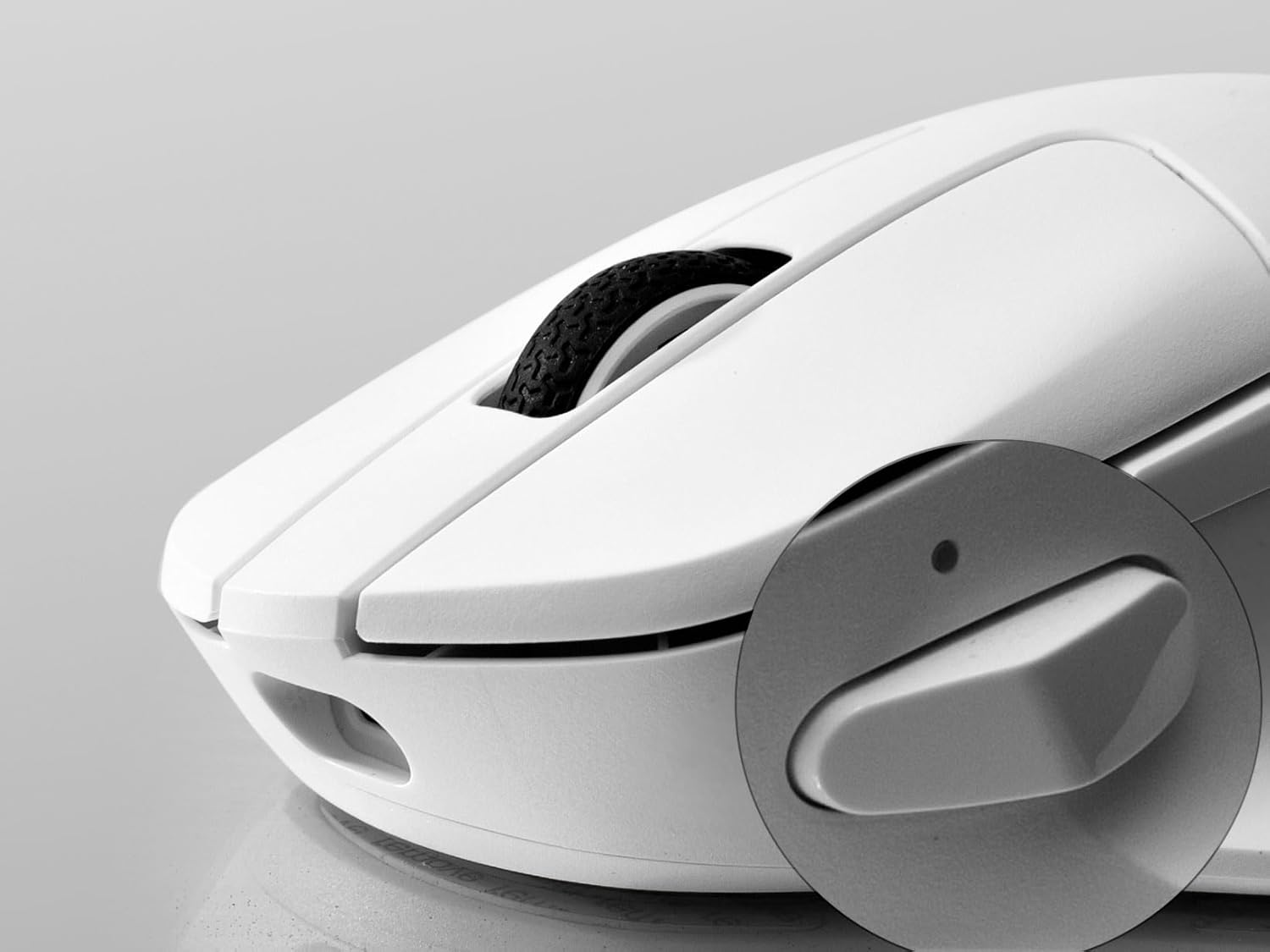
Figure 4: Mouse bottom with G/OFF/B mode switch and pairing button.
Vận hành Chuột
Điều chỉnh DPI
The Keychron M7 allows for on-the-fly DPI adjustment. Use the dedicated DPI button on the bottom of the mouse to cycle through preset DPI levels. The LED indicator will change color to indicate the current DPI setting.
Điều chỉnh tỷ lệ bỏ phiếu
In 2.4 GHz or Wired mode, you can adjust the polling rate using the 'RPT' button on the bottom of the mouse. Press this button to switch between 125 Hz (White LED), 500 Hz (Blue LED), and 1000 Hz (Red LED).
Programmable Buttons and Macros
The Keychron M7 features programmable buttons. To customize button functions, set shortcuts, or create dedicated macros, download and install the Keychron Engine software from the official Keychron website. The software also allows for professional settings like Lift-Off Distance (LOD) and further DPI customization.

Figure 5: DPI switch and macro button location.

Figure 6: Keychron Engine software interface for customization.
BẢO TRÌ
Vệ sinh
To maintain optimal performance and appearance, regularly clean your Keychron M7 mouse. Use a soft, dry, lint-free cloth to wipe the surface. For stubborn dirt, slightly dampLau sạch khăn bằng nước hoặc dung dịch vệ sinh đồ điện tử nhẹ. Tránh sử dụng hóa chất mạnh hoặc vật liệu mài mòn.
Chăm sóc pin
The Keychron M7 uses a rechargeable Lithium Polymer battery. To prolong battery life:
- Tránh xả hết pin thường xuyên.
- Bảo quản chuột ở nơi khô ráo, thoáng mát khi không sử dụng trong thời gian dài.
- Charge the mouse using the provided cable or a certified USB charger.
Xử lý sự cố
- Chuột không phản hồi: Ensure the mouse is charged. Check the mode switch on the bottom of the mouse is set correctly (G for 2.4 GHz, B for Bluetooth, or connected via cable). For wireless modes, ensure the receiver is properly plugged in or Bluetooth is paired.
- Hiện tượng giật lag hoặc mất kết nối khi ở chế độ không dây: Try moving the receiver closer to the mouse. Ensure there are no strong interfering signals (e.g., other 2.4 GHz devices, Wi-Fi routers) nearby. Switch to a different USB port for the receiver.
- DPI or button issues: Ensure the Keychron Engine software is installed and updated. Check your settings within the software. Reset the mouse to factory defaults if necessary (refer to software instructions).
- Con trỏ chuột hoạt động thất thường: Vệ sinh cảm biến quang học ở mặt dưới của chuột. Đảm bảo bạn đang sử dụng chuột trên bề mặt phù hợp (nên dùng tấm lót chuột).
Thông số kỹ thuật
| Tính năng | Đặc điểm kỹ thuật |
|---|---|
| Người mẫu | Chuột Không Dây Keychron M7 |
| Kết nối | Kết nối không dây 2.4 GHz, Bluetooth 5.1, USB có dây. |
| Cảm biến | Cảm biến quang học PixArt 3395 |
| Phạm vi DPI | Lên đến 26,000 DPI |
| IPS | 650IPS |
| Gia tốc | 50G |
| Tỷ lệ bỏ phiếu | 125 Hz, 500 Hz, 1000 Hz (adjustable) |
| Cân nặng | 63 gram (khoảng 2.22 ounce) |
| Kích thước (D x R x C) | 127.7 x 77.1 x 40.5 mm (4.8 x 2.95 x 1.97 inch) |
| Ắc quy | 800mAh Lithium Polymer (rechargeable) |
| Tuổi thọ pin | Lên đến 70 giờ (sạc một lần) |
| Khả năng tương thích | Máy tính Windows, Mac |

Figure 7: Keychron M7 mouse dimensions.
Bảo hành và Hỗ trợ
Keychron products are covered by a limited warranty against manufacturing defects. For specific warranty terms and conditions, please refer to the warranty information provided with your purchase or visit the official Keychron website. For technical support, troubleshooting assistance, or to download the Keychron Engine software, please visit the Keychron support page: